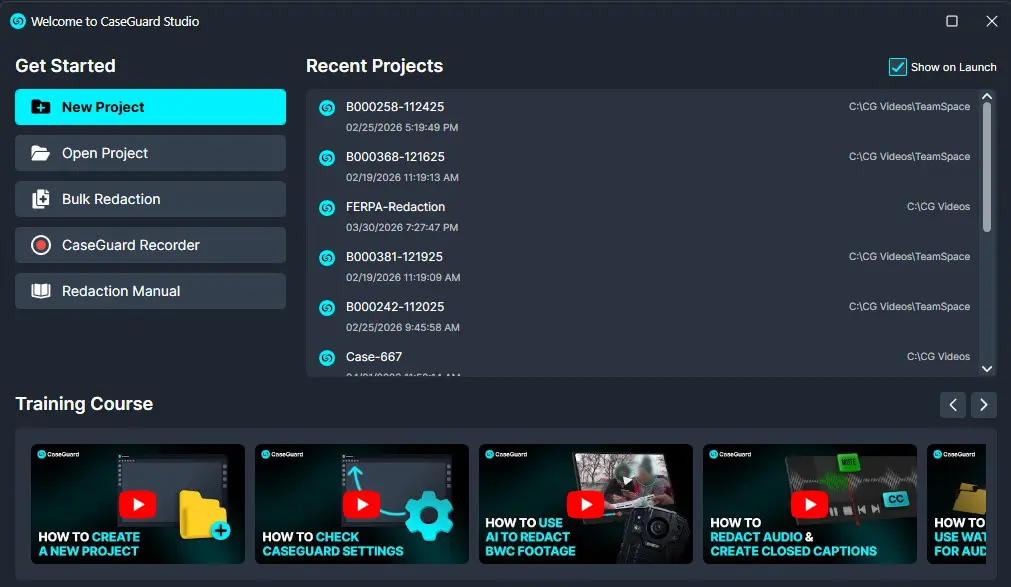
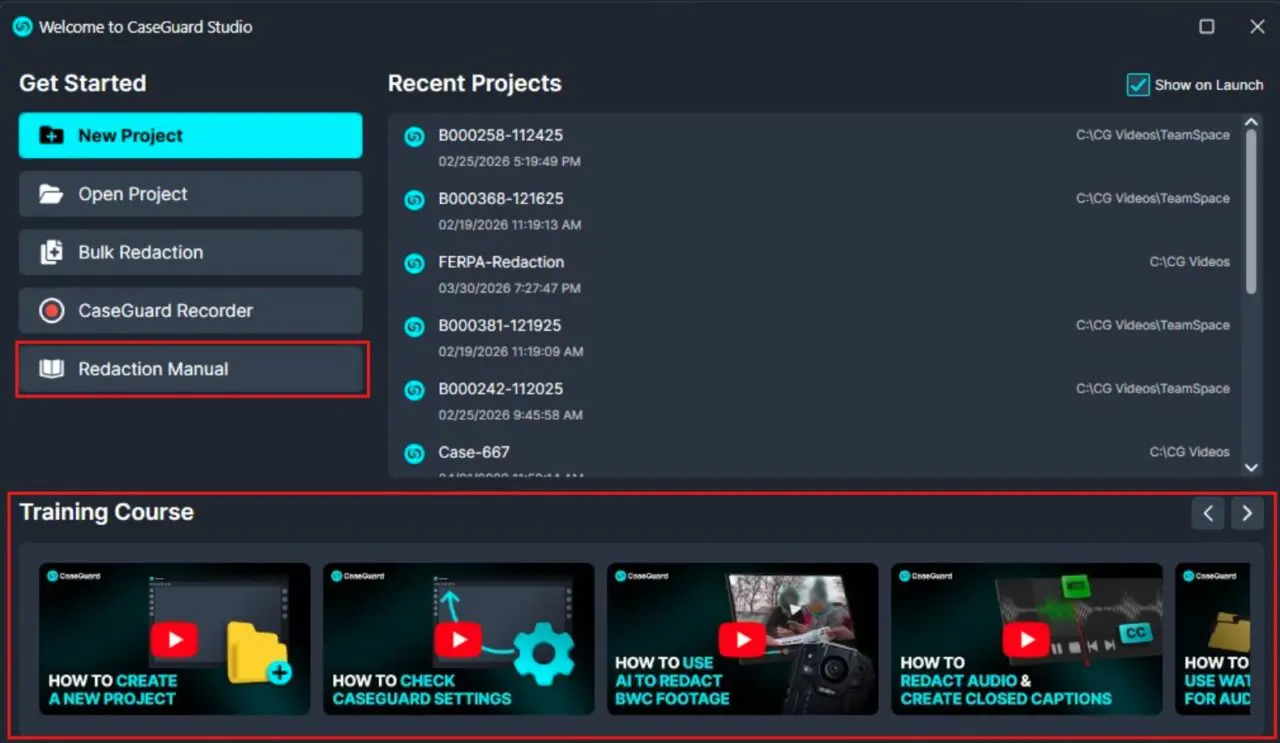
When you open the CaseGuard application for the first time, you will be greeted with the ‘Get Started’ Window. This window will aid you in starting your first redaction project. From here, you can open a recent project, initiate a Bulk Redaction, or utilize the CaseGuard Recorder.
Create a project
Consider your project in CaseGuard as a directory folder. It’s where you’ll add your media elements, encompassing video, audio, image, and document file types. You can perform all your edits within the files inside this project. However, your original media files will remain intact and unaltered, a concept known as non-destructive editing. This approach ensures that your original data is preserved while you work on its copies.
- To Create your new project, click “New Project.”

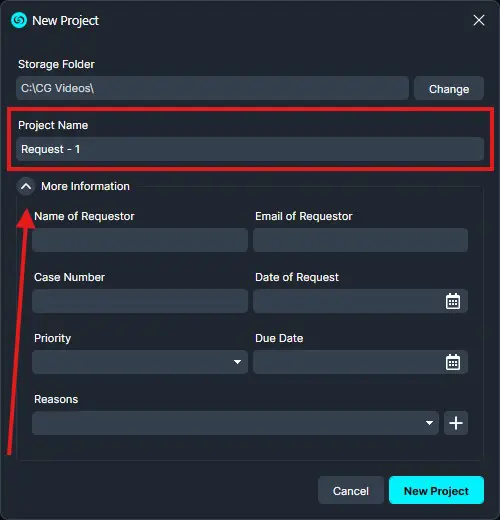
Enter a “Project Name.”
-
- Optionally, by clicking the More Information drop-down menu, you can add details like the name of the requester (the person making the request), case number, and date of request if applicable.
Click “New Project.” This action will open the Import Wizard.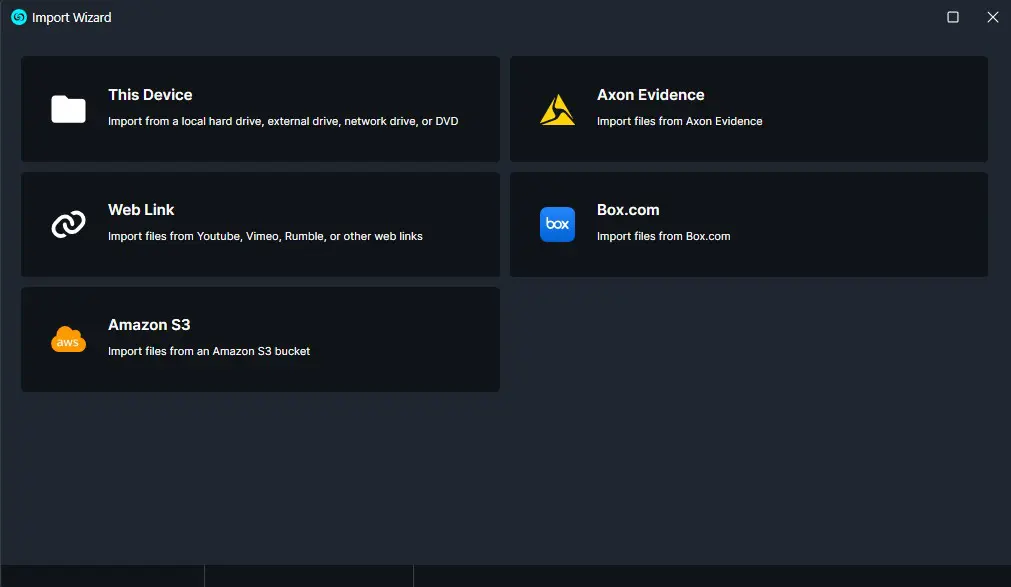
-
- Use the options to add the files you wish to redact, edit, or enhance. Note that there is no limit to the number of files you can add.
- After selecting all your desired files, click “Add.“
- Your personalized Workspace will then appear. From here, start pinning panels based on your specific needs.
Open a Recent Project
- If you’re already inside a project and want to access previous projects or make a new project, click the File tab at the top left.
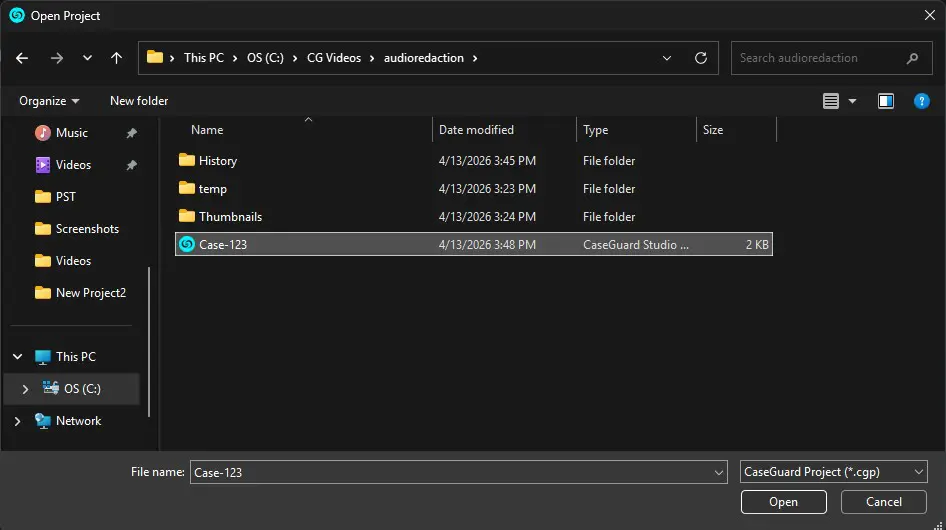
- Click “Open Project”
 to locate an existing project you have already been working on.
- Alternatively, you can find your project under the “Recent Project” option.
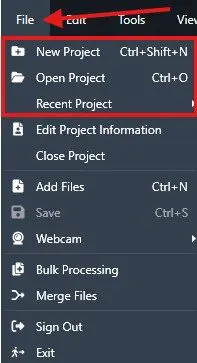
- Once you click “Open Project”, the import wizard will open up. Find the Folder you would like to continue working on.
- Click the Folder, then click the CG Project within the folder.
Bulk Redaction
Screen Recorder
- Use our state-of-the-art Screen Recorder to capture video footage of any work that you conduct when working with the software. This tool is perfect for creating training videos or documenting the specific steps taken by an officer or government employee in responding to a FOIA request. Use the Screen Recorder to comprehensively document every action and navigation step within the system, ensuring a clear and detailed record of your workflow.

CaseGuard Studio Training Course
CaseGuard Studio provides a comprehensive library of training videos for both active and prospective clients, guiding you through the basics of using our software step-by-step. These tutorials cover a range of topics, from creating your first redaction or enhancement project to more complex tasks like accessing the metadata of photos edited within the software. Our training course is designed to equip you with the knowledge and skills needed to use the software in the most effective manner possible, ensuring a smooth and productive experience.
Export and share everywhere
Export files in a wide range of professional formats using CaseGuard Studio. The supported formats include 3GP, AVI, FLV, MKV, MOV, MP4, MPG, MTS, TS, VOB, WMV, and many others, providing you with a variety of options to suit different needs and specifications.
Tips for the Best Experience
For the best experience while using CaseGuard Studio:
- Work from a local SSD instead of a shared network drive when possible.
- Keep your graphics drivers up to date.
- Close unnecessary background applications.
- Use systems with 32 GB RAM and a dedicated GPU for large or high-resolution files.
Next Steps
After creating your project and importing media, you can begin:
- Applying redactions
- Using tracking tools for moving objects
- Enhancing video, audio, or images
- Exporting finalized files
Need Help?
If you have any questions or run into issues, please contact our support team at [email protected] for assistance.
Was this article helpful to you?
No
Yes
4