Managing TeamSpace Servers in CaseGuard Hub
The TeamSpace Server feature in CaseGuard Hub empowers agencies to manage their redaction environments efficiently and securely. From monitoring server statuses to configuring access and permissions, TeamSpace Server offers a centralized dashboard designed for streamlined operations.
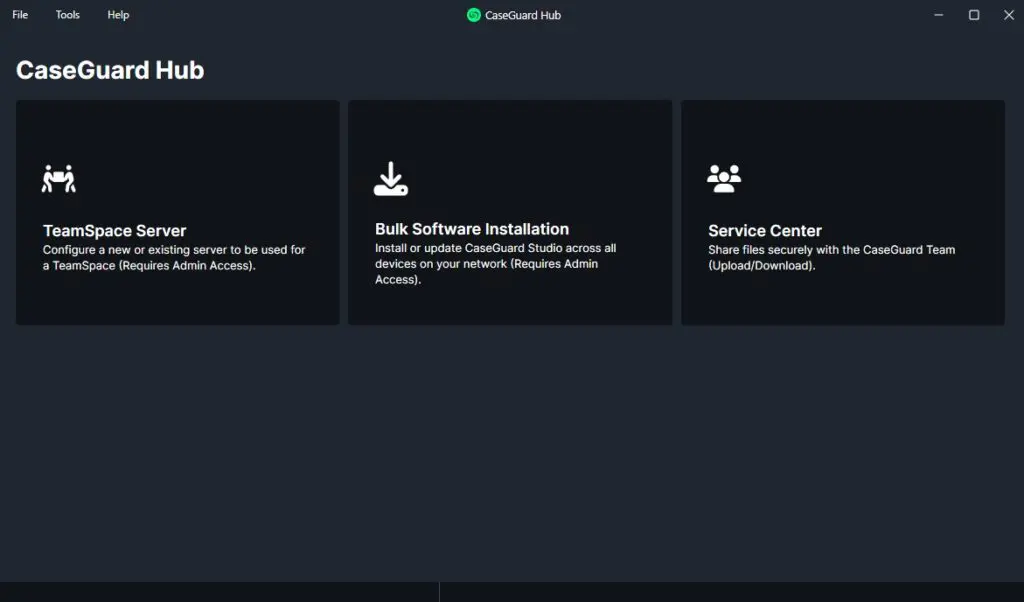
Accessing the TeamSpace Server Dashboard
Clicking on TeamSpace Server from the CaseGuard Hub main interface will open the dashboard, where you can oversee all servers currently configured within your organization.
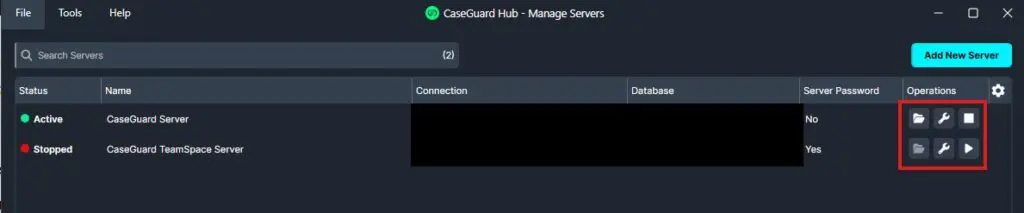
-
Left Panel: Displays a list of all TeamSpaces along with their current status (e.g., active, stopped).
-
Right Panel: Presents key actions you can take for each server instance.
Server Configuration Tools
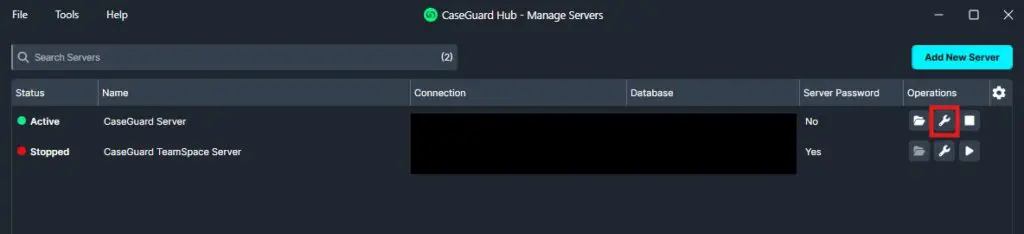
To access configuration options, click the wrench icon on the right side of the TeamSpace panel. You will see the window below appear.
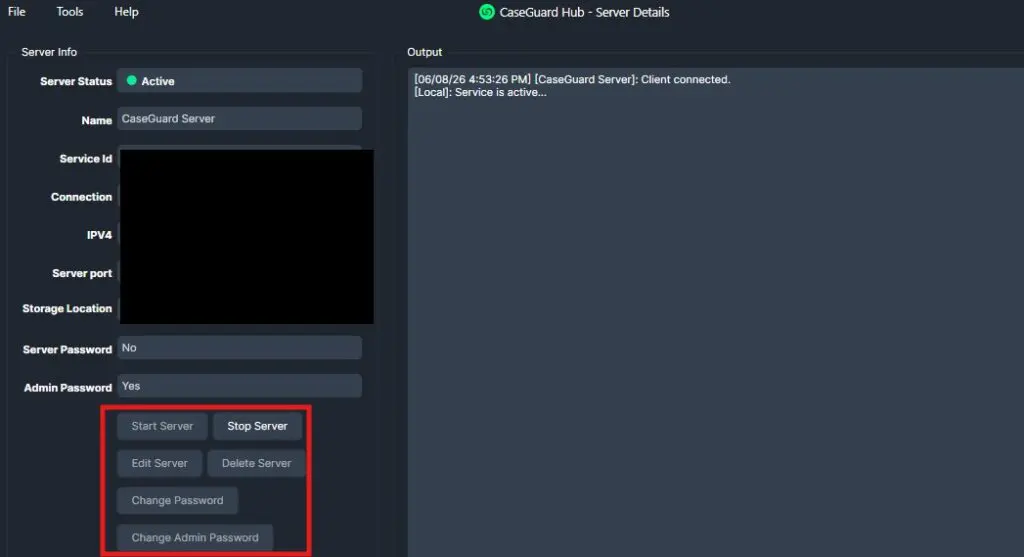
Available options include:
-
Edit Server Settings – Modify server parameters.
-
Start/Stop Server – Manage server availability.
-
Delete Server – Permanently remove the TeamSpace.
-
Change Server or Admin Password – Update credentials for added security.
TeamSpace Management
-
-
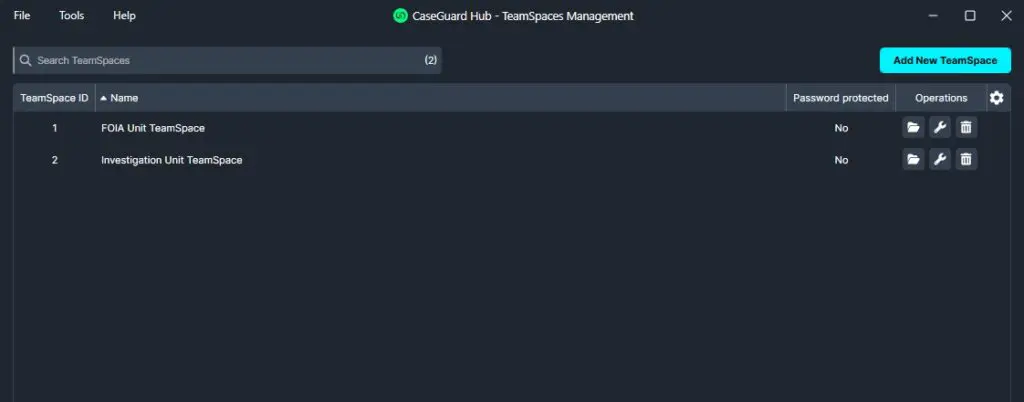
 Folder Icon – Opens the TeamSpace directory, where you can view active projects and associated files.
-
 Wrench Icon – Allows you to rename the TeamSpace.
 Delete Icon – This deletes the TeamSpace and associated projects. Be sure you want to do this before selecting this option.
Adding a New TeamSpace
To create a new TeamSpace:
-
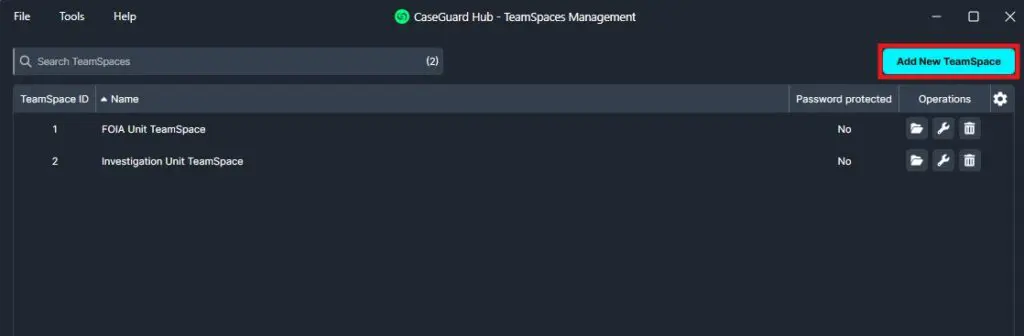
Navigate to the top right of the TeamSpace dashboard.
-
Click the blue “Add New TeamSpace” button.
-
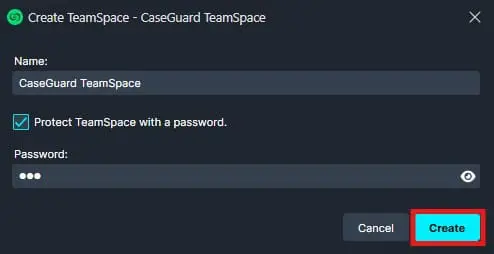
Enter a name for your new TeamSpace.
-
Enable password protection for secure access (optional).
-
Click “Create” in the bottom-right corner to finalize.
Once created, the new TeamSpace will appear in your dashboard and be available for immediate configuration or use.
Conclusion
The TeamSpace Server feature in CaseGuard Hub offers a scalable and secure solution for managing multiple redaction environments. Whether you’re overseeing a small team or a large multi-agency deployment, TeamSpaces provides the flexibility to configure, monitor, and protect your workspaces with precision. For questions or technical support, please contact our team at [email protected].
Was this article helpful to you?
No
Yes