How to Share Redaction Reasons with Colleagues in CaseGuard Studio
Creating a comprehensive list of redaction reasons can be a time-consuming process. Fortunately, CaseGuard Studio allows you to export and share your redaction reason lists with colleagues, streamlining collaboration across your team or department.
This guide will walk you through the steps to export, share, and import redaction reasons between users of CaseGuard Studio.
Step-by-Step Guide: Exporting and Sharing Redaction Reasons
- Open CaseGuard Studio
Launch the application on your computer.
- Open Any Project
You can open any existing project to access the redaction reason list.
- Access the Reason List Tool
- Navigate to the top-left corner, click on “Tools.”
- From the dropdown, select “Reason List.”

- Export Your Redaction Reasons
- Once the Reason List window appears, click on the “Export” button in the top-right corner.

- A file explorer window will appear. Choose a location to save the exported file and ensure it’s easy to locate later.
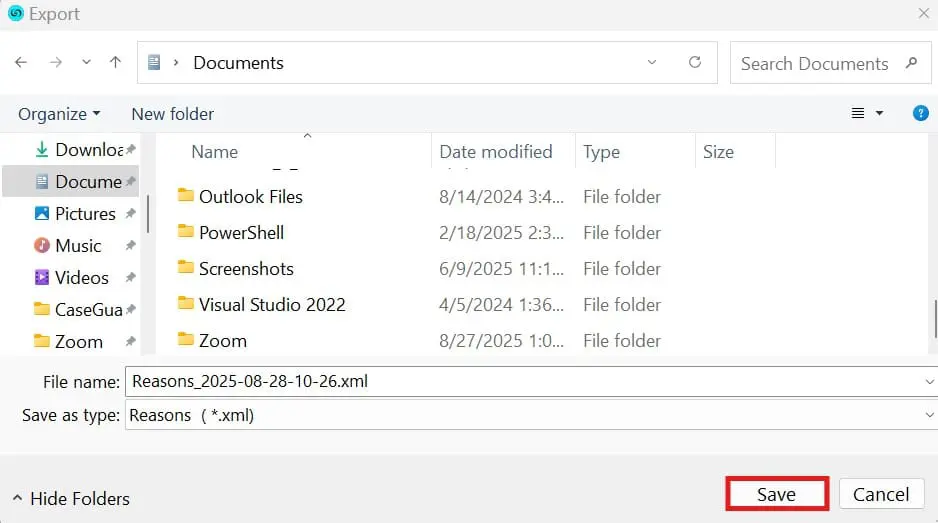
- Share the Exported File
Send the exported file to your colleague via email, OneDrive, Google Drive, or another secure file-sharing method. Ensure they download the file to a location they can access easily.
Step-by-Step Guide: Importing the Redaction Reason List
- Open CaseGuard Studio on your colleague’s machine.
- Open Any Project and navigate back to the Tools > Reason List section.
- Import the Shared File
- Instead of clicking Export, select “Import” at the top-right.

- Browse for the shared file you received and click Open to import.
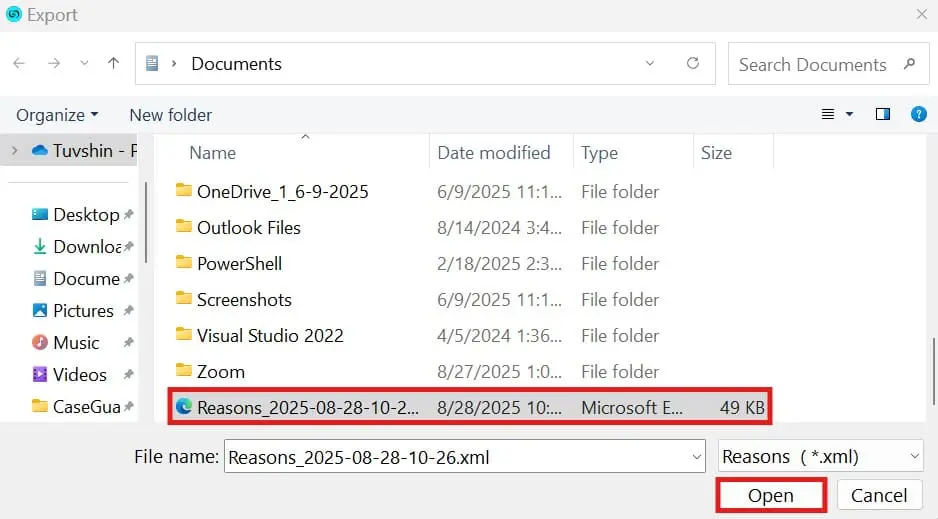
- Success Confirmation
The redaction reasons should now appear in your colleague’s list and be ready for immediate use.
Use Case Example
Let’s say your legal department has finalized a standardized list of redaction reasons used across case files. Rather than having each team member create the same list from scratch, one person can create and export the list, then distribute it for seamless importing. This ensures consistency, accuracy, and time savings across your team.
Conclusion
Sharing redaction reasons in CaseGuard Studio is a simple yet powerful way to maintain standardization and improve workflow efficiency within your organization. Whether you’re onboarding new team members or standardizing practices across departments, this feature ensures everyone is working from the same trusted redaction criteria.
Was this article helpful to you?
No
Yes