Overview
In CaseGuard, creating redaction templates can save you significant time, especially if you’re frequently applying the same redaction settings across multiple projects. For example, if you often redact specific faces or license plates in video footage, you can streamline this process by creating a template that automatically applies your preferred configurations. Follow the steps below to preserve your settings for future use.
1) Begin by selecting “AI Search” from the left-hand toolbar to open the AI Redaction Wizard.
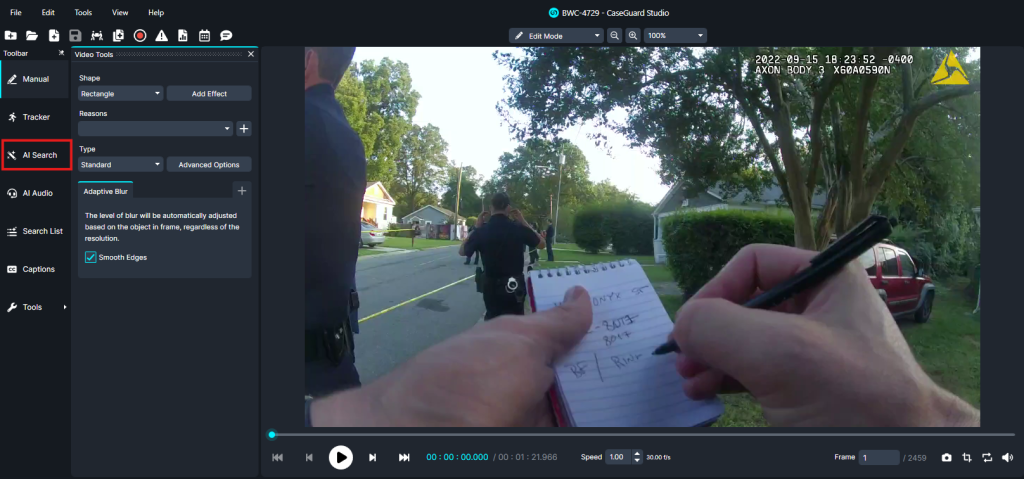
2) In the wizard, choose the objects you’d like to include in your template. Click “Next” when done.
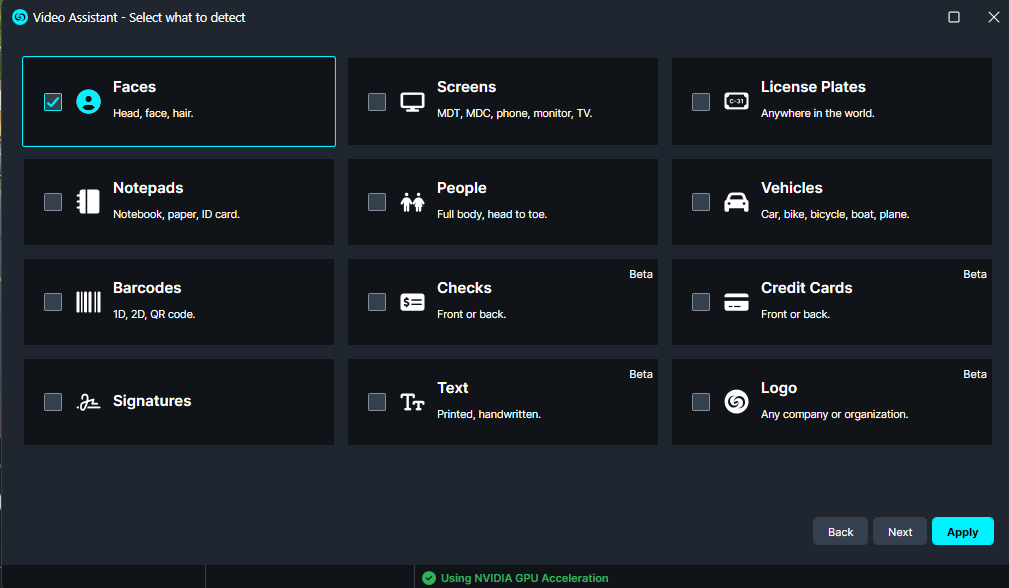
3) Now, configure your redaction settings, such as redaction reasons, margins, and effects, that you want to apply to future projects.
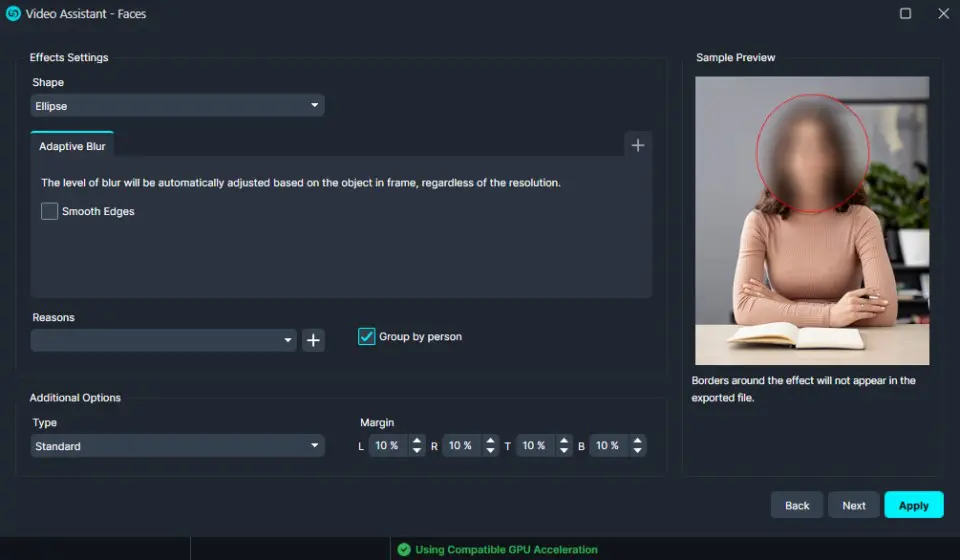
4) You can specify the redaction range or apply the settings to a specific range, based on your needs. Once satisfied, click “Next” to proceed.

5) Now, select the advanced options for the redactions. Please note that these settings will automatically apply whenever this template is used.
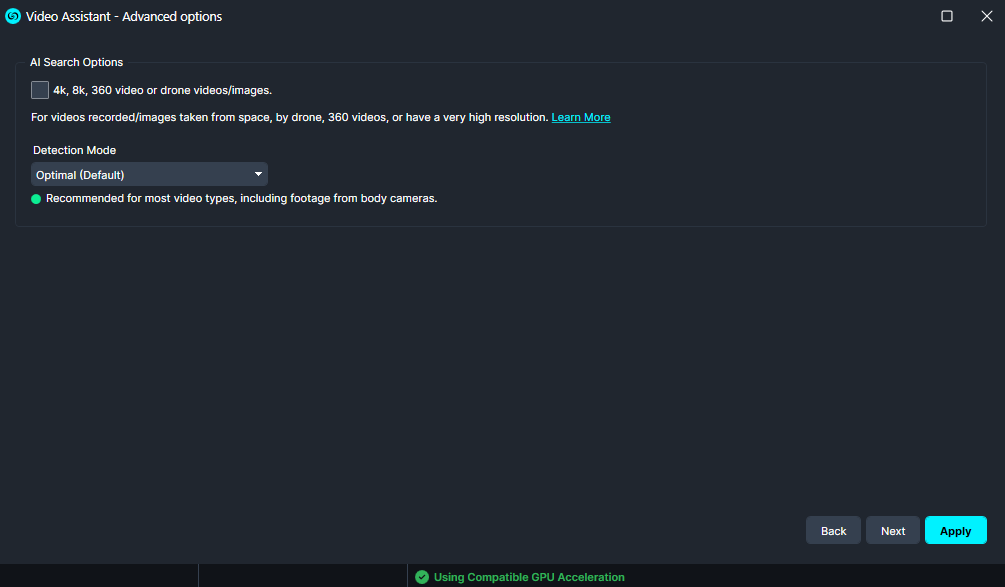
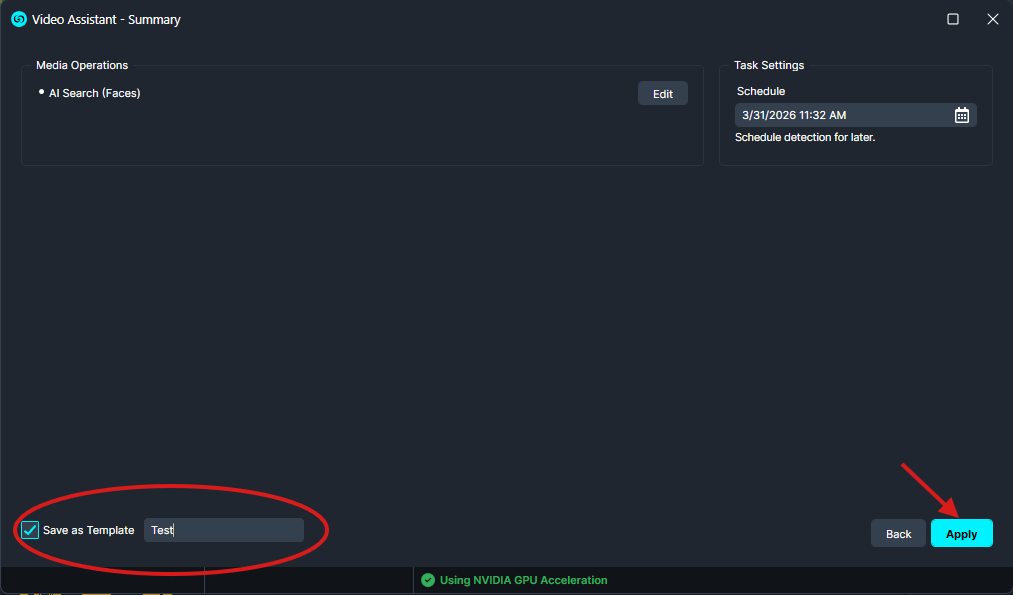
6) Finally, to save your settings as a template, click “Save as Template” at the bottom left. Name your template and click “Apply.”
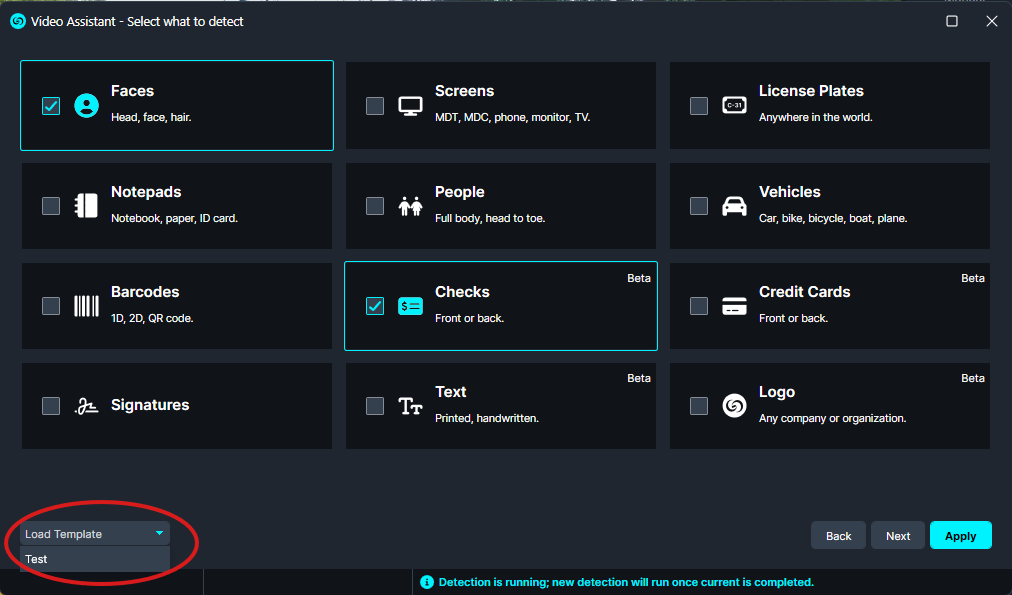
To use your template in future projects, simply select “AI Video” from the left-hand toolbar, and then click “Load Template” at the bottom left. Your saved settings will be applied automatically.
Conclusion
By utilizing templates in CaseGuard, you can significantly reduce repetitive tasks, allowing you to focus on more critical aspects of your redaction projects. This feature not only increases efficiency but also ensures consistency across your work. Whether you’re handling large-scale redaction needs or working on multiple projects, templates can serve as a powerful tool in your workflow.
We hope this guide has provided you with valuable insights into creating and using templates within CaseGuard. Should you require any further assistance, please feel free to contact us at [email protected]. Our team is always ready to assist you in optimizing your redaction processes.
Was this article helpful to you?
No
Yes