Overview
In this article, we will walk you through the process of uninstalling CaseGuard Studio from your device. Whether you’re using an older version of CaseGuard, transitioning to a different device, or troubleshooting the software, this guide will assist you every step of the way.
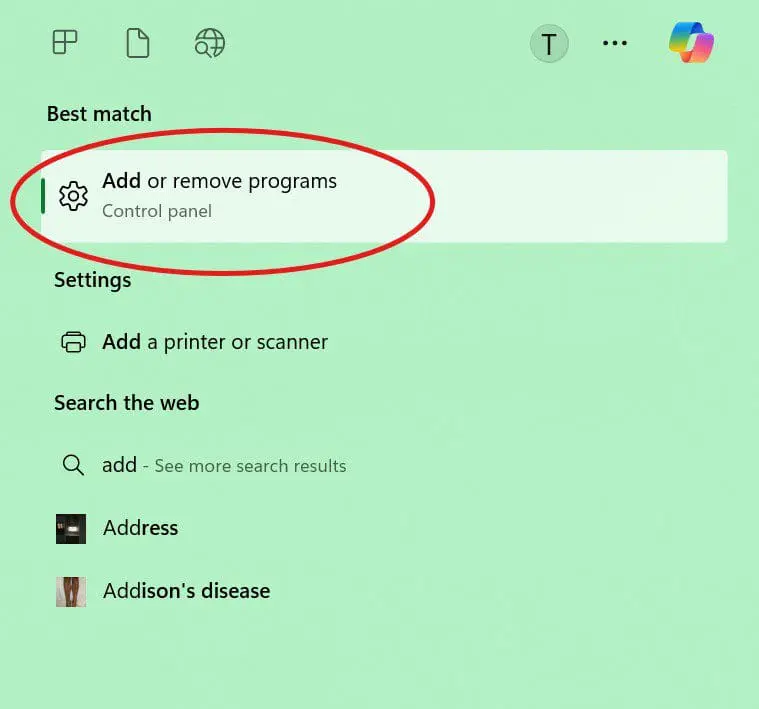
Step 1: Accessing the Uninstall Option Begin by locating the Windows search bar on your device and typing “Add or remove programs.” Refer to the image below to ensure you have selected the correct option.
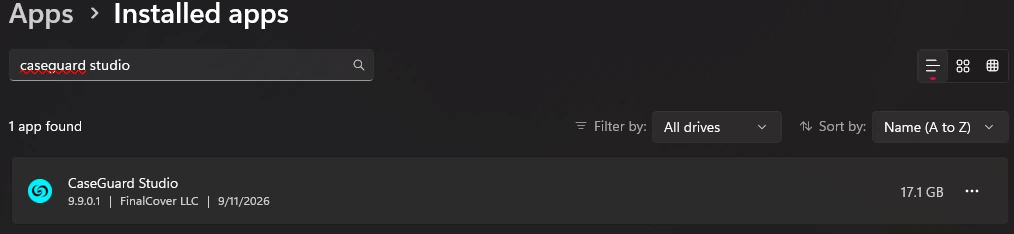
Step 2: Finding CaseGuard in Installed Programs After selecting “Add or remove programs,” a new window will appear. In the search bar within this window, type “CaseGuard.”
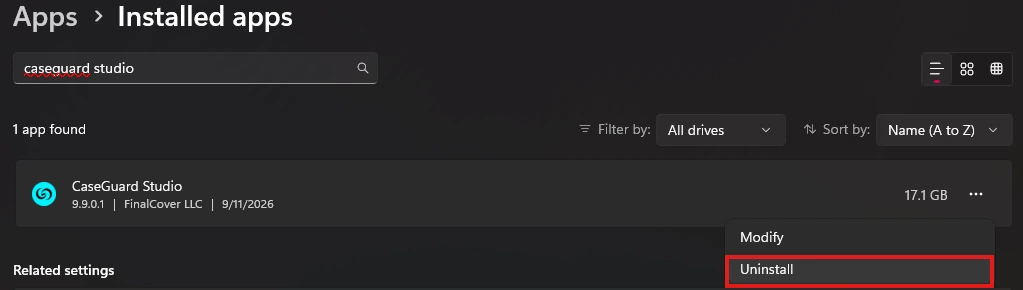
Step 3: Uninstalling CaseGuard Studio When CaseGuard appears in the search results, click on the three dots next to it to open a drop-down menu. From this menu, select “Uninstall.” Please ensure that CaseGuard Studio is closed before proceeding with the uninstallation.
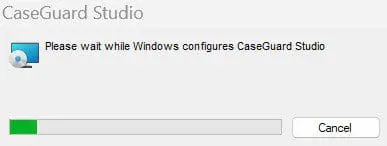
Step 4: Completing the Uninstallation A window with a loading bar will appear as the uninstallation process begins. Once the process is complete, CaseGuard Studio will be successfully removed from your device.
Conclusion
After these steps, you will have CaseGuard uninstalled from your device. If you require another installation of CaseGuard Studio, please reference the following guide throughout that process: How to install CaseGuard Studio on your device. If you have any questions or need further assistance, please don’t hesitate to contact us at [email protected]. Our support team is ready to help.
Was this article helpful to you?
No
Yes