How to: Perform AI Image Redaction in an Album

Overview

In the latest versions of CaseGuard Studio, an Album is automatically created when more than three images are added to a project. This allows users to quickly organize and process multiple images without manually creating an album.

Once the album is created, AI detection can be applied to all images in the album at the same time, eliminating the need to run AI on each image individually.

This feature is especially useful when redacting Personally Identifiable Information (PII) across a large number of images, reducing a task that could take hours to just seconds.

Steps to Use AI Redaction in an Album in CaseGuard Studio

  • Open or create a project in CaseGuard Studio.
    If you already have a project open, simply add the image files to the project using the add files button in the shortcuts bar.

Toolbar with File, Edit, Tools, View, Help; the highlighted button creates a new document.

  • When the Import Wizard window opens, select This Device.
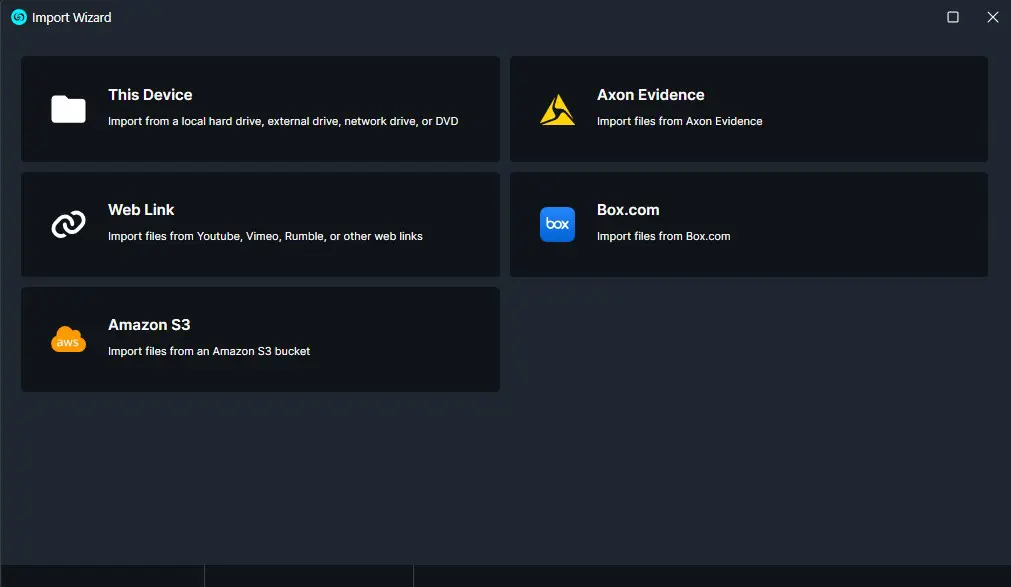
Import Wizard showing sources: This Device, Axon Evidence, Web Link, Box.com, Amazon S3 in a dark UI panel UI.

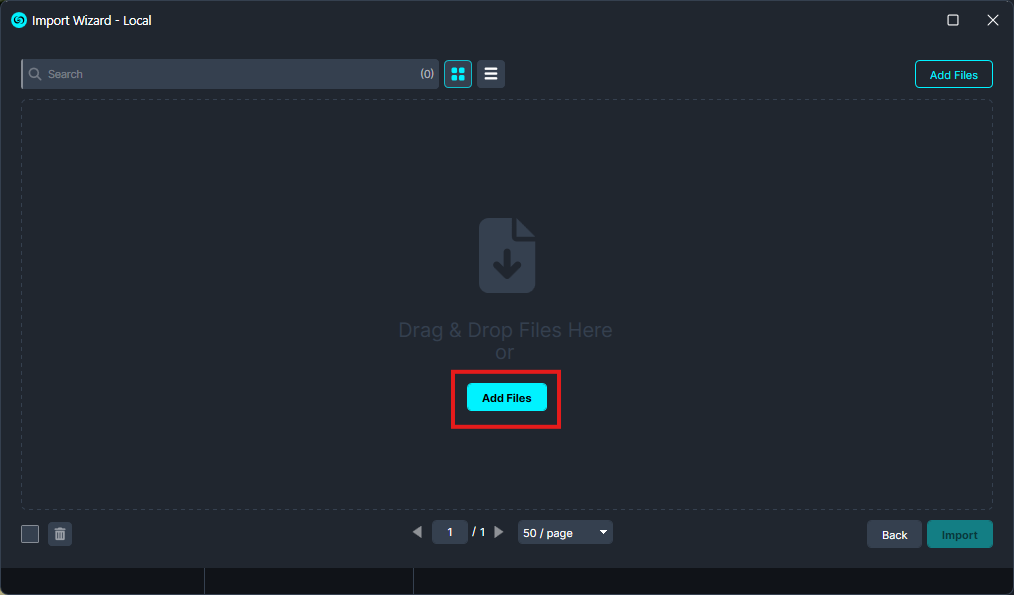
  • When the Local window pops up, click the “Add Files” button.
  • Select all the photos you want to include in the album and click Import.
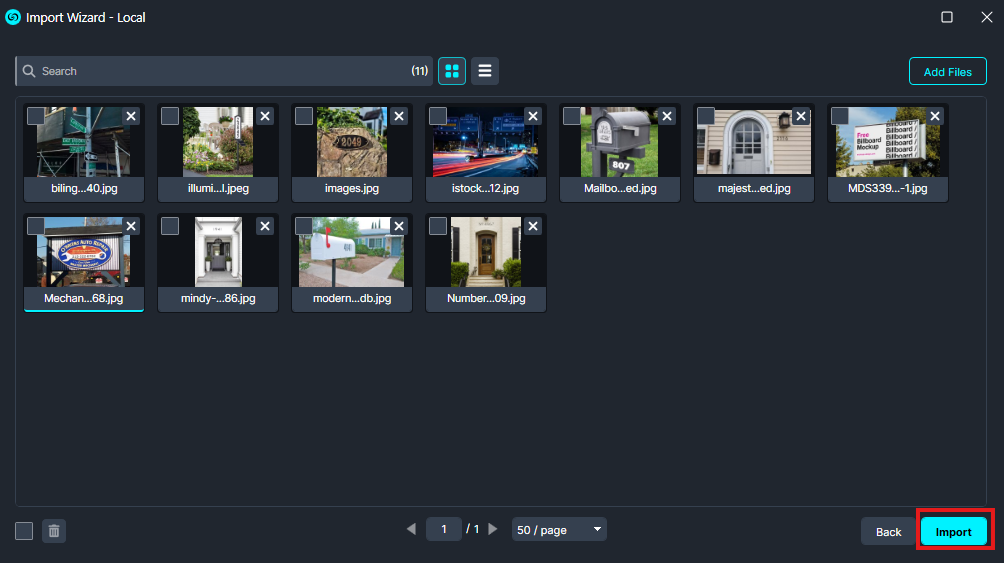
    Import Wizard dialog with image thumbnails and an Import button highlighted in blue at bottom-right of the window.

  • Once the images are successfully imported into the Album, go to the left toolbar and select AI Search.

    Vertical toolbar/sidebar menu with options; 'AI Search' is highlighted as the current selection.

  • The Image Assistant window will open.
    Select one or more objects you want the software to detect and redact.

    Screenshot of Image Assistant: a dark grid of category cards (Faces, Screens, License Plates, Notepads, People, Vehicles, Barcodes, Checks, Credit Cards, Signatures, Text, Logo); Faces and License Plates are selected; bottom shows Back, Next, Apply; status bar reads'Using Intel GPU Acceleration'.

    • Faces/Heads: click to detect and redact all faces in your image.
    • Screens: click Screen Icon to detect and redact all computers, phones, and device screens in your image.
    • License Plates: click License plate icon to detect and redact all license plates in your image.
    • Papers: click Paper Icon to detect and redact all papers and documents from your image.
    • People: click People Icon to detect and redact all people from your image.
    • Vehicles: click Vehicle Icon to detect and redact all vehicles from your image.
    • Checks: click Checks Icon to detect and redact all checks from your image.
    • Credit Cards: click Credit Icon to detect and redact all credit cards from your image.
    • Signature: click Signature Icon to detect and redact all signatures from your image. 
  • Click Next, then choose the shape and effect you want to apply (for example, Blur, Pixelate, or another effect).

    UI panel for Image Assistant - Faces: ellipse shape selected; adaptive blur with smooth edges; reason set to #13b; additional option: Type = Reverse with 10% margins on all sides; sample preview shows a circled face.

  • Under “Additional Options”:
    • Standard” will redact everything behind the redaction box.
    • Reverse” will redact everything but the selected area.
    • Full Frame” will redact the entire frame that the object appears in.
  • Optionally, you can select a Redaction Reason to be applied to any redaction or add your own by clicking the “Edit Redaction Reasons” button next to the dropdown.
  • Click “Next” and select the range where the redaction should be applied(Entire Album or Selected Range).
  • Click “Apply” to start the AI detection and redaction process.
  • Once you have reviewed the redactions, click the Export button from the top right of CaseGuard to process the file. The redacted file will appear in the Project Files Panel.

Conclusion

The AI Automatic feature with Albums in CaseGuard Studio helps you save time and stay organized when redacting multiple images. By automatically creating an album for three or more images and applying AI detection in bulk. If you have questions or need guidance on using AI redactions or Albums, our team is ready to assist.
📩 Contact us at [email protected]