Overview
This article explains how to create a new project in CaseGuard Studio and how to add files to your project.
How to Create a Project:
Within CaseGuard Studio, Create a new project in three different ways:
- Locate “New Project”
 within the Shortcuts Bar.
- Or, click File, then New Project within the Menu Bar.
- Or, click anywhere on the CaseGuard Studio screen and then press (Ctrl + N) on your keyboard.
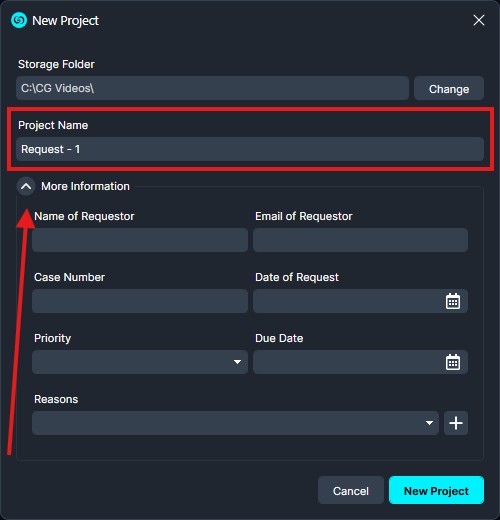
- Any of these options will open the New Project window, here, you can give your project a name, and click the More Information dropdown menu to add Requestor information.
How to Add Files to your Project:
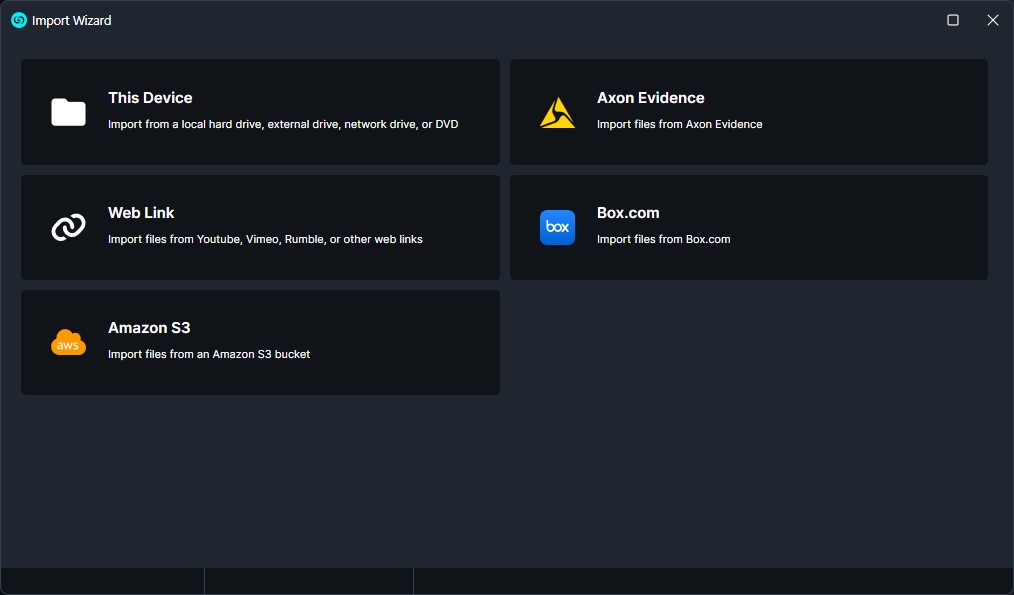
Once you have created a project in CaseGuard, you’ll see this menu with different options for things to import. You can import a video using Web link, or import files from Box.com, Axon Evidence, or Amazon S3.
To import from your device, click This Device, then Add files and you can begin selecting the files you wish to import.
Additional Ways to Add Files
You can also add files by:
File Conversion
Depending on the original format, CaseGuard may automatically convert files to a standard format for compatibility and editing purposes.
Once conversion is complete, the converted file will appear in the Project Files Panel.
If you have multiple files in your project, you can switch between them by clicking on the appropriate thumbnail in the Project Files Panel.
Important: File Naming
Before uploading files to CaseGuard, it’s important to note that your original files cannot be renamed once they are uploaded. Therefore, it is recommended that you name your files appropriately before uploading them to ensure easy identification and organization. However, you do have the flexibility to rename any files that you redact or enhance within the system. For guidance on file naming best practices, you can refer to the section titled ‘Prepare Files for Import,’ which provides detailed instructions on how to effectively organize and name your files for optimal use in CaseGuard.
Additional Notes
- Files may be automatically converted to a standard format. When this process is done, the converted file will appear in the Project Files Panel.
- If you have uploaded multiple files within your project, you can switch between these files by clicking on the appropriate thumbnail within the Project Files panel.
- Moreover, you can click Save
 within the Shortcuts bar to ensure that you do not lose any work when working on multiple files in the system.
- If you want to delete a particular file from your project, right-click the file, then click Delete
 .
.
- Learn how to change CaseGuard’s settings to add uncommon file types.
- Learn practical tips on how to configure your Export Settings using CaseGuard’s setting
Where Can I Access my Added Files?
Conclusion
You now know how to create a project and add files within CaseGuard Studio. If you need additional assistance, our Support Team is here to help at [email protected]