Use Case
Many users rely on NVIDIA A-Series GPUs, such as the RTX A4000 or A2000, to accelerate AI-powered redaction and processing tasks in CaseGuard. However, improper configurations, outdated drivers, or system restrictions can lead to performance issues or GPU detection failures. This guide provides step-by-step troubleshooting to ensure optimal GPU performance.
1. Verify GPU Utilization Settings
One common cause of performance issues is improper GPU utilization settings in the NVIDIA Control Panel.
Steps:
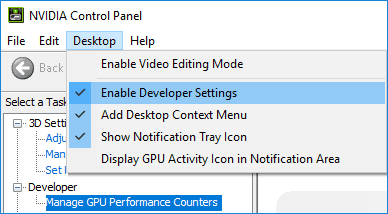
- Open NVIDIA Control Panel. Then, navigate to the top left click on Desktop and Enable Developer Settings.
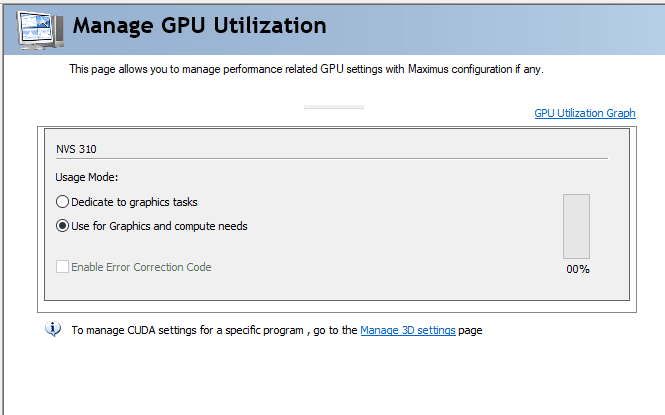
- Navigate to Manage GPU Utilization and ensure the setting is set to “Use for graphics and compute needs”.
- Apply changes and restart your computer.
2. Confirm GPU Selection in CaseGuard
Steps:
- Open CaseGuard.
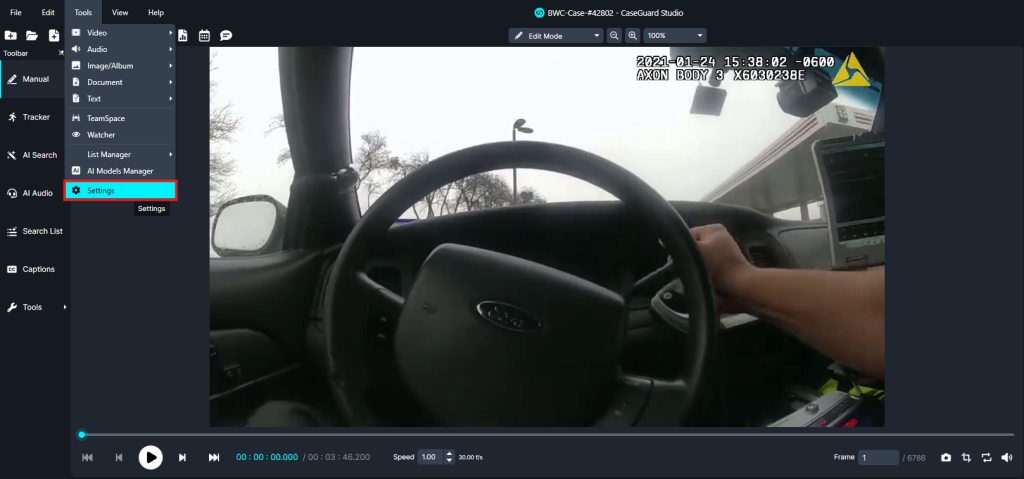
- Click on Tools > Settings.
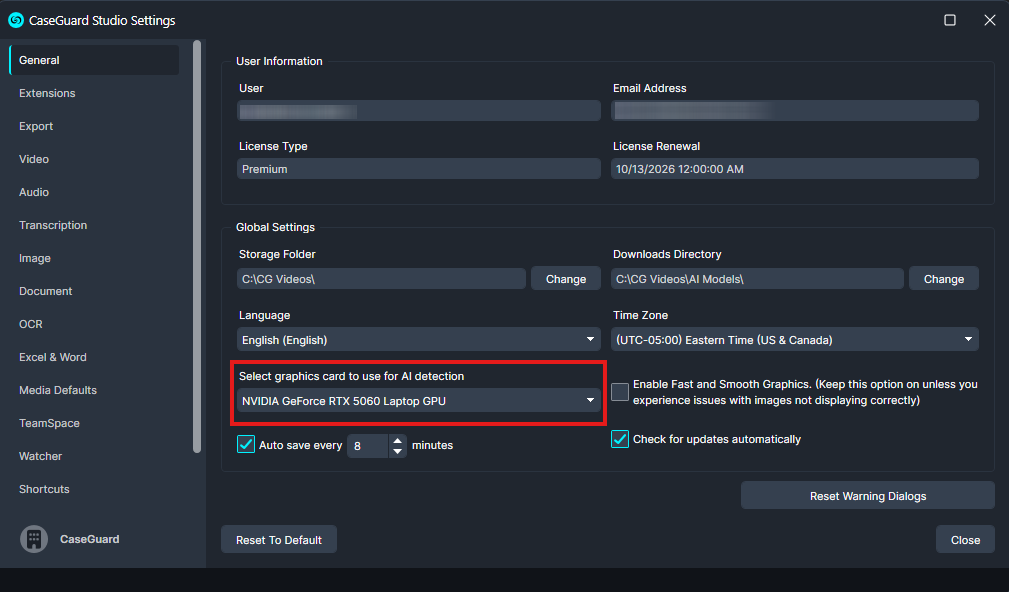
- Under the General tab, ensure that your A-Series GPU (e.g., A4000 or A2000) is selected. Note, that mine says RTX 5060 because I do not have an A series card.
- Navigate to the AI Video tab on the left toolbar.
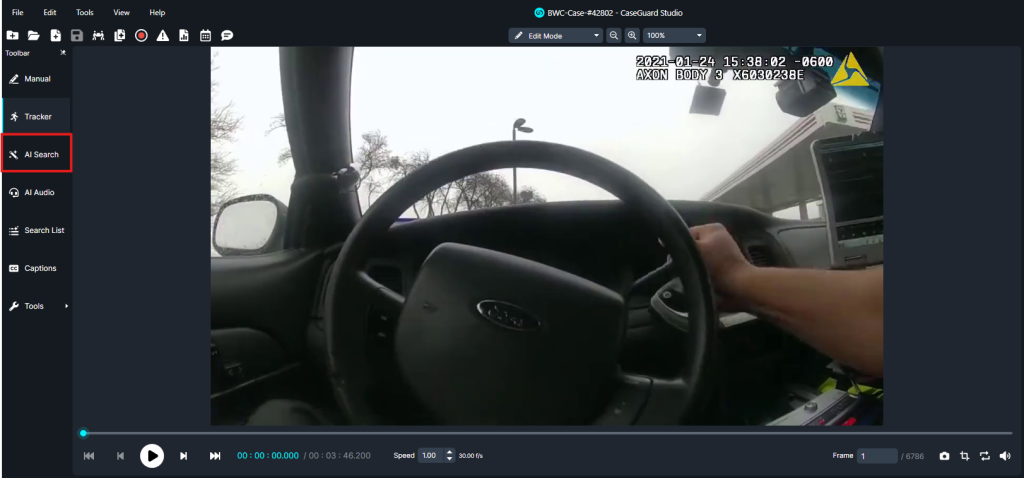
- Look for a green footer confirming that GPU acceleration is being used.
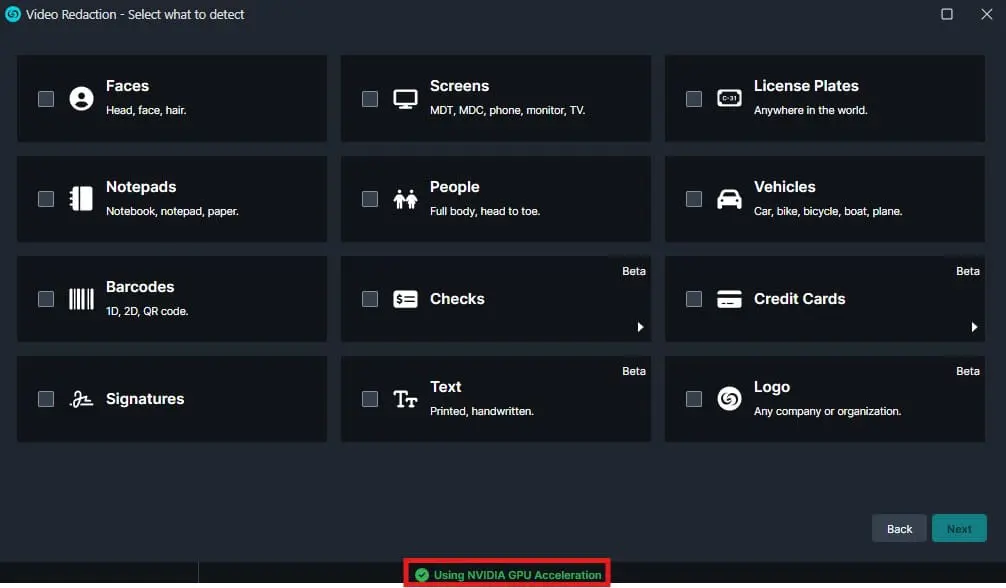
- If the GPU is not detected, proceed to the next troubleshooting steps.
3. Adjust AI Model Settings
In some cases, unchecking the “Use a faster and smaller AI model” setting can resolve issues.
Steps:
- Open CaseGuard.
- Click on Tools > Settings > Video.
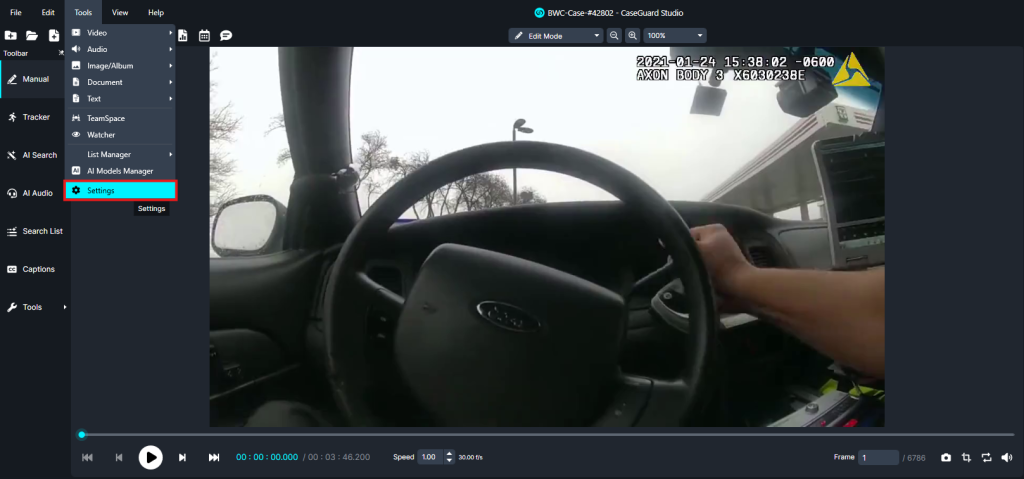
- Locate the “Use a faster and smaller AI model” option and uncheck it.
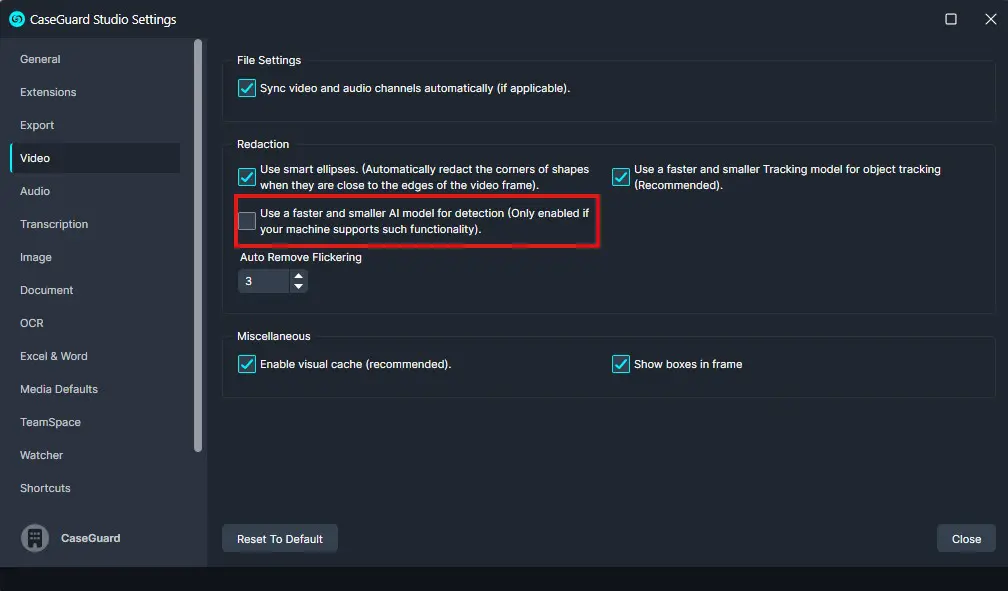
- Restart CaseGuard and check if the issue persists.
4. Reinstall CaseGuard
Reinstalling the application may resolve software-related issues.
Steps:
- Uninstall CaseGuard following the instructions in the CaseGuard support article.
- Download the latest version from the CaseGuard Installation Website.
- Follow the installation steps as outlined in the installation guide.
- Run CaseGuard and check if the issue is resolved.
5. Update NVIDIA Drivers
An outdated driver can cause compatibility issues with CaseGuard.
Steps:
- Visit the NVIDIA Driver Download page.
- Download the latest driver for your A-Series GPU.
- Restart your computer.
- Open the Command Prompt and type: nvidia-smi
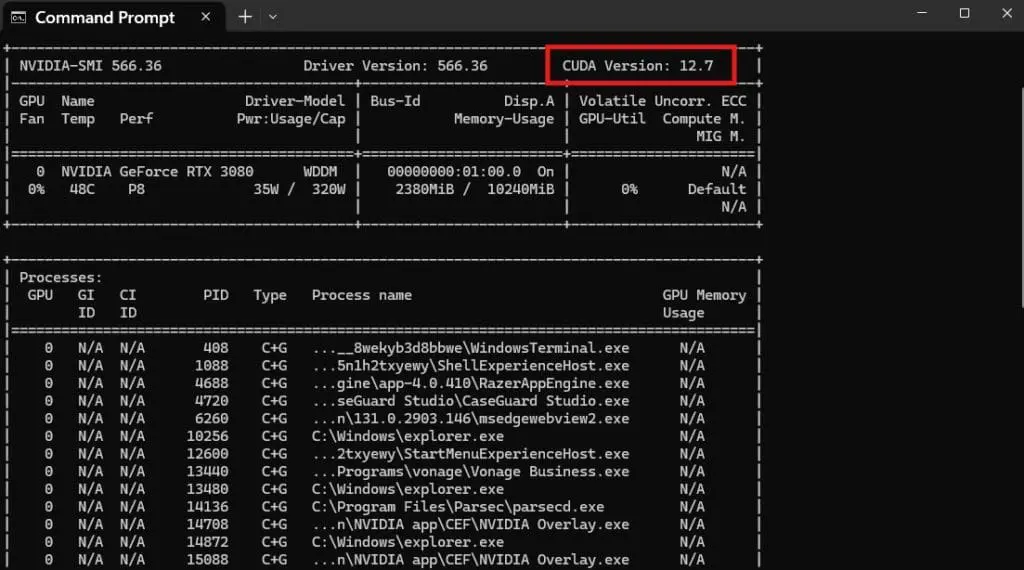
- This will display your current driver and CUDA version. Ensure CUDA is at version 12.0 or higher.
6. Check for Organization Restrictions
Your organization may have security settings that block necessary dependencies, particularly related to CUDA.
Steps:
- Try running CaseGuard as an administrator by right-clicking and clicking run as administrator.
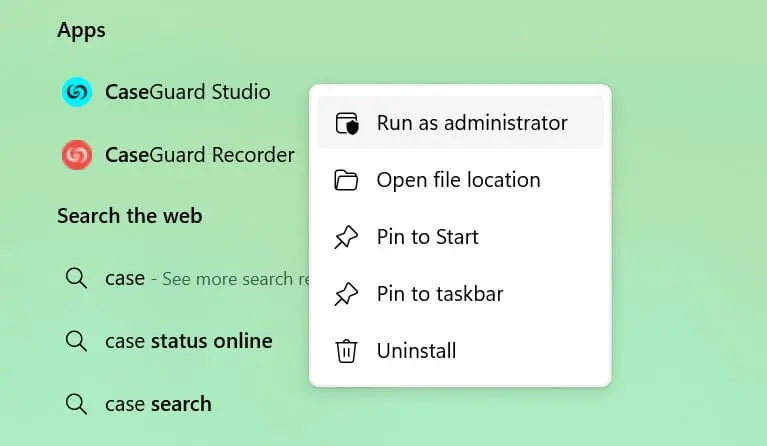
- If issues persist, consult your IT department to ensure CUDA dependencies are not blocked.
7. Verify GPU Detection in Windows
If your GPU is not detected, it could be a driver issue.
Steps:
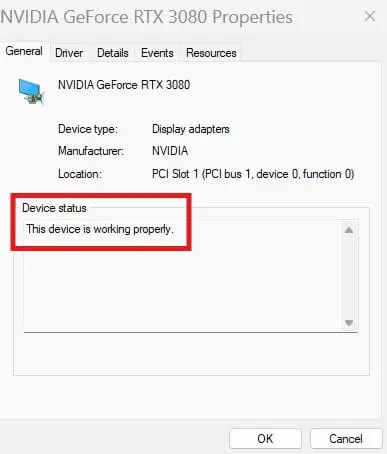
- Open Device Manager and Expand Display Adapters.
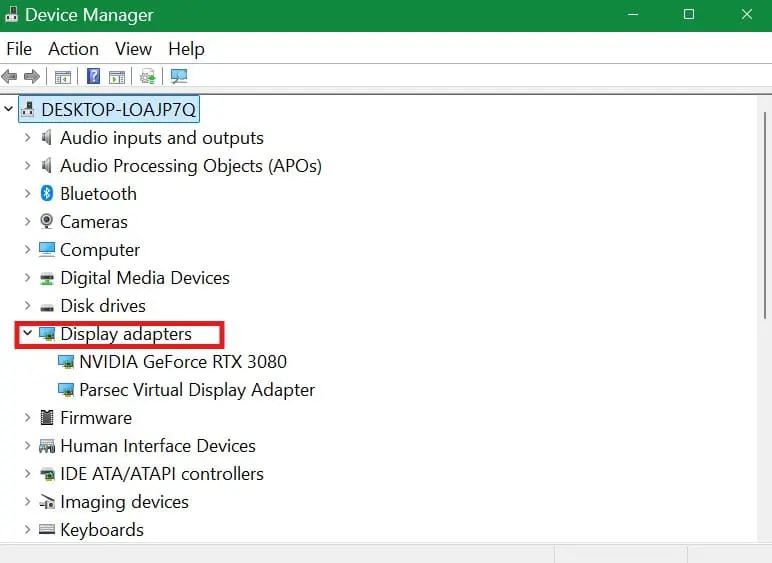
- Right-click on your NVIDIA A-Series GPU (e.g., A2000, A4000) and select Properties.
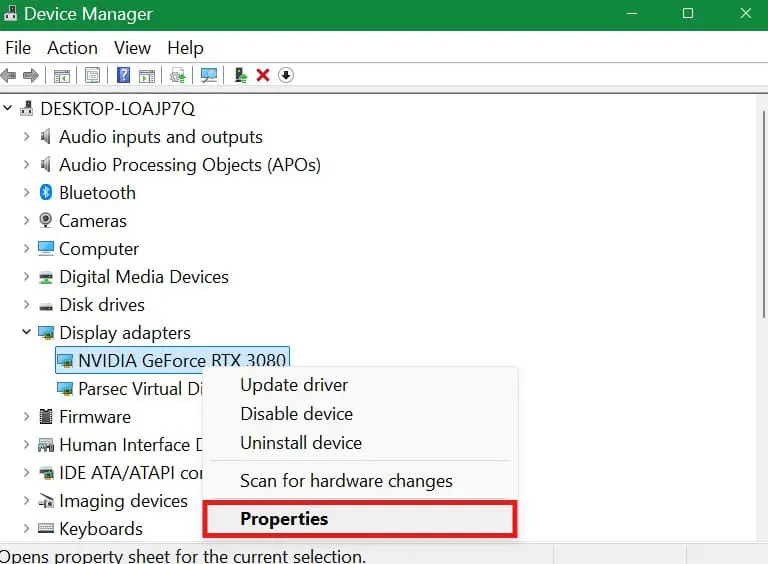
- If the device is not detected, reinstall the driver as described in Step 5.
Conclusion
Proper configuration and driver updates are crucial for optimal performance when using an NVIDIA A-Series GPU with CaseGuard. If you encounter any issues, follow these troubleshooting steps to diagnose and resolve the problem. If issues persist, contact your IT team or CaseGuard support for further assistance.
Was this article helpful to you?
No
Yes
1