Introduction
Dynamic Tags allow users to overlay automatically generated information onto video files, such as timestamps, dates, times, frame numbers, usernames, and other metadata. These tags are dynamically generated based on the settings configured by the user and can be customized to fit a variety of workflows.
Dynamic Tags are commonly used when reviewing body-worn camera footage, surveillance recordings, interviews, and other video evidence where displaying time, date, or reference information directly on the video is required.
Use Case
A common use case for Dynamic Tags is adding a timestamp to a video that does not contain one. For example, an investigator may need to display the date and time associated with the recording directly on the exported video. By configuring a Dynamic Tag, the timestamp will automatically update throughout the video based on the selected start date, time, and frame.
Dynamic Tags can also be used to display information such as frame numbers, user information, date ranges, quarters, years, and other metadata directly on the video.
Adding a Dynamic Tag
- First, upload your video file into CaseGuard Studio.
- Then, Navigate to the Video Tools section in the top-left corner.
- Click Add Effect.
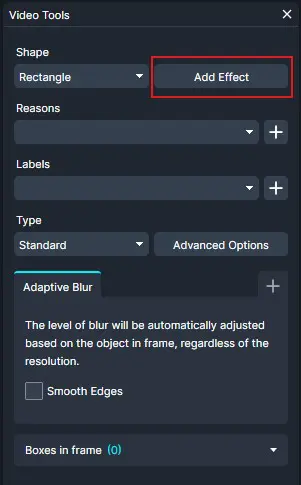
- Scroll through the list and select Text.
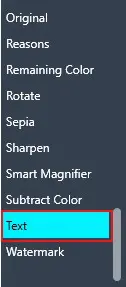
- If any effects are stacked on the new text effect (such as Adaptive Blur), remove them before proceeding.
- Draw a text box anywhere on the video where you would like the Dynamic Tag to appear.
- In the Text Effect properties, click Add Dynamic Tags.
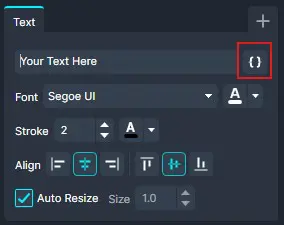
This will open the Dynamic Tags window.
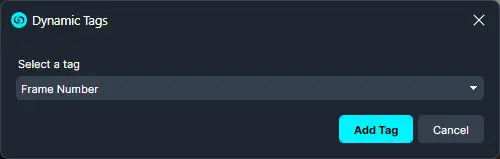
Selecting a Dynamic Tag
- Click the Select a Tag dropdown menu.
- Choose the desired tag from the available list.
Examples of available tags include:
- Frame Number
- Clock
- Timer
- Stop Watch
- Today
- Tomorrow
- Yesterday
- User Email
- User Full Name
- Username
- User Agency
- Last Week
- Last Month
- Last Quarter
- Last Year
- Next Week
- Next Month
- Next Quarter
- Next Year
- Current Quarter
- Current Year
- Current Year (Short)
- Current Year (Short Month)
- Last 6 Months
- Next 6 Months
Configuring a Clock Tag
If you select the Clock tag, additional configuration options will become available.
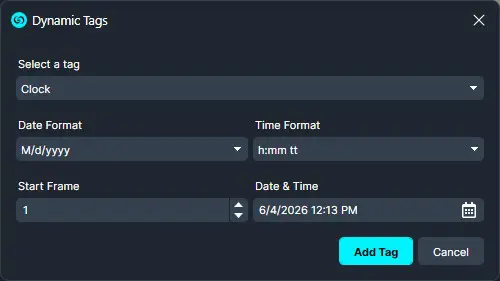
- Select the desired Date Format.
- Select the desired Time Format.
- Enter the frame number where the clock should begin.
- To start from the beginning of the video, enter 1.
- Select the starting Date & Time using the calendar control.
- Click Add Tag.
The Dynamic Tag will now be added to the text box on your video.
Customizing the Dynamic Tag
After adding the tag, you can customize its appearance using the Text Effect settings.
Available customization options include:
- Font type
- Font size
- Text color
- Stroke color
- Text alignment
- Auto Resize
Adjust these settings as needed to match your preferred appearance.
Applying the Dynamic Tag
Once you have finished configuring the tag:
- Right-click the tag on the video.
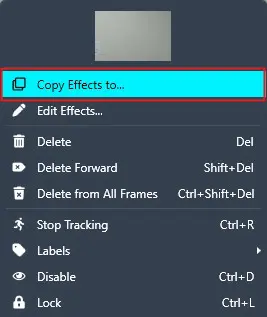
- Select Copy Effects if you would like to copy the tag to the whole file. This will open the Copy Effects window
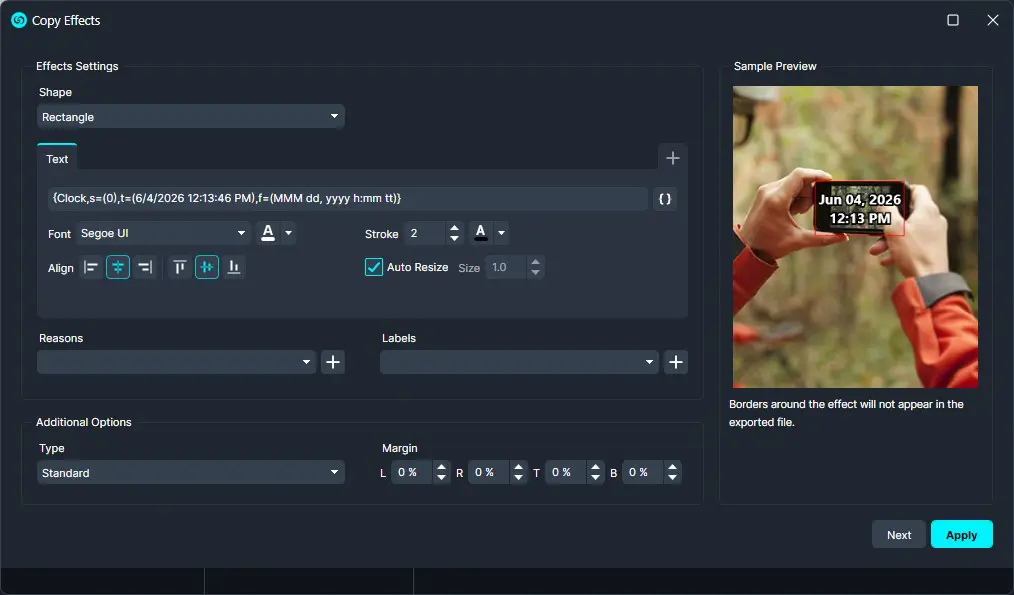
- You can modify the Tag from the Copy Effects window as well. Additional modifications include:
- Labels
- Exemption Codes
- Other available effect settings
- Click Next.
- Choose whether to apply the effect to:
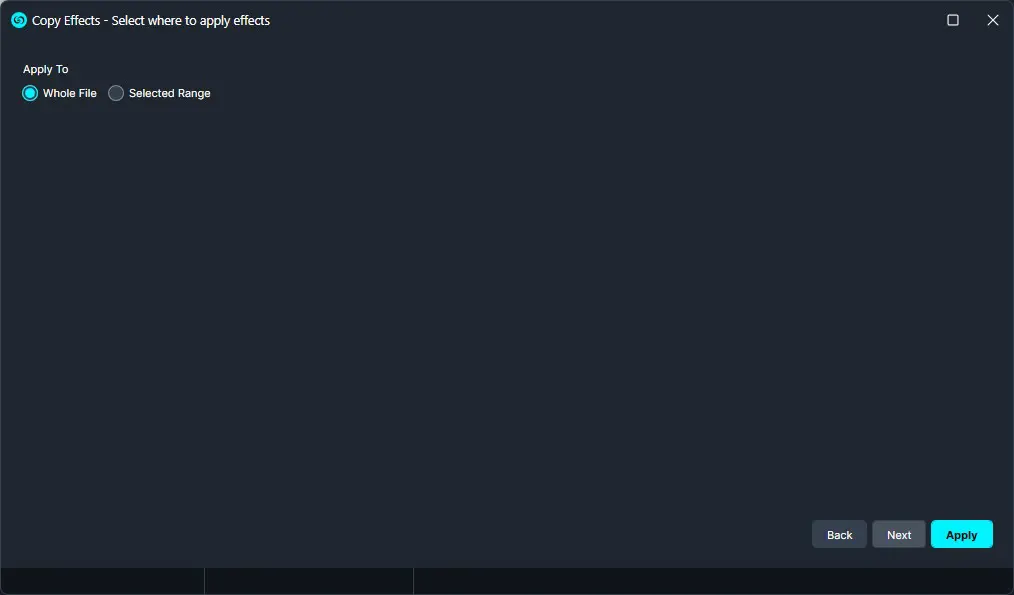
- The entire file
- A selected range
- Click Next.
- Click Apply.
The Dynamic Tag will now be applied to the selected portion of the video.
Exporting the Video
Once you have finished editing your video, you can Export!
The exported video will include the configured Dynamic Tags.
Conclusion
Dynamic Tags provide a simple and efficient way to add timestamps, frame numbers, dates, user information, and other metadata directly to video files. By combining customizable formatting options with flexible placement and timing controls, Dynamic Tags help ensure important contextual information is clearly displayed within exported video evidence. This feature can improve video review workflows, enhance documentation, and provide additional reference information for investigators, reviewers, and other stakeholders.
Was this article helpful to you?
No
Yes