Need to start fresh with your video redactions? CaseGuard Studio makes it easy to remove all redactions – both visual and audio – from your footage in just a few simple steps. Follow this guide to delete or disable redactions efficiently.
Step 1: Open the Video File
Launch CaseGuard Studio and navigate to the video file you want to edit.
Step 2: Open and Pin the Activity Panel
Pin the Video Activity Panel to view a list of all detected and redacted objects within the video.
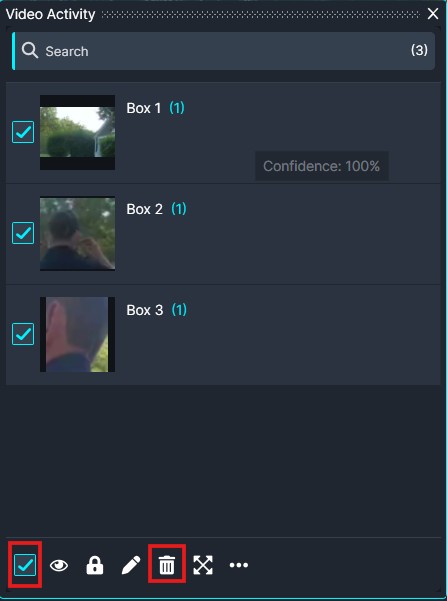
Step 3: Select and Delete Visual Redactions
At the bottom of the Video Activity Panel:
Then, click the trash icon to delete all redactions from the video.
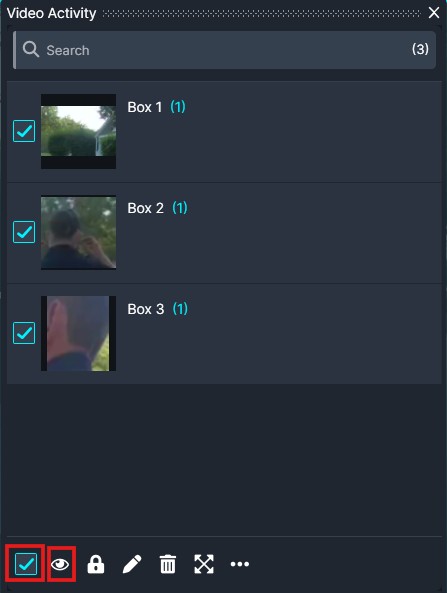
Tip: If you prefer to disable redactions instead of deleting them, click the eye icon after selecting all items. This will hide the redactions without removing them permanently.
Step 4: Delete Audio Redactions
If your video includes redacted audio:
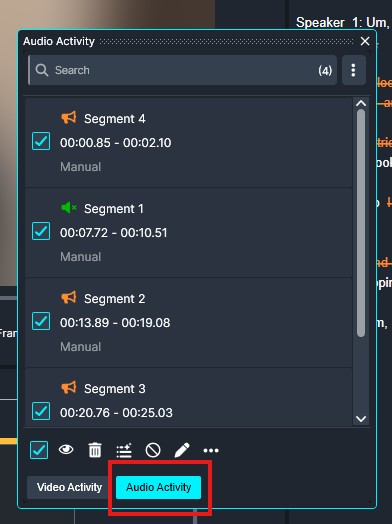
Navigate to the Audio Activity panel located next to the Video Activity panel. This will display all detected and applied audio activities.
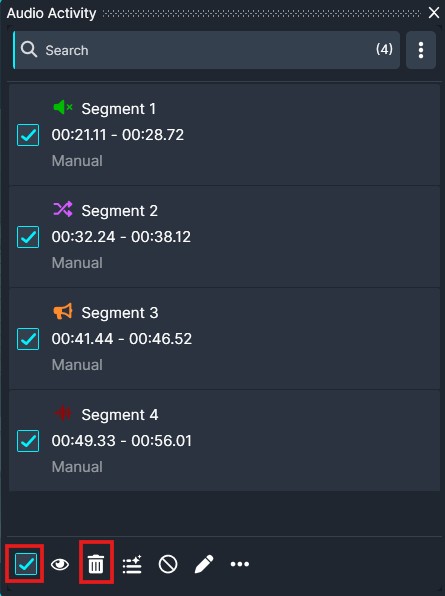
Check the boxes next to the specific audio activities you want to delete. If you would like to remove all audio activities, select the main checkbox at the top of the list to automatically select all items.
After selecting the desired items, click the Trash icon to delete them.
Conclusion
Whether you’re removing visual redactions, audio redactions, or both, CaseGuard Studio provides flexible and powerful tools to help you efficiently manage and refine your edits.
If you have any questions or need further assistance, please don’t hesitate to contact our support team at 📧 [email protected] — we’re always happy to help.
Was this article helpful to you?
No
Yes