Use Case
When I try to upload my file to CaseGuard it loads like it will work, then it disappears with no error message! This issue might be caused by the file not being converted correctly.
Follow these steps to fix your file!
- Click your Windows Search and search “VLC.”

- Click “VLC media player” to open it.
- If nothing appears when you search VLC you will need to install it from here. Once it is installed please open it following the steps above.
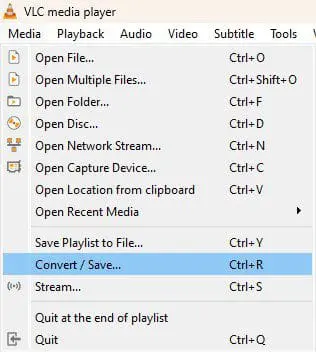
- Once VLC opens, select “Media” from the top left of the window.
- From the “Media” drop down select “Convert/Save.”
- An Open Media window will open, in the window select “Add” and select the file that will not open in CaseGuard.
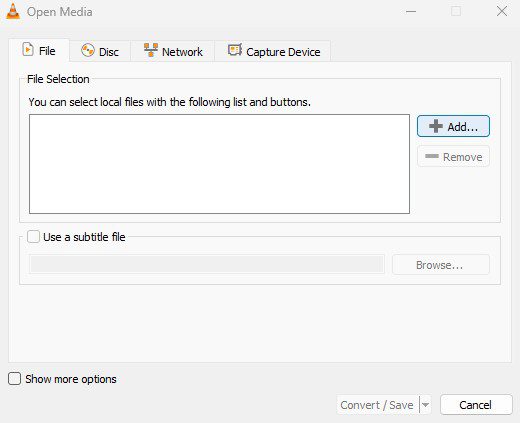
- Once you have added the file click “Convert/Save” in the bottom right of the window.
- A convert window will open, select where you would like the video saved and what format you would like the video converted to.
- We recommend using .mp4. Even if the video was previously converted, it is possible it was done incorrectly. See the supported file types for CaseGuard here.
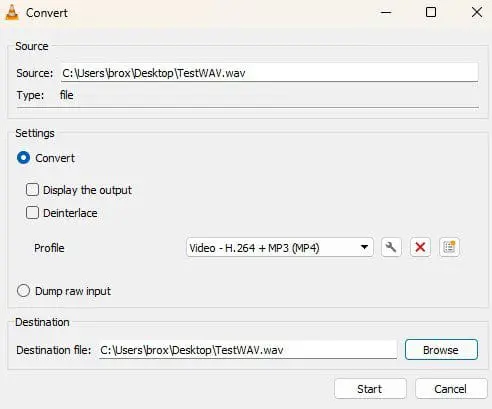
- Once everything is selected click “Start.” The file will save to the selected location.
Once the conversion is completed add the newly converted file into CaseGuard. If you are still having issues please contact [email protected].