CaseGuard Studio supports integration with Amazon Simple Storage Service (Amazon S3) for importing and exporting files. You can either manually browse and import files from an S3 bucket or configure Watcher to automatically retrieve files from an S3 bucket, process them, and upload the results to an output bucket.
Important: Amazon S3 integration and S3 Watcher are separate workflows and are configured independently in CaseGuard Studio.
Before You Begin
You will need the following information from your Amazon Web Services (AWS) administrator:
- AWS Region of the bucket
- Bucket name
- Access Key ID
- Secret Access Key
Note: The AWS credentials used by CaseGuard Studio must have the appropriate permissions for the S3 operations you want to perform. For manual import/export, permissions include listing buckets and objects, downloading objects, and uploading objects. S3 Watcher additionally requires permissions to monitor, download, upload, and remove processed source objects.
Configure Amazon S3 for Import and Export
To use Amazon S3 from the CaseGuard Studio Import Wizard, you must first enable the integration.
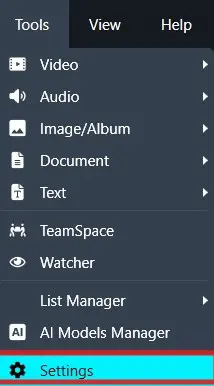
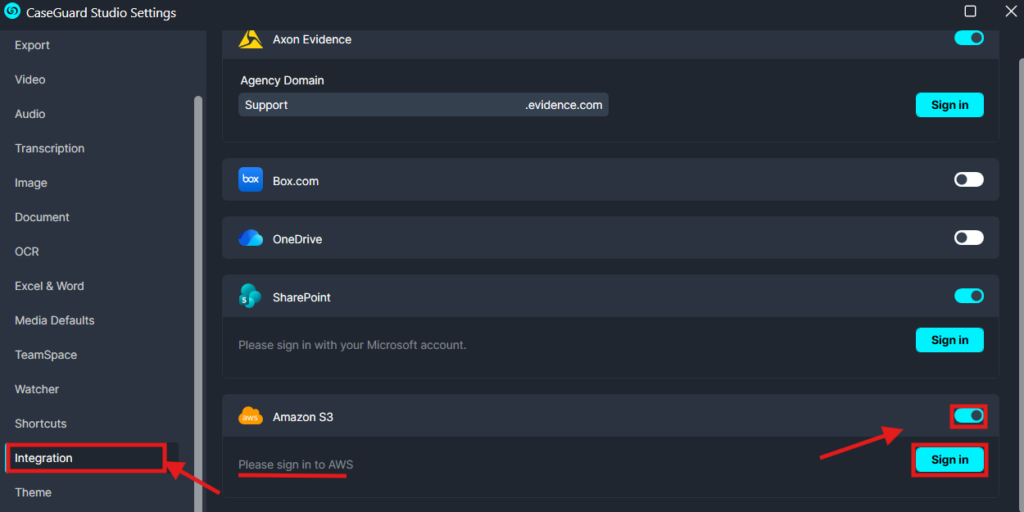
- Select the Integration tab.
- Locate Amazon S3.
- Enable and click Sign In.
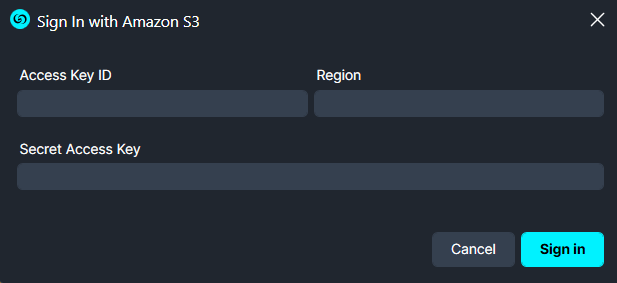
- Enter the following information:
- Access Key ID
- Secret Access Key
- Region
- Click Sign in.
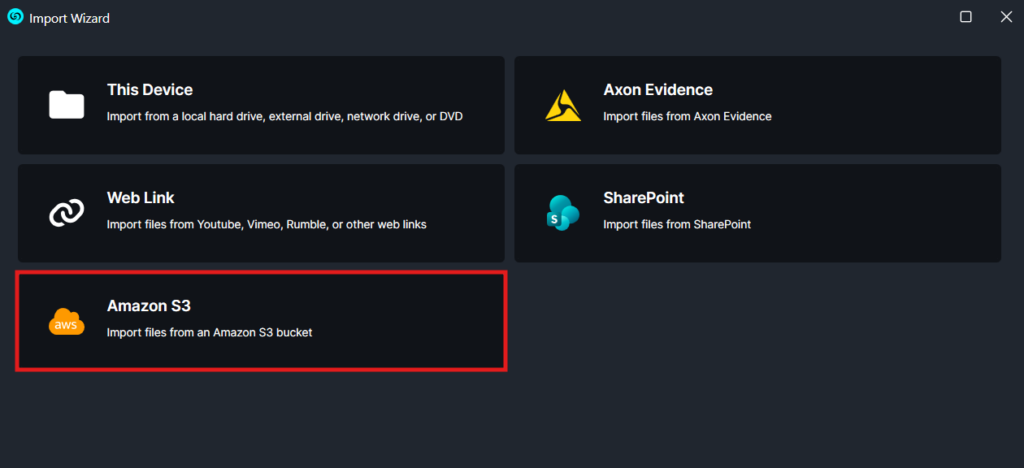
- Once Amazon S3 is enabled, the Amazon S3 option will appear in the Import Wizard.
Note: Amazon S3 credentials for manual import/export are configured through the S3 sign-in window. Watcher credentials are configured separately for each Watcher.
Import Files from Amazon S3
After Amazon S3 has been enabled:
- Click Add Files in CaseGuard Studio.
- Select Amazon S3.
- The Amazon S3 browser will open and display the buckets available to your account.
- Browse the available buckets and folders.
- Select the files you want to import, then click Import.
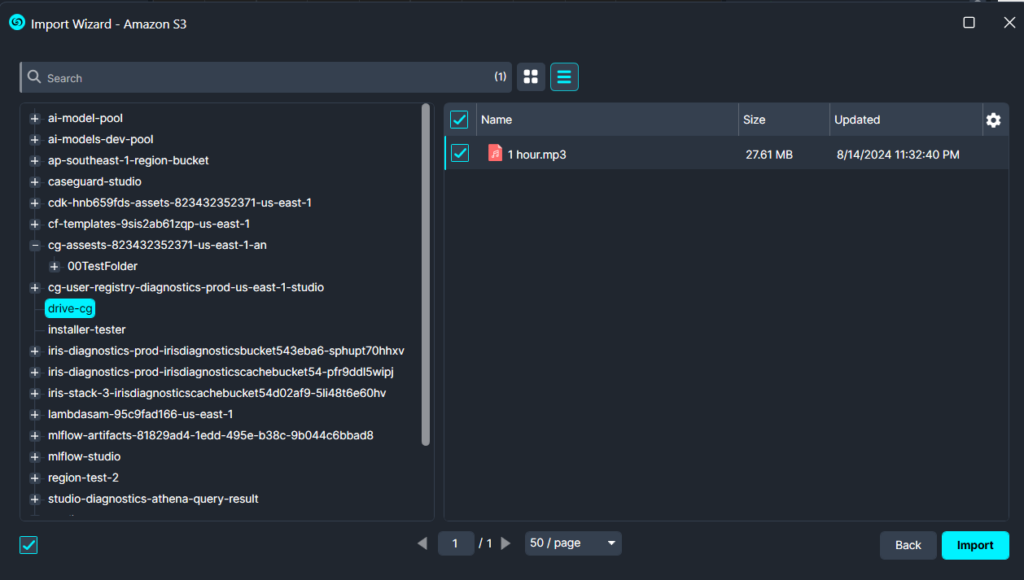
CaseGuard Studio downloads the selected files to a local temporary location and then processes them through the normal import workflow.
Export Files Back to Amazon S3
After completing your work in CaseGuard Studio:
- Export the files as you normally would by clicking the export button at the top right of CaseGuard.
- In the export options, select Export to Amazon S3 then click Export.
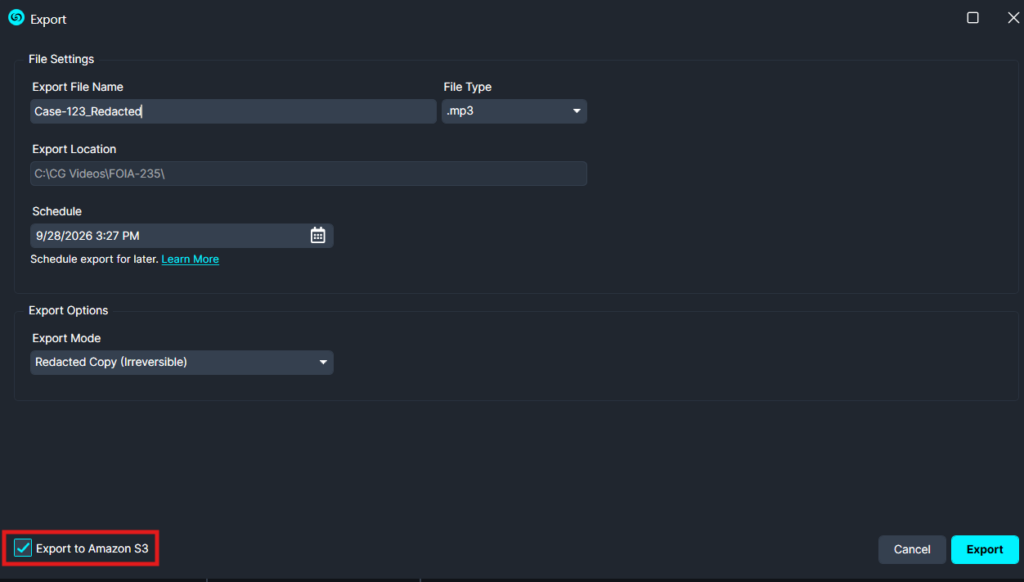
- CaseGuard Studio will then upload the exported files to Amazon S3.
For files imported directly from S3, the export workflow uses the S3 location associated with the imported files. At this time, exporting to an arbitrary different folder within the bucket is not supported.
Note: Depending on the size of the files, the export process may include both the normal export operation and the upload to Amazon S3.
Configure Amazon S3 Watcher
Amazon S3 Watcher allows CaseGuard Studio to automatically monitor an S3 bucket for new files. When new files are detected, CaseGuard Studio downloads them to a local Watcher input folder, processes them, and uploads the results to the configured output bucket.
Enable Cloud Connections for Watcher
Before configuring an S3 Watcher:
- Open the Watcher settings.
- Enable Allow Watcher to be linked with cloud.
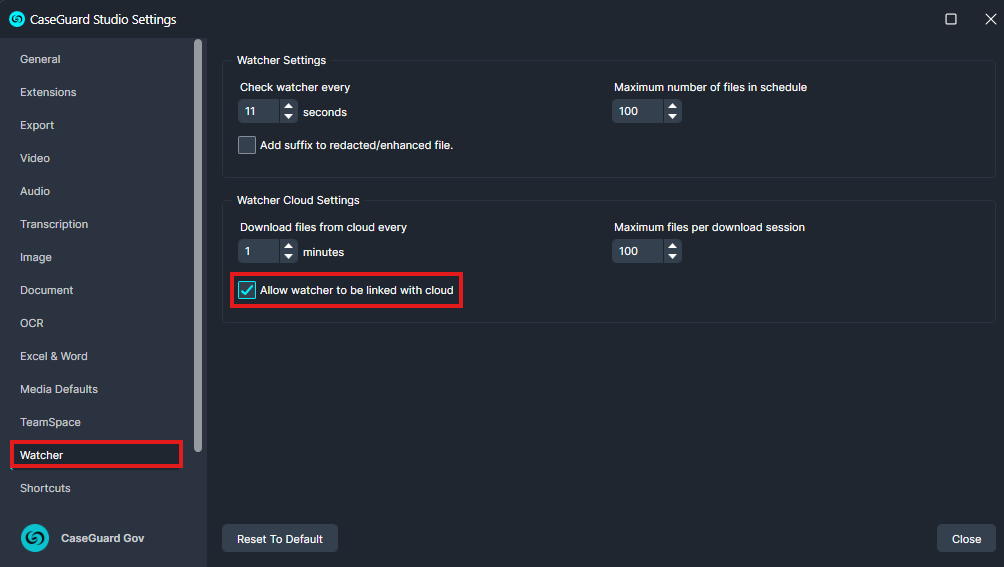
Cloud linking for Watcher is disabled by default.
Configure the Input Bucket
- Open Watcher.
- Create a new Watcher or edit an existing Watcher.
- Next to the Folder to Watch field, click the cloud icon.
- Enter the Amazon S3 information for the input bucket:
- Region
- Bucket Name
- Access Key ID
- Secret Access Key
- Click Verify Connection.
- After the connection is successfully verified, click Connect.
- Select a local input folder for the Watcher.
The local input folder is used as the working location where files downloaded from the S3 input bucket are temporarily stored.
Configure the Input Bucket
The Watcher also requires a separate output location.
- In the Watcher configuration, locate the Input folder field.
- Click the cloud icon.
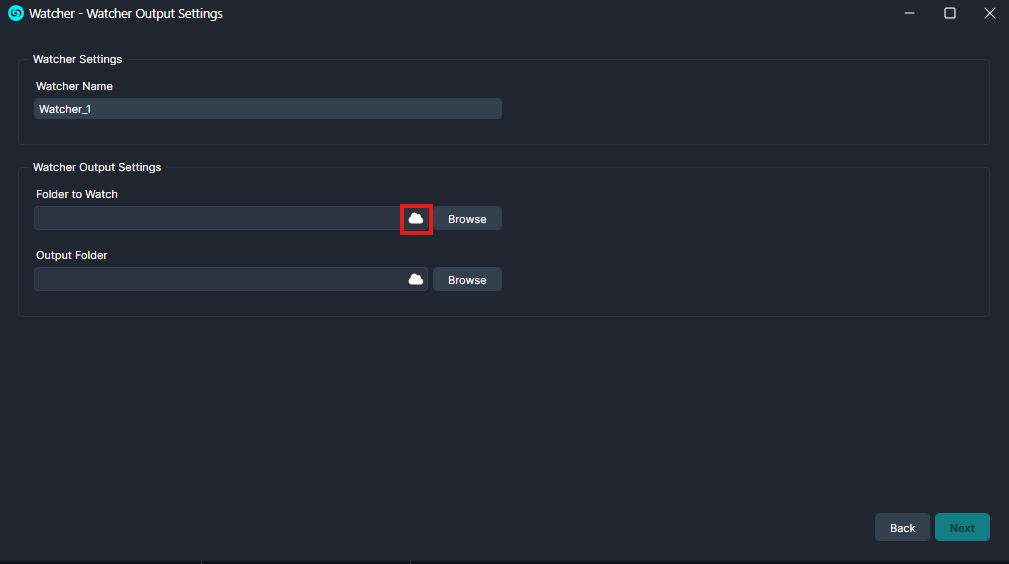
- Enter the Amazon S3 information for the Input bucket:
- Region
- Bucket Name
- Access Key ID
- Secret Access Key
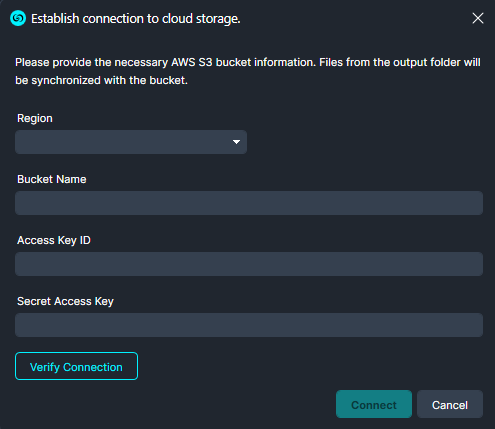
- Click Verify Connection then click Connect to connect the Input bucket.
- Next, select a local Input folder by clicking Browse.
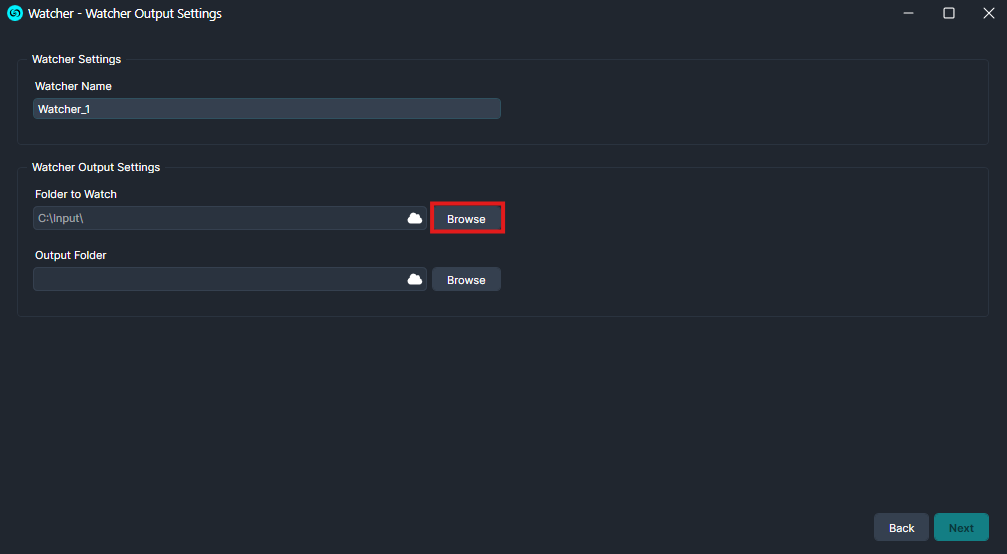
The local input folder is used as the working location where files downloaded from the S3 input bucket are temporarily stored.
Configure the Output Bucket
The Watcher also requires a separate output location.
- In the Watcher configuration, locate the Output folder field.
- Click the cloud icon.
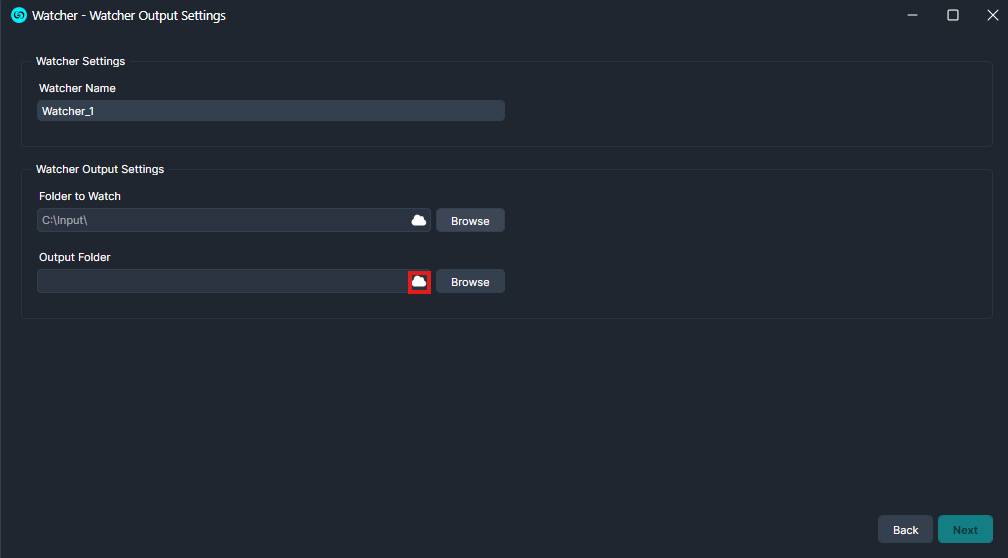
- Enter the Amazon S3 information for the output bucket:
- Region
- Bucket Name
- Access Key ID
- Secret Access Key
- Click Verify Connection then click Connect to connect the Output bucket.
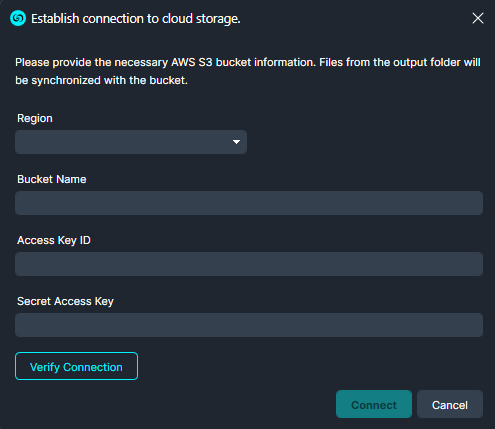
- Next, select a local Output folder by clicking Browse.
![Watcher Output Settings dialog showing Watcher_1; folders to watch: C:Input and output: C: ender"],](https://caseguard.com/wp-content/uploads/2026/09/Output-Local.webp "Output-Local | CaseGuard")
The input and output locations should be configured separately so that processed files are not picked up again as new input files.
How S3 Watcher Processes Files
Once configured, the S3 Watcher workflow works as follows:
- CaseGuard Studio checks the input S3 bucket for new files.
- New files are downloaded to the configured local input folder.
- The source files are moved to a ~Downloaded/ location in the S3 input bucket so they are not processed again.
- CaseGuard Studio processes the files through the normal Watcher workflow.
- The processed files are written to the configured local output folder.
- The processed files are uploaded to the configured S3 output bucket.
- The local working files are cleaned up after processing is complete.
Are S3 files saved on my computer?
Temporarily, yes. Files downloaded through S3 Watcher are stored in the local input and output folders while they are being processed.
However, these local working files are deleted after the Watcher workflow is complete. The processed output remains in the configured S3 output bucket.
This means the local input and output folders are used as temporary working locations rather than permanent storage.
Required Amazon S3 Permissions
The AWS IAM user used with CaseGuard Studio must have the appropriate S3 permissions.
Manual Import and Export
Manual S3 import/export requires permissions such as:
- sts:GetCallerIdentity
- s3:ListAllMyBuckets
- s3:GetBucketLocation
- s3:ListBucket
- s3:GetObject
- s3:PutObject
These permissions allow CaseGuard Studio to authenticate the account, display available buckets, browse objects, download files, and upload exported files.
S3 Watcher
S3 Watcher requires:
- s3:ListBucket
- s3:GetObject
- s3:PutObject
- s3:DeleteObject
The s3:DeleteObject permission is required because Watcher moves processed input files to the ~Downloaded/ location in S3. This operation uses a copy-and-delete process. Without delete permission, files can remain in the source location and may be processed again.
Troubleshooting Amazon S3 Connection
Amazon S3 does not appear in the Import Wizard
Make sure Amazon S3 is enabled and signed in under:
Tools > Settings > Integration > Amazon S3
After signing in successfully, Amazon S3 should appear as an option when you click Add Files.
Watcher connects but does not download files
Check the following:
- Allow Watcher to be connected with cloud is enabled.
- The Watcher is not paused.
- The AWS user has s3:ListBucket and s3:GetObject permissions.
- The files are not already under the ~Downloaded/ location.
- The configured download frequency has elapsed.
Files continue to be processed again
Make sure the AWS user has the s3:DeleteObject permission. Watcher uses this permission to move processed source files to ~Downloaded/.
Export to Amazon S3 fails
Check that:
- The AWS user has s3:PutObject permission.
- The destination bucket/prefix is configured correctly.
- CaseGuard Studio has permission to retrieve the bucket’s location with s3:GetBucketLocation.
Wrong-region error
Verify that the region entered in CaseGuard Studio matches the AWS region where the S3 bucket is located.
Conclusion
Amazon S3 integration allows CaseGuard Studio to work directly with files stored in Amazon S3, either through manual import and export or through Watcher for automated processing.
If you have any questions about this integration, you can contact [email protected] for assistance.