When utilizing manual redaction, there are 4 main shapes to choose from: Ellipse, Rectangle, Diamond, and Triangle. These options offer control over the shape of any object you may want to redact. But what if you want to redact something that is none of these shapes? The Polygon shape that allows you to make redactions in any shape you would like.
How to use it
After opening CaseGuard Studio, upload any video using the Add Files Button.
Next, identify the object you want to redact. This can be anything from a tattoo to a weapon to a street sign!

Now, click the Shape dropdown, then select Polygon from the list.
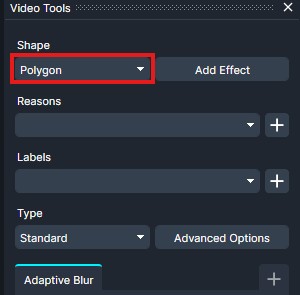
To begin redacting with the polygon shape, click where you want to start your shape and drag to create a line. Then, click to create the rest of your lines (you need at least 3), and make sure the last one you draw connects back to the original line.
- If at any point you make a mistake, just undo your last line with the Ctrl + Z shortcut.
Once you’ve done this, your redaction will appear!
Was this article helpful to you?
No
Yes