Understanding the capabilities of your graphics card is important when using any redaction software; it can assist in troubleshooting and determining the performance level for redaction tasks. To check your graphics card on a Windows system, follow these steps:
Step 1 Check Your Graphics Card
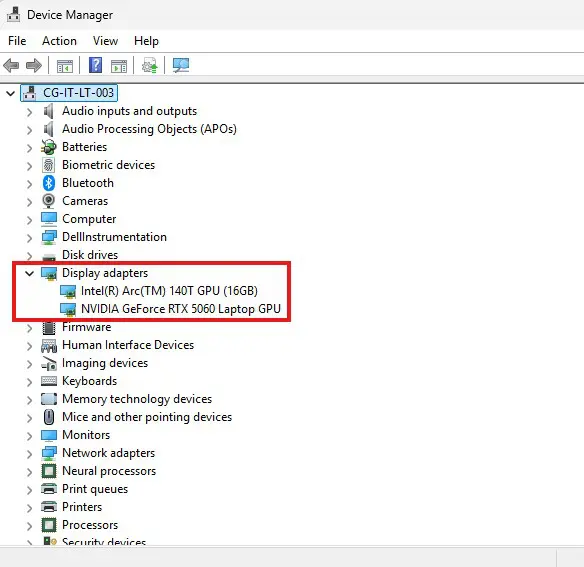
- In your Windows search bar, search for Device Manager and click the first option.
- Once opened, select Display Adapters to see your GPU(s) and confirm it’s an NVIDIA card.
Step 2 — Update Your NVIDIA Driver
⚠️ You may need your IT’s approval before updating drivers on a work machine.
The recommended method today is the NVIDIA App. The GeForce Experience has largely been superseded by the official NVIDIA App, which provides a more responsive and integrated experience and automatically scans your hardware to compare your installed driver against the latest available release.
To update:
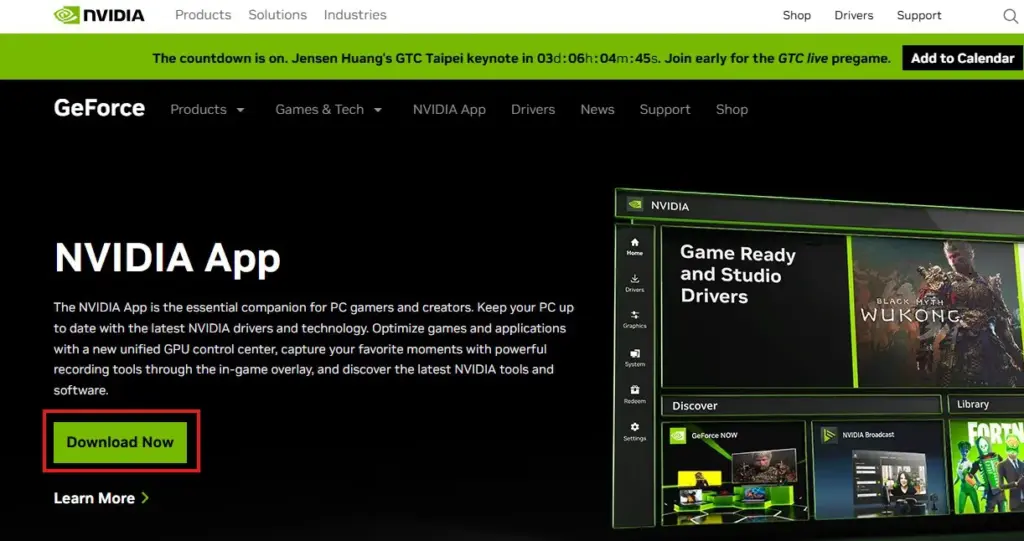
Download the NVIDIA App from nvidia.com/drivers
- Open the NVIDIA app and go to the Drivers tab.
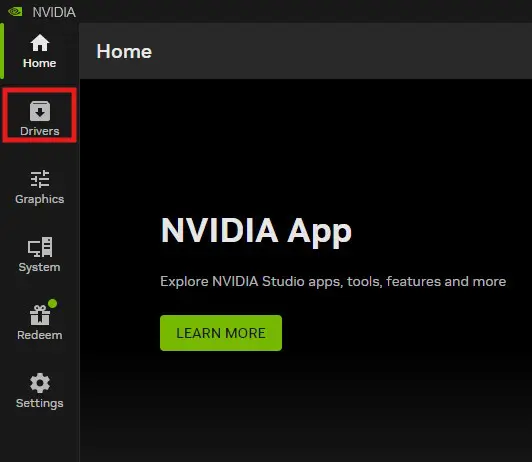
- If an update is available, click Install.

- After you install the update, restart your computer.
“Which driver type should I choose?”
Choose Game Ready Drivers if you prioritize day-of-launch support for the latest software. Choose Studio Drivers if you prioritize reliability for creative workflows like video editing, rendering, or AI-based applications. For redaction software with AI detection features, Studio Drivers are generally the better fit.
Latest stable driver as of May 2026: The GeForce Game Ready 610.47 WHQL driver was released May 26th, 2026.
Step 3 Manual Driver Download (Alternative)
If you prefer not to use the app, go directly to nvidia.com/drivers and use the dropdown menus to select your GPU model, series, and OS, then download and install manually.
Step 4 Configure CaseGuard
After installing updated drivers, open CaseGuard Studio and adjust the Video Settings to select the NVIDIA GPU for AI detection tasks, then restart the application.
Troubleshooting
If a driver install fails or causes instability, use Display Driver Uninstaller (DDU) in Safe Mode to completely wipe all NVIDIA driver traces from the system, then perform a clean install. Windows also allows you to roll back to a previous driver via Device Manager → Display Adapters → right-click GPU → Properties → Driver tab → Roll Back Driver.
Still having issues? Contact support at [email protected] or visit the CaseGuard Help Center.