Organizations handling sensitive information, such as law enforcement agencies or media companies, often rely on advanced tools like CaseGuard Studio to redact videos, audio, and documents efficiently. For instance, a police department may need to obscure faces or license plates in body camera footage before releasing it to comply with FOIA (Freedom of Information Act) requests. However, achieving optimal performance in such scenarios requires ensuring that the software properly detects and utilizes the workstation GPU.
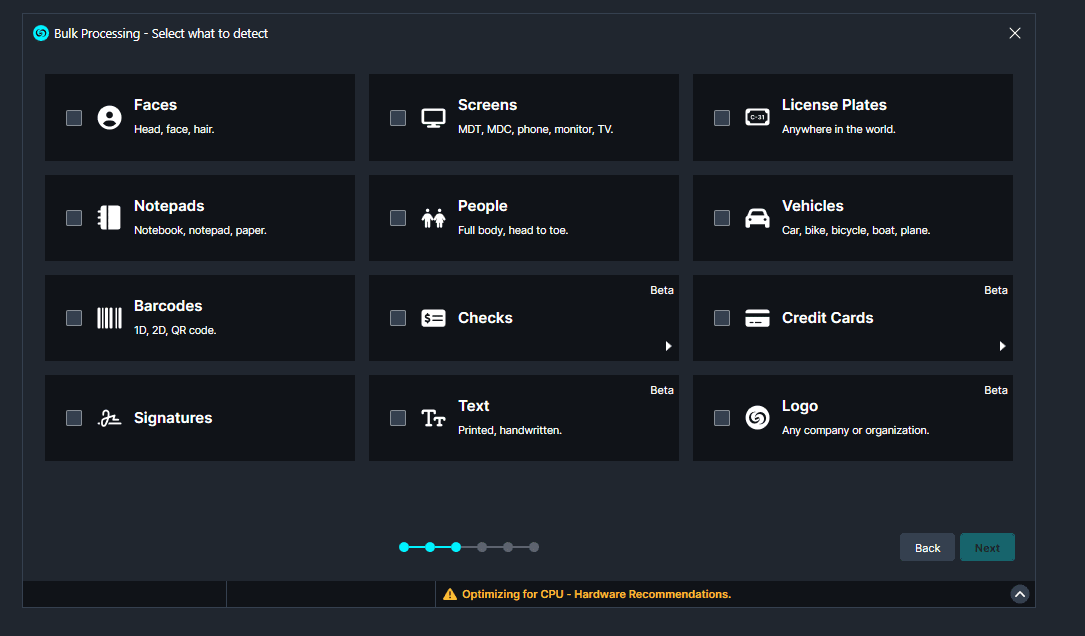
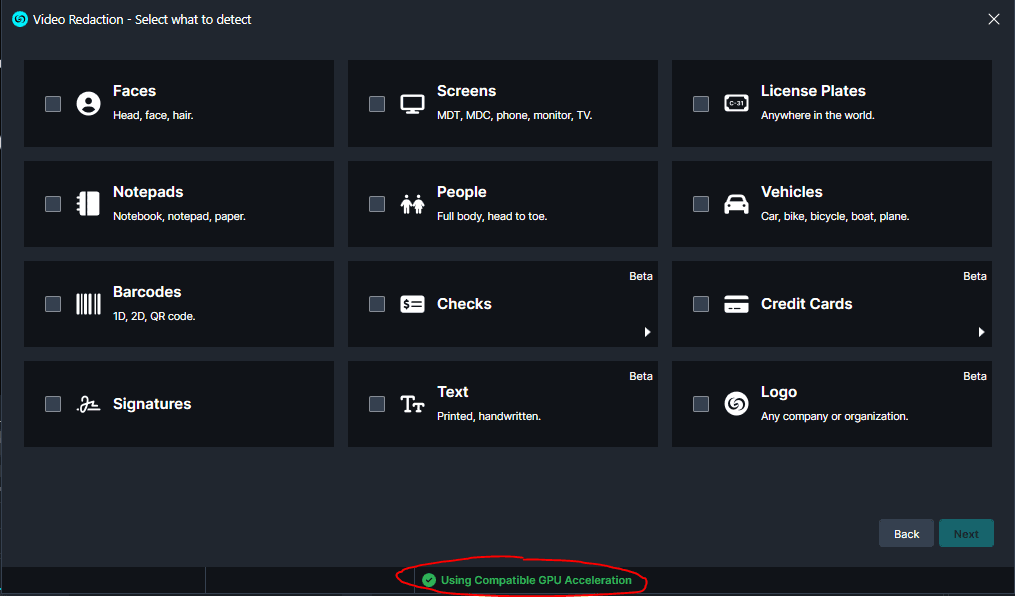
In certain instances, CaseGuard Studio, an advanced video redaction software, may encounter difficulty recognizing workstation GPUs. This issue could impact the efficiency of video redaction processes, including automatic face redaction, automatic head redaction, and other AI-driven functionalities. To determine if this issue is occurring, navigate to the AI Video Wizard and examine the footer. The indicators should look as follows:
Incorrect GPU Detection:
Correct GPU Detection:
Steps to Resolve GPU Detection Issues
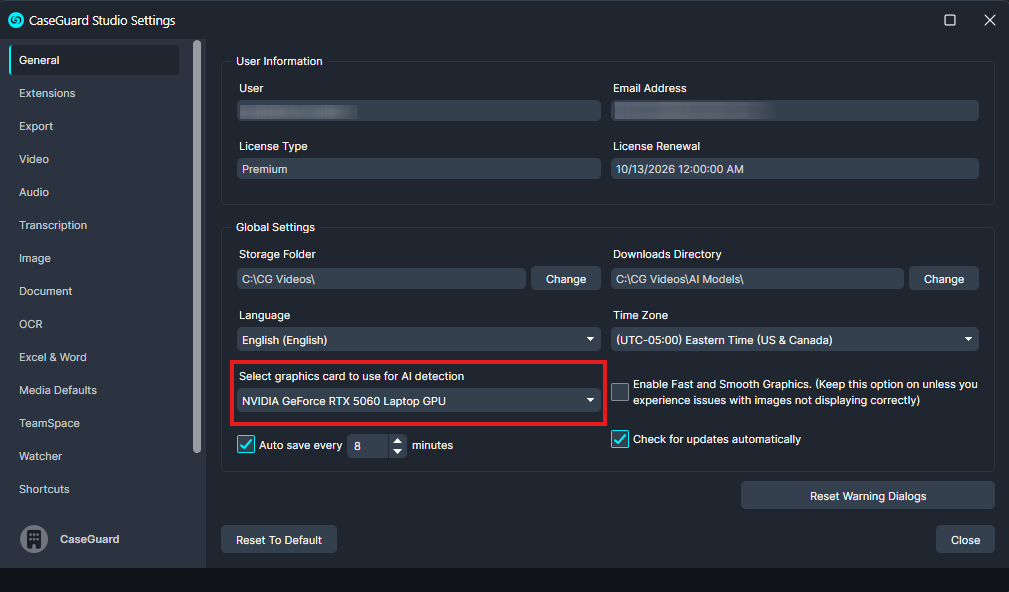
Verify GPU Selection in CaseGuard Studio:
- Open CaseGuard Studio, a leading solution for video and audio redaction software.
- Navigate to the Tools menu in the top-left corner.
- Select Settings and go to the General tab.
- Locate the GPU Input setting and switch it to the desired GPU.
- This adjustment ensures seamless performance during tasks such as automatic video redaction and video enhancement.
- Refer to the screenshot below for guidance:
Enable CUDA Compute in the Nvidia Control Panel:
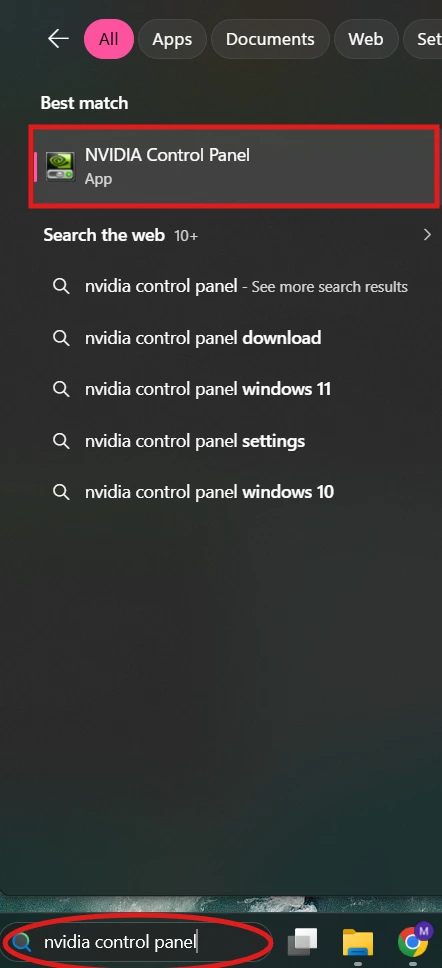
- Navigate to the search bar in your taskbar.
- Open the Nvidia Control Panel.
- Under the Manage GPU Utilization section, locate the option labeled Enable CUDA Compute.
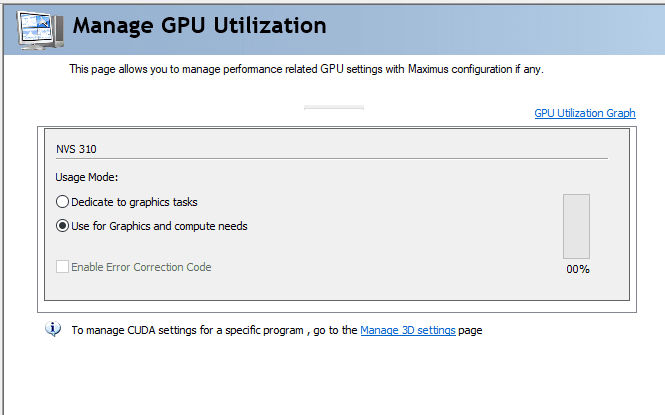
- Ensuring CUDA Compute is enabled optimizes the use of AI-driven features like automatic license plate redaction and video automatic tracking.
- Ensure the setting Use GPU for Graphics and Compute is selected.
- Restart your computer after making this change.
Update GPU Drivers:
- If the issue persists, update your GPU drivers using Nvidia GeForce Experience or by downloading the latest drivers from Nvidia’s official website.
- Updated drivers are critical for enhancing video resolution and supporting the smooth operation of redaction software.
Conclusion
By following these steps, CaseGuard Studio should successfully detect and utilize your GPU, enabling efficient and accurate processes such as FOIA-compliant video redaction and GDPR-compliant document redaction. If the problem continues, please contact [email protected] for further assistance.
Was this article helpful to you?
No
Yes
1