AI Search in CaseGuard Studio allows users to quickly detect and redact Personal Identifiable Information (PII) across multiple documents using advanced AI models. By configuring the Watcher with the AI Search option, you can automatically analyze documents and identify sensitive data, such as names, emails, phone numbers, Social Security numbers, and medical record numbers, without manual effort.
Once the Watcher is set up with your desired AI model, document language, and detection criteria, you can add documents to the Watcher. The Watcher will process and redact all files automatically, exporting the results to a designated Output folder. This functionality is ideal for large batches of documents and helps ensure PII is securely managed while saving significant time.
Follow the steps to Redact using AI Search in Watcher!
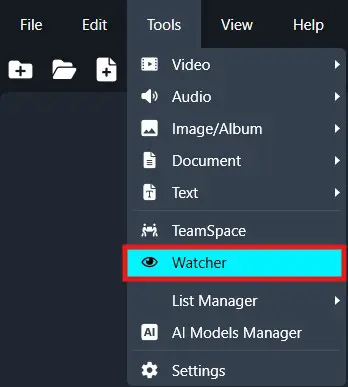
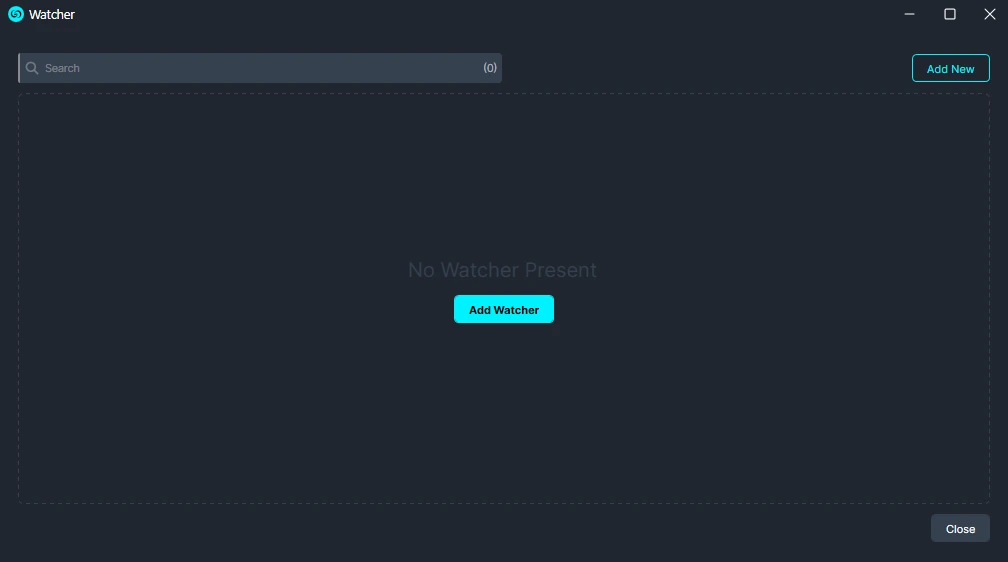
On the left-side menu, click the Tools tab. Then, open the drop-down menu and select Watcher. and then Click Add Watcher icon to set up the Watcher
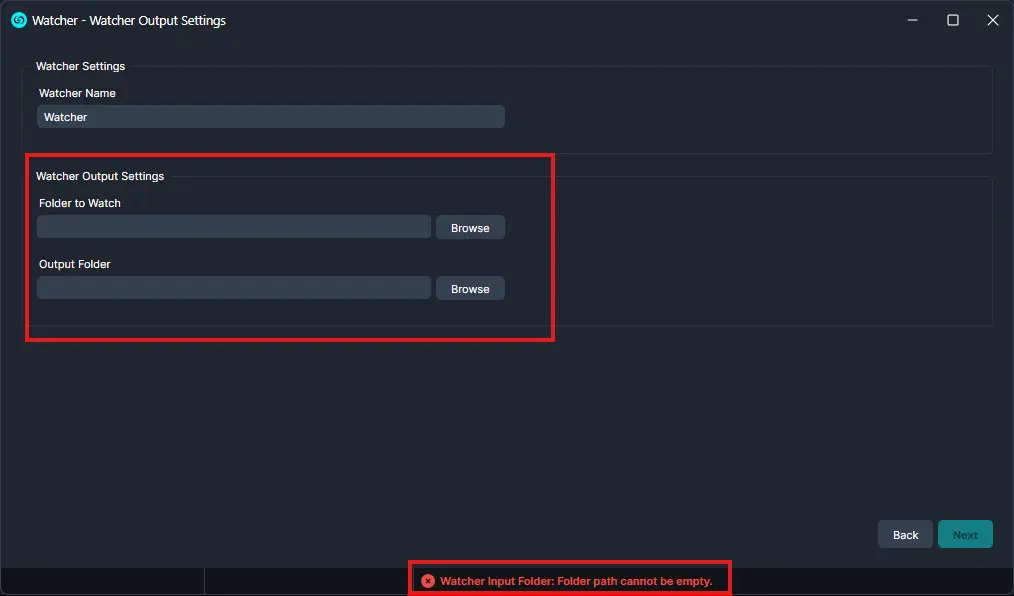
When the CaseGuard Watcher window appears, enter a Watcher name.
Click “Browse” to add a folder to watch. This is the folder where all documents that need to be redacted will be input.
Click “Browse” to add an Output folder. This folder will contain all exported files after the Watcher processes and redacts the documents from the Watch folder.
Click “Next.“
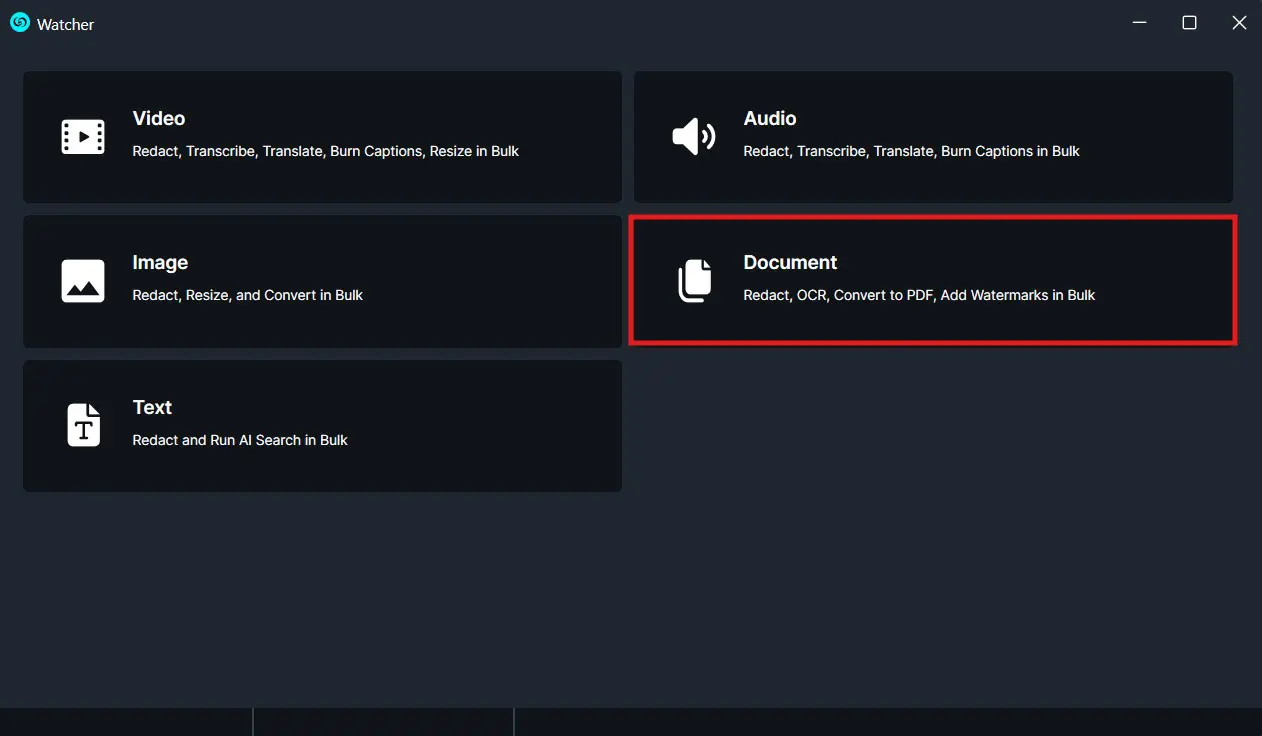
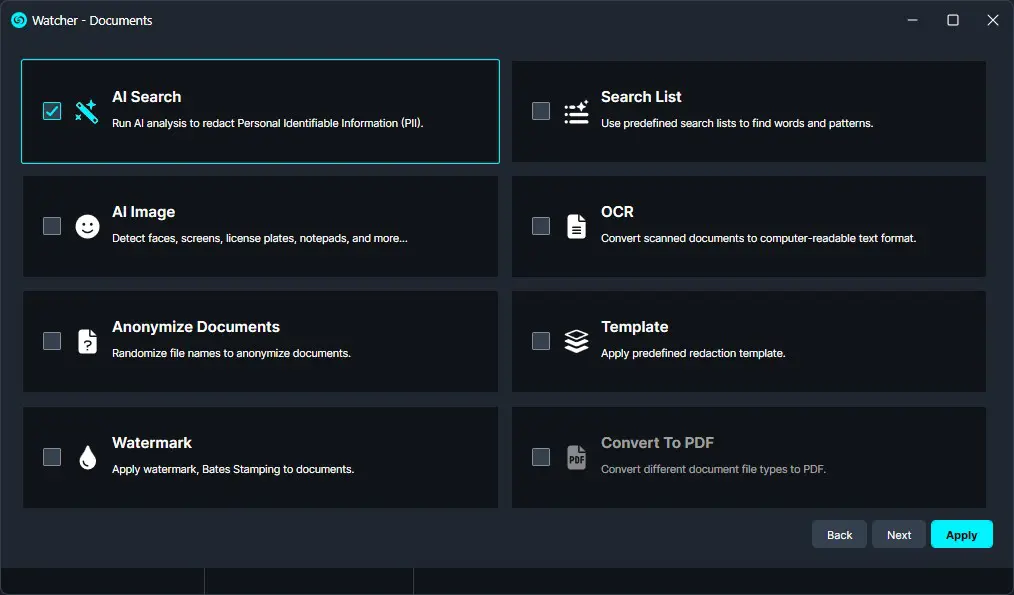
A Watcher window will appear, select Documents for the operation you would like your Watcher to perform.
Select “AI Search” to apply to your Watcher and click “Next.”
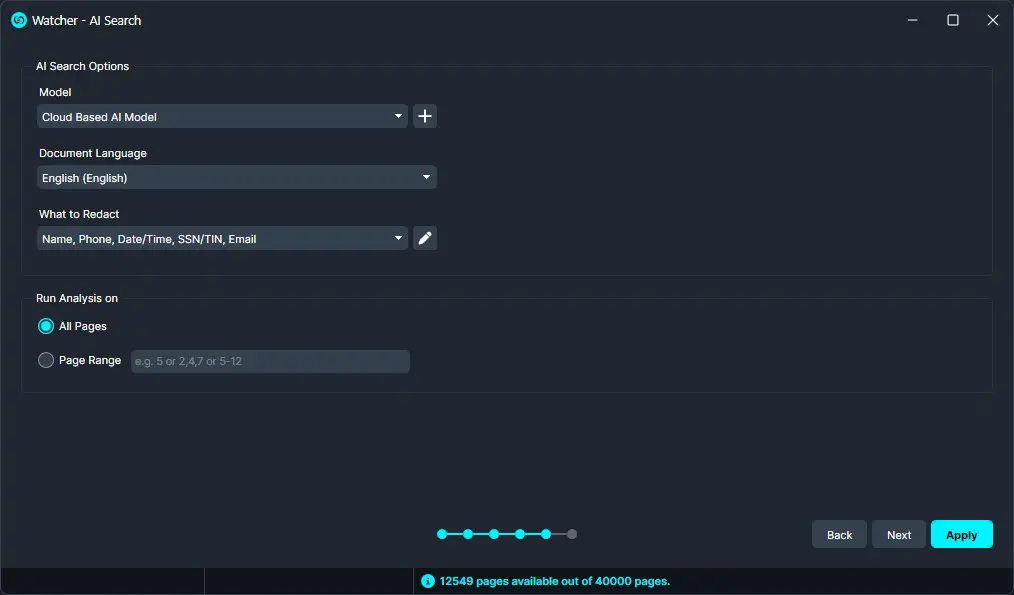
The AI Search window will appear. Select the document language, specify what you want to detect, and set the page range for the AI to analyze.
Click “Next” and a Summary window will appear, here you can edit your selections.
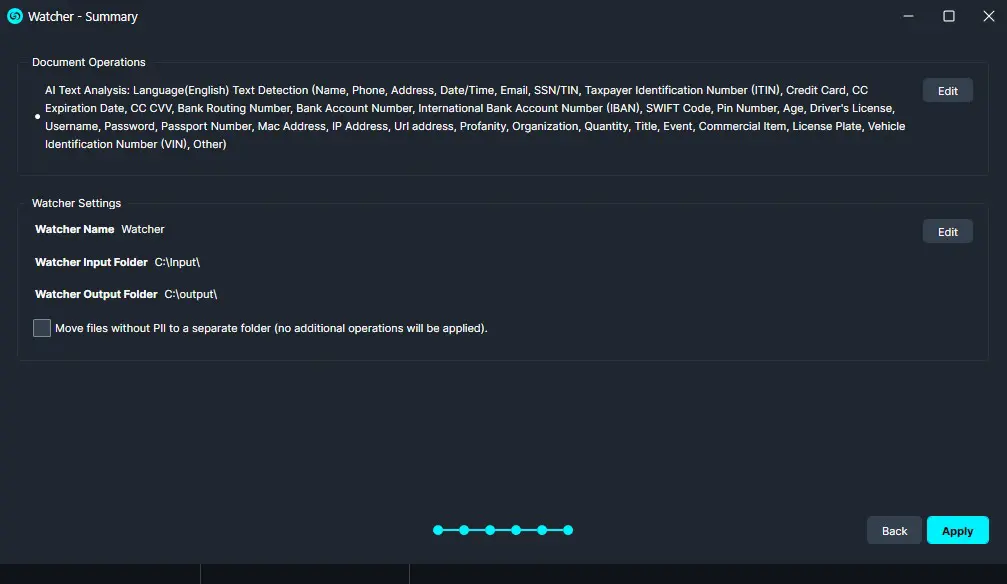
Once satisfied with your Watcher click “Apply” and your Watcher will appear in the Watcher Panel.
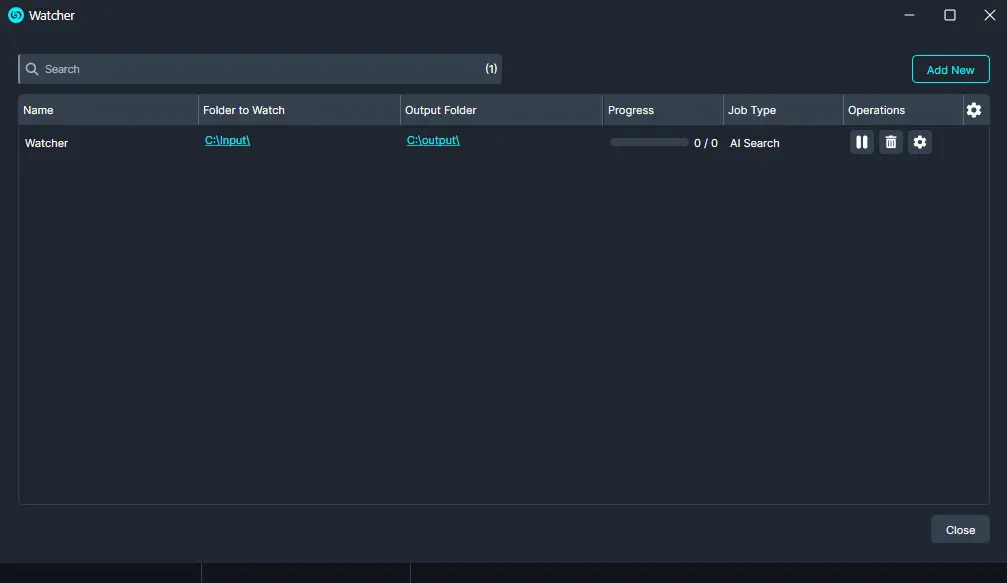
Under the Watcher progress bar, you have the option to open the settings , delete  , or pause
  the Watcher.
-
- The Settings icon will open up the Watcher window.
- Delete will completely delete the selected Watcher.
- Pause will pause the Watcher operation.
Once complete, your files will have the desired text redacted and they will be exported to your output folder.
Conclusion
Using AI Search with the CaseGuard Watcher allows you to efficiently detect and redact Personal Identifiable Information (PII) from large document sets with minimal manual effort. Once configured, the Watcher automatically processes and exports the documents to your designated Output folder.
This workflow ensures sensitive information is handled accurately, streamlines large-scale redaction tasks, and saves valuable time. For questions or assistance, contact CaseGuard Support at [email protected].
Was this article helpful to you?
No
Yes
2