We know that password issues can happen to anyone; that’s why we’ve made it simple to reset your password.
Follow the steps below to regain access to your account:
Either navigate to your CaseGuard web portal or open the Application.
If in the application, launch CaseGuard Studio and click sign in. This will bring you directly to your CaseGuard web portal.

When you get to the web portal, click on “forgot your password?”.

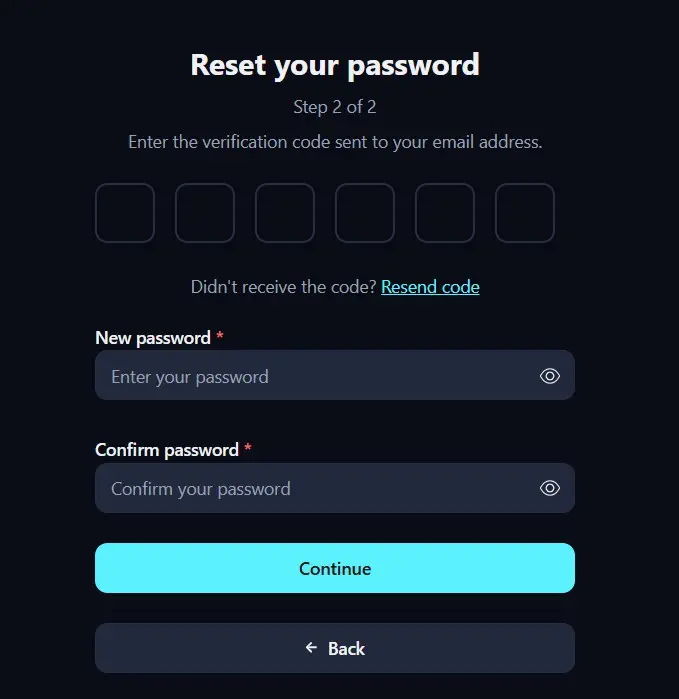
You will be redirected to the “Reset your password” page. A verification code will be sent to your email address or authenticator for authentication. Enter your verification code.
Below, enter a new password of your preference and confirm it. Then click Continue.
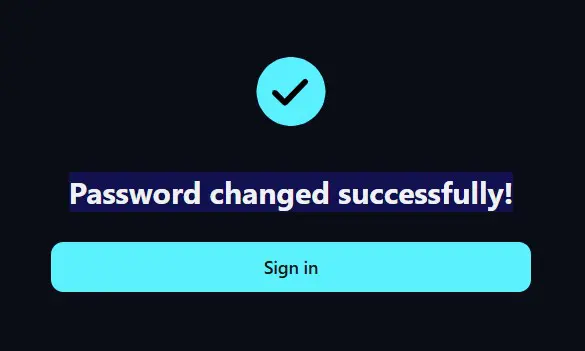
You will then see a “Password changed successfully!” message. Click the “sign in” button and enter your new password.
Conclusion
We hope this guide has helped you in resetting your password. If you need further assistance at any stage of this process, please don’t hesitate to contact us at [email protected] where we will gladly assist you.
Was this article helpful to you?
No
Yes