Overview
This guide will show you how to redact live footage from a connected device, such as a webcam or CCTV, directly on your computer. The Live Redaction feature is ideal for removing or obscuring sensitive information in real time. Follow the steps below to use this functionality within CaseGuard Studio.
Follow these steps to redact live footage from a connected device in CaseGuard Studio
Step 1: Add Your Devices to CaseGuard Studio
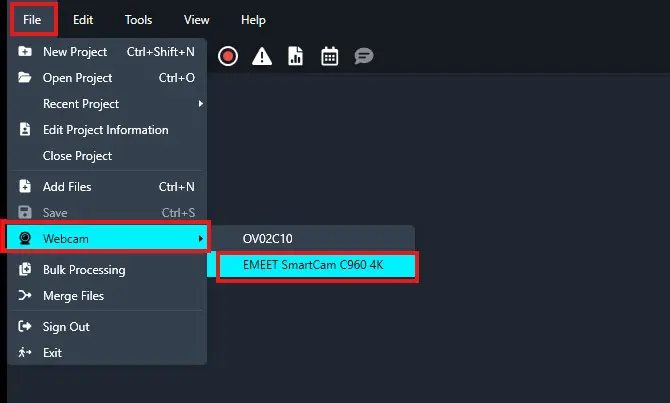
Open CaseGuard Studio and navigate to File in the top-left corner.
Select Webcam from the drop-down menu. A secondary drop-down menu will appear, listing the devices connected to your machine.
- Choose the device you want to redact from.
Step 2: Choose Objects to Redact
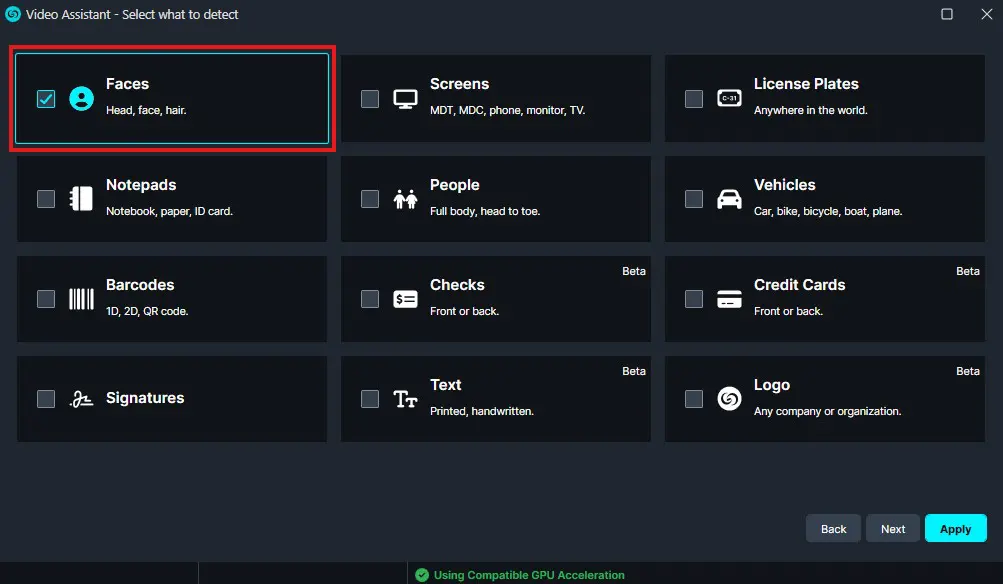
After selecting your device, a wizard will open where you can choose the objects you wish to redact. You may select multiple objects if needed.
Step 3: Configure Redaction Settings
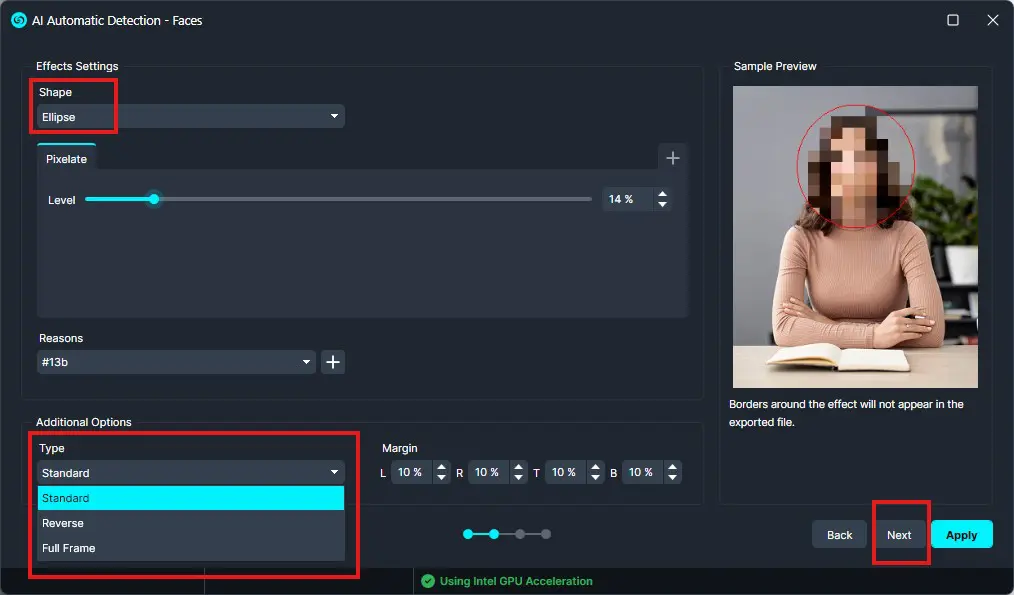
Next, configure the redaction settings, such as the shape, effect, and margins for the selected objects. Once configured, click Next.
Step 4: Set Advanced Options
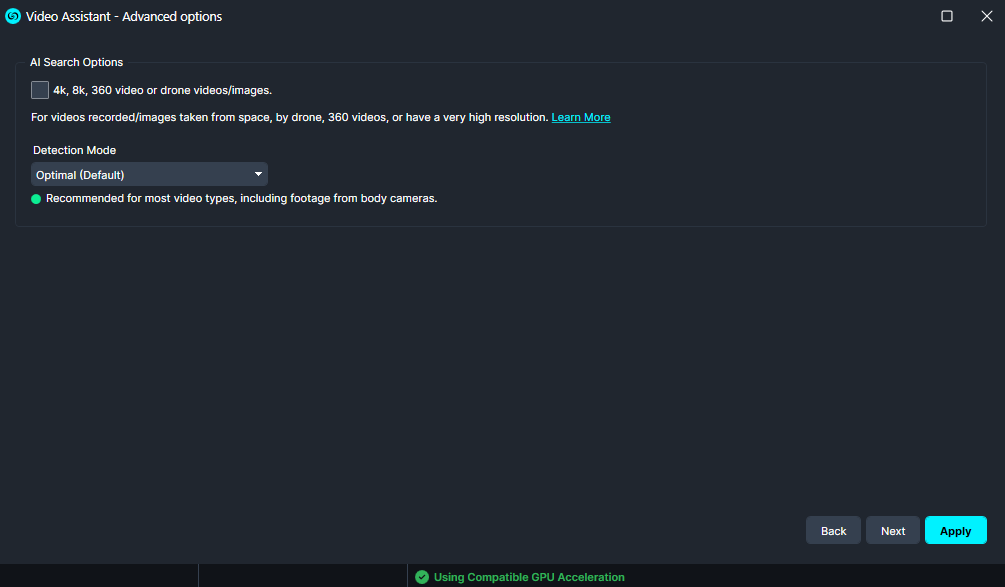
In this step, you will have the option to adjust advanced settings, including resolution options (such as 4K, 8K, or drone footage) and the Detection mode. Make your selections and click Next.
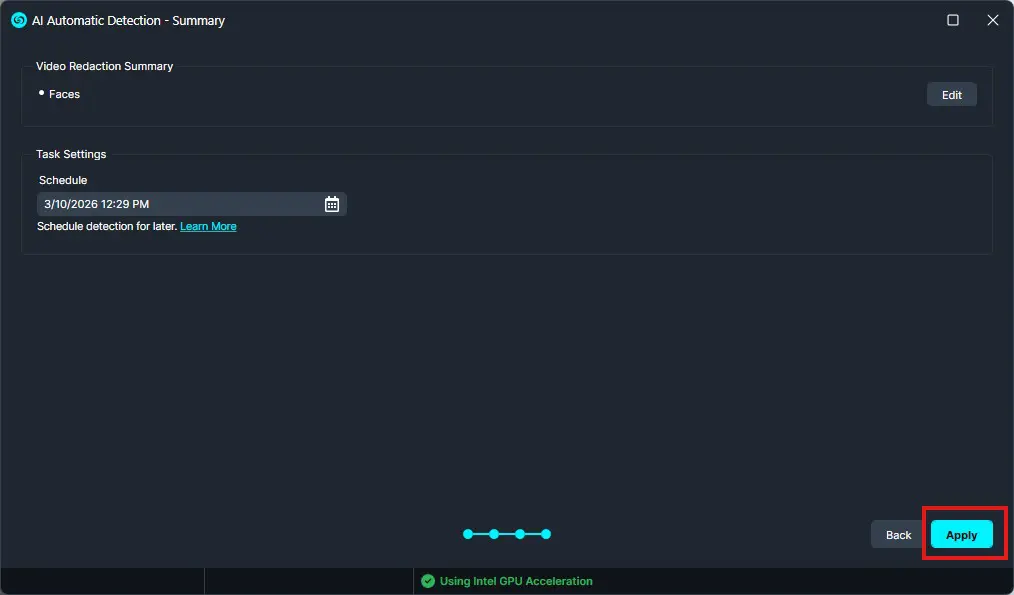
Step 5: Review and Apply Redaction Settings
You will now see a summary of your redaction configuration. Review the details to ensure accuracy, then click Apply to finalize.
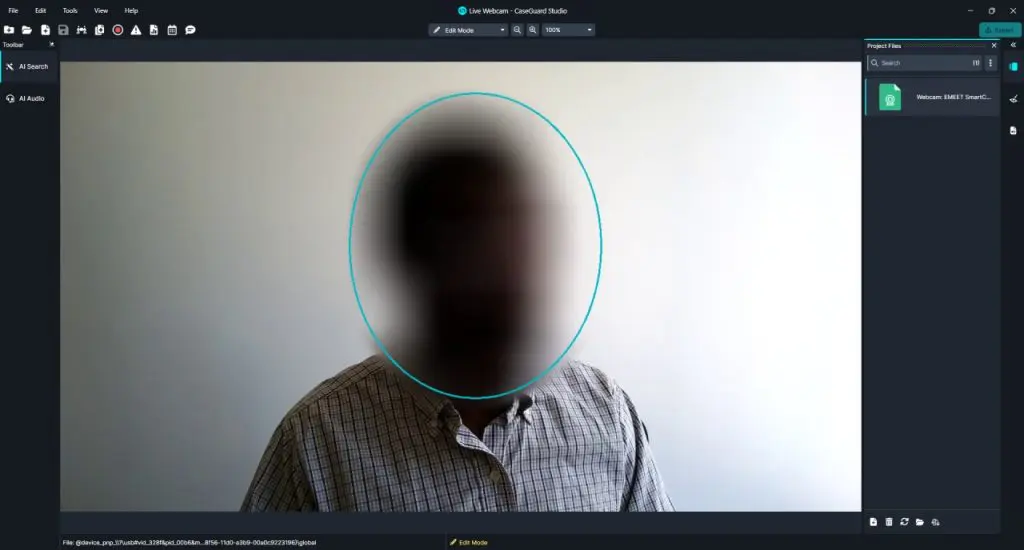
Live Redaction in Action
Once applied, you will see live footage from your connected device with real-time redactions on the selected objects.
Conclusion
Redacting live footage from a connected device in CaseGuard Studio makes protecting sensitive information quick and efficient. By following these steps, you can apply real-time redactions to webcams or CCTV feeds while maintaining control over objects and settings. For assistance with live redaction or any other features, our support team is available at
📧 [email protected].
Was this article helpful to you?
No
Yes
1