Reviewing documents for sensitive information can be a time-consuming task. Manually searching through pages of personally identifiable information (PII), financial records, or confidential data increases the chance of overlooking important details.
CaseGuard Studio simplifies this process with Pattern Detection and AI Search, two powerful tools that automatically identify sensitive information and help you apply redactions in just a few clicks. In this article, you’ll learn how to use both features to quickly and accurately redact confidential information from your documents.
Pattern Detection
After importing your files into CaseGuard Studio, you can scan your documents to identify information that requires redaction. For example, a document may contain phone numbers that need to be removed before release.
To begin, select Pattern from the toolbar on the left side of the workspace.
This opens the Pattern/Regular Expressions Redaction panel, where you can choose the type of information you want to find, specify the Redaction Reason, and select the redaction color.
Select the appropriate pattern, such as Simple Phone Number, choose a Redaction Reason, and click Redact All.
CaseGuard Studio will automatically locate and redact all matching results throughout your documents. You can review the applied redactions before exporting the final file
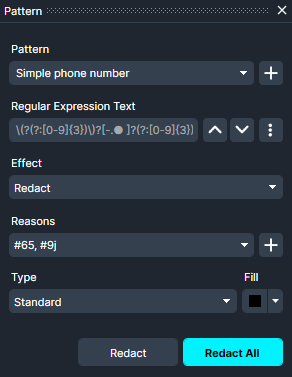
To start, I’ll select the Simple Phone Number pattern and select Redaction Reason #01c, explaining that this redaction is being done because it involves the phone number of witnesses involved in the trial. Once the selections are made, we click Redact All.
After this, every phone number should be redacted from every document. I can scroll through to check and make sure this is the case.
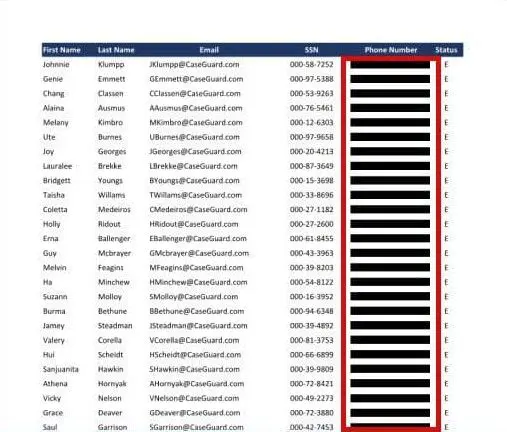
Using pattern we have successfully redacted all phone numbers from this document.
AI Search
When a document contains multiple types of sensitive information, AI Search can identify several categories of data at once.
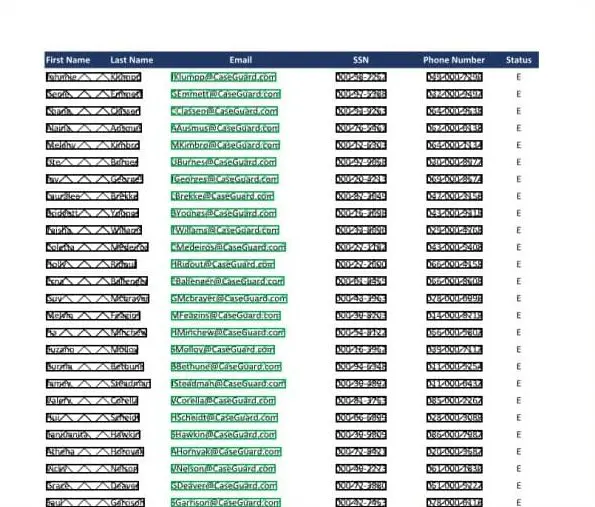
For example, a document may contain names, phone numbers, email addresses, and Social Security numbers. Instead of searching for each item individually, AI Search can detect all selected information in a single scan.
To begin, select AI Search from the left-side toolbar.
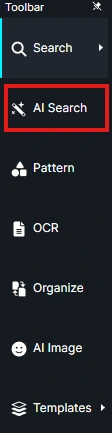
The AI Search window will appear, allowing you to configure your detection settings.
Select:
- File Language — Choose the language used in your document.
- What to Detect — Select the types of information you want AI to identify.
- Page Range — Choose which pages should be analyzed.
After configuring your settings, run the analysis.
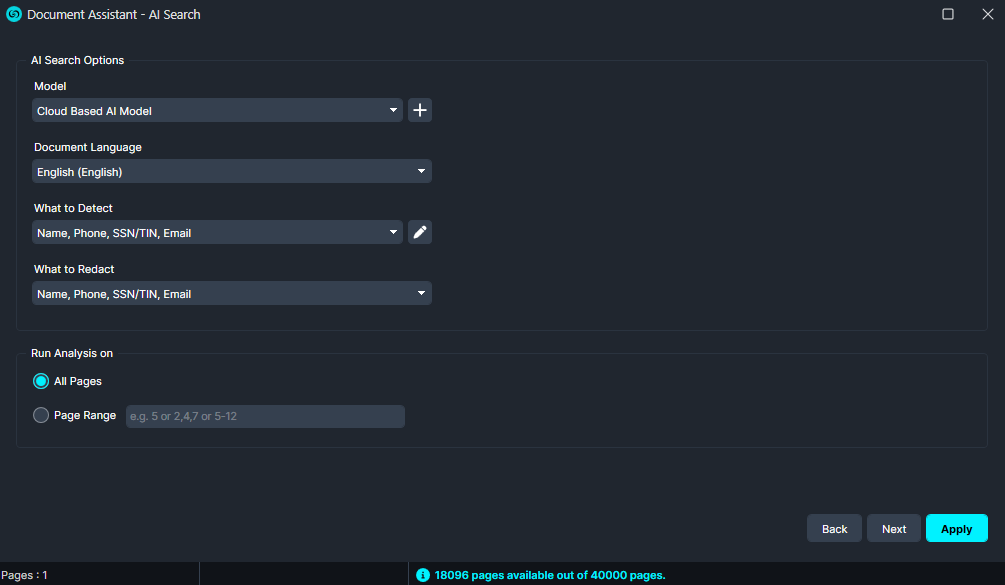
Once complete, review the document to confirm all sensitive information has been properly removed.
The redacted text will show up in the Analytics Panel.
After this, we should have a fully redacted document! All we have to do is Export  .
. 
Conclusion
Pattern Detection and AI Analysis help streamline the document redaction process by automatically locating sensitive information throughout your files. Whether you need to redact a specific type of data, such as phone numbers, or identify multiple categories of personally identifiable information at once, these tools reduce manual review time while improving consistency and accuracy. By combining automated detection with CaseGuard Studio’s flexible redaction workflow, you can confidently prepare documents for secure sharing and public release.
Was this article helpful to you?
No
Yes