Use Case:
When handling sensitive documents, such as legal filings, reports, or public records, you may need to efficiently redact a specific word (e.g., a name, location, or code) that appears multiple times. CaseGuard Studio provides a fast, reliable way to do this, saving you time and ensuring accuracy.
Open CaseGuard Studio.
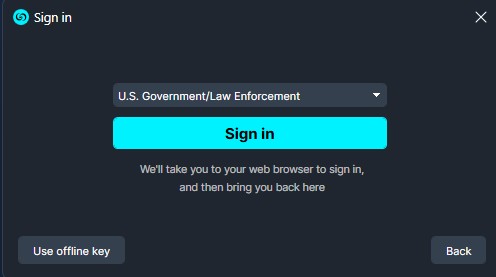
First, launch the software and sign in using your credentials.
Upload the Document.
Start a new project and import the document you would like to redact.
Select the Word to Redact
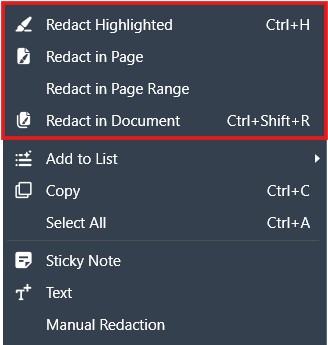
In the document viewer, highlight the specific word you want to redact. Right-click on the highlighted word and select Redact in Document from the context menu.

You can also:
Redact Highlighted to only redact the single highlighted word / phrase
Redact in Page to redact all instances of the word / phrase in the current page
Redact in Page Range to redact all instances of the word / phrase in a specific Page Range (if multiple pages)
Apply Redaction Across the Document
CaseGuard Studio will automatically identify and redact all occurrences of the word throughout the document based off what you selected:
-
In the Activity Panel, you’ll see a count of how many instances of the word / phrase were redacted.
-
You can navigate to each redacted instance using the go to position  for review.
Conclusion
By following these steps, you can quickly and accurately redact specific words across your entire document, streamlining your redaction workflow. This feature helps ensure sensitive terms are consistently removed, reducing the risk of accidental disclosure. For more advanced redaction needs, such as pattern redaction or AI-assisted redaction, explore the additional tools available in CaseGuard Studio.
Was this article helpful to you?
No
Yes