When working on large document projects in CaseGuard Studio, it’s helpful to narrow your view to just the redactions or detections on the current page. The Activity panel makes this easy by allowing you to filter what you see as you scroll through your document.
Step-by-Step Instructions
- Open your document project in CaseGuard Studio.
- Navigate to the Activity panel on the far right side of the screen.
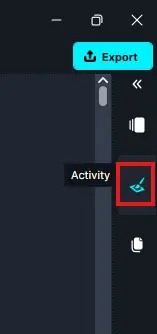
- If you’ve already made redactions in your document, they will appear in the Activity panel.

- If the panel is empty, you can populate it by:
-
- To filter by current page:
- In the Activity panel, click the three vertical dots next to the search bar (top right of the panel).

- Select “Filter by current page.”

- Once enabled, the Activity panel will only show redactions and detections from the current page you’re viewing.
-
Conclusion
Filtering activity by the current page helps you stay focused and work more efficiently – especially when reviewing long or complex documents. With just a few clicks, CaseGuard Studio allows you to see only what’s relevant in the page in front of you.
Was this article helpful to you?
No
Yes