Overview
The Watcher is a powerful automation feature in CaseGuard Studio’s suite of AI redaction tools that monitors a designated folder and instantly redacts assigned objects from an video or image added to it. Once configured, the Watcher can redact videos continuously, processing files automatically without needing to open CaseGuard Studio or perform manual work.
This is especially valuable when deadlines are tight or the redaction team is small. For example, a police department handling frequent FOIA requests for body-worn camera footage can set up the Watcher once to detect and redact faces, license plates, or other objects. From that point on, new videos placed in the Input folder will automatically generate fully redacted versions in the Output folder. This eliminates the need for multiple staff members to work inside CaseGuard Studio simultaneously, streamlining the entire video redaction workflow.
Follow the steps to Redact using AI Automatic Video Redaction in The Watcher!
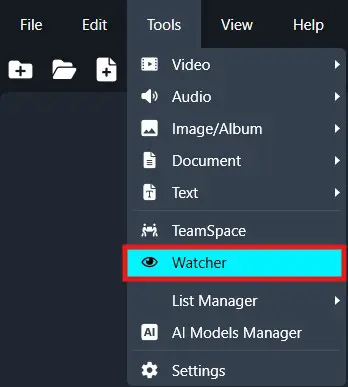
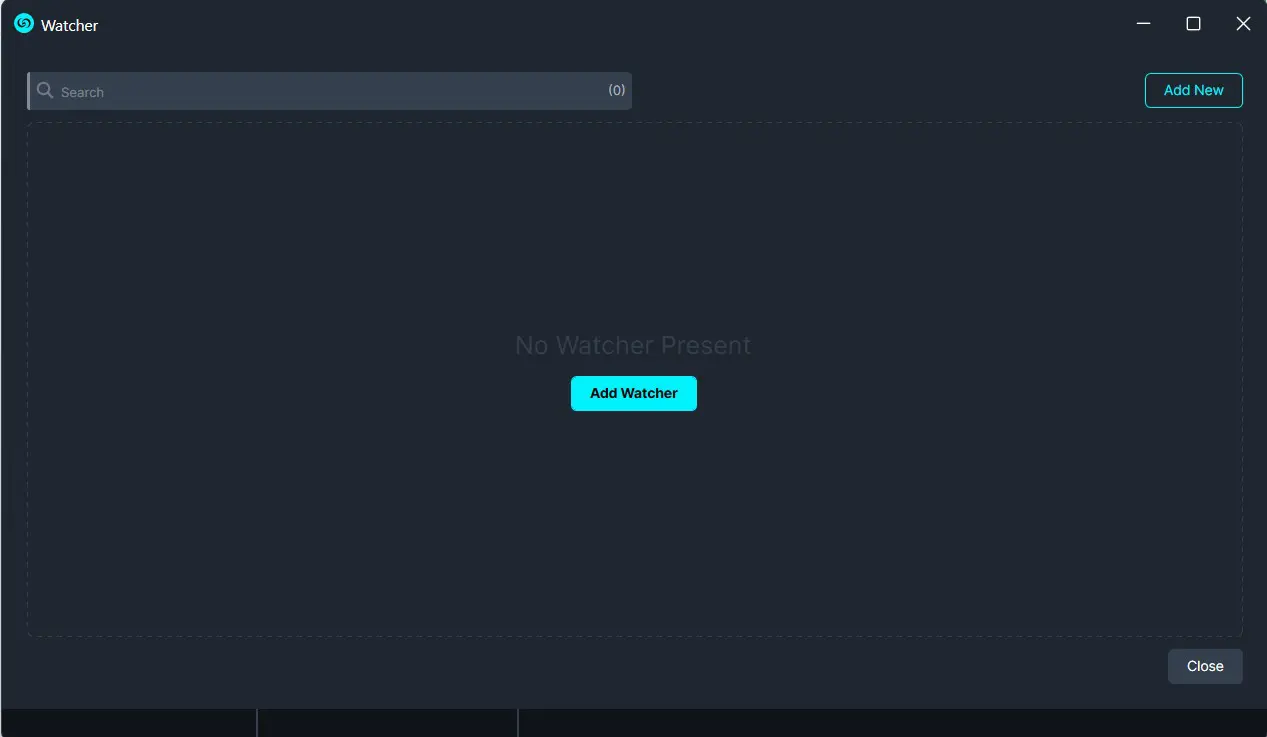
On the left-side menu, click the Tools tab. Then, open the drop-down menu and select Watcher. and then Click Add Watcher icon to set up the Watcher
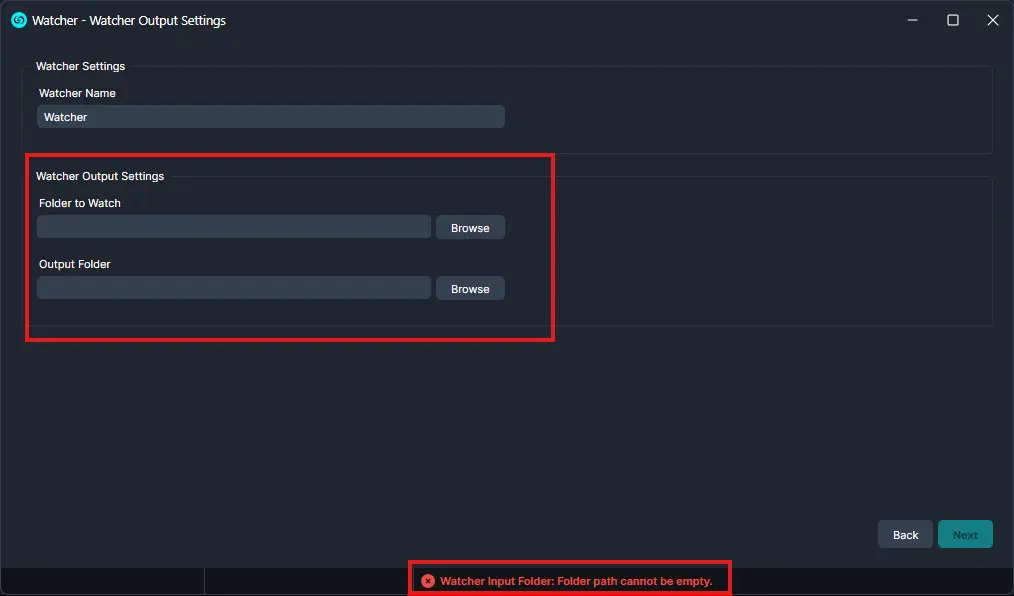
When the CaseGuard Watcher window appears, enter a Watcher name.
Click “Browse” to add a folder to watch. This is the folder where all documents that need to be redacted will be input.
Click “Browse” to add an Output folder. This folder will contain all exported files after the Watcher processes and redacts the documents from the Watch folder.
Click “Next.“
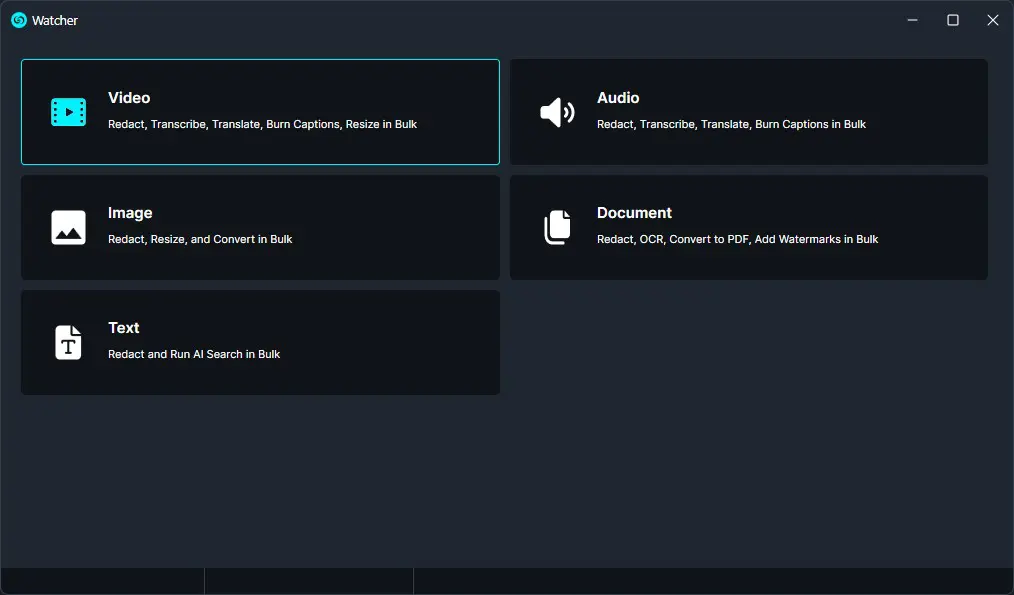
A Watcher window will appear, select Video for the operation you would like your Watcher to perform.
Select “AI Search” to apply to your Watcher and click “Next.”
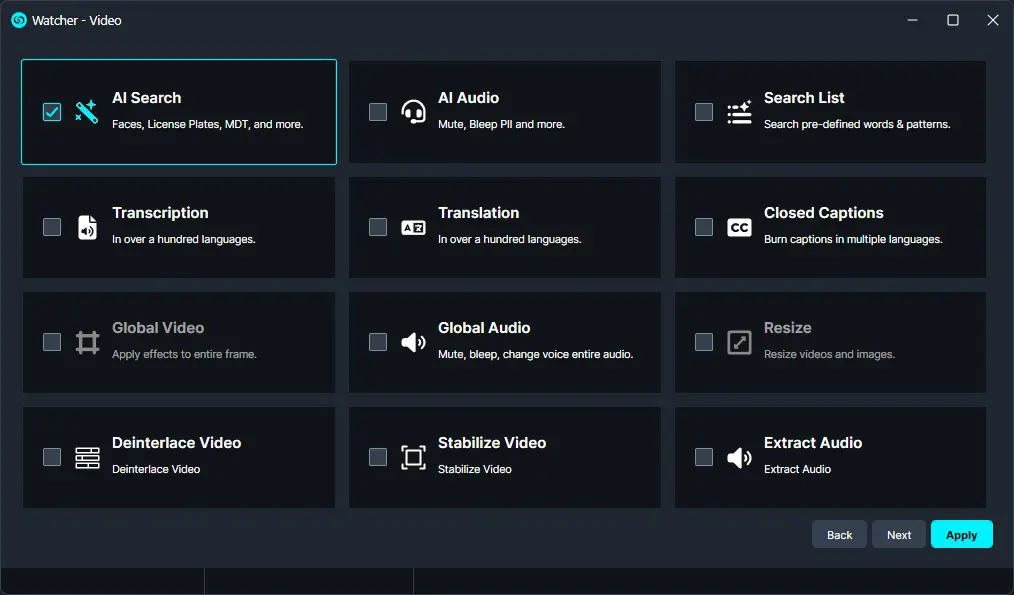
Click “Next” and then the “Select what to detect” window will appear.
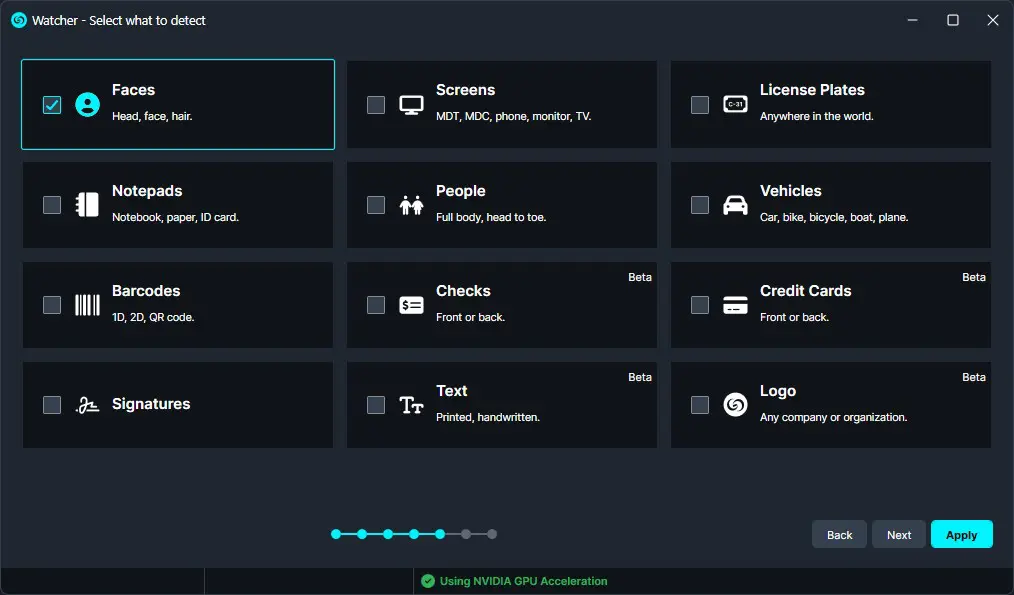
Select one or more objects to detect, and then click “Next.”
- You can make multiple selections, customizing this process for all your redaction needs.
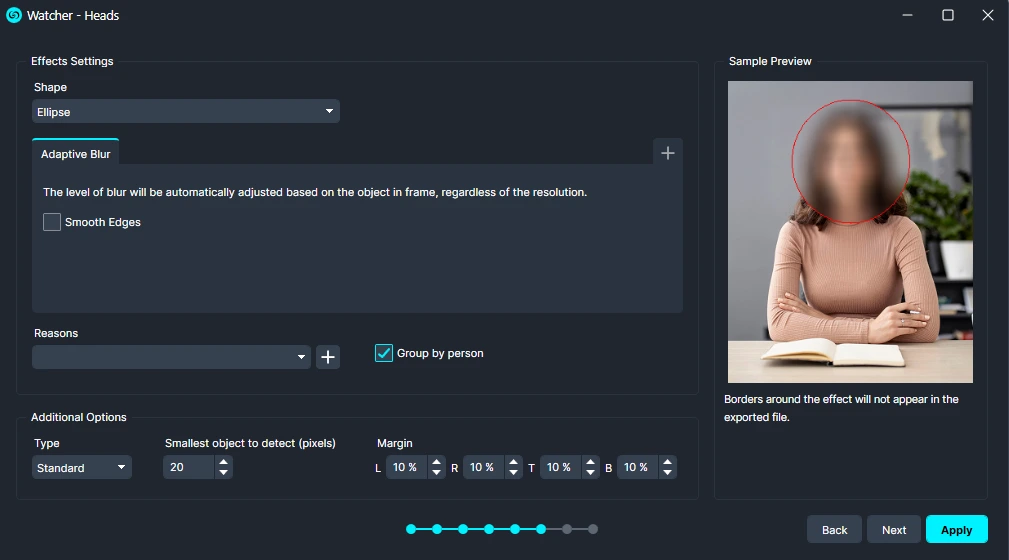
Apply the shape and effect per object. The default is an Ellipse shape; add effects using the “Add Effect” dropdown.
- There are over 30 redaction and enhancement effects to choose from including Blur, Pixelate, Magnify, and Sharpen.
Click “Next.”
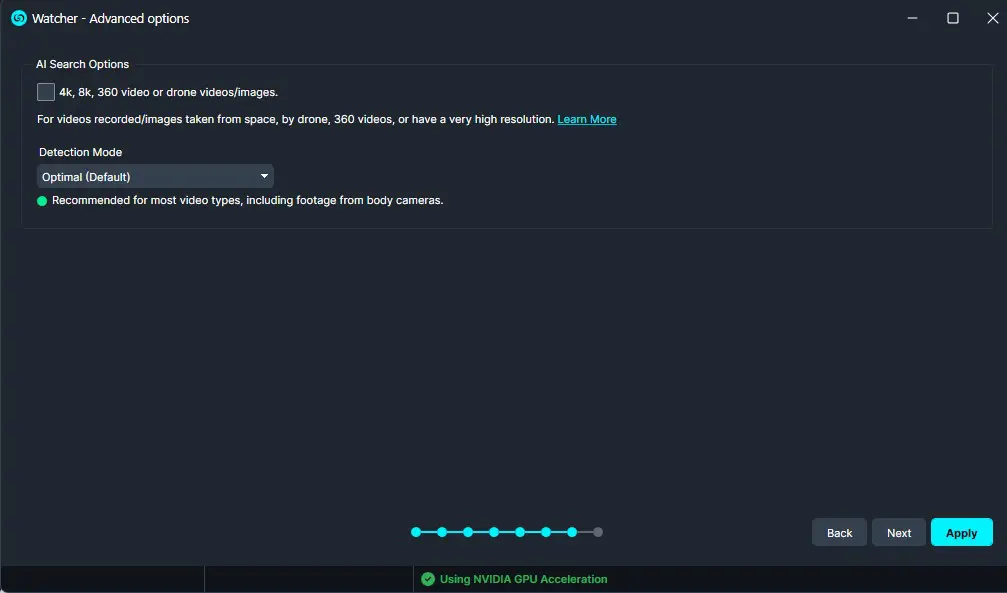
The AI Advanced options will appear, once configured to your liking click “Next.”
Click “Next” and a Summary window will appear, here you can edit your selection and decide if you would like to keep history files for manual review.
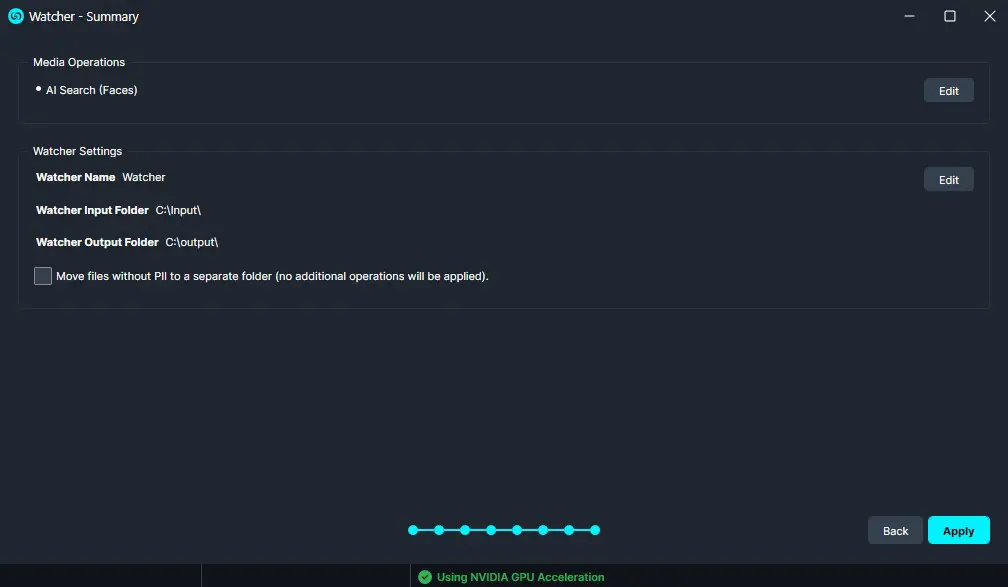
Once satisfied with your Watcher settings, click “Apply” and your Watcher will appear in the Watcher Panel.
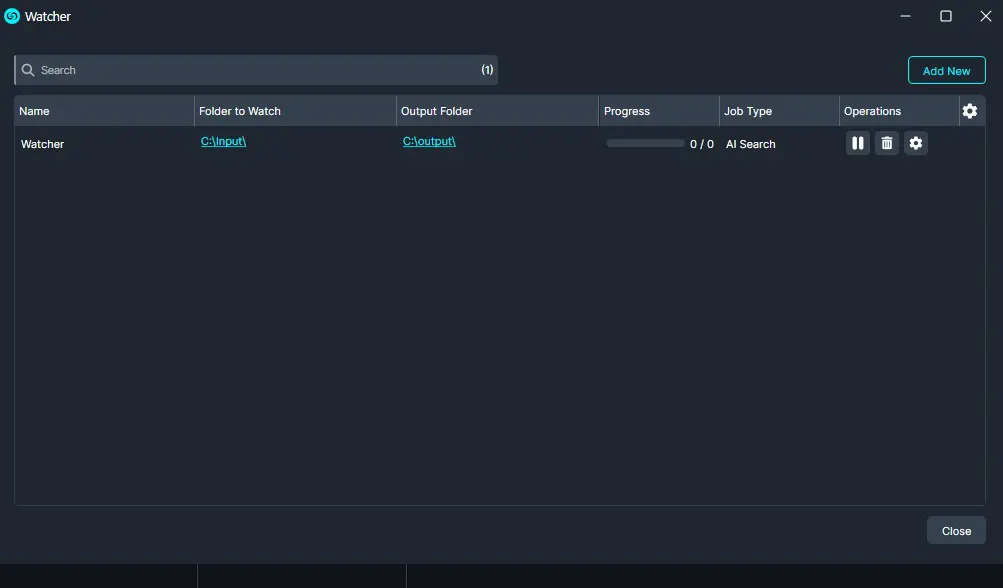
Under the Watcher progress bar, you have the option to open the settings, delete  , or pause
  the Watcher.
- The settings icon will open up the Watcher window.
- Delete will completely delete the selected Watcher.
- Pause will pause the Watcher operation.
When you need to use The Watcher again, there is no need to open CaseGuard. Just add new videos to the Input Folder and the operations applied to that Watcher will begin.
Conclusion
The Watcher’s AI Automatic Video Redaction streamlines video processing by automatically detecting and redacting sensitive objects without manual intervention. This allows teams to handle high volumes of video efficiently, maintain accuracy, and meet tight deadlines. Simply add new videos to the Input folder, and the Watcher will process them automatically, delivering fully redacted files to the Output folder. For questions or additional assistance, contact CaseGuard Support at [email protected]
Was this article helpful to you?
No
Yes
1