Follow these steps to view your scheduled tasks!
In CaseGuard you can schedule several redaction tasks at once. These tasks will be completed in the order they were scheduled. This article will cover where to view these tasks.
- After you schedule tasks inside CaseGuard, select the calendar icon at the top of your CaseGuard to open the scheduled tasks window.

- Once the scheduled tasks window is open you will be able to see all of your previously processed tasks, failed tasks, and currently scheduled tasks.
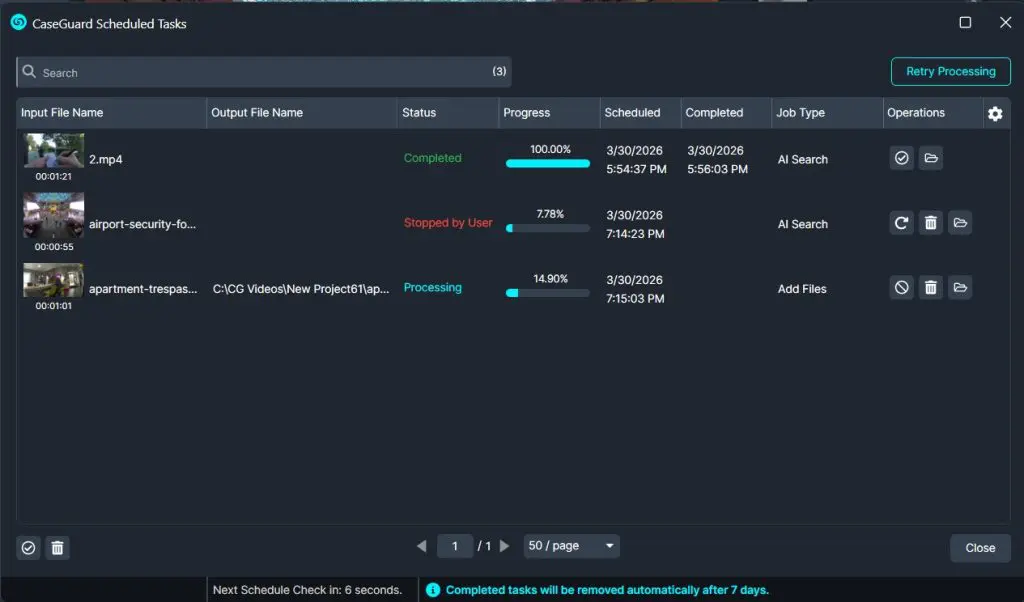
- The scheduled tasks window has many different functions:
- Remove
 : This icon will remove any completed tasks from scheduled tasks.
- Try again
 : This icon will have your CaseGuard try to process any failed task again.
- Open Project Folder
 : This icon will open the Windows file explorer to the project folder location.
- Stop
 : This icon will stop any ongoing scheduled task.
- Remove all Tasks with errors from the list
 : This icon will remove all failed tasks from the list.
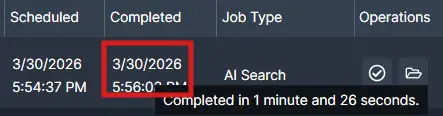
- If you hover over the completed field you can see the time taken for the Scheduled task to finish.
Conclusion
Using the scheduled tasks window in CaseGuard will allow you to quickly and easily track the progress of all your work. If you are having issues, please email [email protected] to get a quick solution to your problem.
Was this article helpful to you?
No
Yes
1