In the realm of cybersecurity, both online and offline keys serve distinct and valuable purposes. Offline keys are particularly beneficial for air-gapped systems – computers that are intentionally isolated from any network connectivity, including Wi-Fi or internet access. This isolation enhances the security of sensitive data, as it significantly reduces the risk of unauthorized access or cyberattacks. By keeping these systems “off the grid,” organizations can protect critical information from external threats.
However, this heightened security comes with trade-offs. For instance, certain functionalities that require internet access, such as AWS transcription, translation, and AI analysis services, will be unavailable when using offline keys. This limitation must be carefully considered when deciding how to balance security with the operational needs of your organization.
Depending on your organization’s specific security requirements and operational needs, the choice between online and offline keys can be a critical decision. Online keys, while offering greater convenience and access to a wide range of services, may introduce vulnerabilities that offline keys are designed to mitigate. Therefore, it is essential to assess the unique needs of your organization and choose the key management strategy that best aligns with your security protocols and operational goals.
Requesting an Offline Key
To request an offline key, please contact your Account Manager or our Support team at [email protected]. We will be pleased to assist you in generating an offline key. However, before proceeding, it is crucial to consult with your IT team, as this change is irreversible.
Once you have decided to proceed, please locate your unique device ID. You will need this information when contacting CaseGuard Support. The unique device ID can be found on the login screen of your CaseGuard Studio. If you are currently logged in, please click the File tab at the top left, then click Sign out to access the login screen.
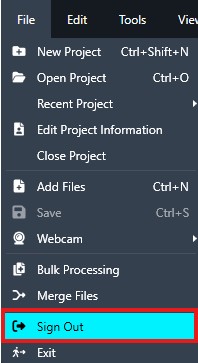
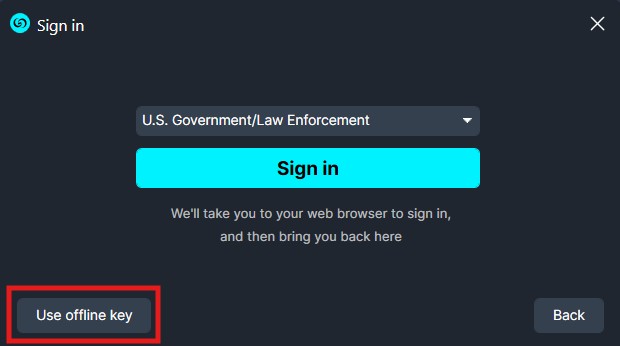
There, click Use Offline Key to reveal your unique device ID.
For your convenience, the images provided below are to guide you in locating your License unique ID.
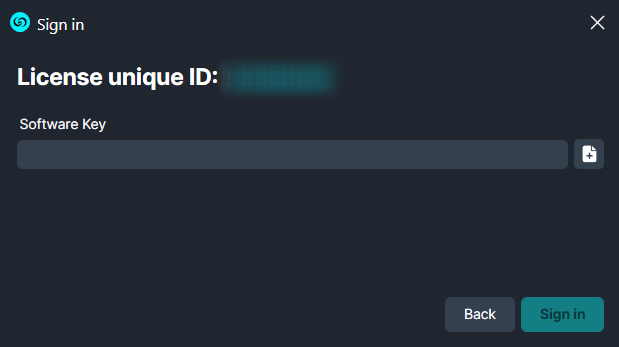
Once we receive your license unique ID, we will promptly generate a software key for you. Upon receiving the software key, you can enter it beneath your unique license ID and click “Login.” This will enable you to use CaseGuard on an air-gapped system.
Should you require any further assistance with this process, please do not hesitate to contact us at [email protected].
Requesting an Online version of CaseGuard Studio
The online version of CaseGuard Studio is the default option. If you require features such as transcription, translation, and AI analysis, we strongly recommend using the online version.
When obtaining a license for CaseGuard Studio, our team will automatically provide you with the online version of CaseGuard Studio unless your organization specifically requests an offline version.
Conclusion
Choosing to use an offline key is a significant decision that should not be taken lightly, as it is irreversible and comes with limitations. Before making the switch, be sure to consult with your IT team to confirm that an air-gapped setup aligns with your organization’s security requirements and operational needs. If you determine that an offline key is the right fit, simply reach out to your Account Manager or the CaseGuard Support team with your unique device ID, and they will get you set up promptly.
Was this article helpful to you?
No
Yes