Overview
Accurate and timely transcription is essential for managing audio and video content across a variety of teams, including legal, compliance, and redaction departments. Manually transcribing files can be time-consuming and prone to errors, making automation a valuable tool for improving efficiency. By leveraging CaseGuard’s Watcher feature, teams can streamline the transcription process, ensuring that recordings are quickly converted into text for documentation, review, or further processing.
This guide will walk you through how to automate transcription using CaseGuard’s Watcher feature. With this functionality, you can simply drag and drop files into a designated folder, and CaseGuard will automatically generate transcriptions while also supporting redaction and translations. By the end of this tutorial, you will have a fully automated transcription workflow that can be applied across multiple teams and use cases.
Follow the steps to Automate Transcription in CaseGuard!
Open CaseGuard Studio
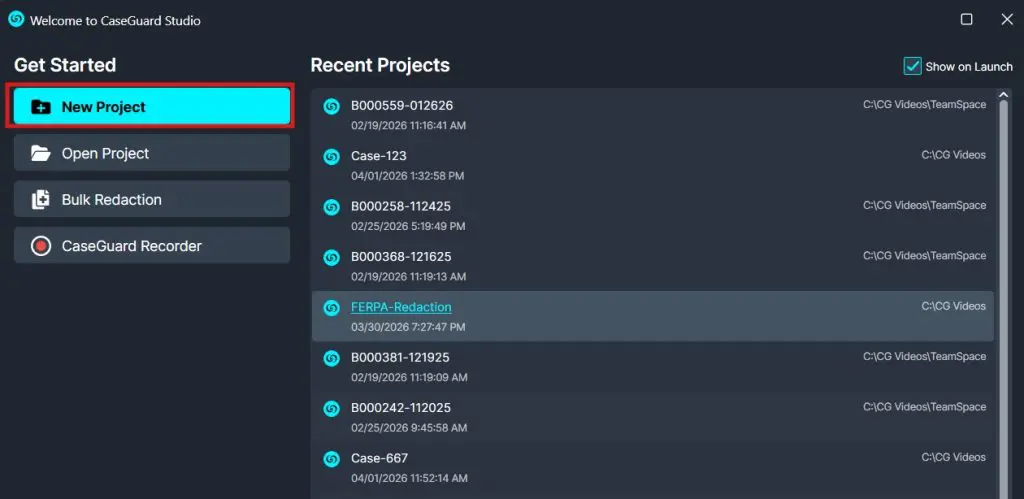
Launch CaseGuard Studio and close the welcome window. A new project is not required for this workflow.
Enable the Watcher
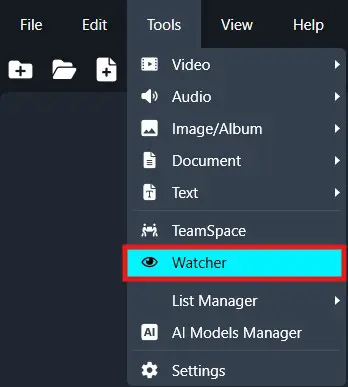
On the left-side menu, click the Tools tab. Then, open the drop-down menu and select Watcher.
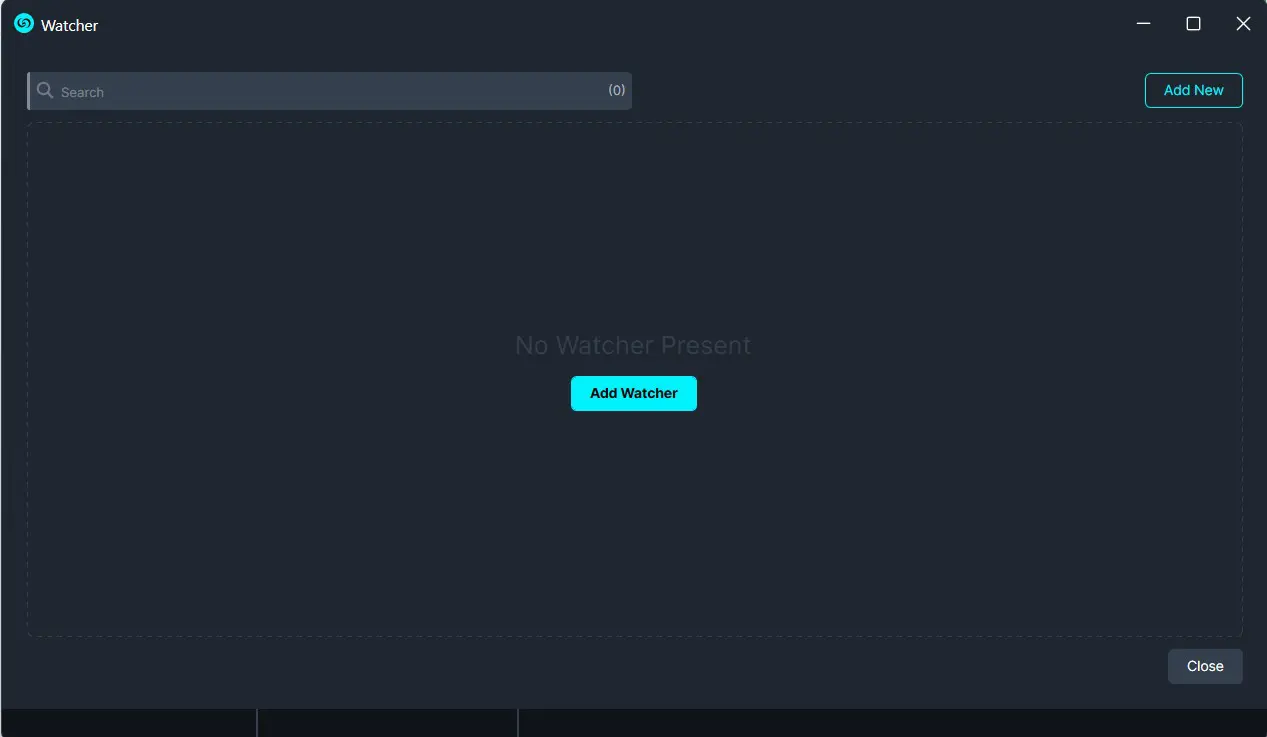
Click the Add Watcher button to set up the Watcher.
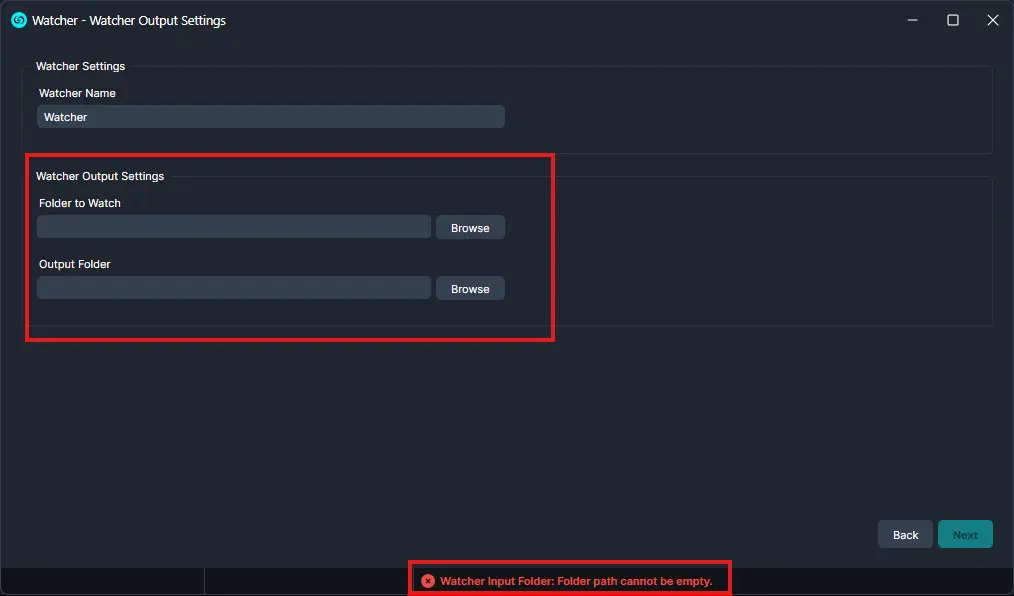
When the CaseGuard Watcher window appears, enter a Watcher name.
Click “Browse” to add a folder to watch. This is the folder where all documents that need to be redacted will be input.
Click “Browse” to add an Output folder. This folder will contain all exported files after the Watcher processes and redacts the documents from the Watch folder.
Click “Next.“
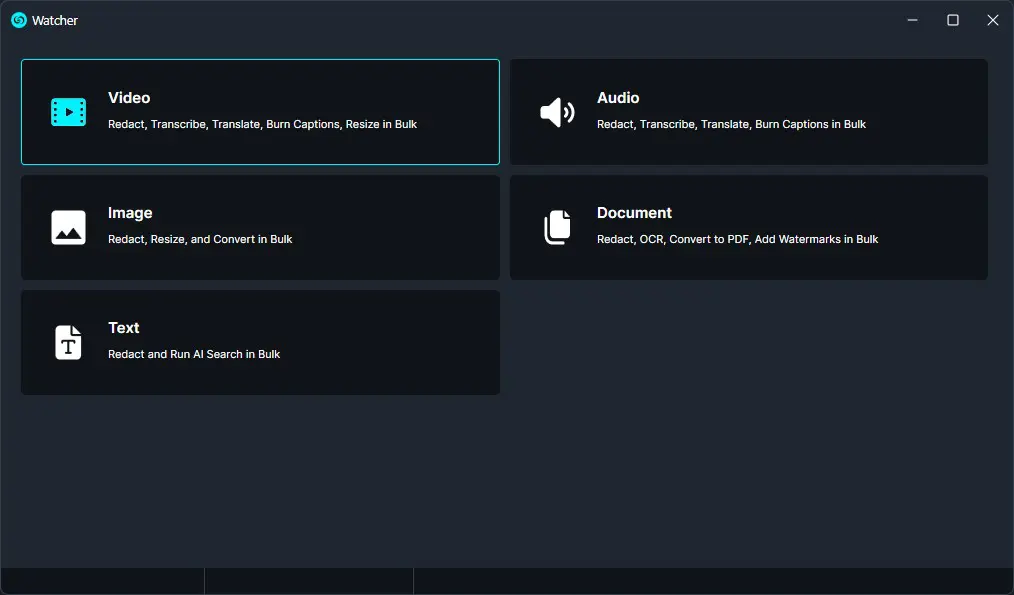
Select File Types for Transcription
Choose the file types you wish to process. Select either “Video” or “Audio,” then click “Next.”
Configure Transcription Settings
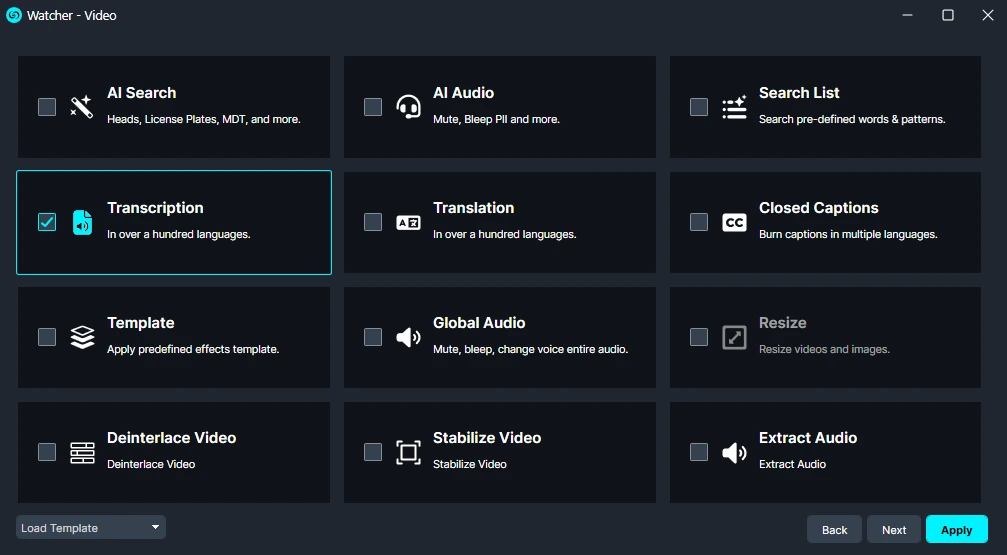
Select “Transcription” as the processing function. You may also enable additional options, such as AI Video or AI Audio, if needed. Click “Next.”
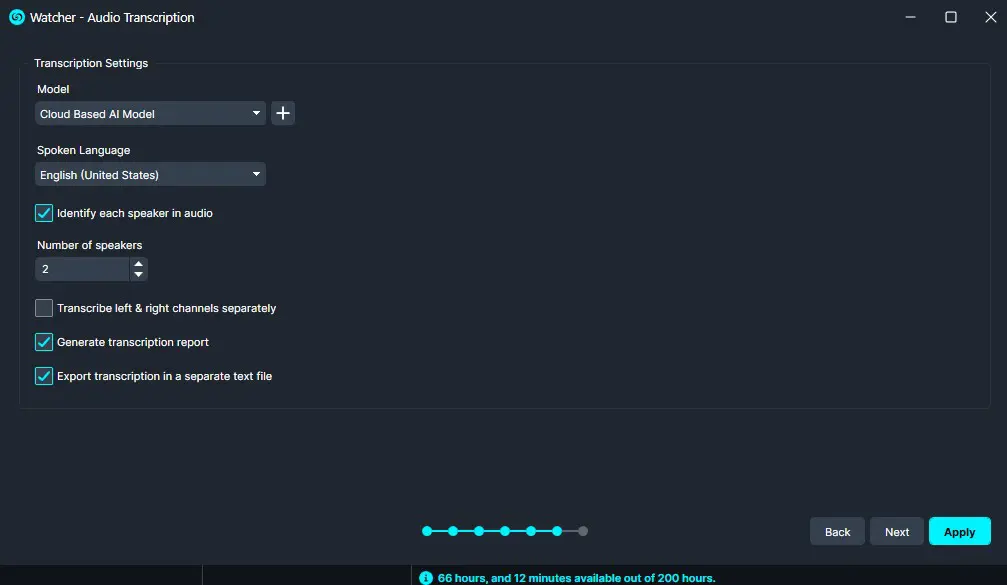
Choose the Cloud-Based Model for the most accurate and efficient results. If using an offline key, select the local model instead.
Configure language settings and specify the number of speakers in the file (if unsure, setting it to 10 is recommended).
Enable the “Generate Transcription Report” checkbox, then click “Next.”
Review and Apply Settings
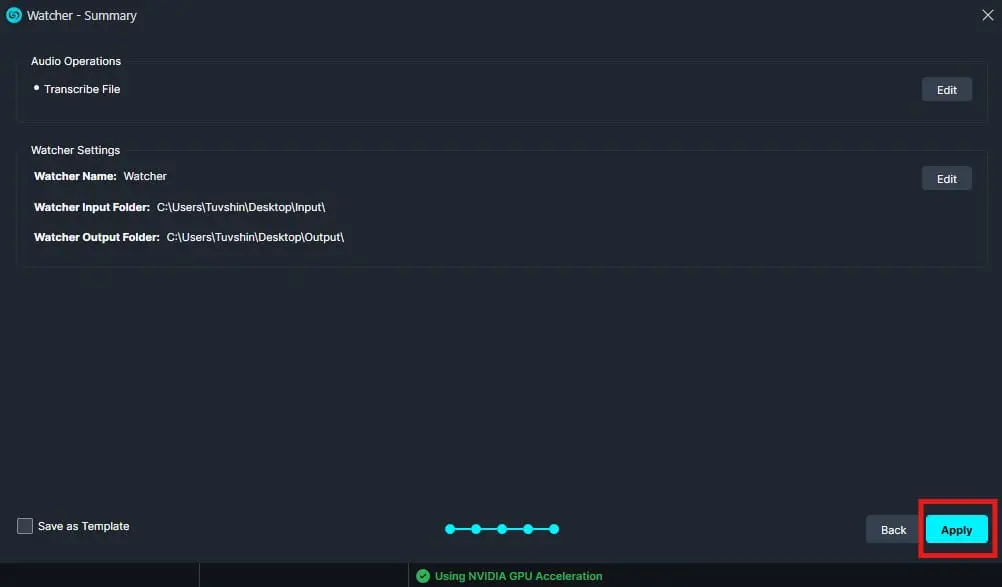
A summary window will display your watcher settings. Review the details, then click “Next” to apply.
Monitor Progress
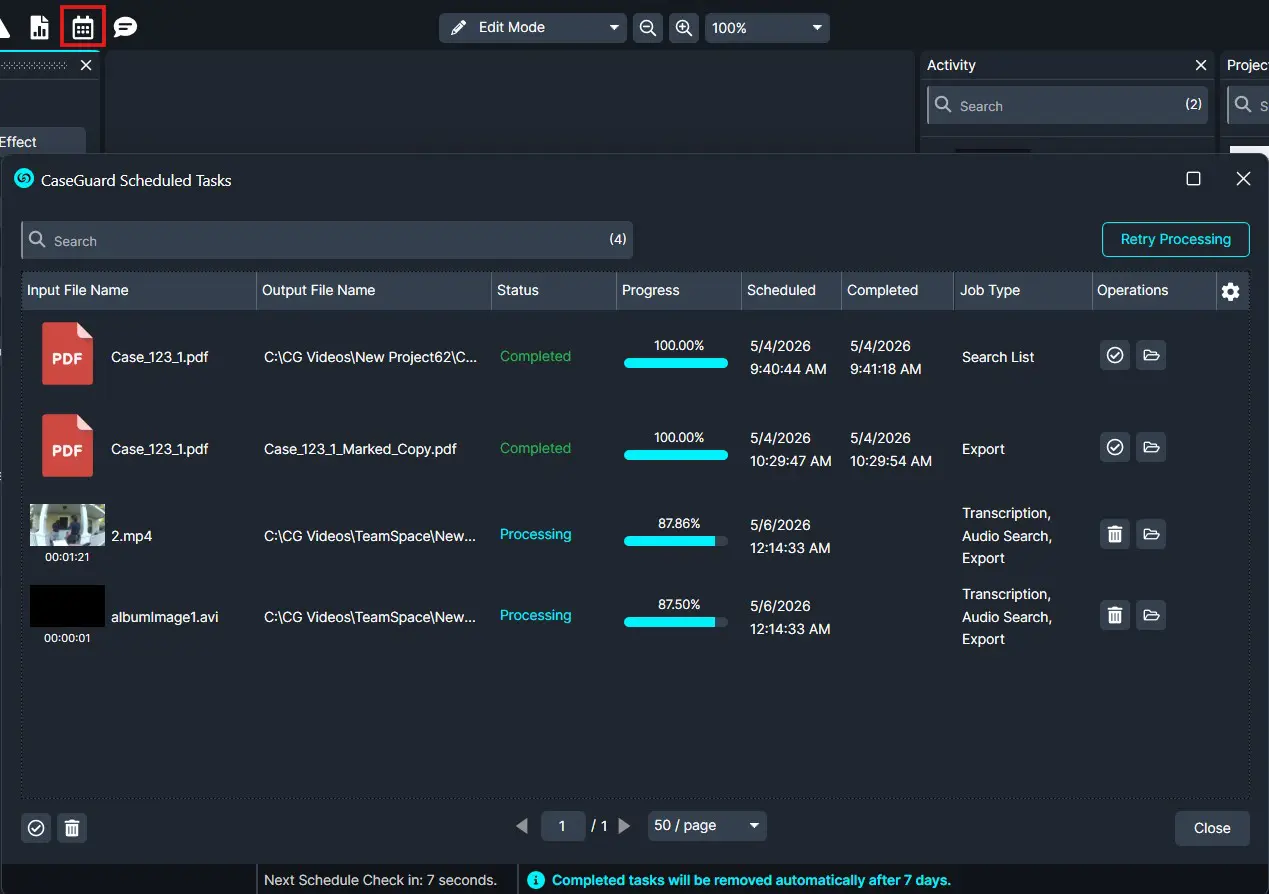
Check the “Scheduled Tasks” button (located in the top toolbar with a calendar icon) to monitor progress.
Retrieve and Utilize Transcriptions
Once processing is complete, locate the output folder, where each transcribed file will be saved as a PDF.
Open the PDF, review the transcription, and save or distribute it as needed.
Conclusion
Automating transcription with CaseGuard allows Redaction teams to save time, reduce errors, and maintain consistency across case files and client communications. By leveraging the Watcher, new audio or video files are transcribed automatically, enabling faster review, redaction, and distribution. For questions or additional support, contact CaseGuard Support at [email protected]
Was this article helpful to you?
No
1
Yes