Overview
Bulk Video Redaction is the process of blurring and exporting a large number of files all at once! It is particularly crucial for agencies with lengthy videos that necessitate AI-based redaction. For example, Law Enforcement and government agencies that are responsible for protecting sensitive information and delivering crime scene evidence within tight deadlines significantly benefit from this feature!
Similar to utilizing the AI Automatic Redaction feature within CaseGuard Studio, the Bulk Video Redaction has the capability to redact faces, license plates, screens, and so much more from hundreds of video footage in a single operation.
Undoubtedly, Bulk Video Redaction stands out as the most user-friendly solution in the market for redacting a large number of files in one single operation. The fastest solution to your redaction needs- removing all sensitive objects, but not without providing justification through adding redaction reasons and creating auto-generated reports to assist in compliance with FERPA and FOIA requests.
Follow the steps to Redact Videos in Bulk
- Click the Bulk Processing icon
 in the Shortcuts Bar at the top left of the screen. The Bulk Processing window will appear.
- Select “Video” from the window.
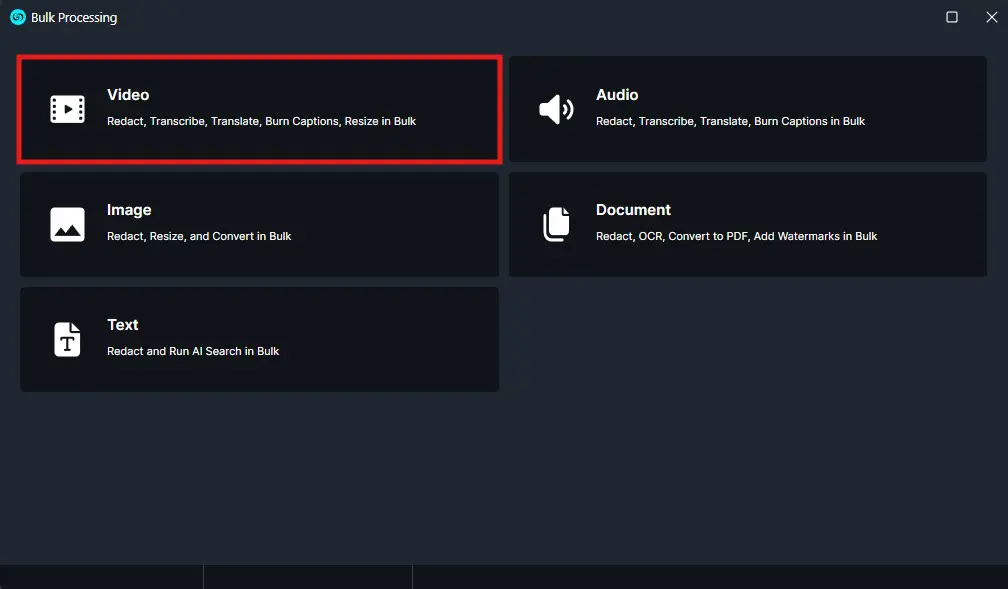
- Click “Next,” the Video window will open, and select “AI Search.”
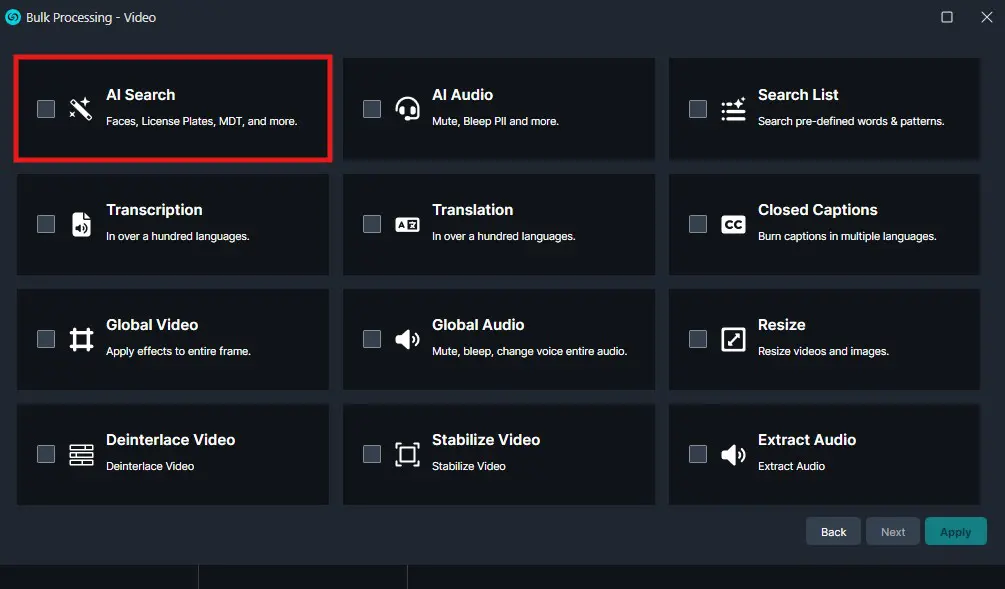
- Click “Next” and then the “Select what to detect” window will appear.
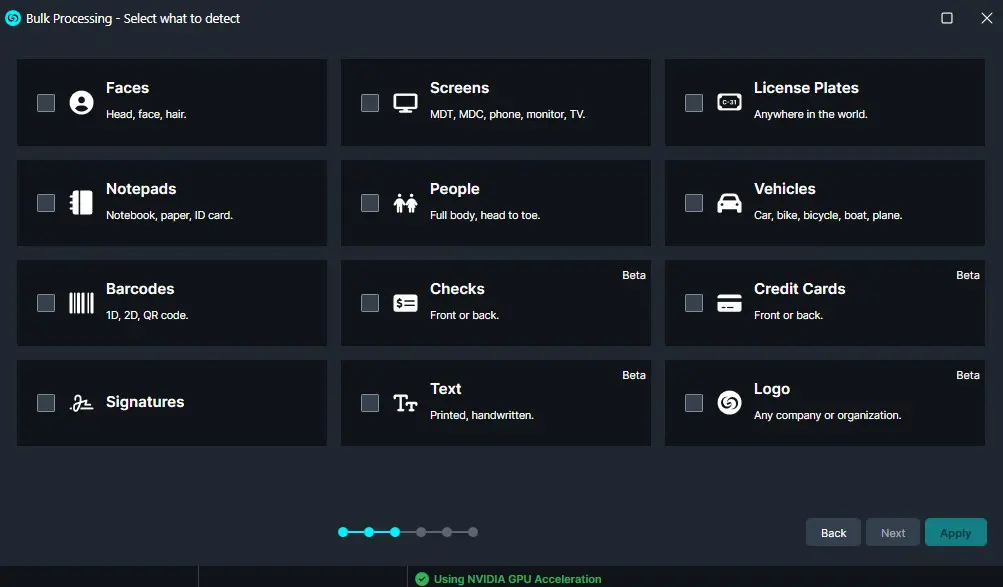
- Select one or more objects to detect, and then click “Next.”
- You can make multiple selections, customizing this process for all your redaction needs.
- Apply the shape and Effect per object. The default is an Ellipse shape; add effects using the “Add Effect” dropdown.
- There are over 30 redaction and enhancement effects to choose from including Blur, Pixellate, Magnify, and Sharpen.
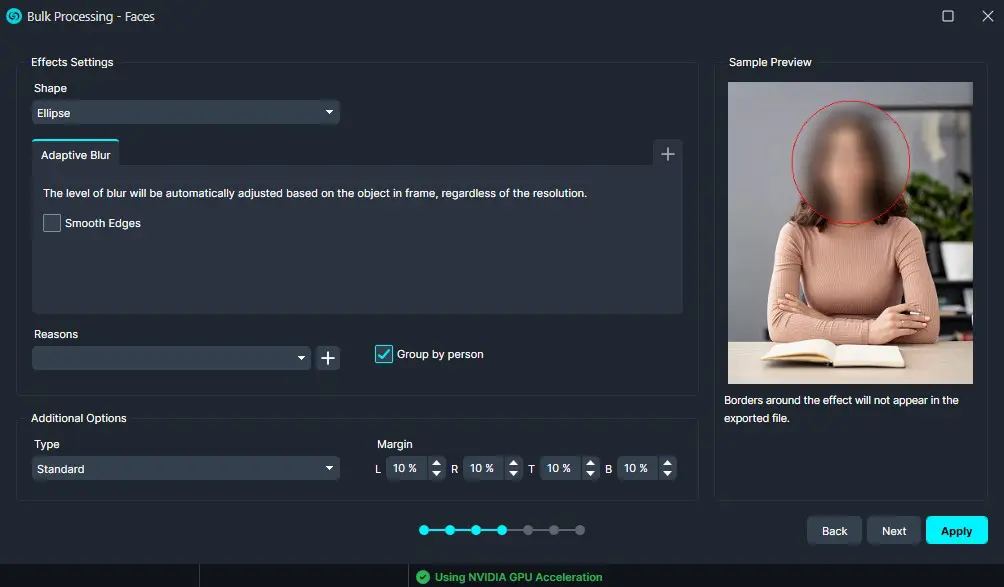
- Click “Next.”
- Click “Add Files’” and the file explorer will pop up. Select the video files you wish to redact, then click “Open.”
- There is no limit to the number of videos that can be added within the Bulk.
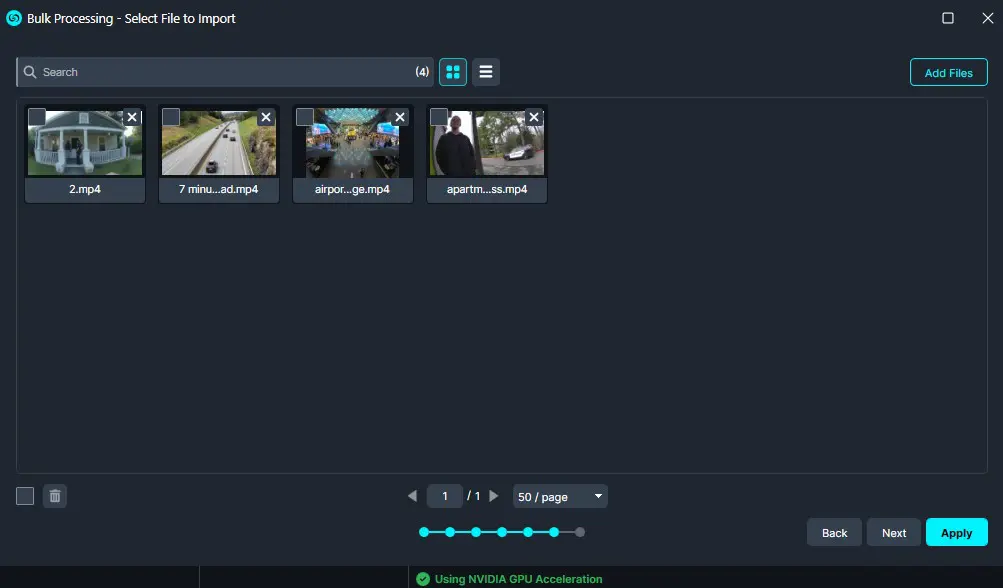
- Once the files are added click “Next.”
- A Summary window will appear, in the Bulk Processing “Summary” window, unselect “Export redacted version” if you would like to review the files before exporting.
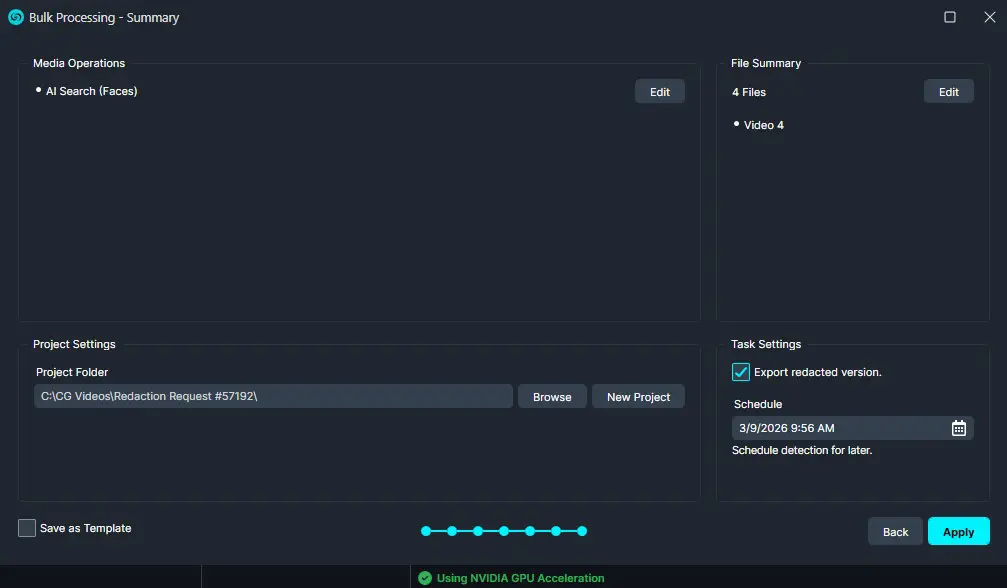
- Click “Apply” to initiate the Bulk Video Redaction of all your files!
- The CaseGuard Scheduled Tasks window will appear. Each video added to the Bulk Redaction window will be processed, and their progress will be displayed.
- The redacted file will appear in the Project Files Panel.
Conclusion
Bulk Video Redaction in CaseGuard Studio streamlines the process of identifying and redacting sensitive information across large volumes of video evidence. By leveraging AI-powered detection and automated processing, organizations can significantly reduce the time and effort required to review and redact footage while maintaining consistency and compliance. Whether handling public records requests, evidence disclosure, or privacy-related regulations, Bulk Video Redaction enables users to efficiently process hundreds of videos in a single operation, ensuring sensitive information is protected without compromising productivity. With customizable detection options, redaction effects, reporting capabilities, and scalable processing, CaseGuard provides a powerful solution for managing high-volume video redaction workflows.