Use Case
Imagine you’re reviewing a legal document for redaction, and you need to find every instance of the name “Mark”—but not “marker,” “bookmark,” or any variation in lowercase. By using the “Match Case” and “Match Whole Word” options within CaseGuard Studio’s Text to Find feature, you can narrow your search to only exact matches. This saves time and improves accuracy when searching for sensitive or specific terms that must be redacted precisely.
Overview
This article explains how to use the Match Case and Match Whole Word functions in CaseGuard Studio’s Text to Find feature. These options allow users to refine their searches by matching specific capitalization or whole words only—providing greater control over document review and redaction processes.
-
Match Case ensures that search results only include words that exactly match the capitalization of your input. For example, searching for “Name” will not return “name” or “NAME”.
-
Match Whole Word filters results to include only complete words that match your search. For instance, searching for “dog” will find “dog”, but exclude “dogged” or “doghouse.”
Using these features together or independently helps streamline the redaction of documents by reducing irrelevant search hits.
Steps to Use “Match Case” and “Match Whole Word”
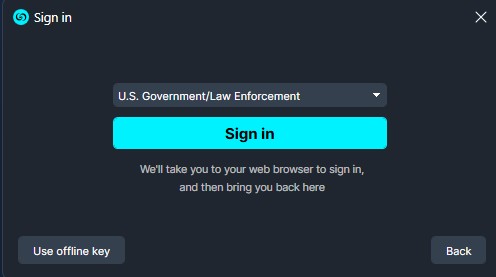
Open CaseGuard Studio.
Launch the software and sign in using your credentials.
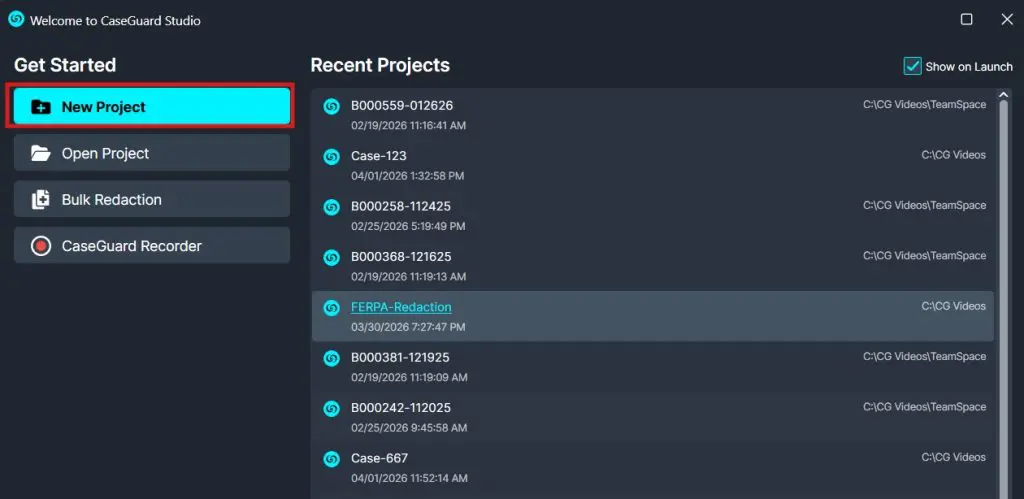
Upload the Document.
Start a new project and import the document you wish to search and redact.
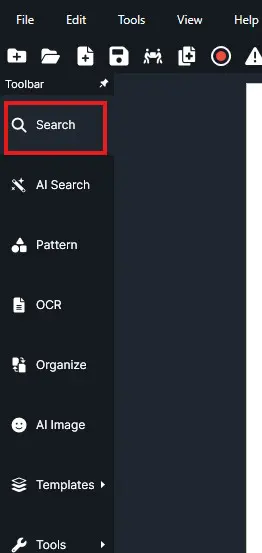
Access the Search tool.
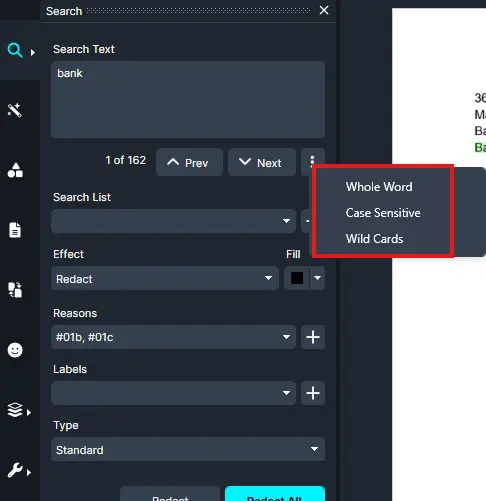
On the left-hand toolbar, click on Search. This will bring up the Search section on the left-hand-side of the document.
Enter the Search Term.
In the Search field, type the keyword or phrase you want to search.
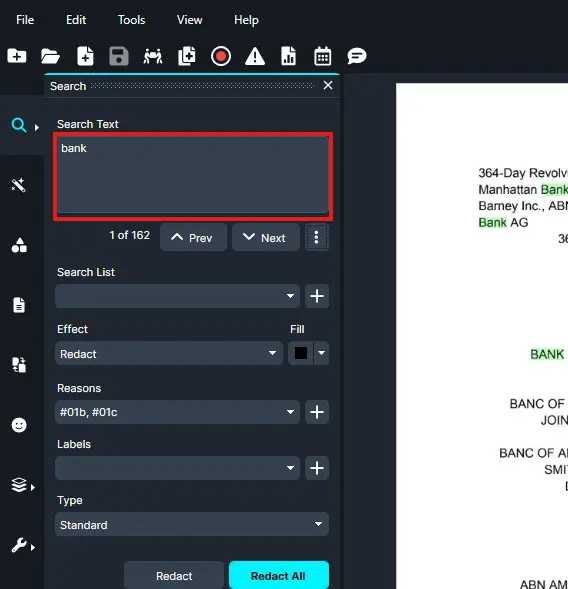
Enable Search Options.
Click the button with three dots next to the search field. Here, you can check Whole Word, Case Sensitive, Wild Cards, or all, depending on your needs.
View Results.
Press Enter, and CaseGuard Studio will display search results based on your selected options.
Conclusion
The Whole Word, Case Sensitive, and Wild Cards features in CaseGuard Studio provide powerful tools for locating specific terms quickly and accurately. Whether you’re searching for names you may not know the spelling for, technical terms, or case-sensitive keywords, these filters help reduce false positives and improve redaction efficiency. Incorporating them into your workflow can significantly enhance precision, especially in legal, law enforcement, or compliance-related use cases.
Was this article helpful to you?
No
Yes
1