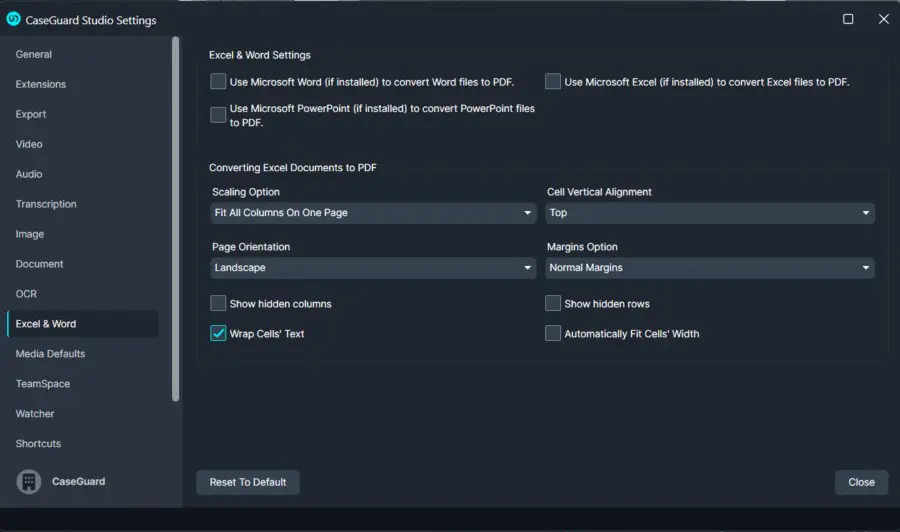
To access CaseGuard Studio’s Excel Settings, select Tools –>Settings. The Settings popup contains 16 tabs, one of which is the “Excel & Word” tab:
When importing Excel documents using CaseGuard Studio, there are several settings that you can configure to meet the particular needs of you or your agency.
Converting Documents to PDF
CaseGuard Studio also supports automatic conversion of other Microsoft Office documents before redaction:
- Use Microsoft Word to convert Word files to PDF – Uses Microsoft Word to convert Word documents into PDF format.
- Use Microsoft PowerPoint (if installed) to convert PowerPoint files to PDF – Uses Microsoft PowerPoint to convert presentations into PDF format.
- Use Microsoft Excel (if installed) to convert Excel files to PDF – uses Microsoft Excel to convert excel files into PDF fomrat.
Related Document Conversion Settings
CaseGuard Studio provides additional options for customizing how Excel documents are converted to PDF. These settings help ensure the converted document displays correctly and maintains the desired layout.
Available options include:
- Scaling Options – Adjust how the Excel sheet is scaled to fit the page.
- Show Hidden Rows and Columns – Include hidden rows and columns during conversion.
- Wrap Cell Text – Automatically wrap text within cells.
- Automatically Fit Cell Width – Adjust cell widths to fit the content.
- Cell Vertical Alignment – Configure how content is aligned within cells.
- Page Orientation – Select portrait or landscape orientation.
- Margins Option – Adjust page margins for the converted PDF.