CaseGuard Studio operates as a dockable, panel-based interface. The entire interface is called a Workspace, which you can customize based on your specific redaction needs. Each panel can be minimized or maximized, based on the content you need to visualize most clearly. Most work is done using the tools within each panel. We recommend pinning each panel based on the type of file you are editing or redacting. For example, pinning the Video Activity Panel for Video Redaction or the Transcription Panel for AI Audio Redactions.
The CaseGuard project workspace offers a dynamic and flexible environment for efficient media management and editing. Users can opt for default workspaces or customize their own to optimize workflow. The workspace capitalizes on keyboard shortcuts for swift redaction and editing, enhancing productivity. With an extensive toolkit catering to a wide range of use cases, CaseGuard empowers users to confidently create and manipulate media content according to their unique requirements. This workspace overview underscores the platform’s adaptability and user-centered approach to streamlining media processing tasks.
The main areas of CaseGuard’s Workspace are:
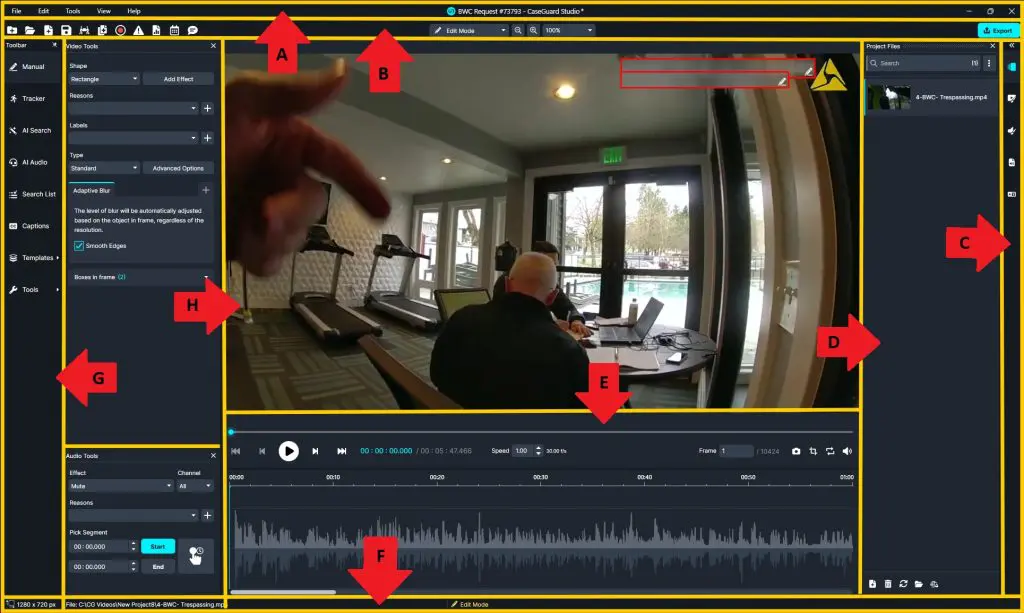
A: Menu Bar | B: Shortcuts Bar | C: Additional Panels | D: Project Files | E: Playback Options| F: Status Bar | G: Left Toolbar | H: Media Viewer
Work the way you want
Tools for every use-case
Work faster, smarter
Conclusion
A well-organized workspace can significantly improve your efficiency when working in CaseGuard Studio. By customizing your panels, selecting the appropriate workspace layout, and taking advantage of built-in tools and keyboard shortcuts, you can streamline your workflow for any type of media. As you become more familiar with the workspace, you’ll be able to tailor it to your specific redaction and editing needs, helping you work faster and more effectively.
Was this article helpful to you?
No
Yes
3