CaseGuard Log in Guide
Step 1: Activate Your Account via Web Portal
- Go to one of the following portals (depending on your organization/region):
- Sign in using your email address (e.g., [email protected])
- Use the temporary password that was sent to your email.( If you did not receive this, let us know and we will resend the temporary password.)
- After logging in, you will be prompted to create a new password
- Once completed, your account will be fully activated
Step 2: Sign in to CaseGuard Studio
After activating your account, open up the CaseGuard Studio application.
You will be met with a Sign in window. Click on the dropdown where it says “Enterprise” or “Government (US)” depending on your agency type, then click “Sign in”.
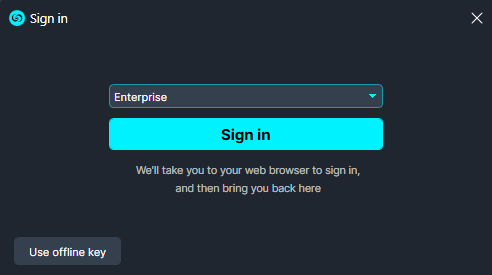
This will redirect you to the web login page.
Sign in again using the same credentials used during portal setup
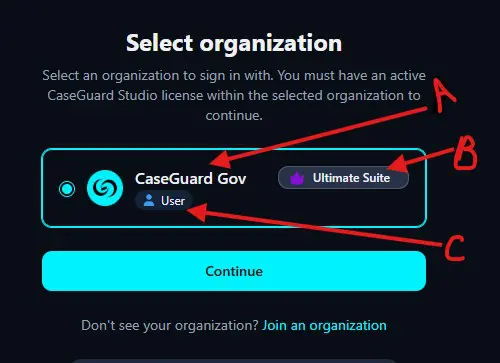
- Once authenticated, you will be taken to a page showing your
A: Organization Name
B: License Type
C: User Role
On this page, click Continue.
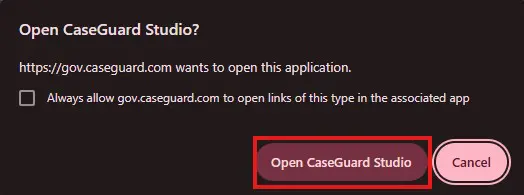
After selecting Continue, a new page will appear with the option to Open CaseGuard Studio.
- Select “Open CaseGuard Studio” and allow your browser to open the application when prompted. CaseGuard Studio will then launch automatically.
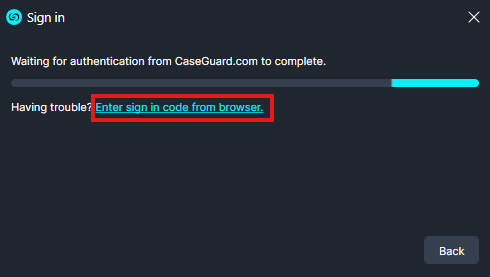
- If authentication to open the application fails, copy the code on the webpage to CaseGuard.
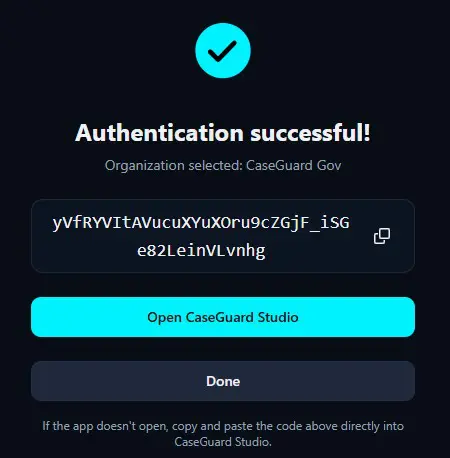
Click “enter sign in code from browser” to enter the code, then click “sign in”.
If this process does not work or you get stuck at any step, please contact [email protected] and we will be happy to assist you.
Was this article helpful to you?
No
Yes
1