How to: Apply Audio Redactions to Different Audio Channels

Use Case

We have a request to redact just one audio channel of the file we are working on. How can we achieve this inside CaseGuard?

If you need to redact only one audio channel (e.g., left or right) in a file, CaseGuard allows you to do this either manually or using transcription. This guide walks you through both methods.

Method 1: Manual Audio Redaction

  • Add your audio or video file to CaseGuard Studio.

  • Once loaded, navigate to the Audio Tools section at the bottom left of your workspace.
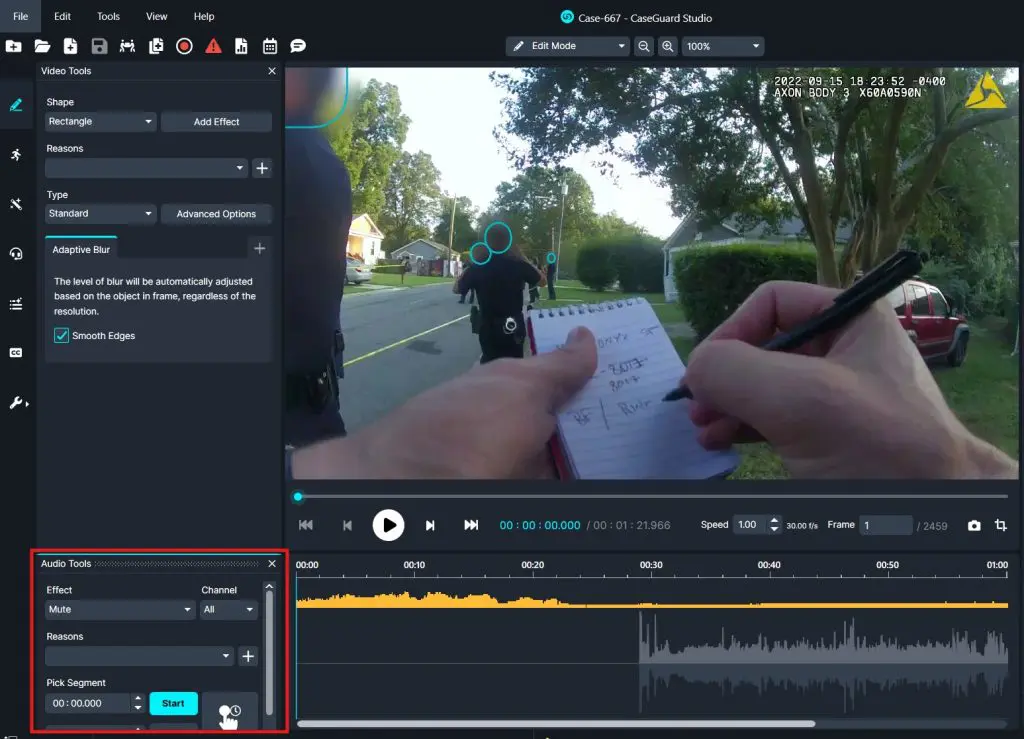
Screenshot of a video editor UI showing a street-scene video frame with hands writing in a notebook, plus timeline and audio panels visible on the left and bottom.

There are four methods to apply audio redactions manually:

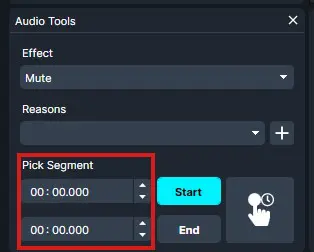
            1. In the audio tools section, select the effect you would like (ex: mute). Then enter Start and End  times for the segment you want to redact.

  • Audio Tools panel with Mute option, Reasons dropdown, and Pick Segment with two time fields (00:00.000) plus Start and End buttons.

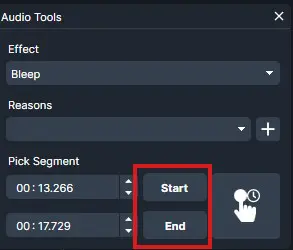
  •     2. Select the effect you would like. Then while the media is playing, click the Start icon and then the End icon to define the redaction segment.
  • Audio Tools panel for the Bleep effect; Start and End buttons are highlighted to define the segment, currently showing 00:13.266 to 00:17.729.

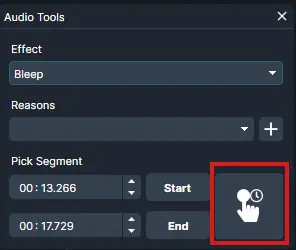
  •    3. Select the effect you would like, then while the media is playing, click and hold the Press & Hold icon to capture a live segment.
  • Audio Tools panel showing Bleep effect selected, with Start/End segment controls and a highlighted button featuring a hand cursor.

  •    4. Highlight the waveform directly to select the segment, then apply Mute or Bleep.
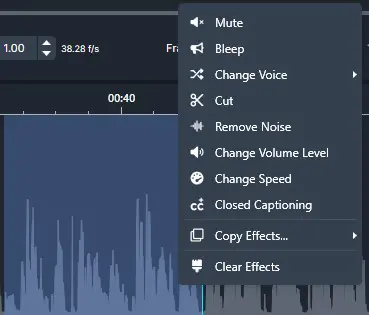
Context menu in an audio editor over a waveform, with options: Mute, Bleep, Change Voice, Cut, Remove Noise, Change Volume Level, Change Speed, Closed Captioning, Copy Effects, Clear Effects.

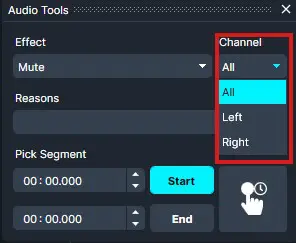
  • If your file contains multiple channels, you’ll see the ‘Apply to’ option.

    • Use the channel dropdown to choose which channel (Left, Right, etc) the redaction applies to.

    • You can set this either before applying a redaction or afterward by selecting the existing redaction and adjusting the channel.

Screenshot of an Audio Tools panel: Channel set to All, Effect is Mute, with Start/End time fields and a Start button, plus a hand-icon button.

  • When applied to a single channel, the redaction will only cover half of the audio waveform, showing that it is isolated to one channel.

Method 2: Using Transcription

The second method uses CaseGuard’s transcription feature to redact audio channels with precision:
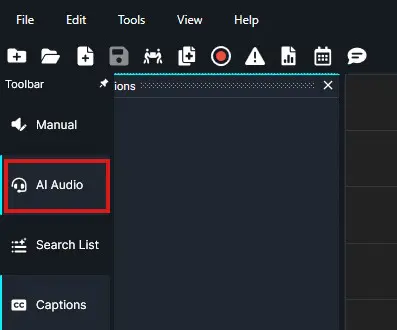
  • Add your audio or video file to CaseGuard Studio.

  • Click the AI Audio tab from the left-hand Toolbar.

Dark software interface with a left navigation panel; 'AI Audio' is selected and outlined in red.

  • Choose Cloud Based AI Model as the model.

  • Select the language, if not English.

  • Select the number of speakers.

  • Check the box for “Transcribe left & right channels separately”.
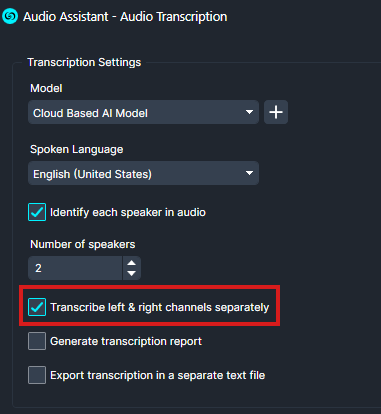
  • Click Next, then Apply.

  • Once transcription loads:

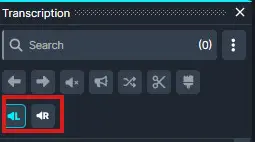
    • You’ll see Left and Right channel icons at the top of the Transcription Panel, click between them to switch channels.

Screenshot of a transcription app toolbar; bottom-left shows two highlighted playback buttons for Rewind and Fast-forward/Loop controls.

  • To redact specific words/phrases:
    • Highlight the word/phrase.
    • Right-click, then choose the redaction effect.
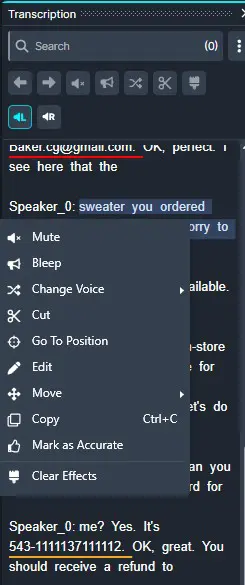
  • Right click and Go to Position ( ) to jump directly to the point in the audio where a specific word is spoken.

Screenshot of a transcription editor UI with a dark context menu for Speaker_0 showing options like Mute, Change Voice, Cut, Move, Copy, Edit, and Clear Effects.

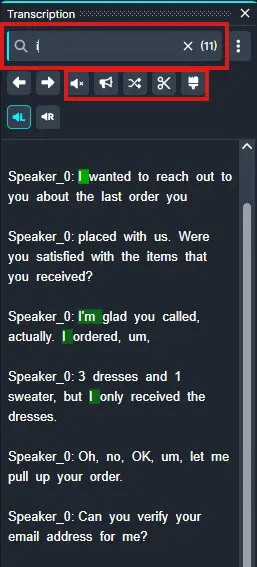
  • Use the Search Bar within the Transcription Panel on the top right to find a word/phrase:

    • Press Enter to highlight all instances of the word/phrase.

    • Use the Mute, Bleep, or Change Voice icons at the top to redact all instances at once.

Transcription panel screenshot showing a search field, a row of toolbar icons, and a chat transcript about an order (discussion of dresses, sizes, and verification).

  • When you’ve completed your redactions, click Export from the top right of CaseGuard to export your work.

Conclusion

By following these steps, you can easily redact specific audio channels in your files, ensuring your redactions are precise and compliant. For further assistance or questions, feel free to reach out to [email protected].