Overview
The video Templates feature allows you to save existing redactions as a reusable template that can be applied to other videos with the same layout or camera angle. This is useful when multiple recordings require the same redactions in the same locations, such as surveillance cameras, interview rooms, body-worn camera docking stations, or other fixed camera setups.
Applying a template saves time, ensures consistency, and eliminates the need to recreate the same redactions for every video.
Note: For the best results, apply templates only to videos captured from the same camera position or with the same framing. Differences in camera angle, zoom, or perspective may cause the redactions to be misaligned.
Saving a Video Template
To save a video template in CaseGuard:
- Open the video you want to use as a template.
- Apply all of the redactions you want to reuse.
- From the left-hand toolbar, select Templates > Save as Template.
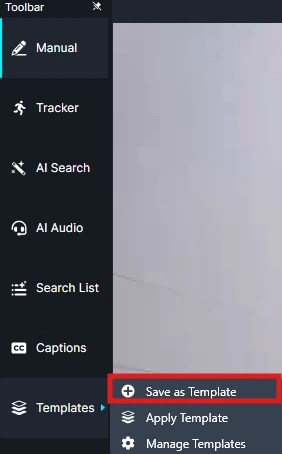
- This will open a new window.
- Under “Template Name,” give your template a name.
- Then, select the frame from which you want to save the redactions. The template will save all applicable video redactions beginning at the selected frame.
- Click Save in the bottom right corner to save the template.
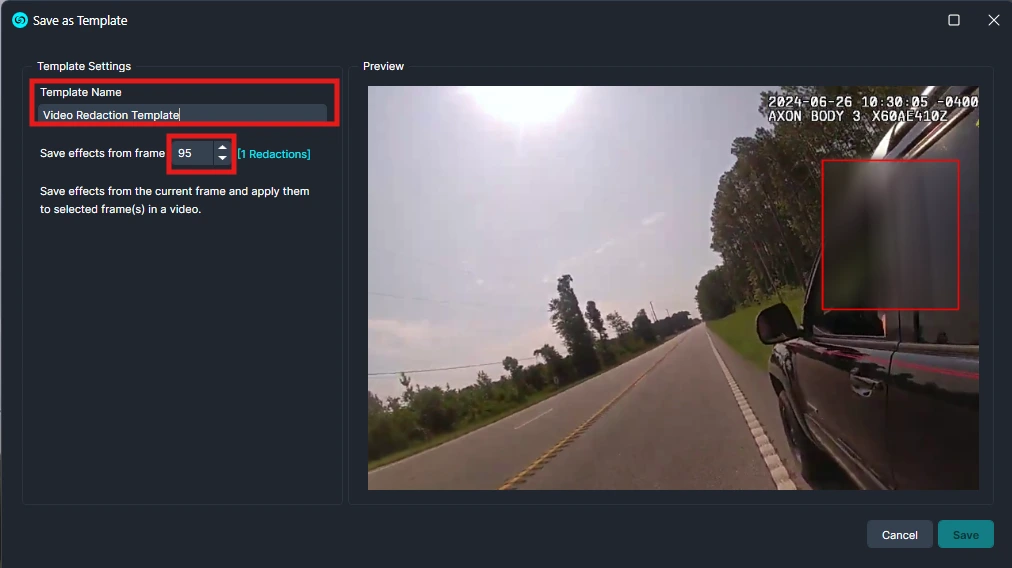
Applying a Video Template
To apply a saved template:
- Open the video you want to apply the template to.
- From the left-hand toolbar, select Templates > Apply Template.
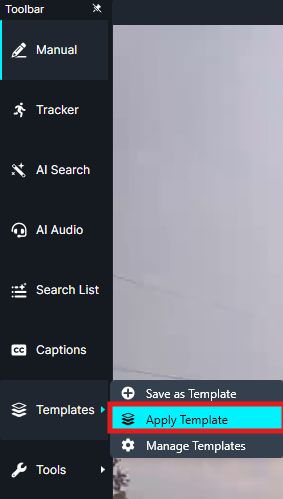
Once the Video Templates window pops up, select the desired template.
- Choose whether to apply the template to:
- The entire video, or
- A selected time range.
- Click Apply.
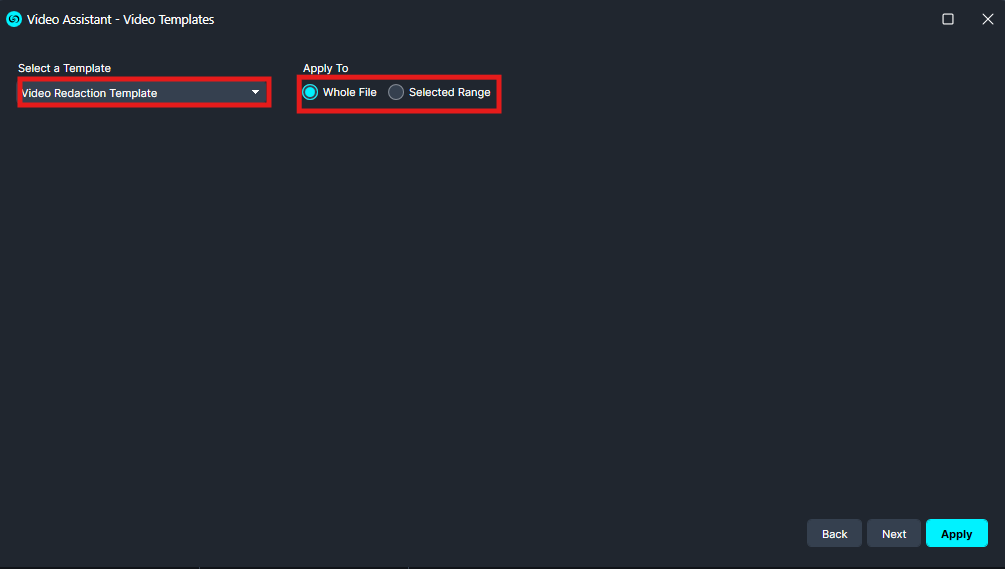
The saved redactions will be applied according to the selected template.
Managing Video Templates
- From the left-hand toolbar, select Templates > Manage Templates.
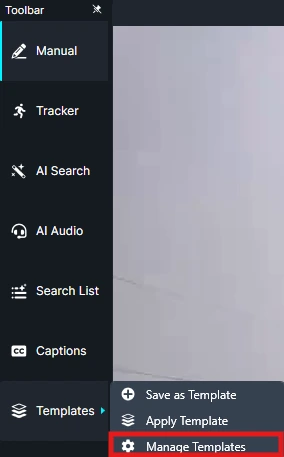
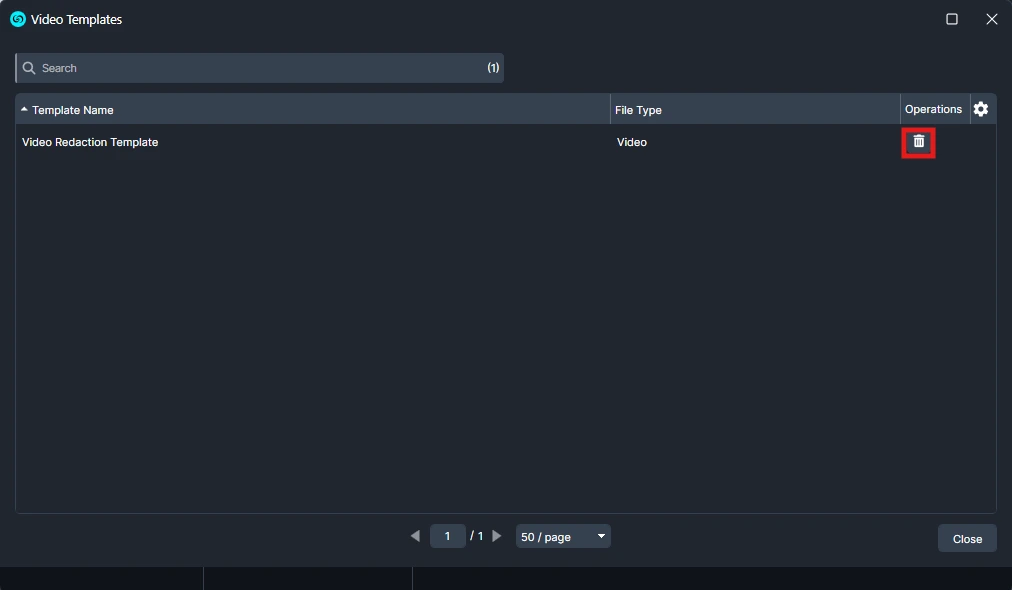
- The Video Templates window will open, displaying all saved templates.
- To delete a template, click the trash can icon next to the template you want to remove.
- Once you are done, click Close.
Best Practices
- Use templates only with videos recorded from the same camera position and angle.
- Ensure the videos have the same resolution and framing for the most accurate placement.
- Review the applied redactions before exporting to verify they align correctly.
Conclusion
Automatically recording the timestamp when the first redaction is placed would improve the accuracy of processing logs by capturing the actual start of redaction work. This would eliminate the need for users to manually save the file to establish a start time, resulting in more reliable audit records and a smoother user experience. Reverting to the previous behavior would help ensure that the logged processing duration accurately reflects the time spent performing redactions.
Was this article helpful to you?
No
Yes