How to Download Additional AI Models in CaseGuard Studio
CaseGuard Studio allows users to download and manage additional AI models for Analysis, OCR (Optical Character Recognition), and Transcription. This feature provides greater flexibility and customization by enabling you to install the models best suited to your workflow and file types.
Step-by-Step Guide to Downloading AI Models
-
Open CaseGuard Studio
Launch the application on your computer.
-
Access the Tools Menu
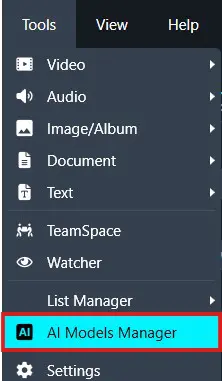
Navigate to the top-left corner of the screen and click on “Tools.”
-
Open the AI Models Manager
From the dropdown menu, select “AI Models Manager.”
-
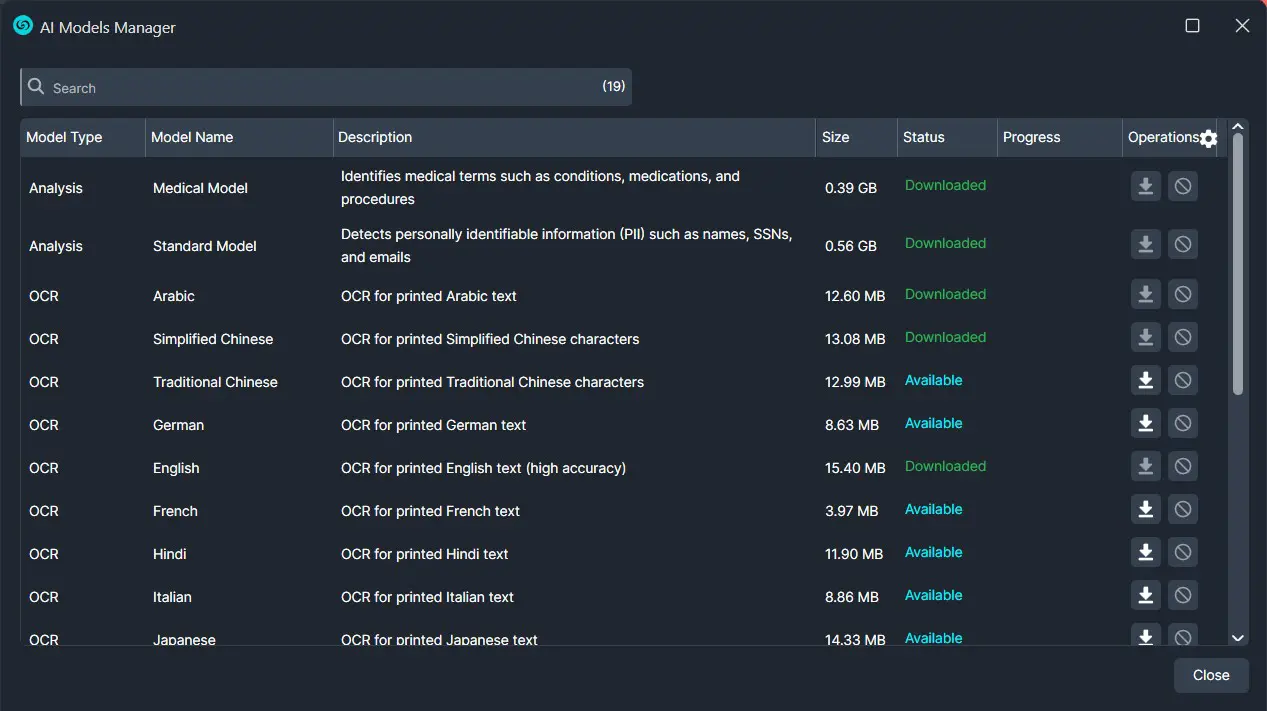
Browse Available Models
A new window will appear, displaying a list of all available AI models. You can scroll through the list or use the search bar at the top to find specific models.
-
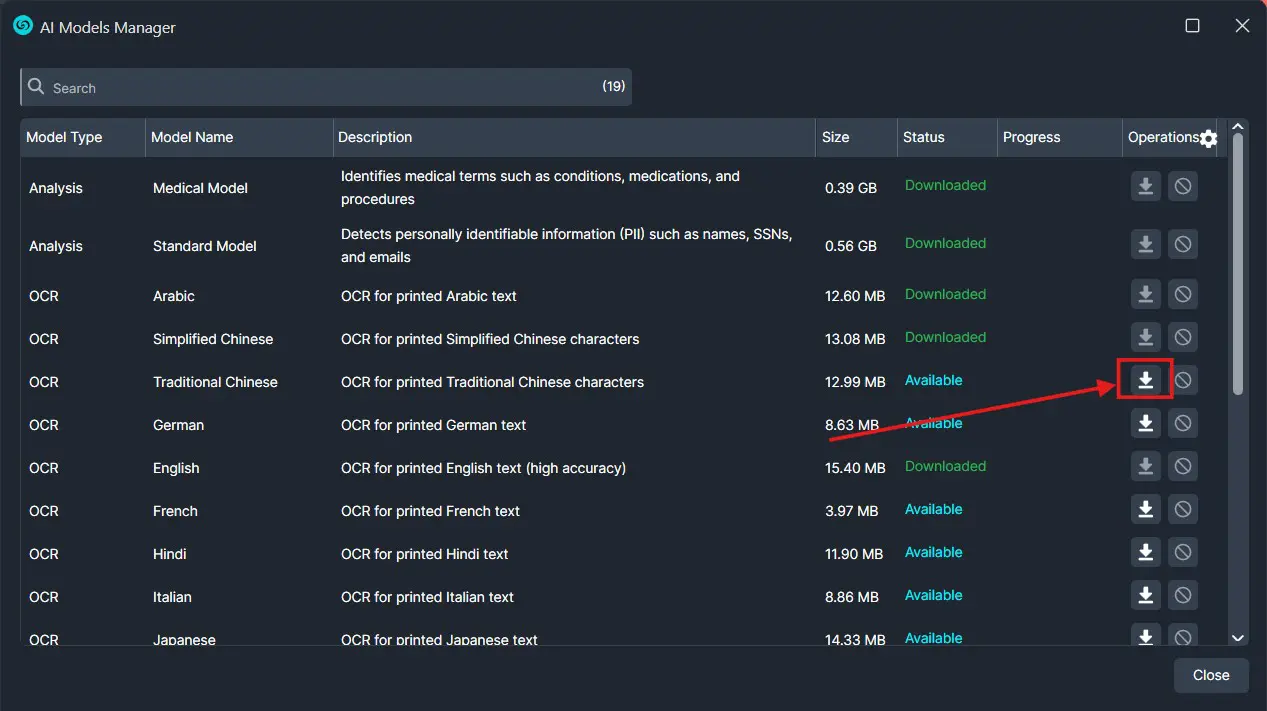
Download Your Desired Model
Once you find a model you’d like to add, click the down arrow icon to the right of the model’s name to begin the download.
-
Close the Manager and Begin Using the Model
After the model has been successfully downloaded, close the AI Models Manager window. The new model will now be available for use in your redaction and analysis workflows.
Conclusion
The AI Models Manager provides a simple and effective way to tailor the software’s functionality to your specific use cases. Whether you’re dealing with multilingual transcription, advanced OCR, or specialized analysis tasks, downloading the right models can significantly enhance performance and accuracy. Be sure to explore the available models to get the most out of your redaction and automation workflows.
Was this article helpful to you?
No
Yes
1