While CaseGuard Studio’s AI-powered detection can automatically identify and redact people, faces, license plates, and other objects, manual video redaction is often the faster and more efficient option for stationary footage.
For example, if you’re redacting a video recorded by a fixed security camera or an interview room camera where the subject or object remains in the same position throughout the recording, you can quickly apply a manual redaction across the entire video without using AI detection.
How to redact a stationary object
For footage recorded by a stationary camera such as CCTV, there is a simple way to redact objects that have little or no movement.
- Add your video to CaseGuard Studio.
- Select “Manual Video” from the Left Toolbar.
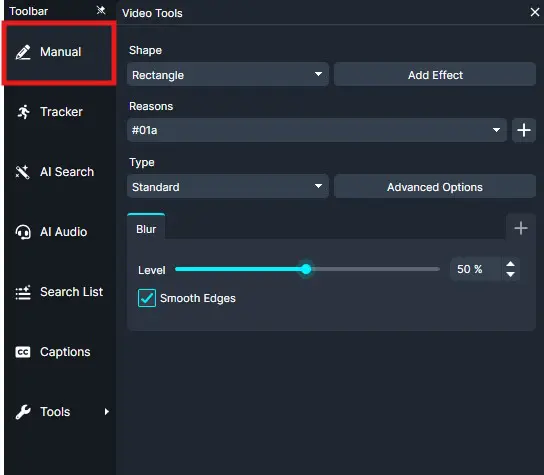
- Draw a redaction box around the object you want to redact.
- Right-click on the redaction box and select the “Copy Effects…” option from the dropdown.
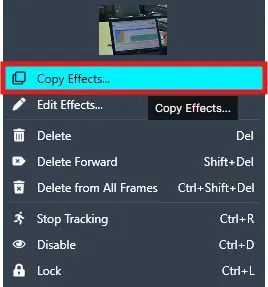
- The Copy Effects pop-up will appear, allowing you to customize how the redaction is applied throughout the video.
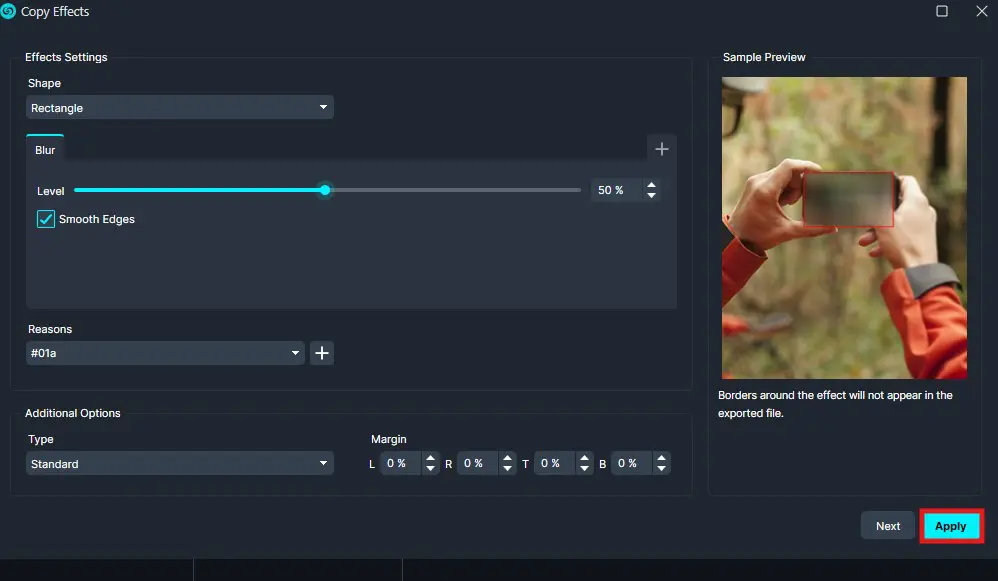
- Navigate through the Copy Effects wizard to configure your settings, then click Apply. CaseGuard Studio will do the rest of the work for you!
Conclusion
When working with footage from a stationary camera or videos containing little to no object movement, manual video redaction provides a quick and efficient alternative to AI detection. Using the Copy Effects feature allows you to apply consistent redactions across the entire video while reducing manual effort and speeding up your workflow.
Was this article helpful to you?
No
Yes