Overview
CaseGuard offers its users 28+ enhancement effects that can be used in both Manual and Automatic Image Redaction. With both features, you can apply enhancements to one image, a set of images through creating an album, or in bulk within the Bulk Processing.
Enhancement Effects provide an additional benefit for industries seeking editing tools for investigative purposes. We are proud to assist law enforcement agencies in solving crimes utilizing enhancements effects. In situations where users need to highlight a part of an image for better visualization such as a license plate on a car in a dark environment, we recommend layering multiple enhancement effects. For example, adding “Magnify,” “Sharpen,” “Grey Scale” and “Contrast” on dark images have proven to clear a dark license plate.
As a result of Enhancement Effects, images can be highlighted, blurred, corrected for imperfections, and organized by categories within CaseGuard. Based on each user’s redaction requirements, it is recommended to explore what enhancement effect applies to their project needs.
Follow the Steps to Layer Enhancement Effects on an Image!
- Open or Create your project in CaseGuard Studio.
- Select the “Manual” button from the left toolbar and draw a redaction box by clicking and dragging over the license plate in need of enhancement.
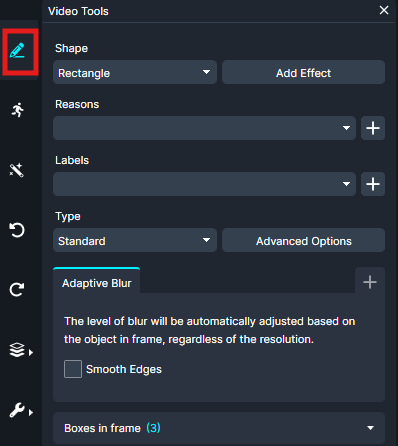
- On the Video Tools panel, click on the + sign under “advanced options” and select “Magnify” from the list of Effect/Enhancements.
- Click the X next to Adaptive Blur to remove it.
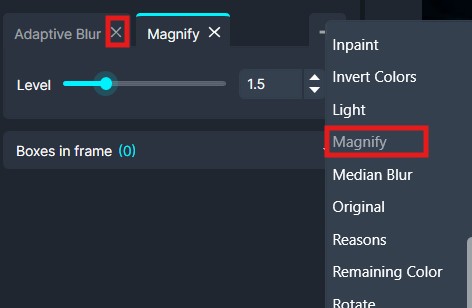
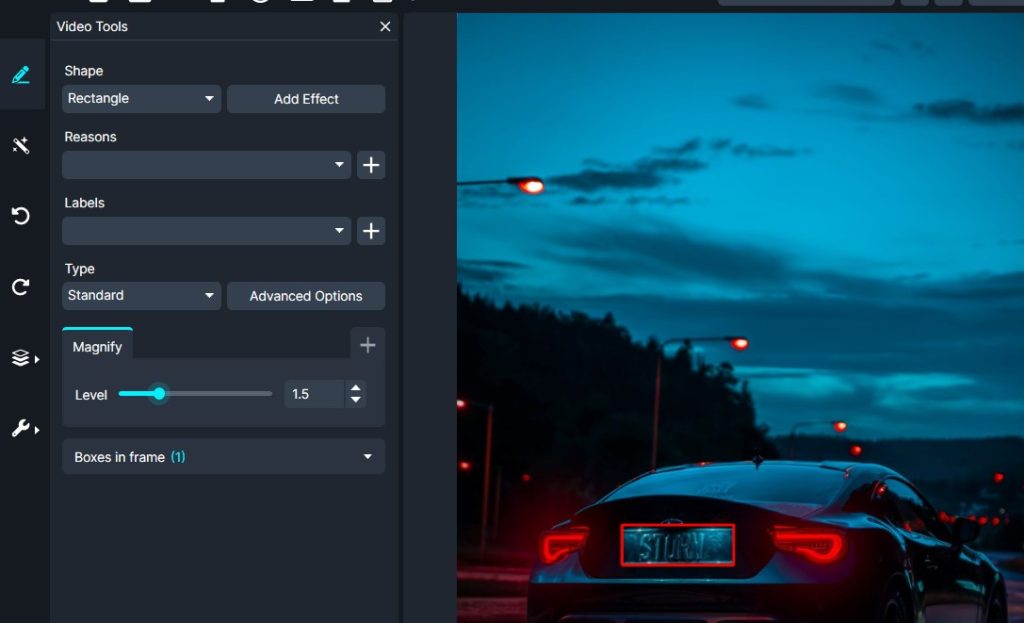
Depending on your enhancement needs, you can choose the intensity level of the effects you applied using the level bar.
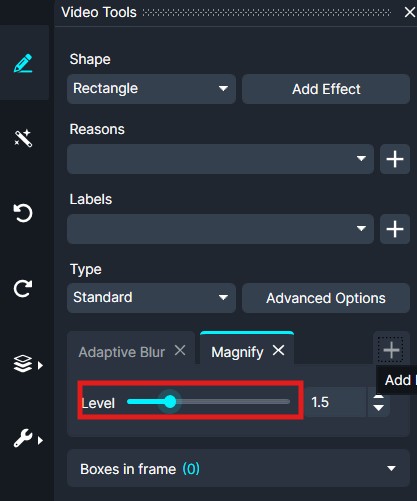
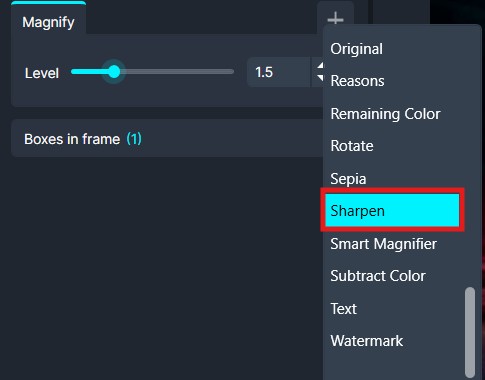
Select the “Sharpen” effect to improve the pixels of the selected area.

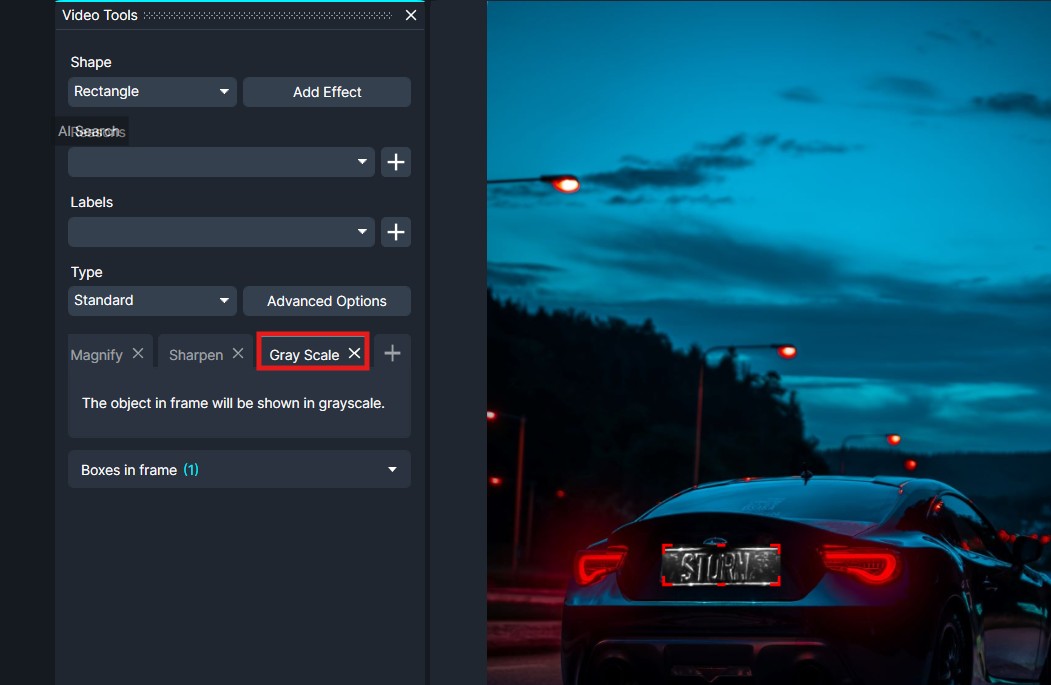
- Select “Gray Scale” to make differentiating the characters on the license plate easier.
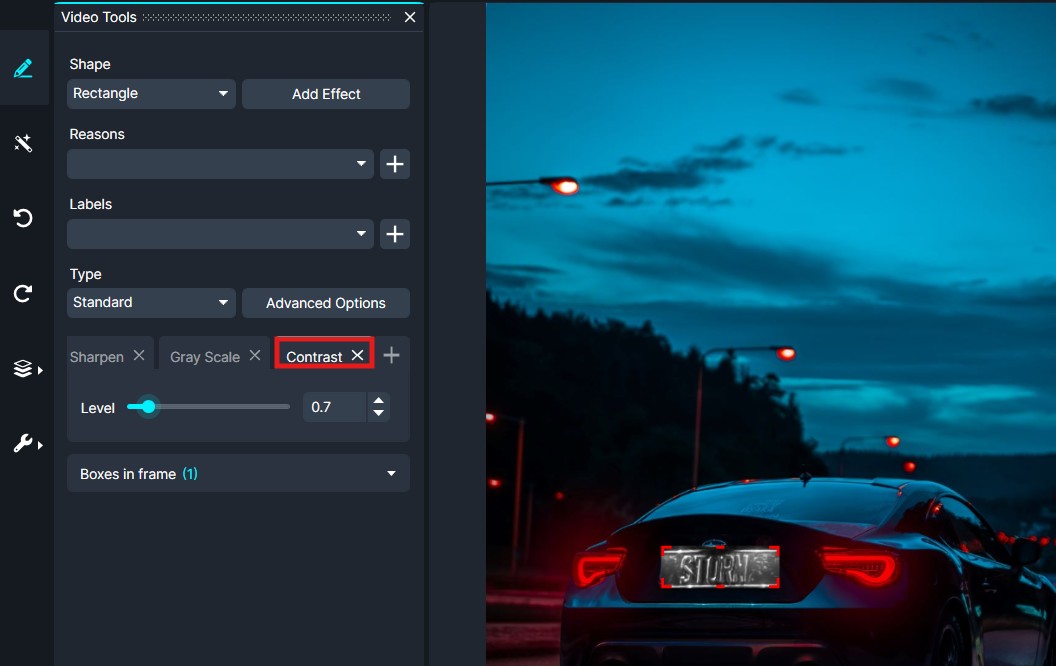
- Select “Contrast” to brighten the selected area.
- Once you are able to read the license plate, click
 “Export” from the Shortcuts Bar to process the file. The redacted file will appear in the Project Files Panel.
Conclusion:
Enhancement Effects provide a powerful way to improve image visibility and highlight important details within CaseGuard Studio. By applying and layering effects such as Magnify, Sharpen, Gray Scale, and Contrast, users can enhance image quality, improve clarity, and better visualize key information for analysis and investigative purposes.
Was this article helpful to you?
No
Yes