Overview
Audio redaction is the removal of sensitive data from an audio file. In CaseGuard, you can redact Personally Identifiable Information (PII), such as Social Security Numbers (SSN), Employer Identification Numbers (EIN), phone numbers, and much more from any audio file within seconds!
To begin redacting audio Files using CaseGuard, upload a video containing audio or an audio file. Then, from the left-hand toolbar, select either the Manual or AI Audio to hide any PII or choose from the advanced tools to transcribe or translate your audio recording. Based on your selection, the customized Audio tool panel will appear under the player.
While the Manual option gives users the most control over the content they are redacting, the AI option has emerged as a valuable time-saving tool, especially for individuals dealing with lengthier audio or video files.
CaseGuard Audio features:
Audio Tools:
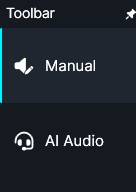
- Manual Audio: Apply different effects such as mute
 or bleep
  or apply one of the 10 available change voice
  effects.
- AI Audio: Automatically have your audio transcribed and have Personally Identifiable Information (PII) automatically detected. Apply different effects such as mute or bleep or apply one of the 10 available change voice effects in the Transcription Panel.
EDIT Tools:
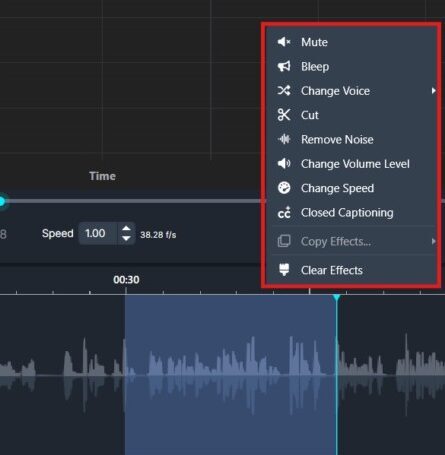
- Mute: Silence portions of the audio.
- Bleep: Replace sensitive words with a bleep sound.
- Change Voice: Modify speaker voice level or effect.
- Cut Media: Remove portions of the audio or video.
- Remove Noise: Reduce background noise, e.g., wind or static.
- Change Volume Level: Amplify audio up to 100X.
- Change Speed: Adjust playback speed to your preference.
- Closed Captioning: Manually type captions for your audio or automatically transcribe audio captions in over 100 different languages.
- Copy Effects: Apply effects used on one audio file to another within the same project.
-