Overview
The Watcher’s AI Image Analysis is an advanced function that uses AI to analyze and redact images within a document. Using the AI Image Analysis feature within the Watcher, users are able to instantly redact images on unlimited files without any required input within CaseGuard after the Watcher is set up.
To start using the Watchers AI Image Analysis, select the AI Image Analysis option and select what you would like detected. Search results are based on selected detection options (faces/heads, license plates, vehicles, etc.) Once you select what you would like detected, add your files and the watcher will instantly begin analyzing and redacting any image selected.
For users needing to redact all faces within 200 documents such as a Resume, the Watcher AI Image Analysis will prove to be a valuable function. Manually, this could take hours. Using the Watcher’s AI Image Analysis feature will only take minutes of automatic processing.
Follow the steps to Redact with the Watcher AI Image Analysis!
On the left-side menu, click the Tools tab. Then, open the drop-down menu and select Watcher.
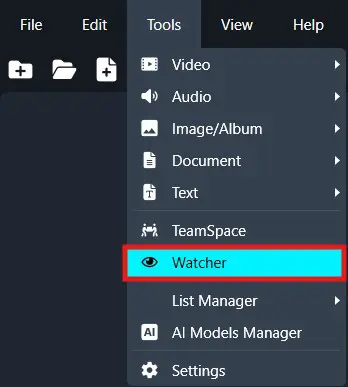
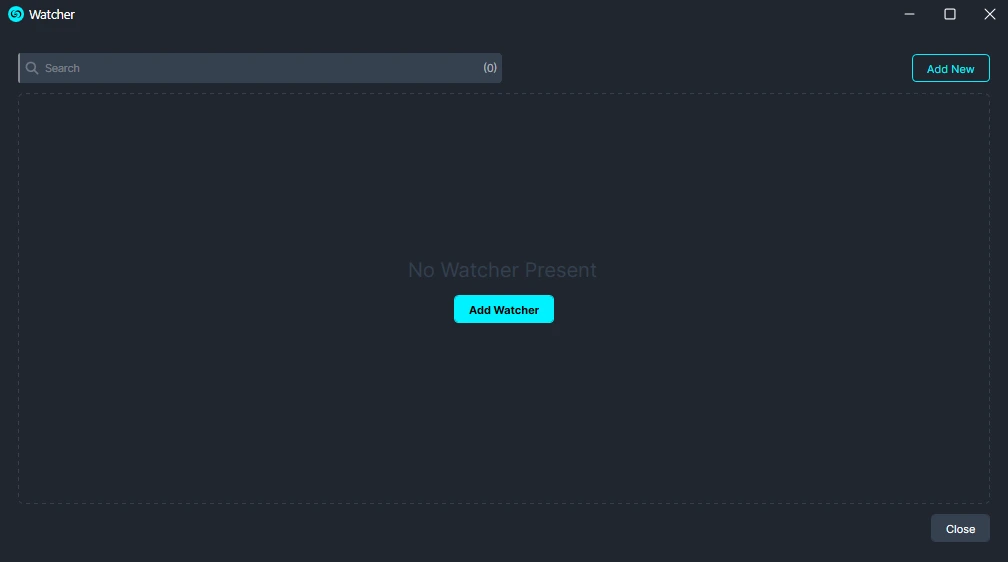
Click the Add Watcher button to set up the Watcher.
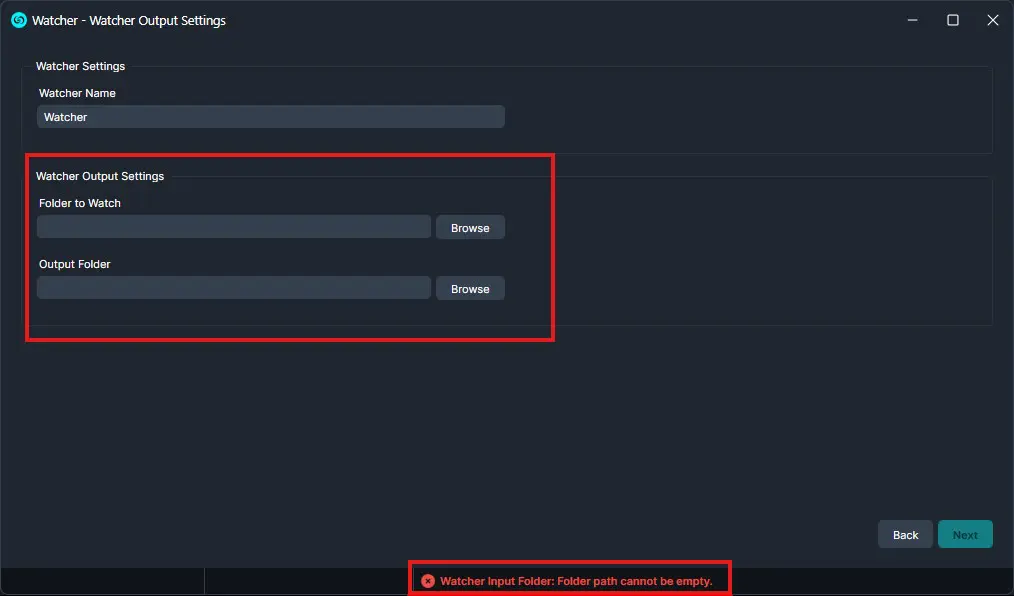
When the CaseGuard Watcher window appears, enter a Watcher name.
Click “Browse” to add a folder to watch. This is the folder where all documents that need to be redacted will be input.
Click “Browse” to add an Output folder. This folder will contain all exported files after the Watcher processes and redacts the documents from the Watch folder.
Click “Next.“
A Watcher window will appear, select Documents for the operation you would like your Watcher to perform.
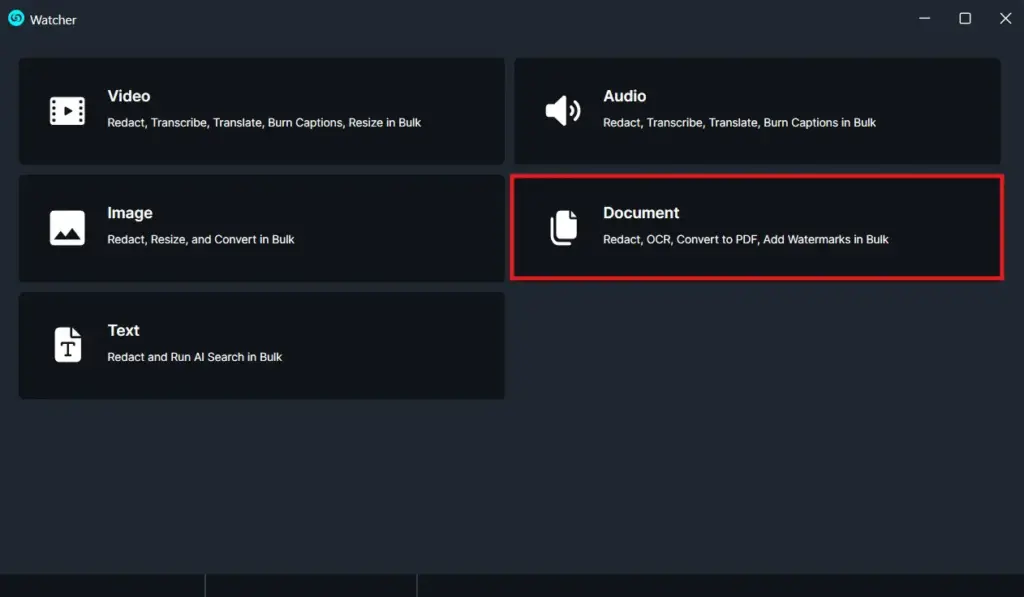
Select “AI Image” to apply to your Watcher and click “Next.”
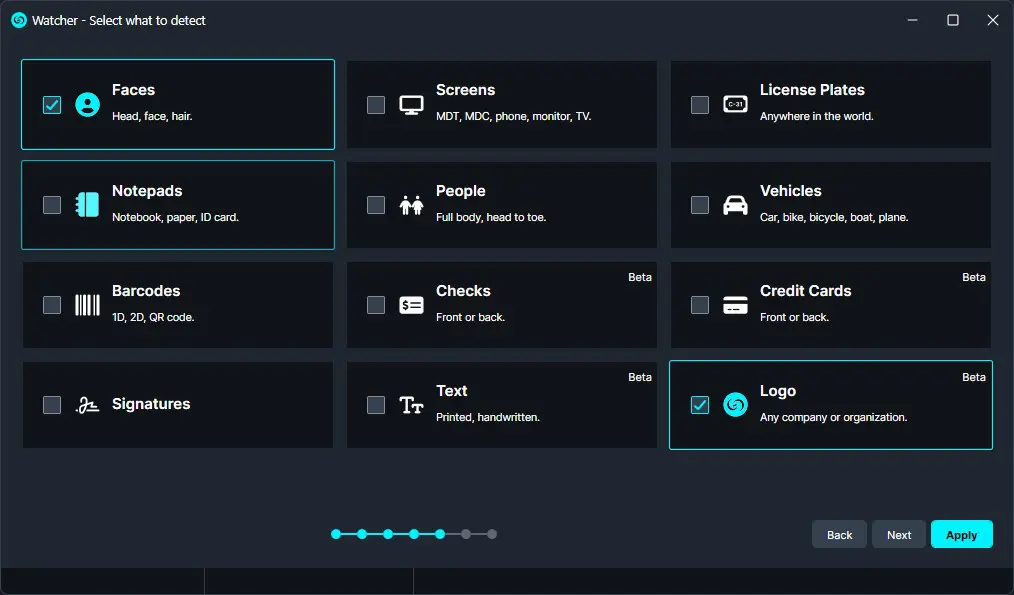
A new window will appear where you can select what you want to redact from your documents, then click ‘Next.
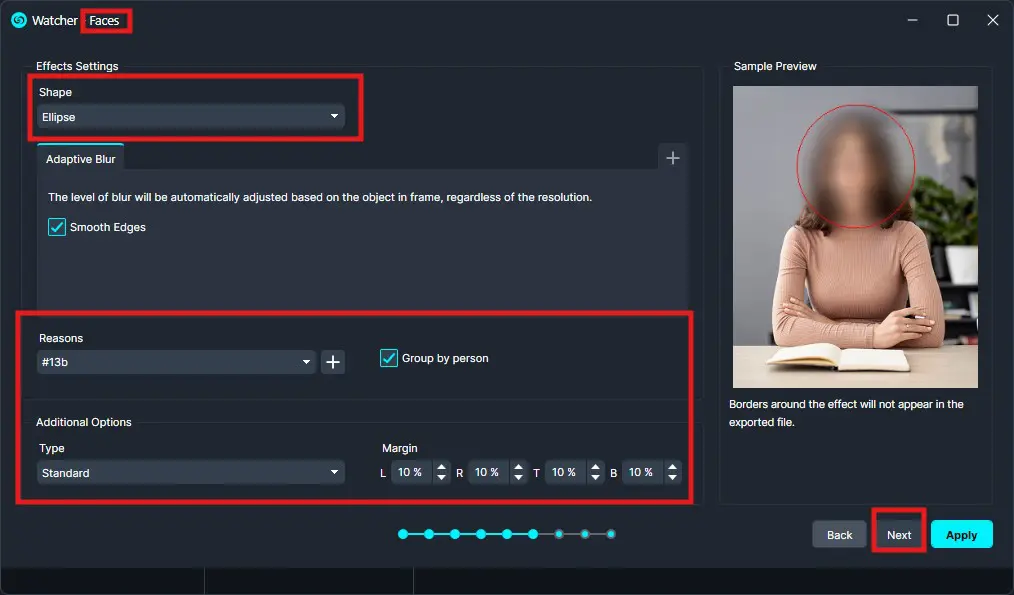
Click ‘Next,’ and a new window will appear. Here, you can choose the shape of your redactions, adjust the blur settings, and optionally select the reason for each redaction. You can also edit your selections in this window. Continue following the next steps, adding any edits as needed.”
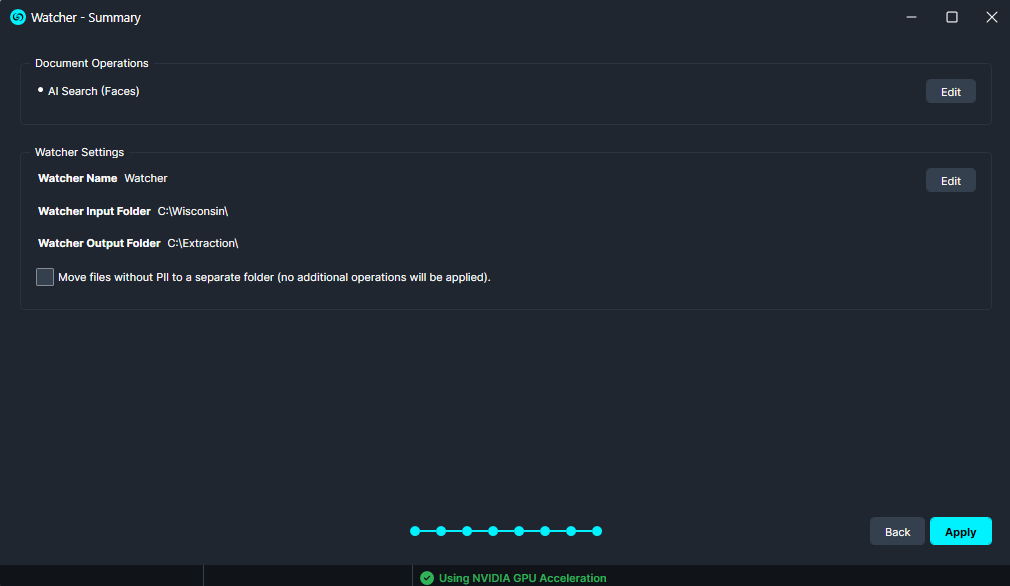
When the Watcher Summary window appears, review your selections to ensure all effects are set as desired. Once you are satisfied, click Apply to confirm and activate your Watcher settings.
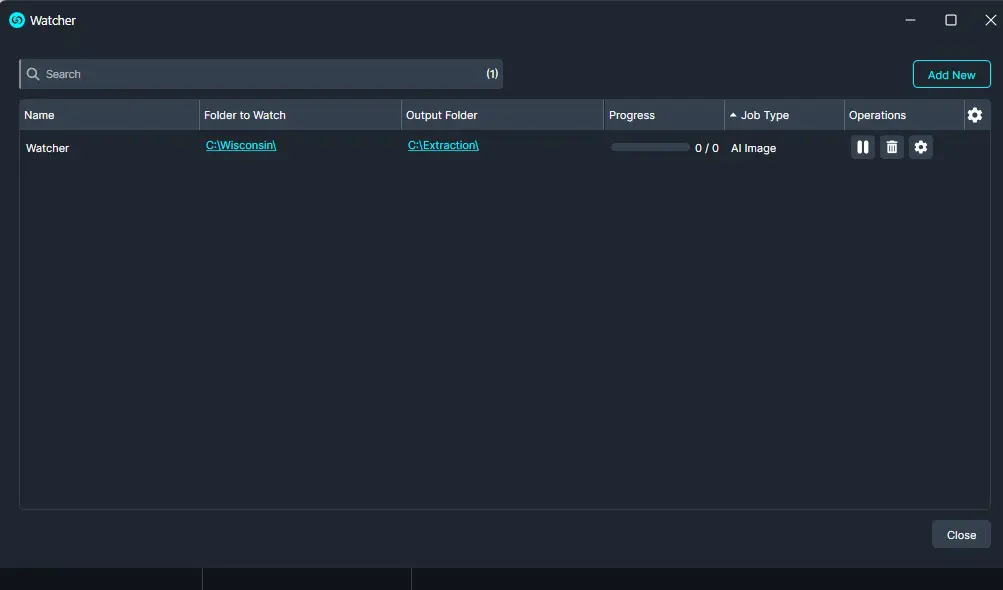
Once satisfied with your Watcher click “Apply” and your Watcher will appear in the Watcher Panel.
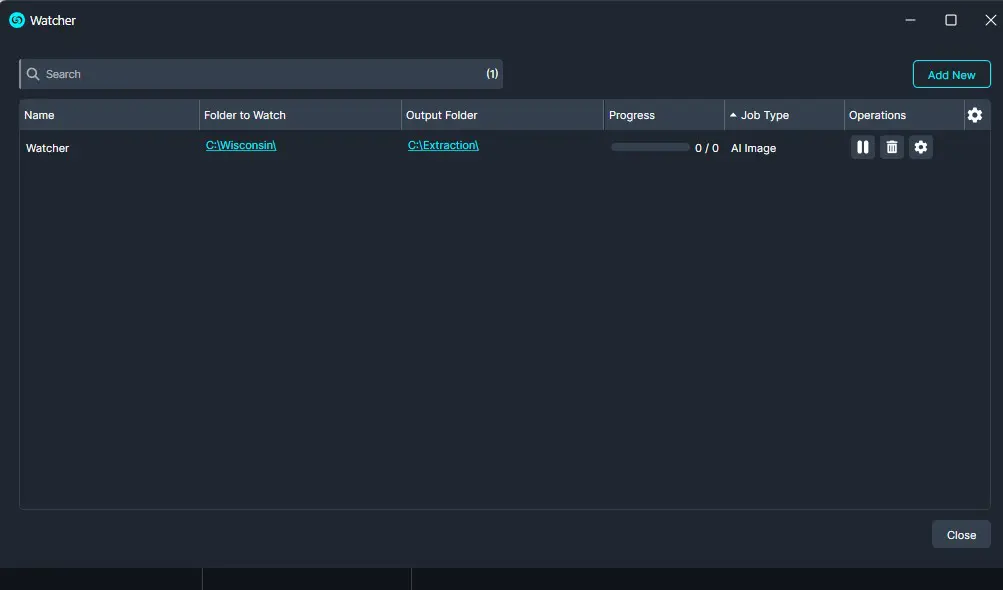
Under the Watcher progress bar, you have the option to open the settings , delete  , or pause
  the Watcher.
- The settings icon will open up the Watcher Output Settings.
- Delete will completely delete the selected Watcher.
- Pause will pause the Watcher operation.
Once complete, your files should be redacted based on your selections and exported to your output folder.
The Watcher’s AI Image search makes redacting images faster, easier, and fully automated. By setting up a Watcher, users can instantly process large volumes of documents with precision, saving hours of manual work while ensuring sensitive information is consistently protected. This feature turns complex redaction tasks into a simple, efficient workflow.
For support or additional guidance, please contact CaseGuard Support at [email protected] or consult the CaseGuard Knowledge Base for step-by-step tutorials and troubleshooting tips.
Was this article helpful to you?
No
Yes
2