Overview
Two-factor authentication (2FA) adds an extra layer of security to your CaseGuard account. In addition to your password, you’ll need a one-time verification code to sign in.
You can receive this code through a text message or generate it using an authenticator app. This helps protect your account, even if someone else obtains your password.
Before you start, have one of the following ready:
-
Text message: A mobile phone (personal or work) that can receive SMS messages.
-
Authenticator app: A phone with an authenticator app installed, such as Microsoft Authenticator, Google Authenticator, or Duo Mobile.
Getting started
-
Open the CaseGuard web portal and sign in with your usual username and password.
-
A prompt will appear asking you to set up 2FA. You must complete this step before accessing CaseGuard.
-
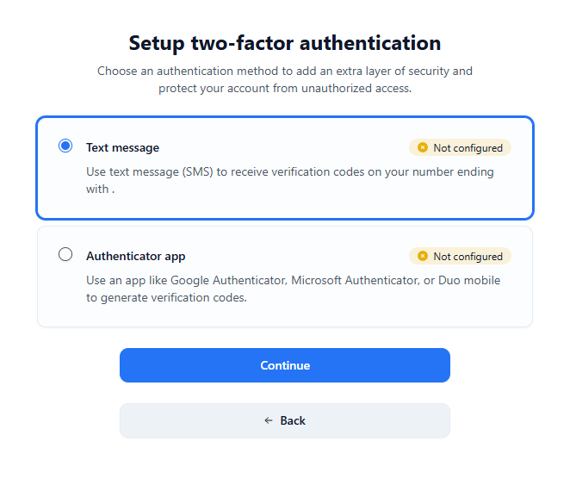
Choose your preferred verification method:
-
Follow the instructions for your selected method below.
Method 1: Text message
- Select Text message, then click Continue.
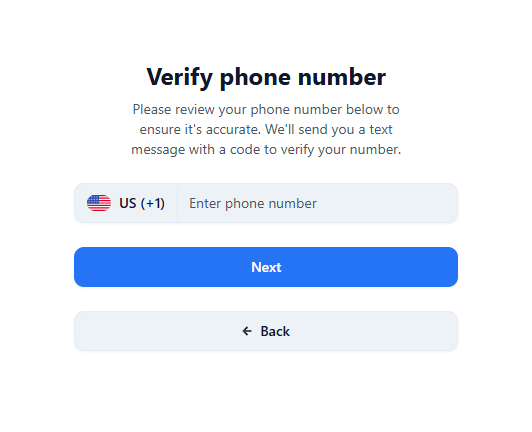
- In the Verify phone number window, check that the country code is correct (US +1 is shown by default), enter your mobile number, and click Next.
- CaseGuard texts a 6-digit code to that number. Enter it in the boxes and click Verify. If the code doesn’t arrive, click Resend code.

- You’ll see Two-factor authentication enabled! Click Continue to go into CaseGuard.
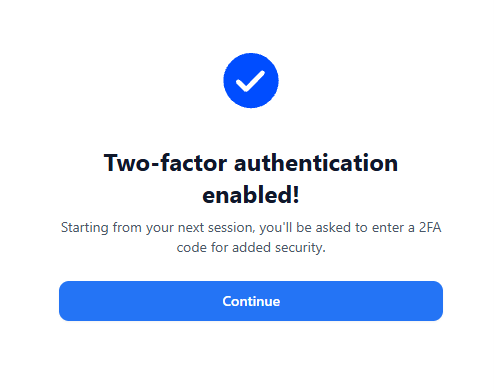
Starting with your next session, CaseGuard will text you a new code each time you log in.
Method 2: Authenticator app
- If you don’t already have one, install an authenticator app on your phone, such as Google Authenticator, Microsoft Authenticator, or Duo Mobile.
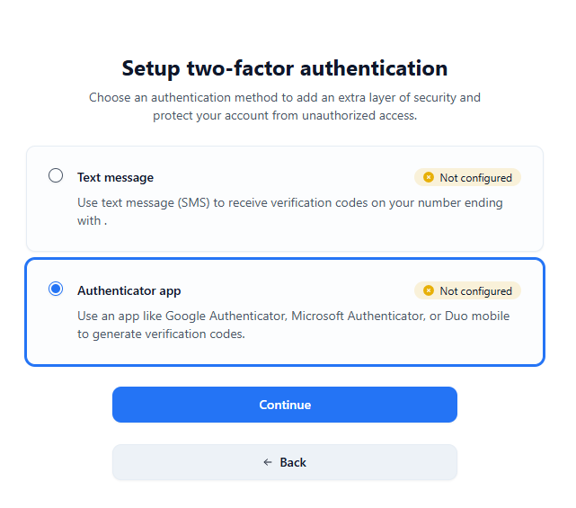
- In CaseGuard, select Authenticator app, then click Continue.
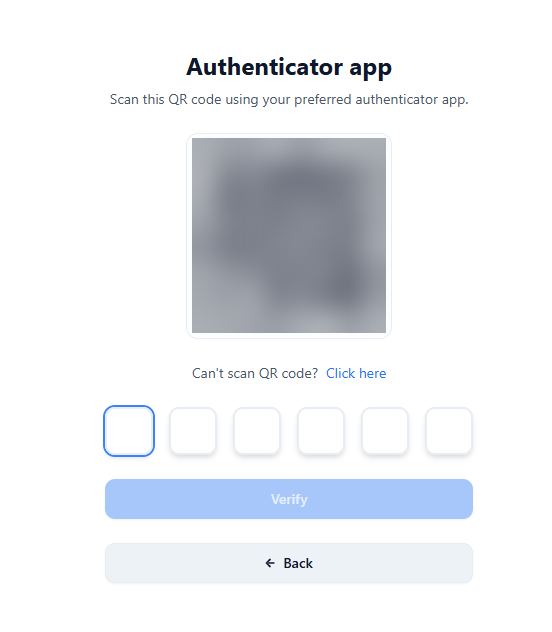
- CaseGuard shows a QR code. In your authenticator app, choose the option to add an account, then scan the QR code with your phone’s camera. If you can’t scan it, click Click here next to “Can’t scan QR code?” for another way to add the account.
- Your app now shows a CaseGuard entry with a 6-digit code. On the same CaseGuard screen, enter that code in the boxes below the QR code and click Verify.
- You’ll see Two-factor authentication enabled! Click Continue to go into CaseGuard.
Starting with your next session, open your authenticator app and enter the current CaseGuard code each time you log in.
Checking or changing your 2FA method
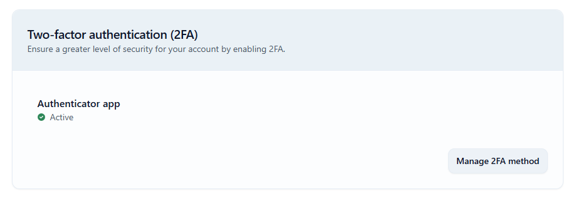
Your account settings show which 2FA method is active. To switch methods, click Manage 2FA method.
Need Help?
If you have trouble setting up or using 2FA, contact CaseGuard Support for assistance.
Was this article helpful to you?
No
Yes