Use Case
When I try to run OCR on my file nothing happens and the diagnostics icon at the top of my CaseGuard appears red with the error “Could not find a part of the path tempOCR.pdf.” This issue is usually caused by an issue with the file name you are trying to OCR.
Follow the steps to fix the error!
- In CaseGuard open up the project with the file you are trying to OCR.
- In the Project Files Panel select the “Open Project Folder”
 icon.
icon.
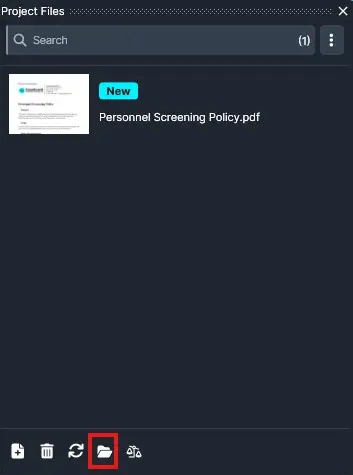
- The Windows File Explorer will open.
- Right-click the file that is causing issues and select “Properties.”
- The properties window will open, in the text box rename the file to something short with no spaces.
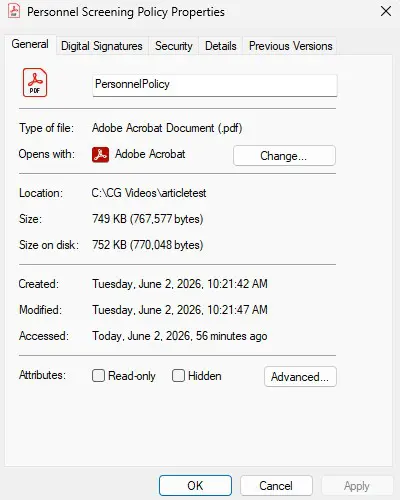
- Click “OK” and reopen CaseGuard.
- In the Project Files Panel select the Refresh Icon
 to update the name of the file inside CaseGuard.
- Run the OCR again on the file.
We recommend OCRing your file before you begin redacting it. If you have already started your redaction and ran into this error you will also need to change the name of your history file to the same name of your document file.
Follow these steps to change the name of your history file!
- In the Project Files Panel select the “Open Project Folder” icon.
- The Windows File Explorer will open.
- Within the Project folder select the “History” folder.
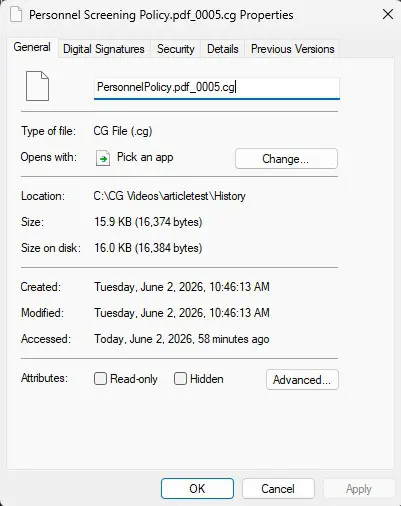
- Find the newest .cg file with the previous name of your file.
- Right-click the file and select “Properties.”
- The properties window will open, in the text box rename the file to the same name as your newly named.
- Keep the _005.cg at the end!
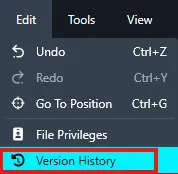
- Reopen CaseGuard with the project and select “File Revision” in the left toolbar.
- The file revisions window will open and select the “Go back to history file”
 icon.
icon.

Conclusion
After following the steps above, all of your work should be returned. If you are still having issues please contact [email protected].