Do you often have to go through and redact sensitive information from your call center recordings? Names, credit card numbers, billing addresses, and more are constantly being given out over the phone. However, all of these calls are recorded for quality assurance purposes, meaning that there is a lot of Personal Identifiable Information that needs redacting.
Since many call centers deal with hundreds of recordings daily, redacting all of these files individually is not easy. That’s where CaseGuard’s Watcher feature comes in handy. Using the Watcher feature in CaseGuard Studio, you can automatically identify and redact sensitive information from thousands of audio files with minimal manual effort.
Setting Up the Watcher
First, create two folders in File Explorer: one for the input files and one for the output files. For example, you can name these folders “audio-input” and “audio-output” to distinguish the original files from the processed files. Once you have done this, you can launch CaseGuard Studio and create a new project.
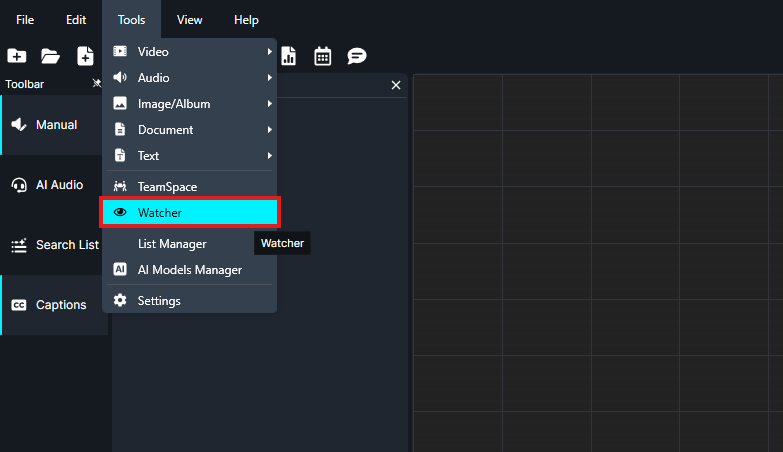
Next, navigate to the top left of the screen and click Tools, the Watcher  icon, then Add New.
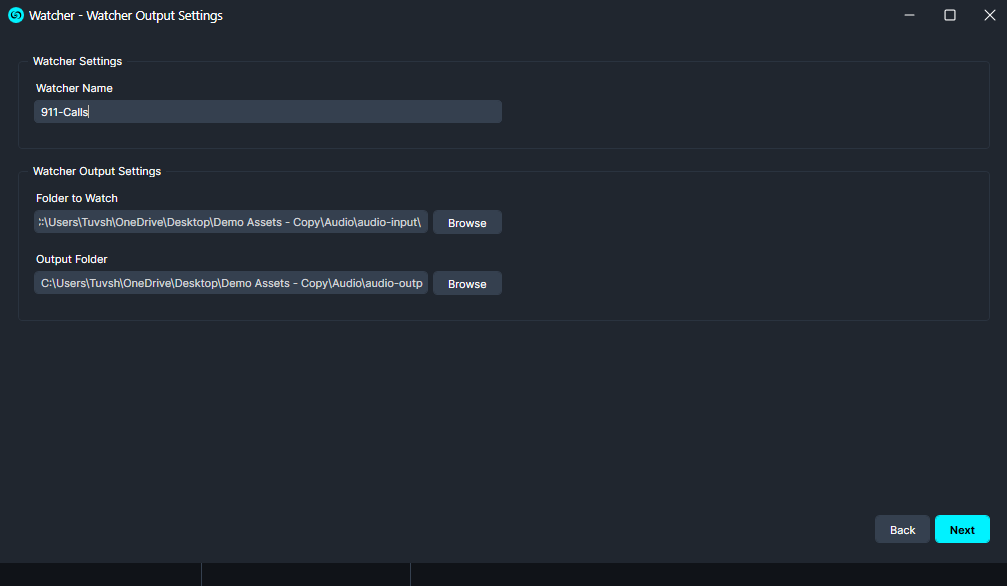
When the Watcher Settings window shows up, configure the folders you created earlier. Under Folder to Watch, select your audio-input folder. Under Output Folder, select your audio-output folder.
Once you’ve configured the output settings, click “Next”.
Since you are processing call center recordings and want a transcript for documentation, select Audio as the media type. On the next page, choose Redact Audio and Transcription as the operations the Watcher will perform.
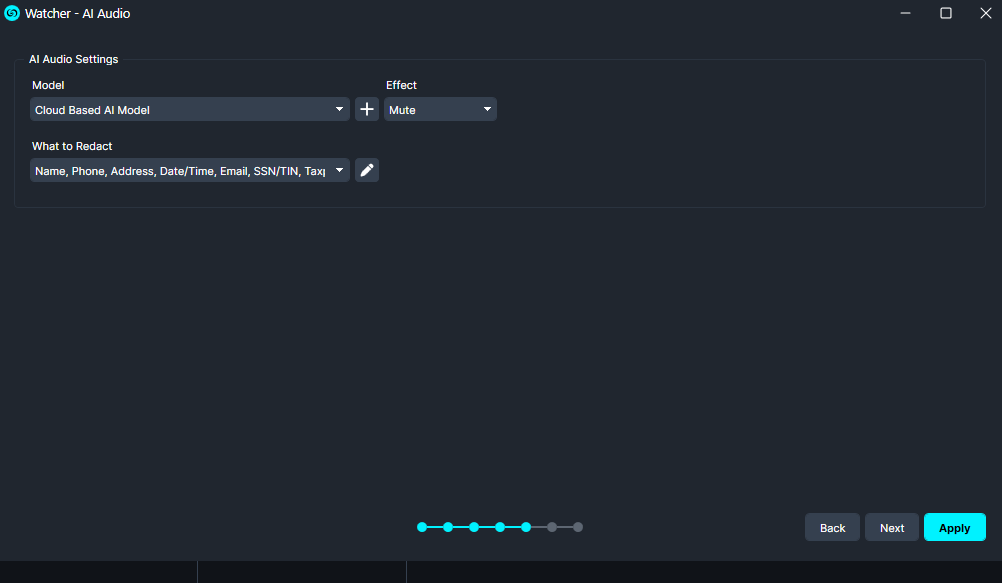
Next, configure the redaction settings. Under Effect, select Mute. Under What to Detect, select the types of sensitive information you want to redact, such as:
- Name
- Phone Number
- Address
- Credit Card
- Credit Card CVV
- Credit Card Expiration Date
Once you’ve configured the audio settings, click “Next”.
In the next window, select the appropriate Spoken Language and specify the Number of Speakers in the recording.
If you want a copy of the redacted transcript for documentation, enable Export transcription in a separate text file. This will save a transcript alongside each processed audio file in the output folder.
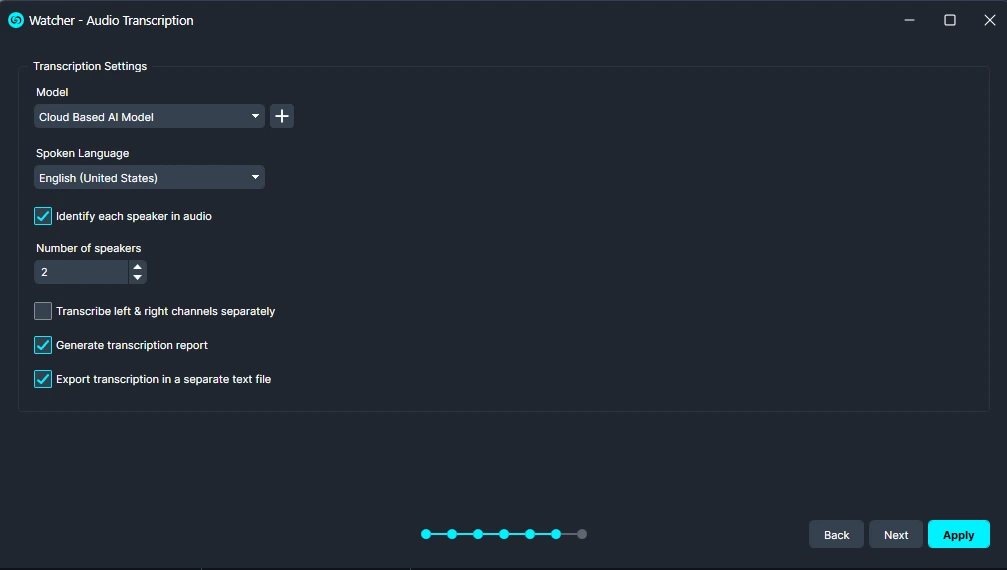
Once you are done configuring the transcription settings, click “Next” one last time.
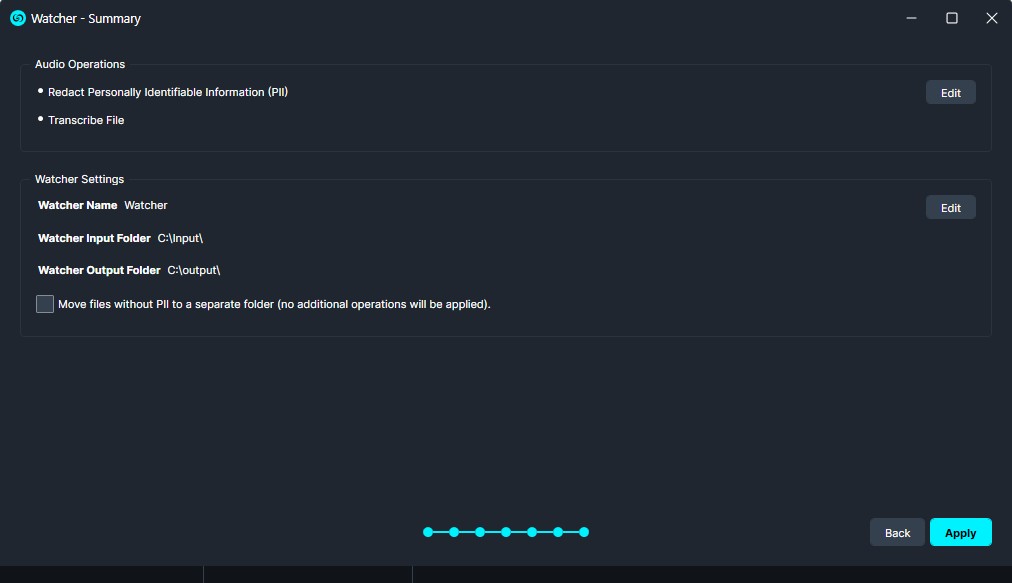
The Summary window will then display all of the settings you selected. Review your configuration and click “Apply” to create the Watcher.
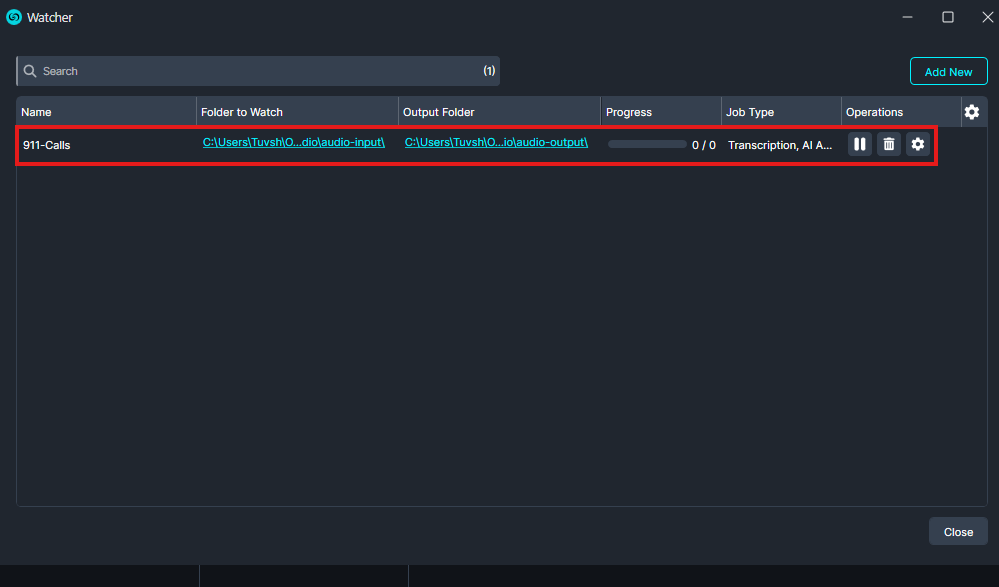
After clicking Apply, the Watcher window will open. This window displays the Watcher name, the input and output folder locations, and the current processing status. As new files are added to the input folder, you can monitor their progress in real time and confirm when processing has completed.
Using the Watcher
Once your Watcher has been created, simply add your call center recordings to the audio-input folder. The Watcher will automatically monitor the folder, process each recording, and save the redacted audio files and transcripts to the audio-output folder.
After processing is complete, it is recommended to review the redacted audio in CaseGuard Studio to verify that all sensitive information has been properly muted. If any PII was missed, you can make additional edits using the transcription before exporting the final version.
Conclusion
CaseGuard Studio’s Watcher feature automates the redaction of large volumes of call center recordings by continuously monitoring folders, processing new files, and exporting redacted copies. Combined with AI-powered transcription and audio redaction, the Watcher helps reduce manual effort, improve consistency, and streamline high-volume workflows while protecting sensitive customer information.