Overview
AI Search provides an automated capability to identify and redact Personally Identifiable Information (PII) found in documents. This includes details such as names, addresses, phone numbers, social security numbers, and medical record numbers. This significantly reduces the time and effort required for manual PII removal in extensive documents featuring various PII categories.
To illustrate, performing AI Search on sensitive emails, where the imperative is to redact all names, email addresses, and phone numbers, can be accomplished within seconds. Furthermore, once this information is identified, it is straightforward to review the list of PII and choose to keep certain names and email addresses unredacted. The user-friendly and flexible navigation offered by the Activity Panel has made it a dependable tool among CaseGuard users.
The main components of this feature include:
- Automatically redact all Personally Identifiable Information (PII) with one click
- Sort by one or more Categories of (PII) within the Activity Panel
- Add Redactions Reason(s) per Category of PII
- Add a Color Per Category of PII (Ex: all Names in Blue, all addresses in Red)
CaseGuard supports AI document analysis in 53 languages, including Spanish, German, French, etc.
Follow the steps to Redact with AI Search!
- There are 2 ways to run AI Search on documents, the first is to click AI Search in the left Toolbar, and the second option is to pin the Activity Panel and click “AI Search.“
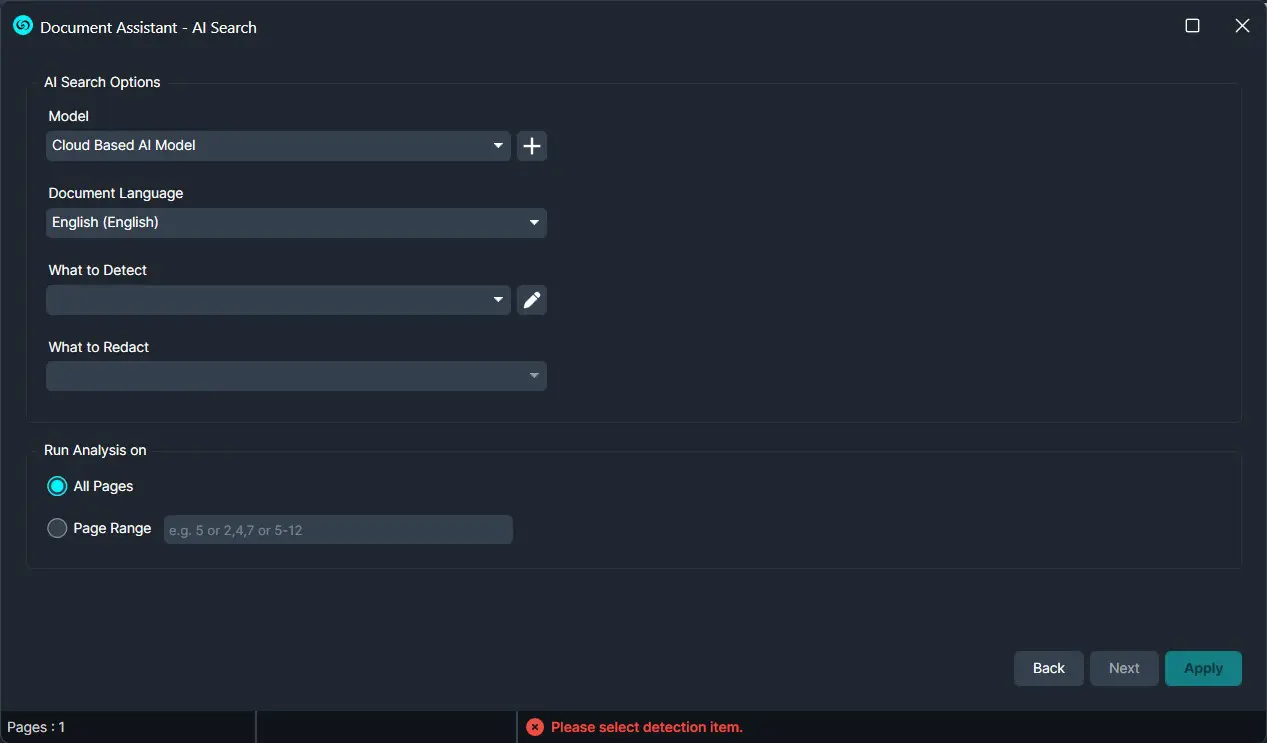
- Select which model you would like to run for your AI analysis. The options are the Cloud-based AI model and our local model which keeps you fully offline.
- Select the language of your file from the Document Language dropdown.
- Under the “What to Detect:” dropdown, select what type(s) of PII you would like the AI to detect such as name, phone, address, etc.
- Use the Pencil Icon
 to assign a color and redaction reason for each Category of PII.
- Choose to either run the search on all pages or a select range of pages that you can input in the text field.
- Click Next, then Apply.
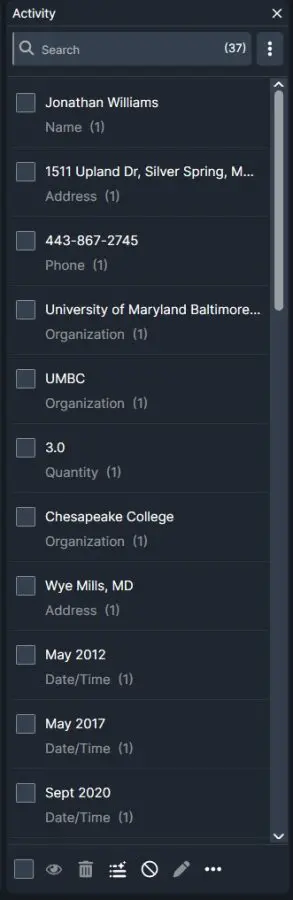
- The Activity Panel will populate with all results. To search for a specific category, click the search bar, select “Type,” and then select one of the PII categories you asked the system to detect. This will filter out any other PII.
- The number inside the parenthesis is the total number of entries found.

- Select
 Go to position when hovering over each word to go to the position of that text in the document.
- Select
 Block when hovering over each item and clicking the 3 dots to block the word from being redacted in this file or future files.
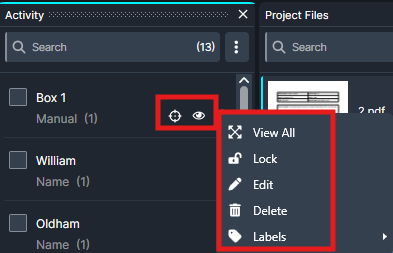
- Select the Eye icon at the bottom of the panel to disable certain or all redactions. This will keep the detections in the Activity panel and remove the redactions from the document. You can also hover over each text and click the eye icon to disable them individually.
- Select Trash icon at the bottom of the Activity Panel to remove all the detected items in your document or hover over each text and click the 3 dots, then Delete, to remove them individually. This is useful when you need to delete most PII found except a selected few.
- Select the Search List icon at the bottom of the panel to run a search list on the document.
- You can edit your blocked words by selecting Edit Blocked Analytics at the bottom of the panel.

- When you have reviewed the redactions, click the Export button at the top right.
- Files processed will then be added to the Project Files panel.
Conclusion
AI Search provides a fast and flexible way to identify and redact PII throughout your documents. By automatically detecting selected PII categories, assigning customized redaction colors and reasons, and providing tools to review, filter, and manage results, AI Search can significantly reduce the time required for manual document redaction.
After reviewing the detected results, you can easily modify, disable, delete, or block individual detections as needed before exporting your completed document. With support for multiple languages and both cloud-based and local AI models, AI Search gives CaseGuard users greater flexibility while maintaining control over the redaction process.