Overview
CaseGuard has 2 advanced options to help users configure their AI Video to speed up their video redaction process. Below are the steps to Configure AI Video Advanced Options.
Follow these steps to Configure AI Video Advanced Options!
- In the lefthand Toolbar, select AI Search, and the AI Video Assistant window will appear.
- Select the objects you would like to redact and click “Next.”
- Apply a shape and an Effect . The default is an Ellipse shape; add effects using the + Icon this will give you a dropdown menu .
- Adjust the intensity of the Enhancement Effect if necessary.
- Optionally, set Redaction Reason(s).
- Click “Next.”
- Apply your redactions to the entire video or a selected range. Applying it to a selected range will speed up the export process!
- Click “Next.”
- Within the Advanced Options Window, check the option you would like to apply to your footage!
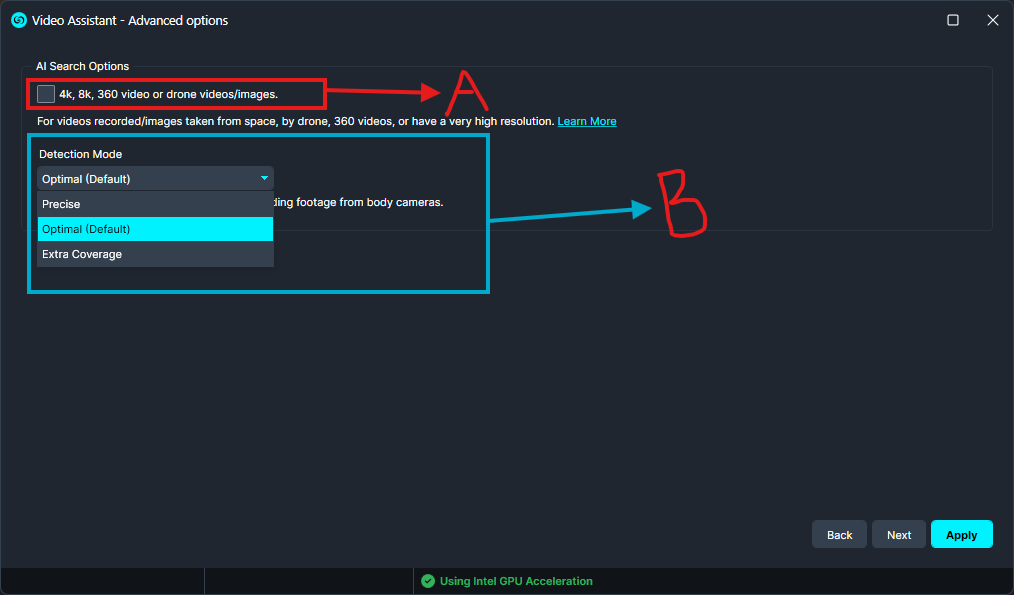
A. 4K, 8K, 360 Video or Drone Videos/Images
Selecting the 360, 4K, 8K, or Drone Footage for video redaction increases the accuracy of CaseGuards AI Automatic Detection in scenarios involving high resolution, 360 videos, or drone footage.
For example, if you’re tasked with redacting a video with mass movement from a car accident amidst a bustling city street during rush hour CaseGuard Studio’s 360, 4K, 8K, or Drone video options can make the detection and redaction process much faster. This is due to the aerial view nature of the 360 feature, allowing for the software to pick up personally identifiable information in a fraction of the time it would take to do so using manual detection, object tracking, or standard automatic detection.
B. Choosing a Detection Mode
1. Precise
- Best for clearly visible objects.
- Use this mode when objects are sharp, well-lit, and easy to distinguish.
- Note: This mode may skip blurry, small, or distant objects, so it’s not recommended for low-quality or distant footage.
2. Optimal (Default)
- Recommended for most video types, including footage from body-worn cameras.
- Provides a good balance between detection accuracy and processing efficiency.
- This is the default mode in CaseGuard Studio and works well for typical surveillance or standard video content.
3.Extra Coverage
- Designed for situations where the system missed many objects in previous detection attempts.
- Increases the AI’s sensitivity to catch more potential objects.
- Important: Review the results carefully, as this mode may produce false detections.
Conclusion
Configuring AI Video Advanced Options in CaseGuard Studio ensures your redactions are accurate, efficient, and tailored to the type of footage you are working with. By selecting the right detection mode and applying settings for high-resolution or 360° video, you can reduce manual work and maintain professional standards.
If you have any questions or need assistance with AI redactions or other features, our support team is always available: [email protected]
Was this article helpful to you?
No
Yes
2