The Watcher’s Template Redaction function uses previously created templates to redact text in your documents effortlessly. Using Template redaction expedites redaction projects that require the redaction of large amounts of documents formatted the same way.
The first step to using The Watcher’s Template Redaction is to set the operation as “Template Redaction” and apply your previously created template in CaseGuard. Next, add any documents you would like PII redacted from. The Watcher will apply the redactions exactly as they appear on your template to all the documents you add to the Watcher.
For our users in the Medical Industry, the Watcher Template Redaction has proven to be a game changer! When dealing with hundreds of medical forms that follow the same format, medical offices use CaseGuard’s Watcher to redact all their files in minutes. For example, if there is a need to redact all names, social security numbers, and addresses from 3000 patient record forms, creating a template of all this information redacted on one file and then applying it to the rest can save hours in repetitive redaction. It’s the fastest and most cost-efficient way of redacting!
Follow the steps to Apply Template Redaction in Watcher!
On the left-side menu, click the Tools tab. Then, open the drop-down menu and select Watcher.
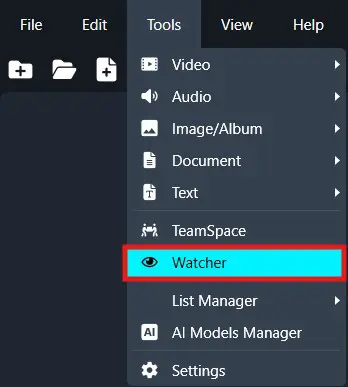
Then Click Add Watcher icon to set up the Watcher.
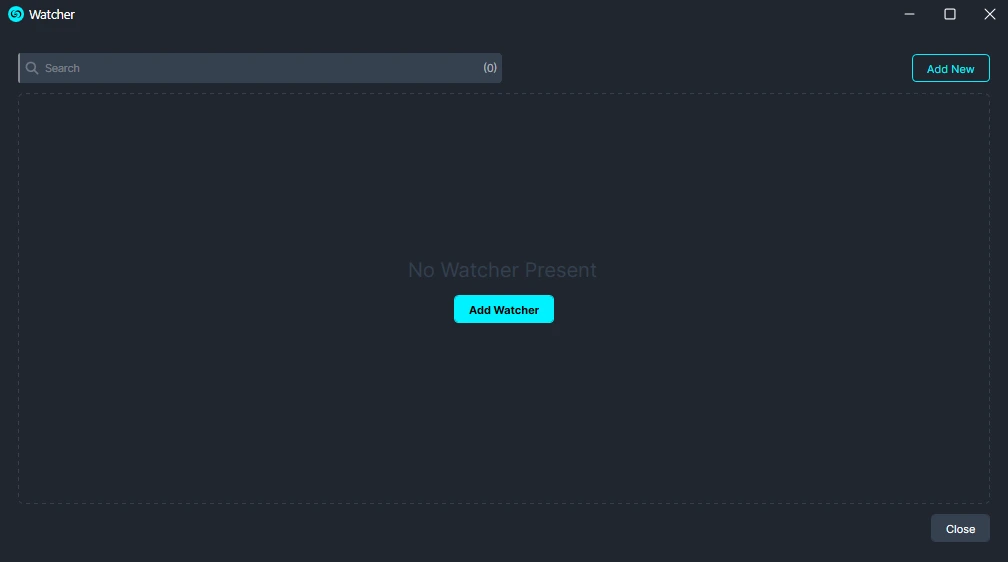
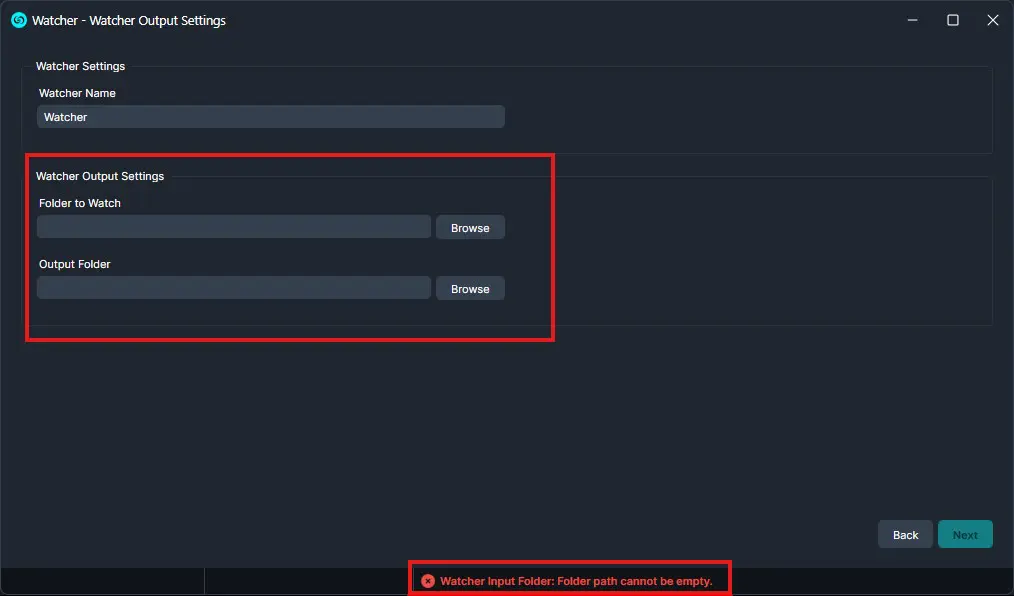
When the CaseGuard Watcher window appears, enter a Watcher name.
Click “Browse” to add a folder to watch. This is the folder where all documents that need to be redacted will be input.
Click “Browse” to add an Output folder. This folder will contain all exported files after the Watcher processes and redacts the documents from the Watch folder.
Click “Next.“
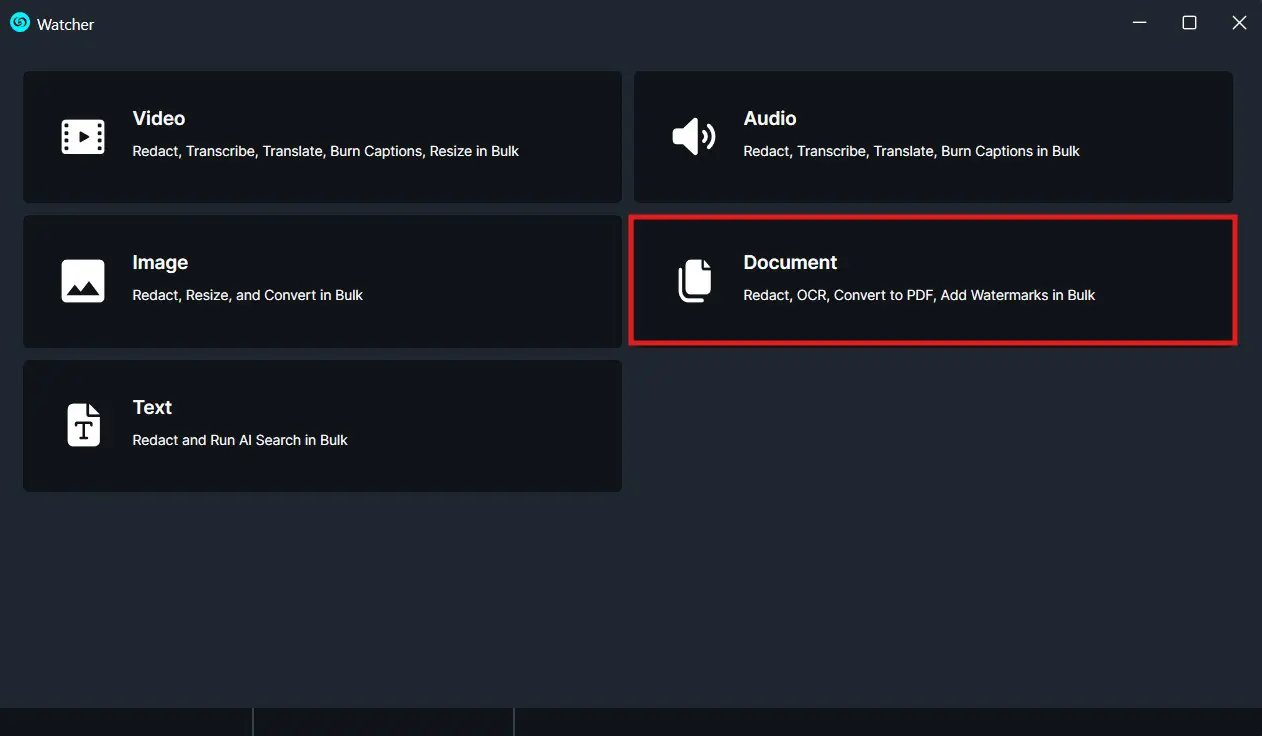
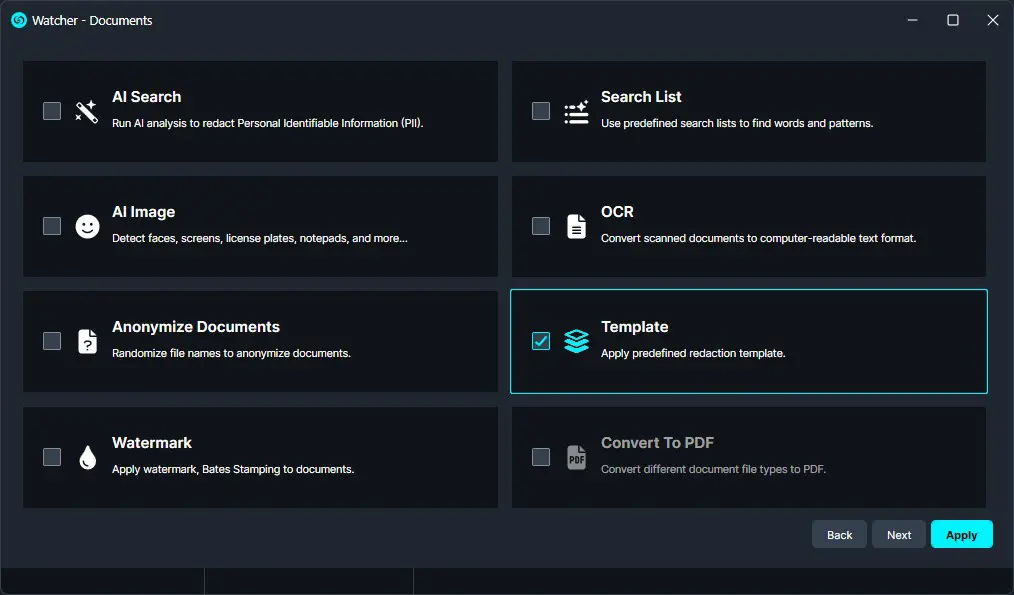
A Watcher window will appear, select Documents for the operation you would like your Watcher to perform.
Select “Template” to apply to your Watcher and click “Next.”
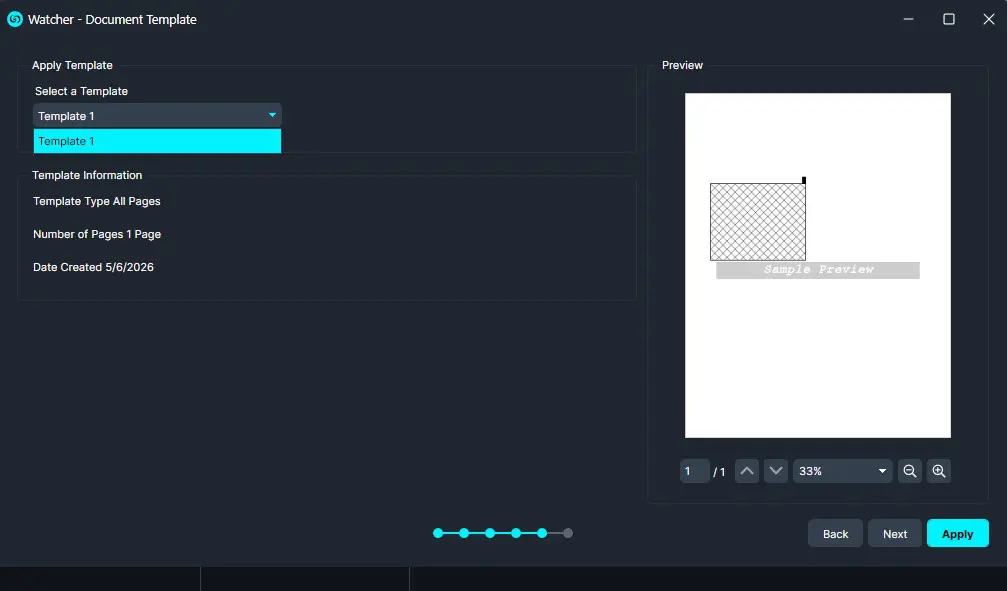
The Template window will appear. Click on the “Template” dropdown and select a template you would like to use in this Watcher then select Apply. Additionally, to create a new template, follow the steps in the Template PDF article.
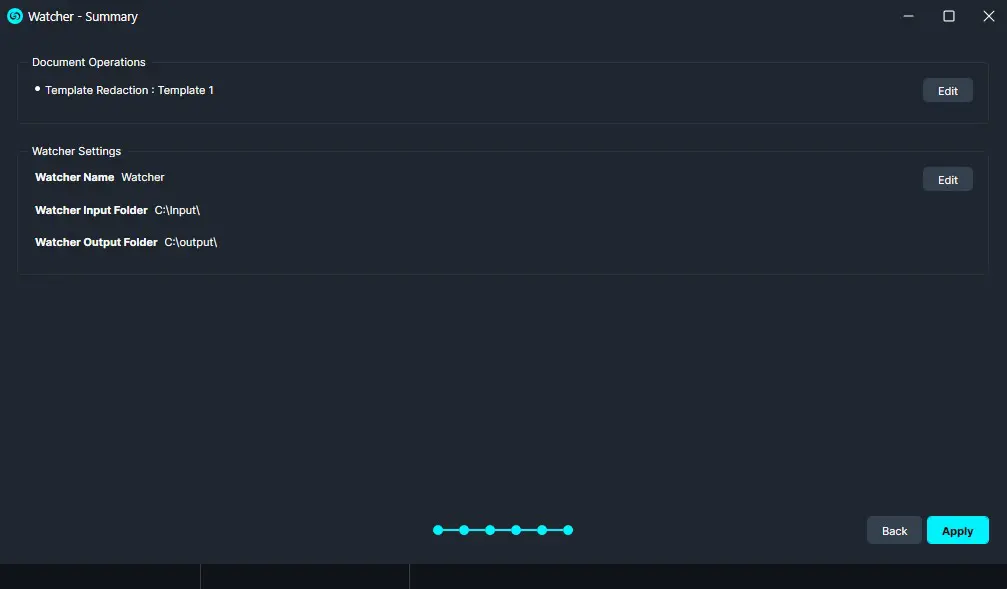
Click “Next” and a Summary window will appear, here you can edit your selection.
Once satisfied with your Watcher click “Apply” and your Watcher will appear in the Watcher Panel.
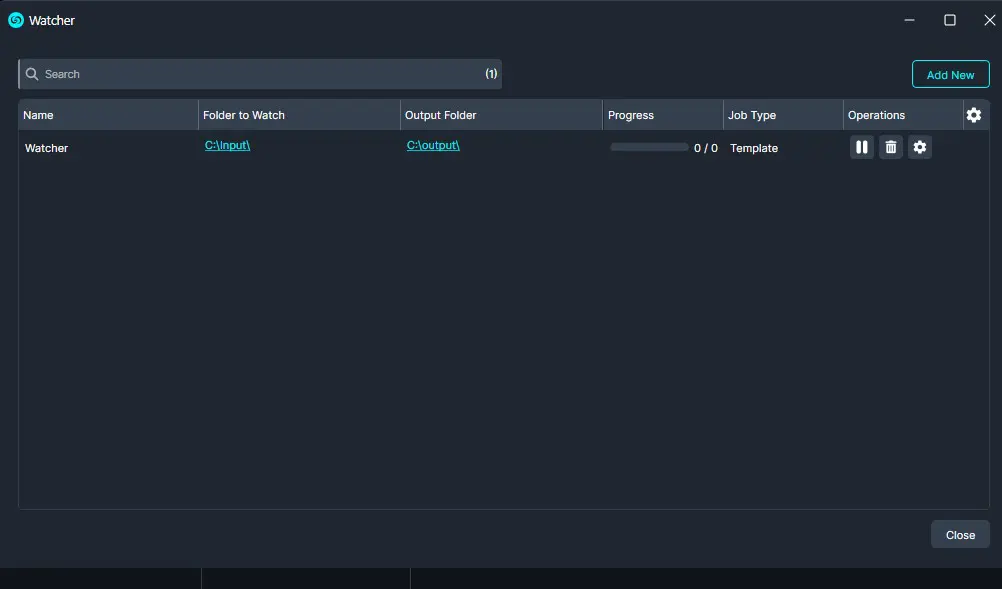
Under the Watcher progress bar, you have the option to open the settings , delete  , or pause
  the Watcher.
- The Settings will open up the Watcher window.
- Delete will completely delete the selected Watcher.
- Pause will pause the Watcher operation.
Once complete, your files should be redacted based on your template and exported to your output folder.
Conclusion
The Watcher’s Template Redaction function streamlines and automates text redaction across large volumes of similarly formatted documents. By applying a pre-created template, users can ensure consistent and accurate redactions in minutes, saving hours of repetitive manual work. This feature is especially valuable in industries like healthcare, where hundreds or thousands of forms require uniform redaction.
For support or additional guidance, please contact CaseGuard Support at [email protected]
Was this article helpful to you?
No
Yes
1