Overview
Anonymizing Documents is an advanced capability within CaseGuard Studio. It’s an added operation integrated within the redaction software to enhance the workflow for users looking to go the extra step to anonymize their documents.
Within The Watcher, it is possible to Anonymize unlimited documents instantly! While it is important to first set up the Watcher by setting the operation as Anonymize and adding a Prefix to organize document types better. Once set, you are able to add documents to the Watcher forever without needing to change anything. This will result in the immediate export of your document without any manual work.
The Anonymize Document operation within The Watcher is particularly useful for clients with the need to remove unconscious bias as a recruiter. Adding a large number of Resumes to the Watcher set with the Prefix “Sales Resume” will export them with a Prefix with a random number assigned. The final result would be “Sales Resume 1.” Applying the Anonymize Documents operations with the AI image Analysis feature in the Watcher will remove all Personal Identifiable Information (PII) such as Faces of Applicants from the Resumes.
Follow the steps to Anonymize Documents using the Watcher!
- On the left-side menu, click the Tools tab. Then, open the drop-down menu and select Watcher. and then Click Add Watcher icon.
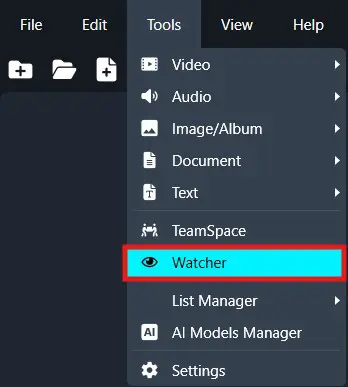
- The CaseGuard Watcher window will pop up.
- Add a Watcher Name.
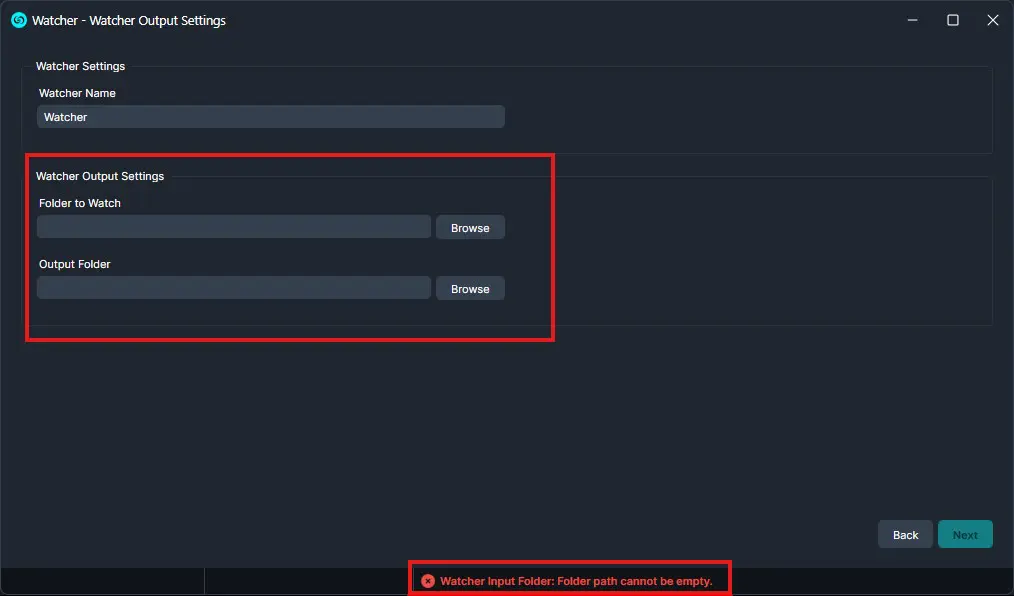
- Click “Browse” to add a folder to watch. This is the folder where all documents that need to be redacted will be input.
- Click “Browse” to add an Output folder. This folder will contain all exported files after the Watcher processes and redacts the documents from the Watch folder.
- Click “Next.“
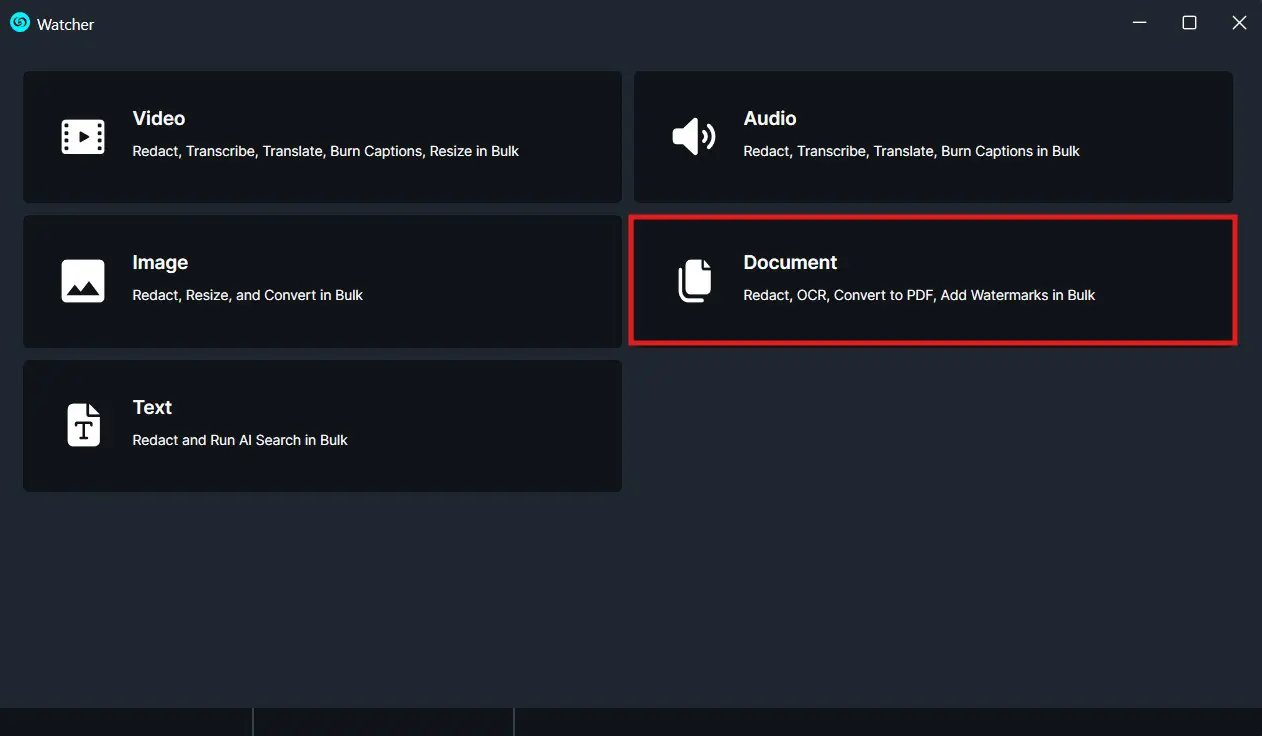
- A Watcher window will appear, select Documents for the operation you would like your Watcher to perform.
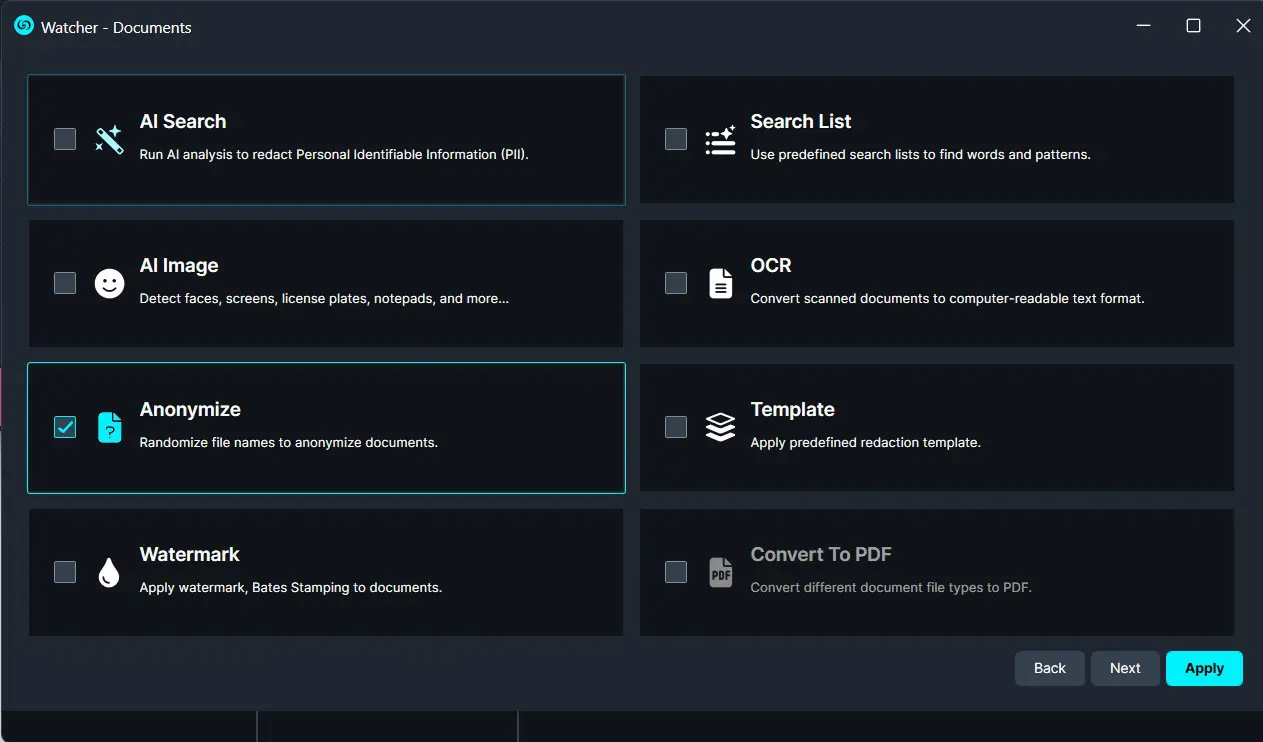
- Select “Anonymize Documents” to apply to your Watcher and click “Next.”
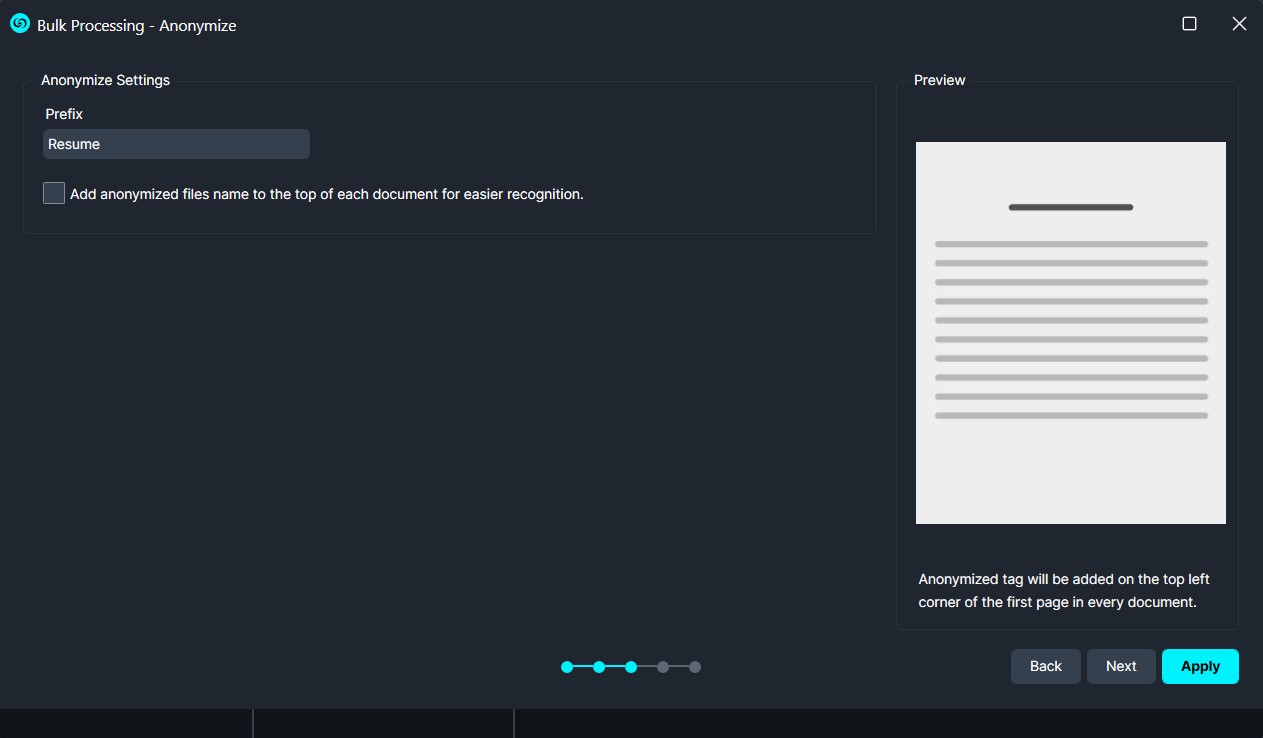
- The Anonymize Documents window will appear. You have the option in the “Prefix” text field to add a prefix to anonymized file names once processed.
- Checking the “Add anonymized files name…” checkbox will add the anonymized name at the top of the documents allowing the user to open each anonymized document and view the anonymized name at the top.
- Click “Next” and a Summary window will appear, here you can edit your selections.
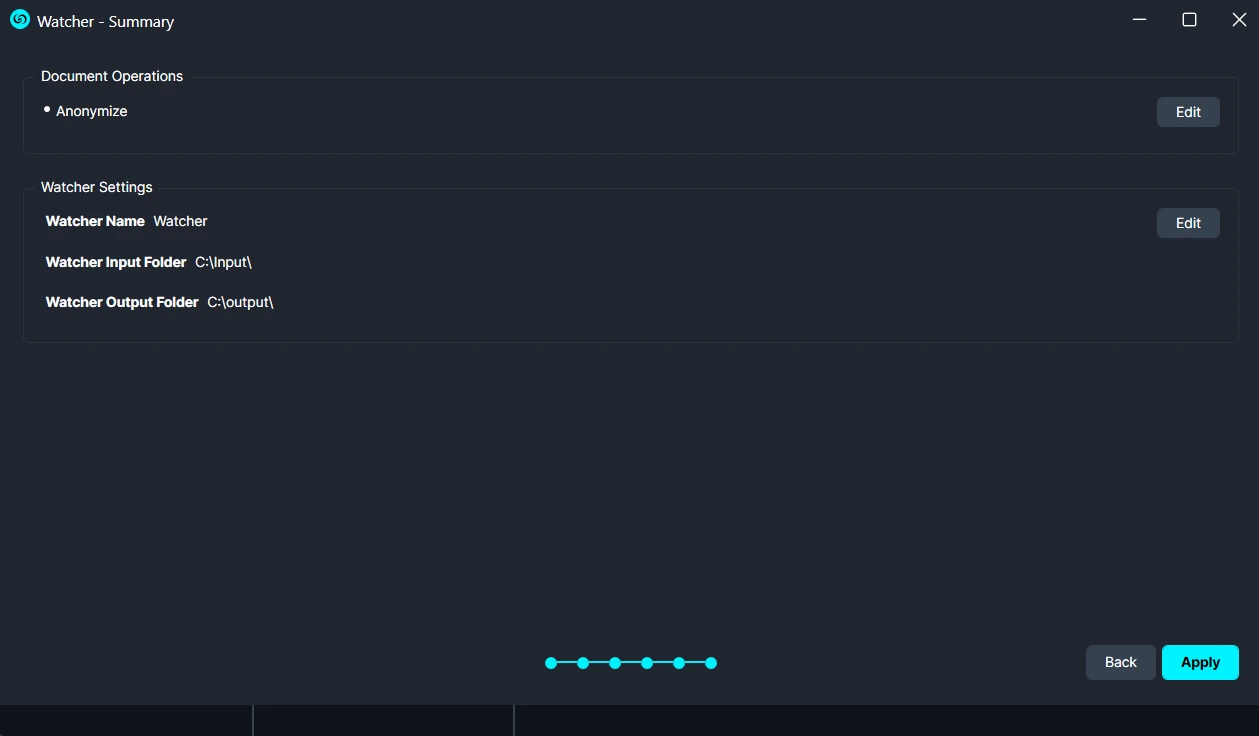
- Once satisfied with your Watcher click “Apply” and your Watcher will appear in the Watcher Panel.
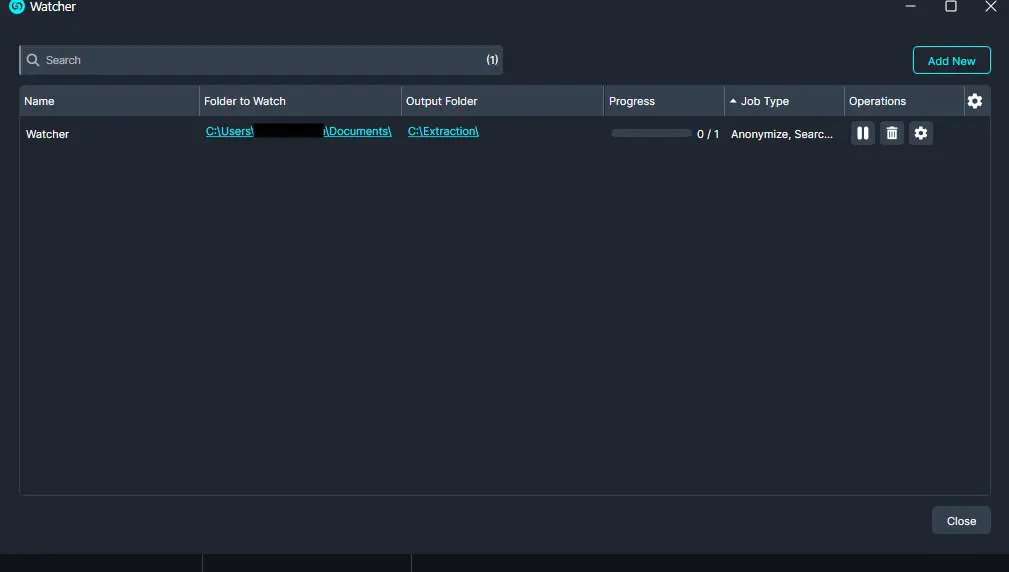
- Under the Watcher progress bar, you have the option to open the settings , delete
 , or pause
  the Watcher.
- The settings icon will open up the Watcher window.
- Delete will completely delete the selected Watcher.
- Pause will pause the Watcher operation.
- Once complete, your files will have randomized file names applied and will be exported to your desired output folder. You can access your output folder by clicking Open Output Folder in the Watcher or through your File Explorer.
Conclusion
The Watcher’s Anonymize Documents feature in CaseGuard Studio streamlines the process of removing personal information from large batches of files. By setting up a Watcher with the Anonymize operation and a file prefix, users can automatically process unlimited documents with minimal effort. This ensures consistent anonymization, reduces bias, and saves significant time, allowing teams to focus on reviewing content rather than manually managing sensitive data.
For assistance or questions, please contact CaseGuard Support at [email protected].
Was this article helpful to you?
No
Yes
2