Overview
Audio redactions applied from the Analytics panel may sometimes be too short and not fully cover the intended words. How can you extend these redactions to ensure complete coverage?
In this guide, we will walk you through how to adjust your audio redaction margins when redactions are applied from the analytics panel. With just a few simple adjustments, you can ensure that all your audio redactions fully cover the necessary content and optimize your workflow.
Follow these steps to adjust your analytics panel audio redaction margins!
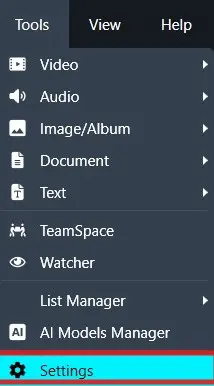
- Launch your CaseGuard application and locate the Tools option in the top menu bar. Click on it to reveal a drop-down menu with several configuration options.
- From the drop-down menu under Tools, click on Settings. This will open the Settings window, where you can access various customization options to make CaseGuard work more efficiently for your specific needs.
- Within the Settings window, navigate to the left-hand menu and select Transcription. This section contains all default settings related to transcription and analytics in CaseGuard.
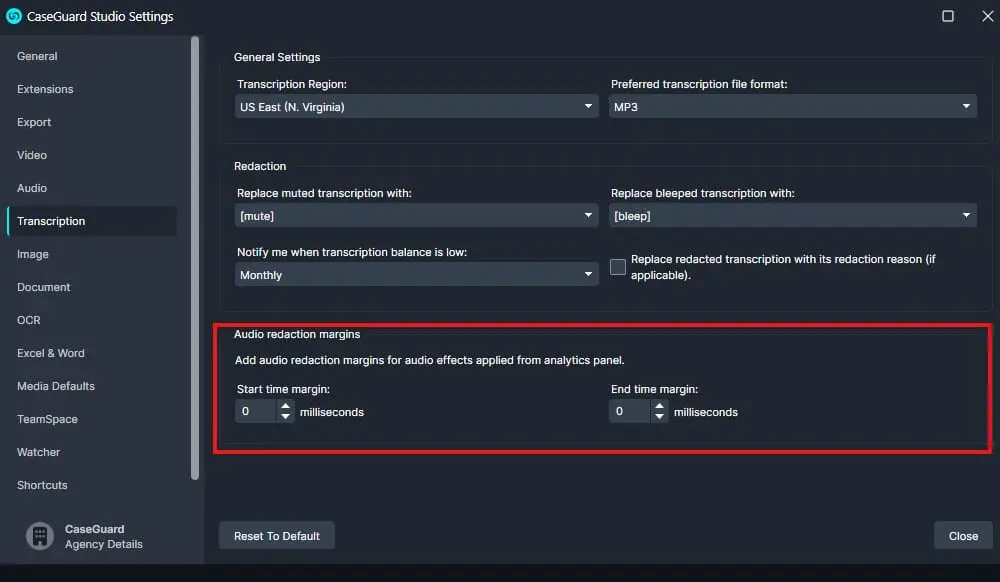
- After selecting Transcription, the settings panel will open, allowing you to view and customize audio redaction margins. We recommend adjusting the margins and testing them to ensure all content is fully redacted. You can return to this panel anytime to make further adjustments.
- Once you’ve configured your audio redaction margins, simply close the Settings window—your changes will be saved automatically. These settings will now apply whenever you perform audio redactions from the Analytics panel.
Conclusion
If you run into any issues or have questions about customizing your Audio Redaction Margins, our support team is here to help. Just email [email protected], and we’ll provide quick guidance to keep your workflow running smoothly.
Following these steps will save you time and streamline your redaction process, ensuring CaseGuard is fully optimized for your agency’s needs.
Was this article helpful to you?
No
Yes