Use Case
“When I open a project from an older version of CaseGuard Studio, the audio wave is not loading.” This is due to an issue with the files in the thumbnails folder.
Follow these steps to fix your audio wave!
- Open the project with the audio issue in CaseGuard Studio.
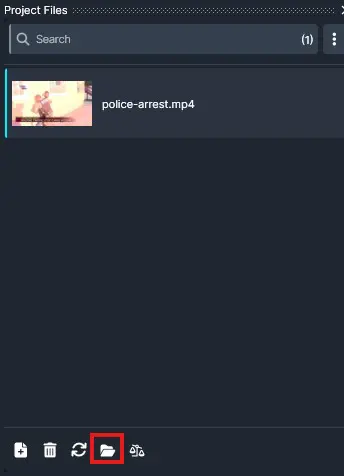
- Go to the project files panel and click on the folder icon to open the Project Folder
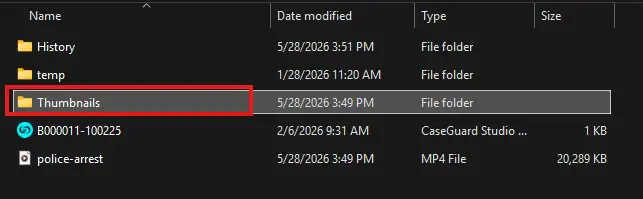
- Open the “Thumbnails” folder in the file explorer.
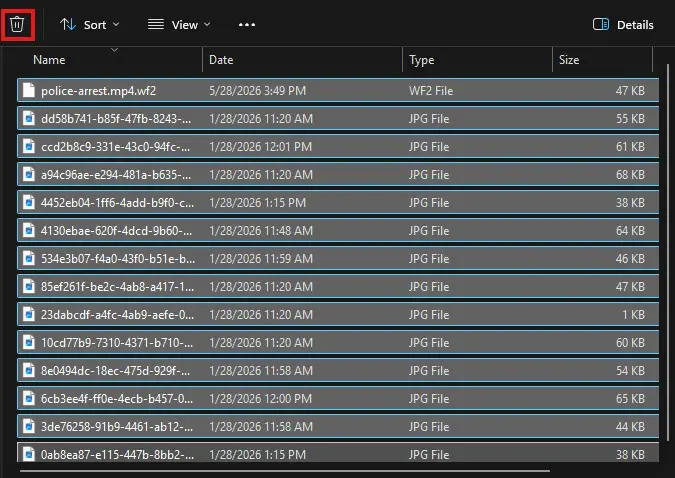
- Highlight and delete everything in this folder.
- Close the file explorer and open CaseGuard Studio, the audio wave should auto-generate.
- If it does not, close the project and reopen it again.
Conclusion
Deleting the contents in the thumbnails folder of a project can help restore the audio wave. If you need further assistance, feel free to contact the Support Team at 📧 [email protected].
Was this article helpful to you?
No
Yes
1