Overview
In CaseGuard (OCR) converts text within documents into a machine-readable format, allowing CaseGuard to accurately detect and process content. This capability is essential for features like Find & Redact and AI Text Analysis, which rely on readable text to function effectively.
Using OCR with the Watcher enables you to process multiple files automatically outside of CaseGuard in a single operation. This eliminates the need to manually OCR each document, saving time and streamlining your workflow.
A common use case is working with scanned documents, such as books or records. Without OCR, the text in these files cannot be recognized, making AI-driven redactions impossible. By leveraging the Watcher’s OCR functionality, you can batch-process these documents and prepare them for seamless redaction within CaseGuard.
Follow the steps to use OCR on your Documents in Watcher!
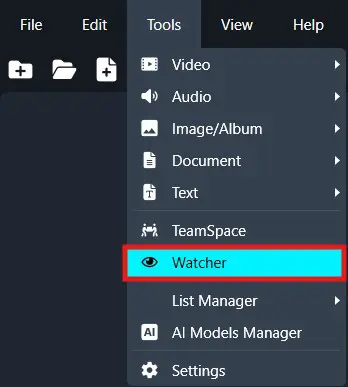
On the left-side menu, click the Tools tab. Then, open the drop-down menu and select Watcher. Once the watcher pops up, click the Add Watcher icon.
When the CaseGuard Watcher window appears, enter a Watcher name, then click “Browse” to select both a Watch folder and an Output folder. The Watch folder will contain the files to be redacted, while the Output folder will store all processed and exported files after the Watcher completes the redaction.
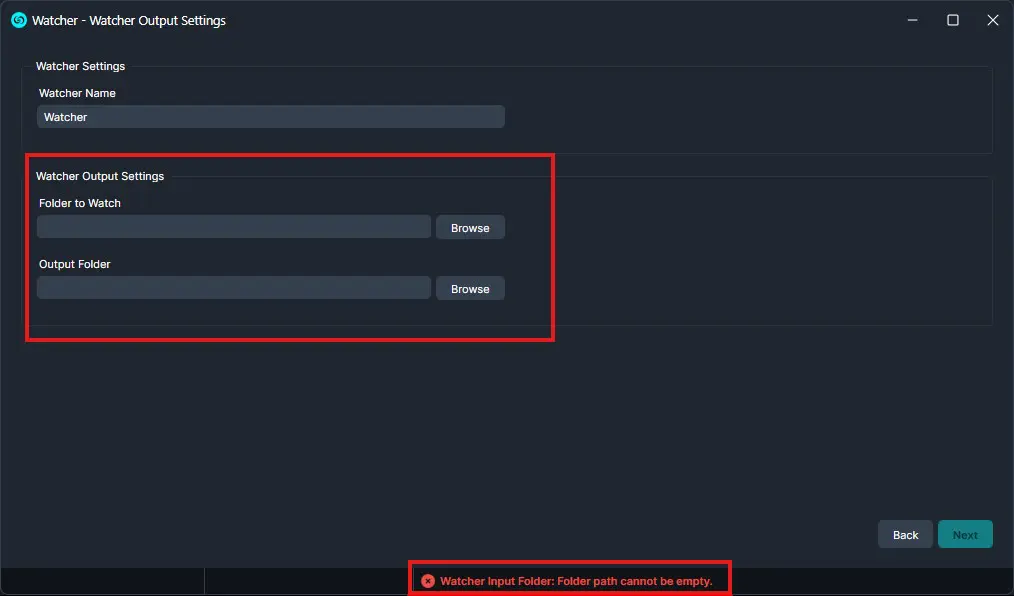
Click “Next.“
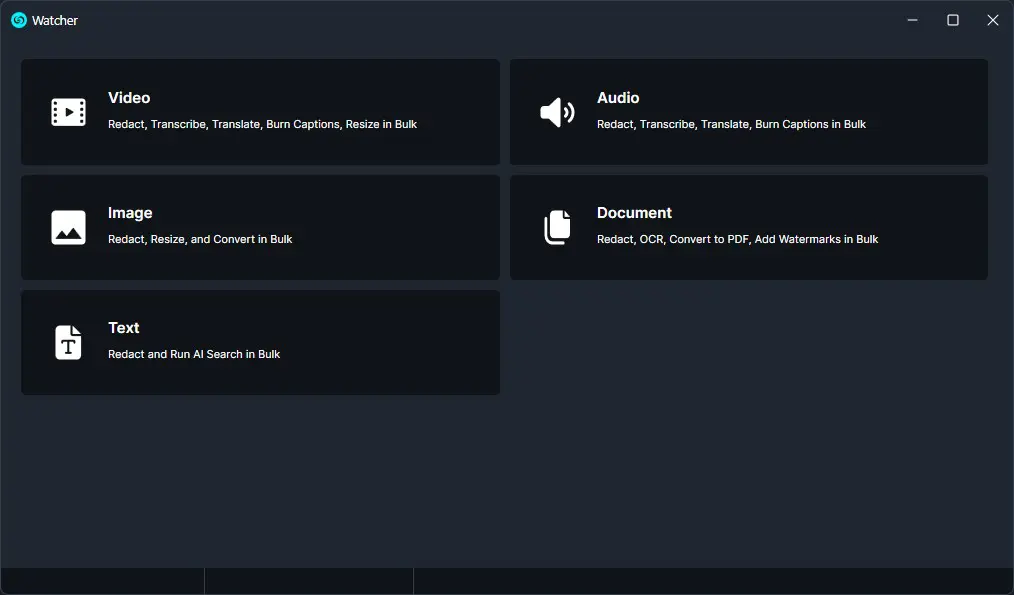
A Watcher window will appear, select Document for the operation you would like your Watcher to perform.
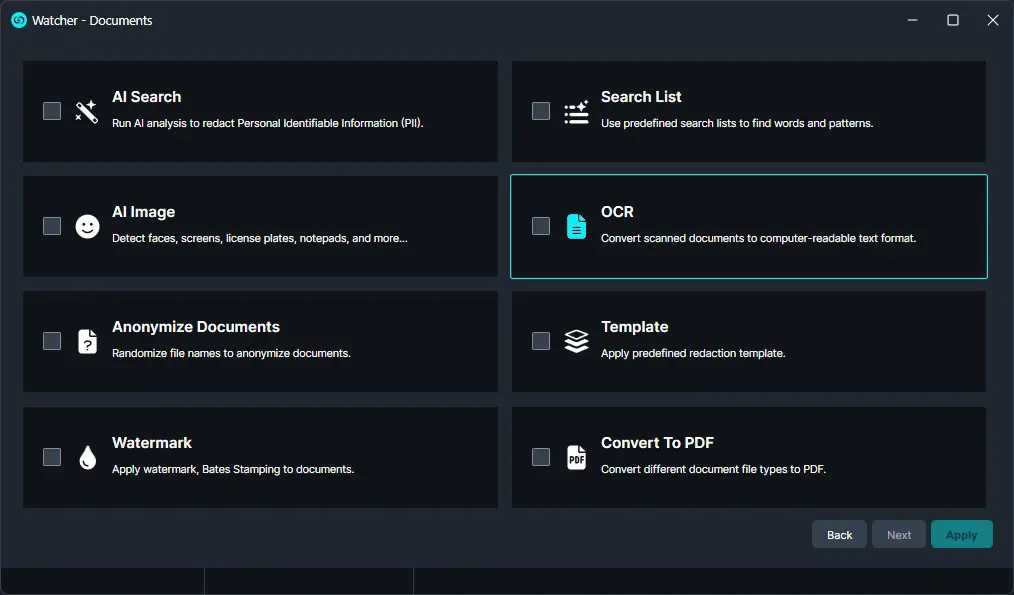
Select “OCR” to apply to your Watcher and click “Next.”
The OCR window will appear. You have the option to have the OCR run on all pages or a page range. Select your OCR settings then click “Next.”
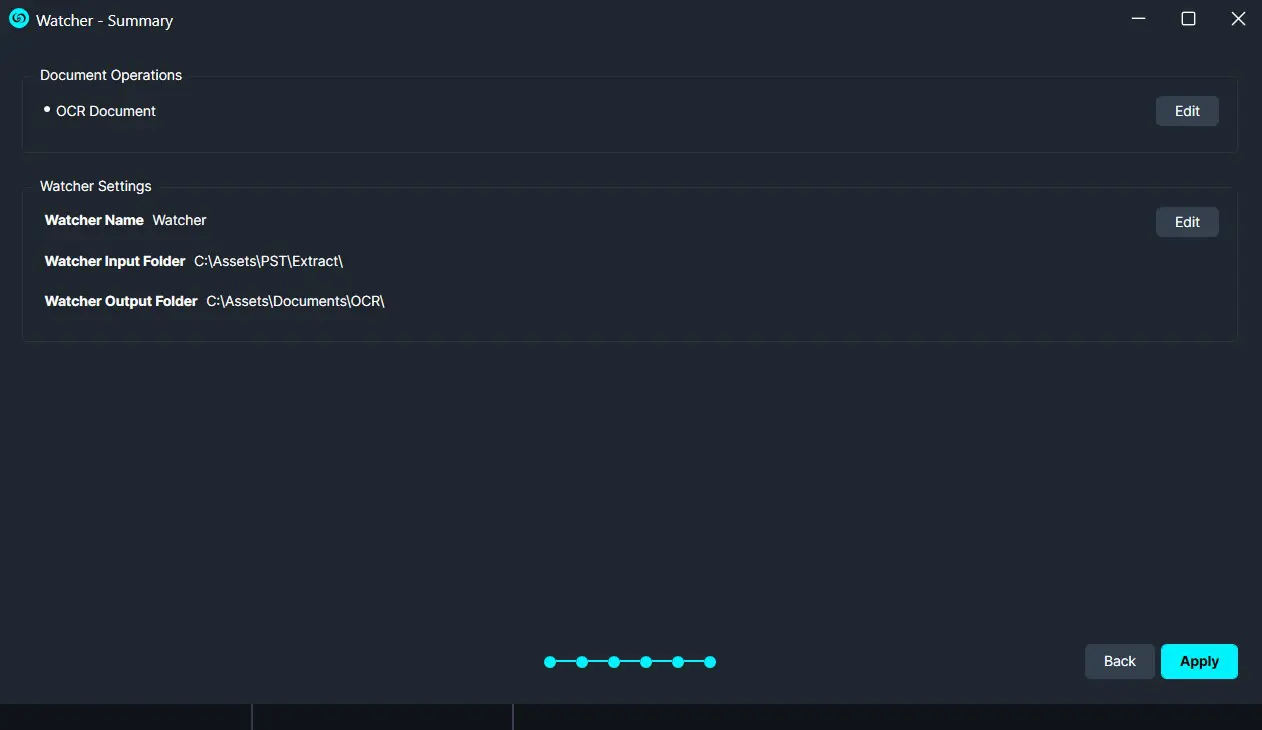
Click “Next” and a Summary window will appear, here you can edit your selections.
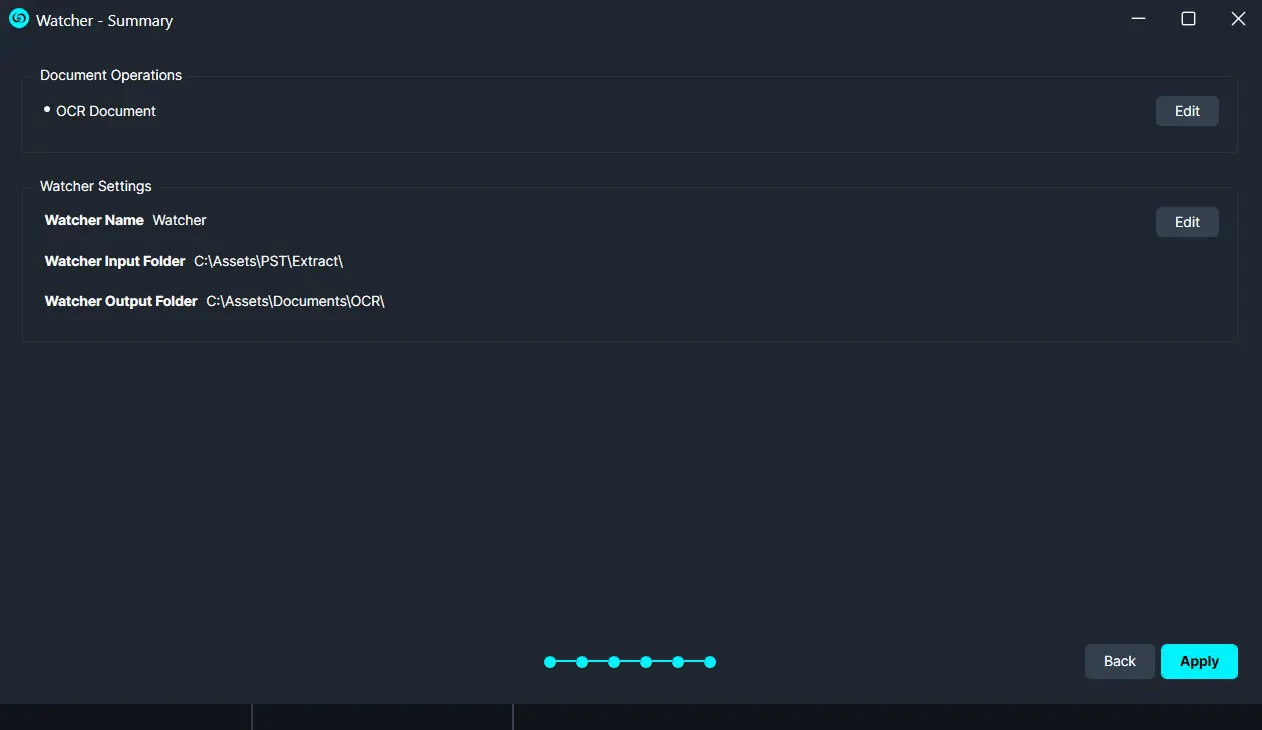
Once satisfied with your Watcher click “Apply” and your Watcher will appear in the Watcher Panel.
In the above window, you have the option to open the settings, delete  , or pause
  the Watcher.
-
- The settings icon will open up the Watcher window.
- Delete will completely delete the selected Watcher.
- Pause will pause the Watcher operation.
Once complete, your OCR-processed files will be exported to your output folder.
Once configured, the Watcher continuously monitors your selected Watch folder, processes documents according to your OCR settings, and outputs the results to the designated Output folder. This ensures that all files are prepared for seamless redaction, making large-scale document processing simple and effective.
For any questions or assistance, contact CaseGuard Support at [email protected].