Overview
The Watcher’s Convert Files operation automatically converts any file into PDF automatically. Once the Watcher’s operation is set up to “Convert Files to PDF,” there is no limit to the number of documents that can be added within the Watcher to be converted. Everything happens automatically, without any manual work.
How does it work? The Watcher is made to “watch” a specific folder or directory within your machine. Setting a folder as the folder to be watched, you can continue to add your files into the folder and CaseGuard will convert them and export them into a new folder when it is ready!
Within CaseGuard, it is possible to convert hundreds of documents, and redact PII, and images from all your documents in one Watcher Operation! For example, you can set one Watcher to Redact Documents and Convert Files to PDF. When you add files such as resumes or medical forms into the Watch folder that contain PII such as Names, Emails, Phone Numbers, and identifying images, the system will convert each file into a PDF and redact all the set criteria.
Follow the steps to Convert Files to PDF in Watcher!
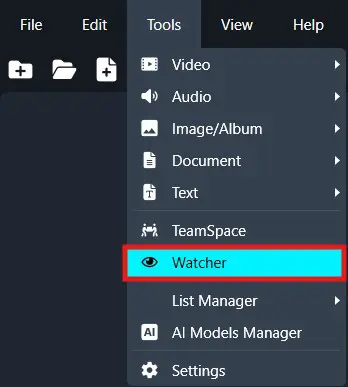
On the left-side menu, click the Tools tab. Then, open the drop-down menu and select Watcher.
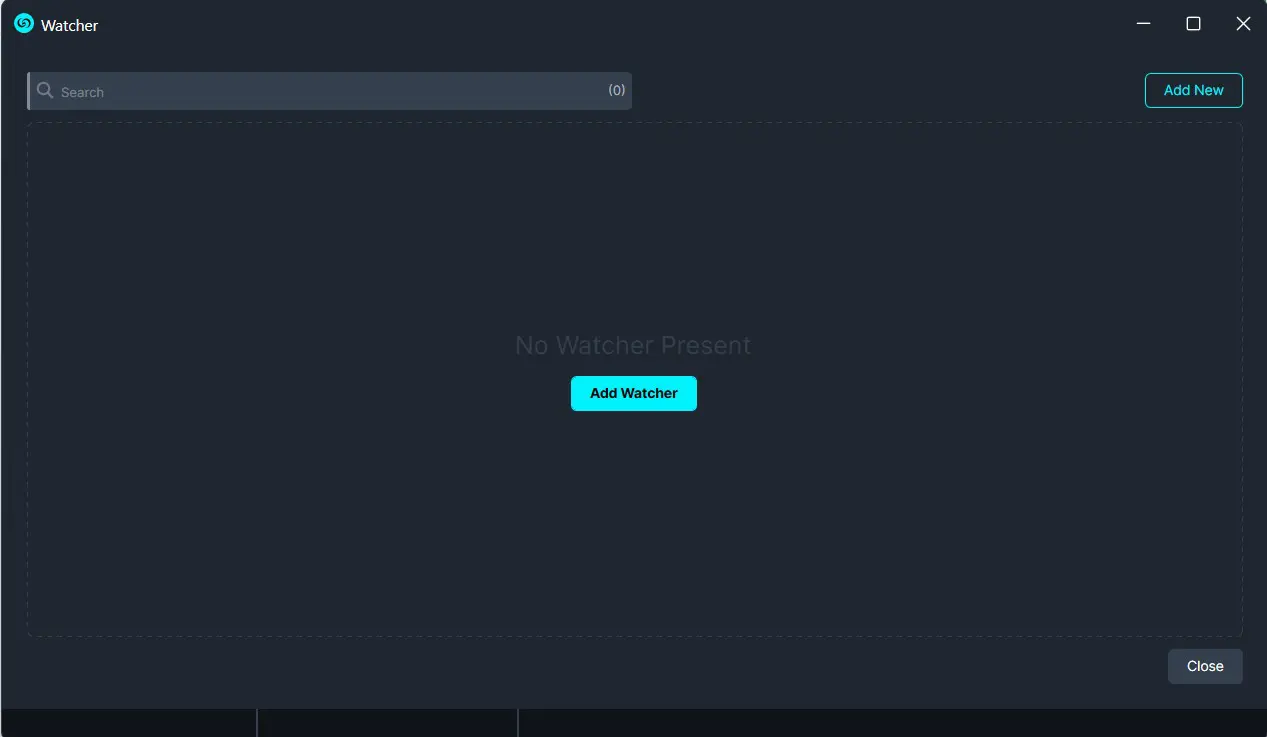
Click the Add Watcher icon to set up the Watcher.
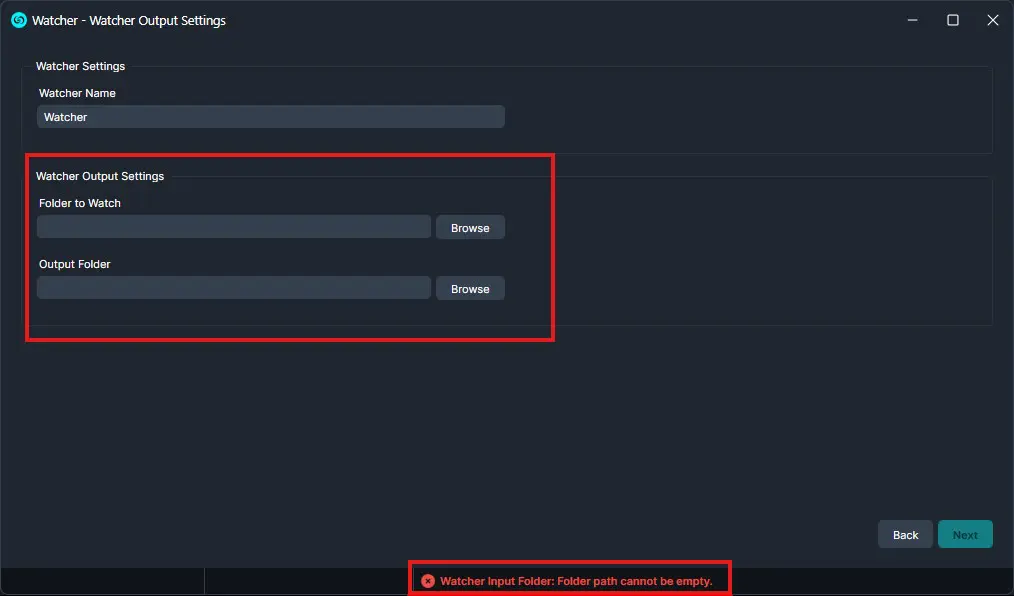
When the CaseGuard Watcher window appears, enter a Watcher name.
Click “Browse” to add a folder to watch. This is the folder where all documents that need to be redacted will be input.
Click “Browse” to add an Output folder. This folder will contain all exported files after the Watcher processes and redacts the documents from the Watch folder.
Click “Next.“
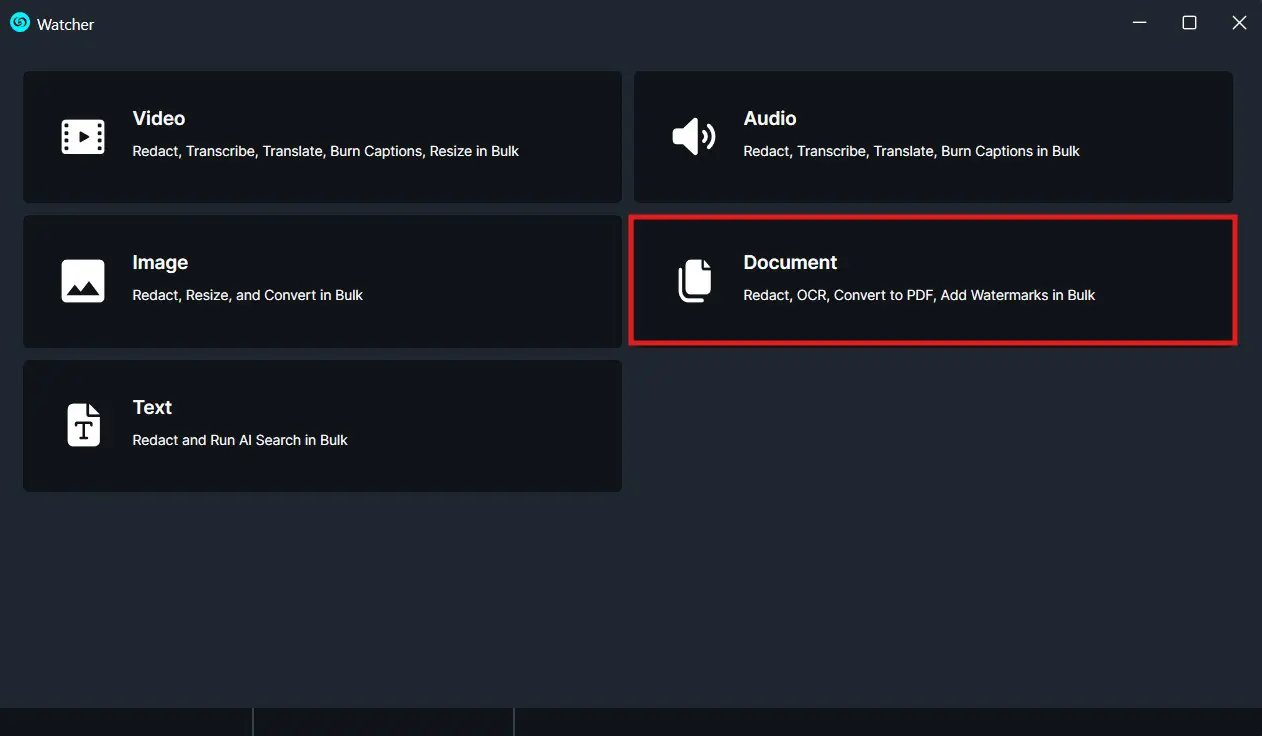
A Watcher window will appear, select Documents for the operation you would like your Watcher to perform.
Select “Convert to PDF” to apply to your Watcher and click “Next.”
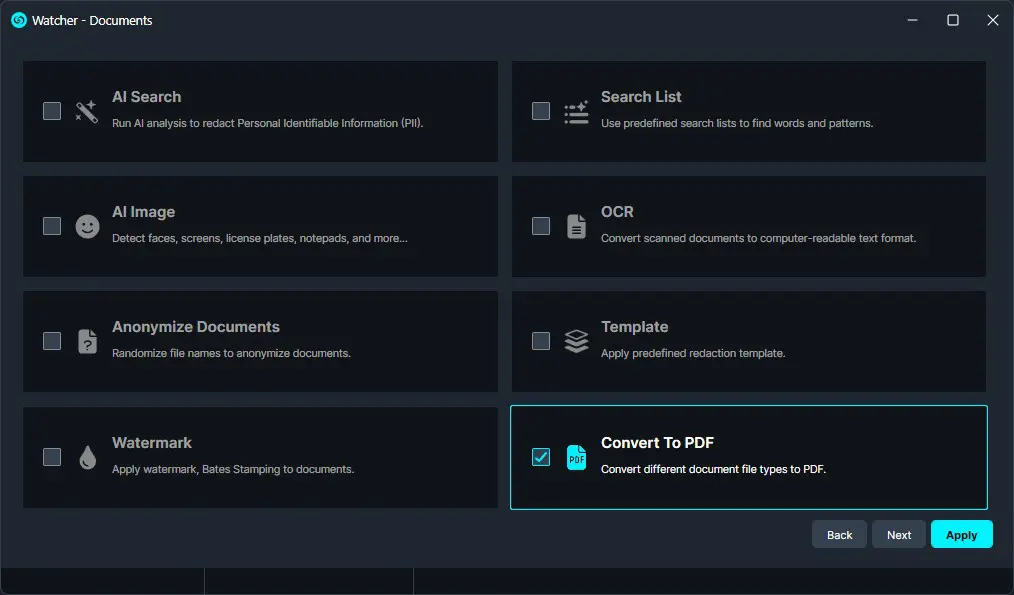
Click “Next” and a Summary window will appear, here you can edit your selection and decide if you would like to keep history files for manual review.
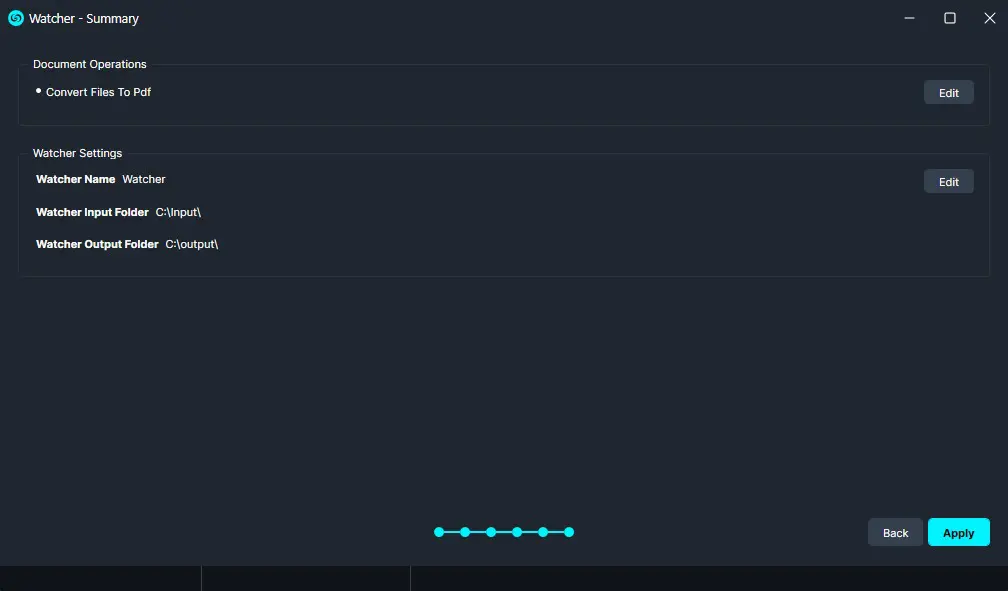
Once satisfied with your Watcher click “Apply” and your Watcher will appear in the Watcher Panel.
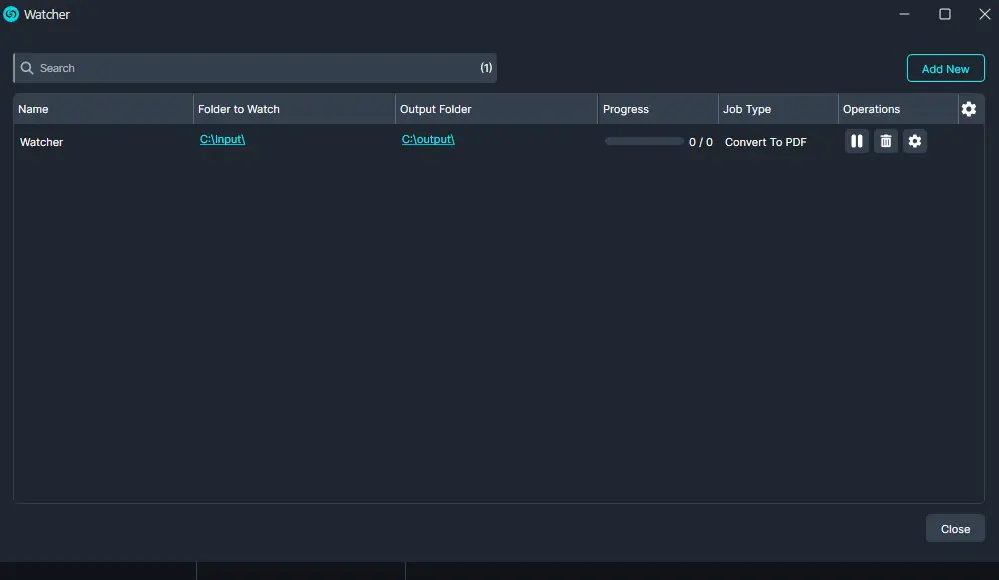
Under the Watcher progress bar, you have the option to open the settings  , delete
  , or pause
  the Watcher.
- The settings icon will open up the Watcher window.
- Delete will completely delete the selected Watcher.
- Pause will pause the Watcher operation.
Once complete, your files should be converted to PDF and exported to your output folder.
Conclusion
The Watcher’s Convert Files operation allows you to automatically convert any number of documents to PDF while saving time and minimizing manual work. Combined with other Watcher operations, such as redactions, it enables efficient, large-scale document processing with accuracy and consistency. For questions or additional assistance, contact CaseGuard Support at [email protected].
Was this article helpful to you?
No
Yes
1