The Search List feature in CaseGuard Studio makes it easy to quickly identify and remove Personal Identifiable Information (PII) from documents. Using the Watcher, you can automate the detection and redaction of sensitive data, such as names, emails, and phone numbers, across multiple files without manual effort.
Once the Watcher is configured with your desired Search List, it can process all relevant documents automatically, saving time and ensuring that confidential information is securely redacted and exported to a designated Output folder.
Follow the steps to Redact Documents using Find & Redact in Watcher!
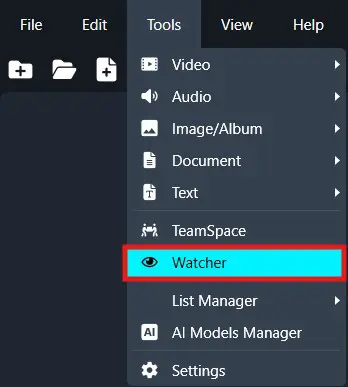
On the left-side menu, click the Tools tab. Then, open the drop-down menu and select Watcher. Once the Watcher window opens, click Add Watcher icon to set up the Watcher.
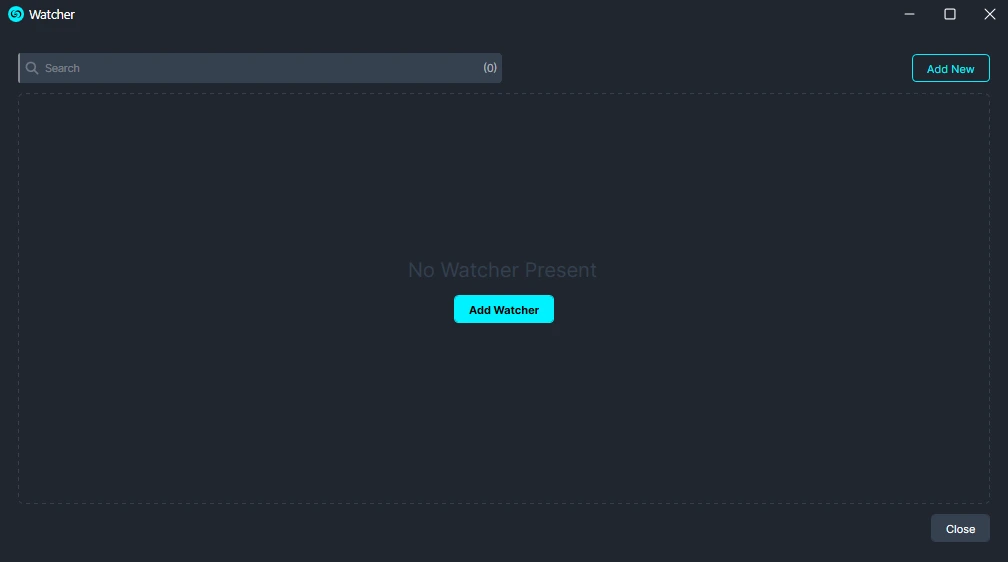
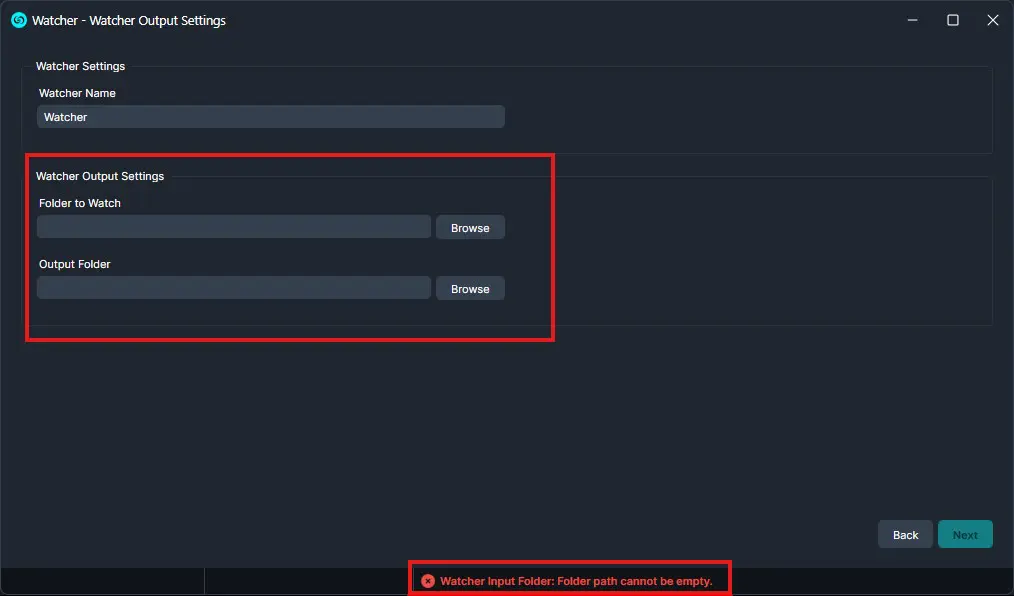
When the CaseGuard Watcher window appears, enter a Watcher Name.
Click “Browse” to add a folder to watch. This is the folder where all documents that need to be redacted will be input.
Click “Browse” to add an Output folder. This folder will contain all exported files after the Watcher processes and redacts the documents from the Watch folder.
Click “Next.“
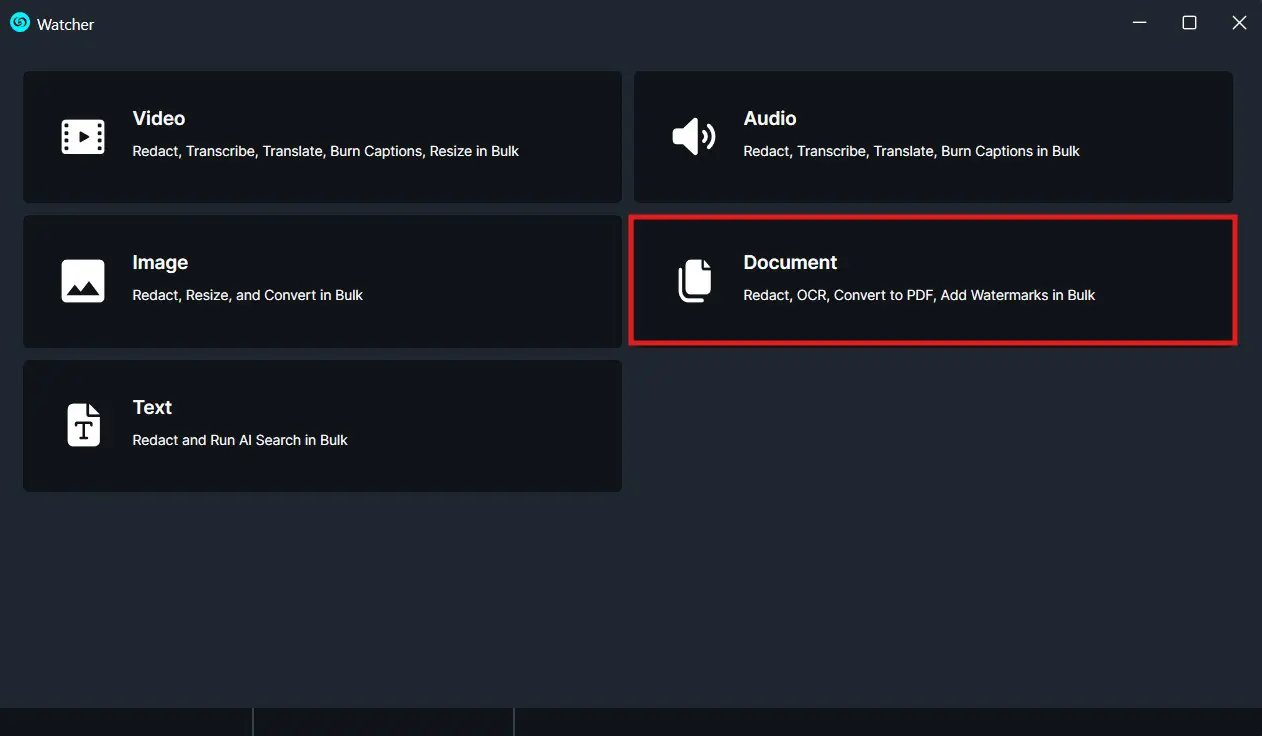
A Watcher window will appear, select Document for the operation you would like your Watcher to perform.
Select “ Search List “ to apply to your Watcher and click “Next.”

The “Search” window will appear. Select a previously made Search List from the dropdown. Additionally, you can create a new one by clicking the “Plus Icon.“

Click “Next” and a Summary window will appear, here you can edit your selection.

Once satisfied with your Watcher click “Apply” and your Watcher will appear in the Watcher Panel.

Under the Watcher progress bar, you have the option to open the settings , delete  , or pause
  the Watcher.
-
- The settings icon will open up the Watcher window.
- Delete will completely delete the selected Watcher.
- Pause will pause the Watcher operation.
Once complete, your files will have the desired text redacted and they will be exported to your output folder.
Conclusion
Using Search list with the CaseGuard Watcher allows you to efficiently and securely remove Personal Identifiable Information (PII) from large batches of documents with minimal manual effort. Once configured, the Watcher automatically processes your files, applies the selected Search List, and exports the redacted documents to your designated Output folder.
This functionality streamlines workflows, saves time, and ensures sensitive information is handled accurately across multiple files. For any questions or assistance, contact CaseGuard Support at [email protected].
Was this article helpful to you?
No
Yes
1