Redacting financial statements can feel like an overwhelming task. Thousands of pages may contain sensitive financial information, and each document must be reviewed carefully to ensure confidential data is properly protected.
The challenge becomes even greater when only specific account statements or account numbers need to be redacted. While AI Detection can help identify sensitive information, it may also result in over-redaction by flagging data that should remain visible.
CaseGuard Studio provides tools that allow you to create a more precise redaction workflow. By combining Block Lists and Regular Expressions, you can efficiently identify and redact the information that requires protection while leaving approved data untouched.
Setting up our redaction
To start redacting bank statements, we can start by creating a Block List. This will be a list of values that CaseGuard Studio can identify in all future files and make sure they are never flagged for redaction. In our case, we have many bank account numbers that need their information to stay unredacted in these files.
To create a block list, navigate to Tools>List Manager>Common Blocked Analytics.
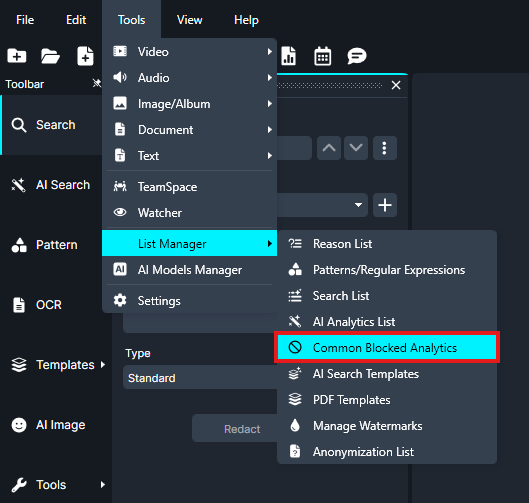
From here, we can click Import Entries, where we’ll be prompted to select the file that contains our list of numbers. I’ll select mine and they’ll now appear in the Edit Common Blocked Analytics window.

- Tip: Click the Unblock in All Future Files Icon to remove an item from the block list.

Now that we have our list of items not to redact, we need to tell CaseGuard Studio what to identify for redaction. To do this, we can use a Regular Expression, or RegEx for short. Regular Expressions are sequences of characters that form search patterns, allowing us to find specific phrases or characters in a set of data.
CaseGuard Studio has a large amount of RegEx patterns available to use in the software already, but it also allows for the utilization of custom RegEx patterns. Since I need specific sets of numbers to be found for redaction, I have created a custom RegEx to recognize them for me.
- Tip: Creating a custom RegEx is easy. To learn how, find a website that teaches you or even one that creates the custom RegEx for you!
To add my custom RegEx, I’ll click the Pattern  Icon, and then, in the Regular Expression Panel, I’ll click the Add/Edit Patterns
  icon.
icon.
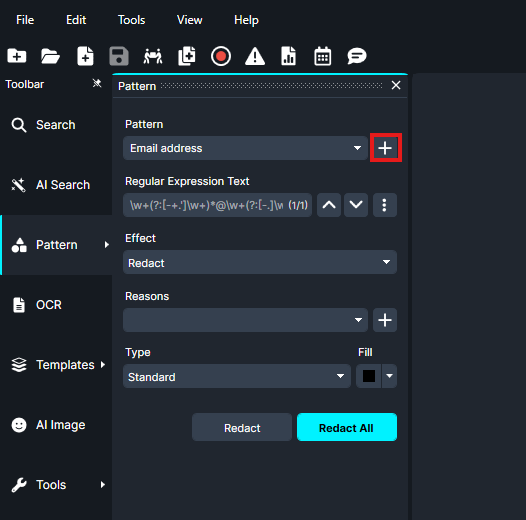
This opens the Patterns/Regular Expressions Panel. From here, I’ll click Add New which will bring me to the Add/Edit Patterns window.
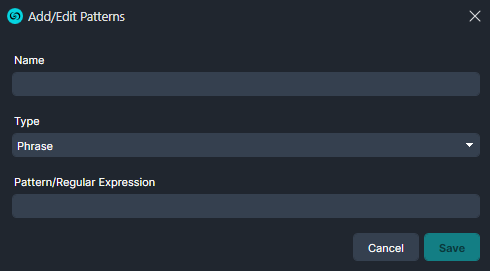
In this window, I’ll name my pattern “Account Numbers” and I’ll select Bank Account Number as the Type. Next, I’ll paste my RegEx into the appropriate field and click Save.
We now have everything we need for our custom redaction.
Redacting Financial Statements
I’ll click the Detection button in the lefthand toolbar.
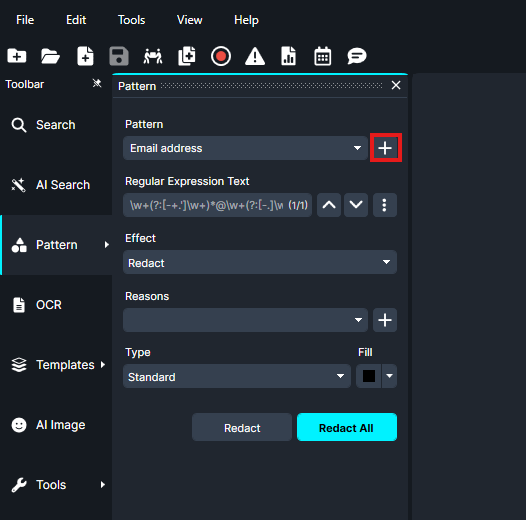
Now, the Pattern/Regular Expressions Redaction panel should appear at the bottom of the screen. From here, we can select our custom RegEx code from the Pattern dropdown.
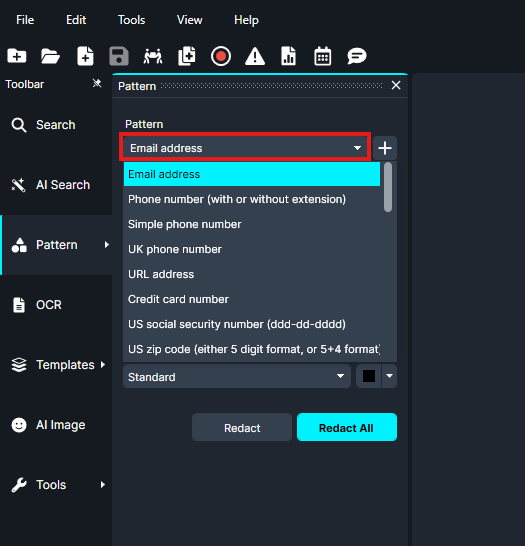
Once CaseGuard Studio finishes processing, we can use the Arrow Keys in the Pattern/Regular Expressions Redaction panel to view every instance of the account numbers we need to redact. This allows for easy redaction while skipping over each account that we need to keep unredacted.
Conclusion
Redacting financial statements does not have to be a time-consuming process. By combining Block Lists with custom Regular Expressions in CaseGuard Studio, you can create a more precise workflow that identifies sensitive information while protecting data that should remain visible.
Using these tools together helps reduce unnecessary redactions, improves accuracy, and allows you to efficiently process large volumes of financial documents with confidence.
Was this article helpful to you?
No
Yes